
Set up Cart form
Collect extra information from customers, like a PO number, before they check out from the Wholesale cart.
The Wholesale cart can show a custom form so you can collect additional information from customers before they check out.
Steps to manage
Section titled “Steps to manage”-
Turn on the Wholesale cart
Section titled “Turn on the Wholesale cart”Open the app, click Add-on Features, turn on the Wholesale cart toggle, then click Customize to open its editor.
-
Enable the cart form
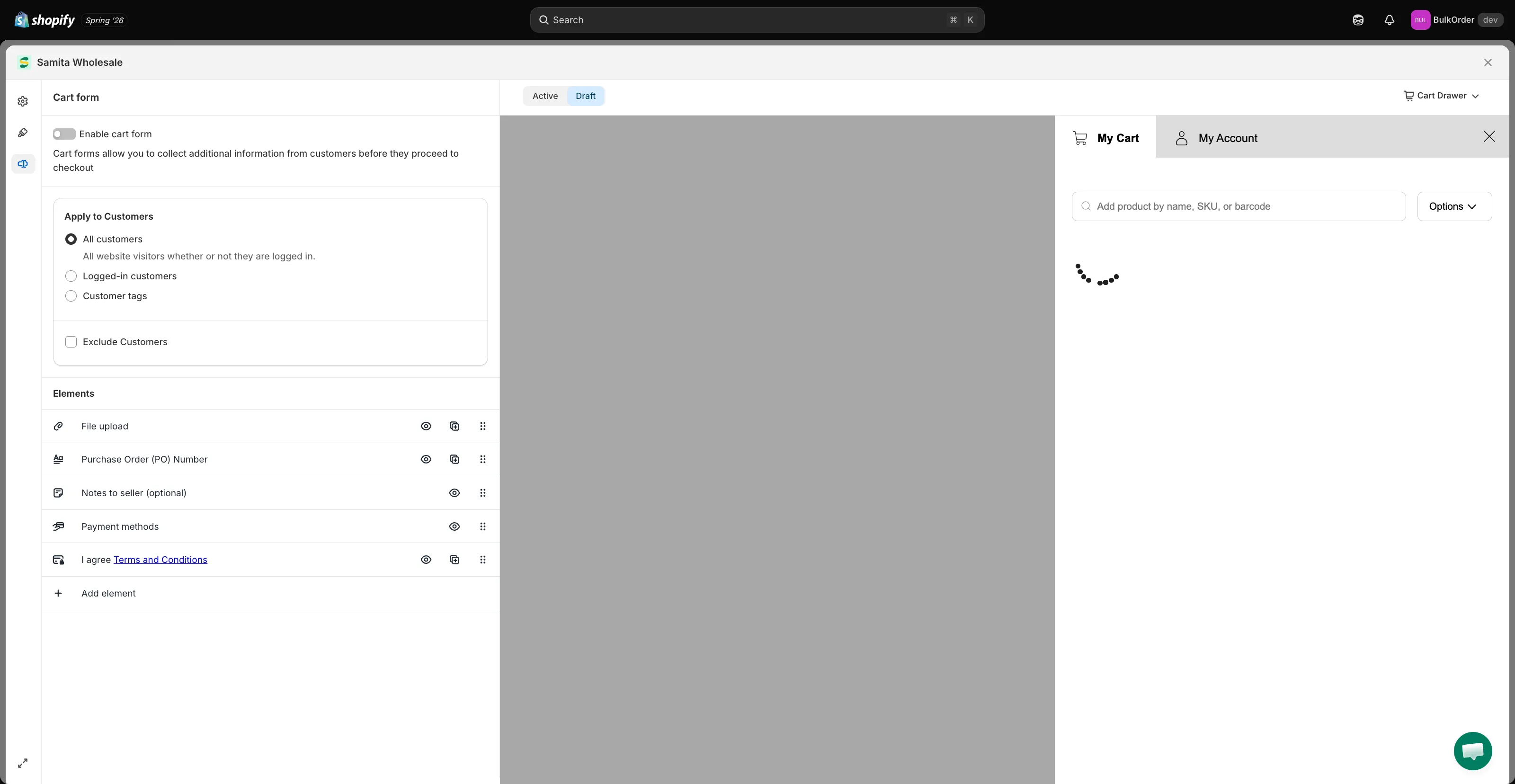
Section titled “Enable the cart form”Click the Cart form tab, then enable Enable cart form.
-
Choose who sees the form
Section titled “Choose who sees the form”Set Apply to Customers to control who sees the form:
- All customers — everyone sees it.
- Logged-in customers — only customers logged in to your store see it.
- Customer tags — only logged-in customers with the tag you specify see it.
If you choose All customers but want to hide the form from certain tagged customers, tick Exclude Customers.
-
Add the fields you want
Section titled “Add the fields you want”In the Elements section, add or remove fields to collect exactly the information you need — for example File upload, Purchase Order (PO) Number, Notes to seller, or Payment methods.
-
Click Save in the bar that appears at the top of the page, then check the result on your storefront.