
Style the Pricing with Tax display
Choose whether to show one price or both, and style the tax-inclusive and tax-exclusive prices to match your theme.
Steps to manage
Section titled “Steps to manage”-
Open your Tax display setting
Section titled “Open your Tax display setting”Go to the Tax display page and click the tax display setting you’ve created.
-
Adjust the Display settings
Section titled “Adjust the Display settings”Scroll down to the Display section.
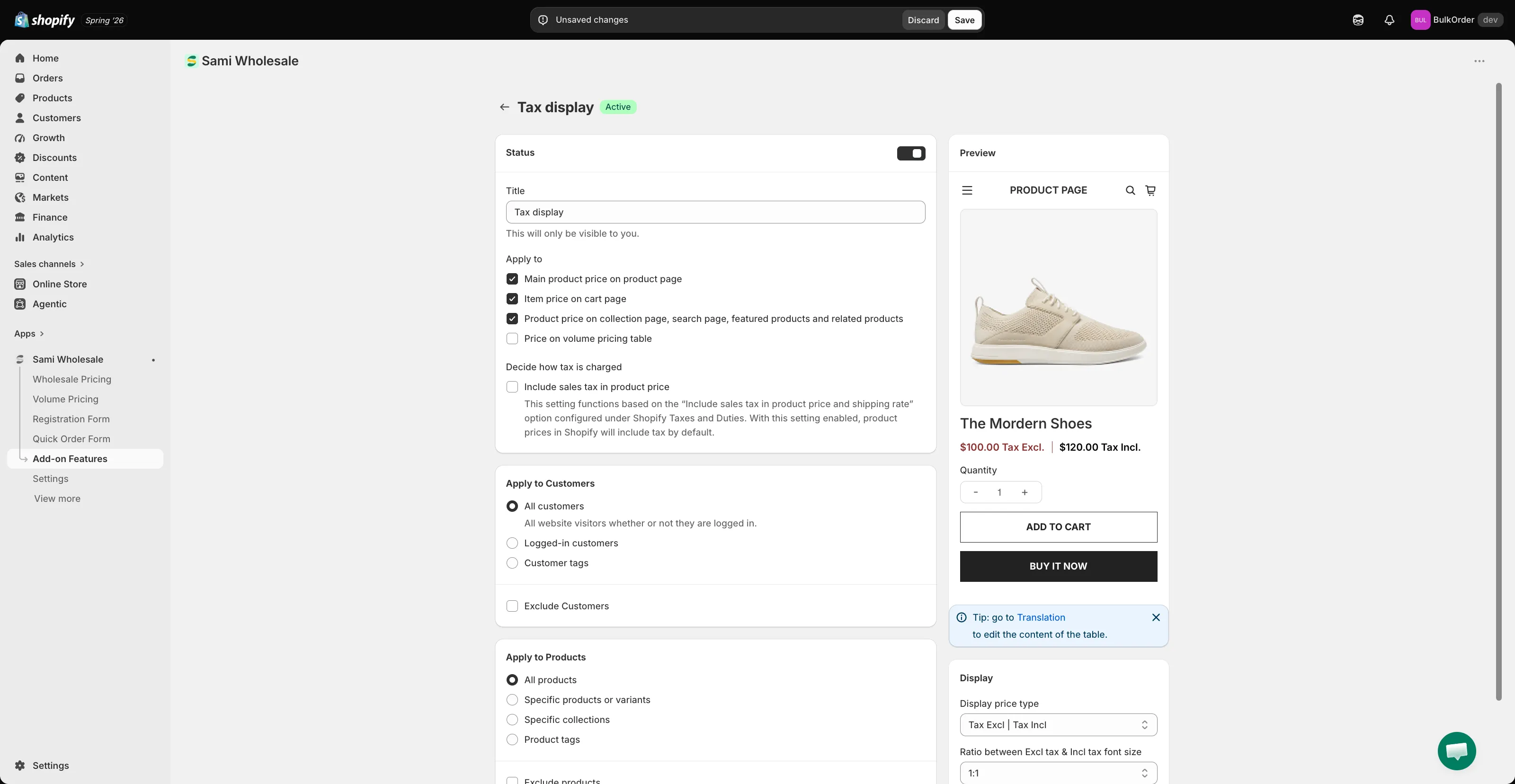
- Display price type — choose Tax Excl | Tax Incl, Tax Incl | Tax Excl, Only Tax Incl, or Only Tax Excl.
- Ratio between Excl tax & Incl tax font size — only meaningful when showing both prices. The default is a 1:1 ratio (same size for both); choose another ratio (2:1 through 4:1, or 1:2 through 1:4) if you want one price to stand out more.
- Under Color, set the Excl tax text color and Inc tax text color.
Check the Preview panel on the right to see your changes live.
-
Click Save.