
Send emails and attach PDF file to Invoice Payment notifications
Configure the email and PDF invoice customers receive after choosing to pay later with Invoice Payment.
This works much like Payment Term notifications, with one difference: Net Terms configuration isn’t supported for Invoice Payment.
The app emails a notification, with a PDF attached, once a customer chooses Pay Later. Customers can then complete payment any time after receiving it.
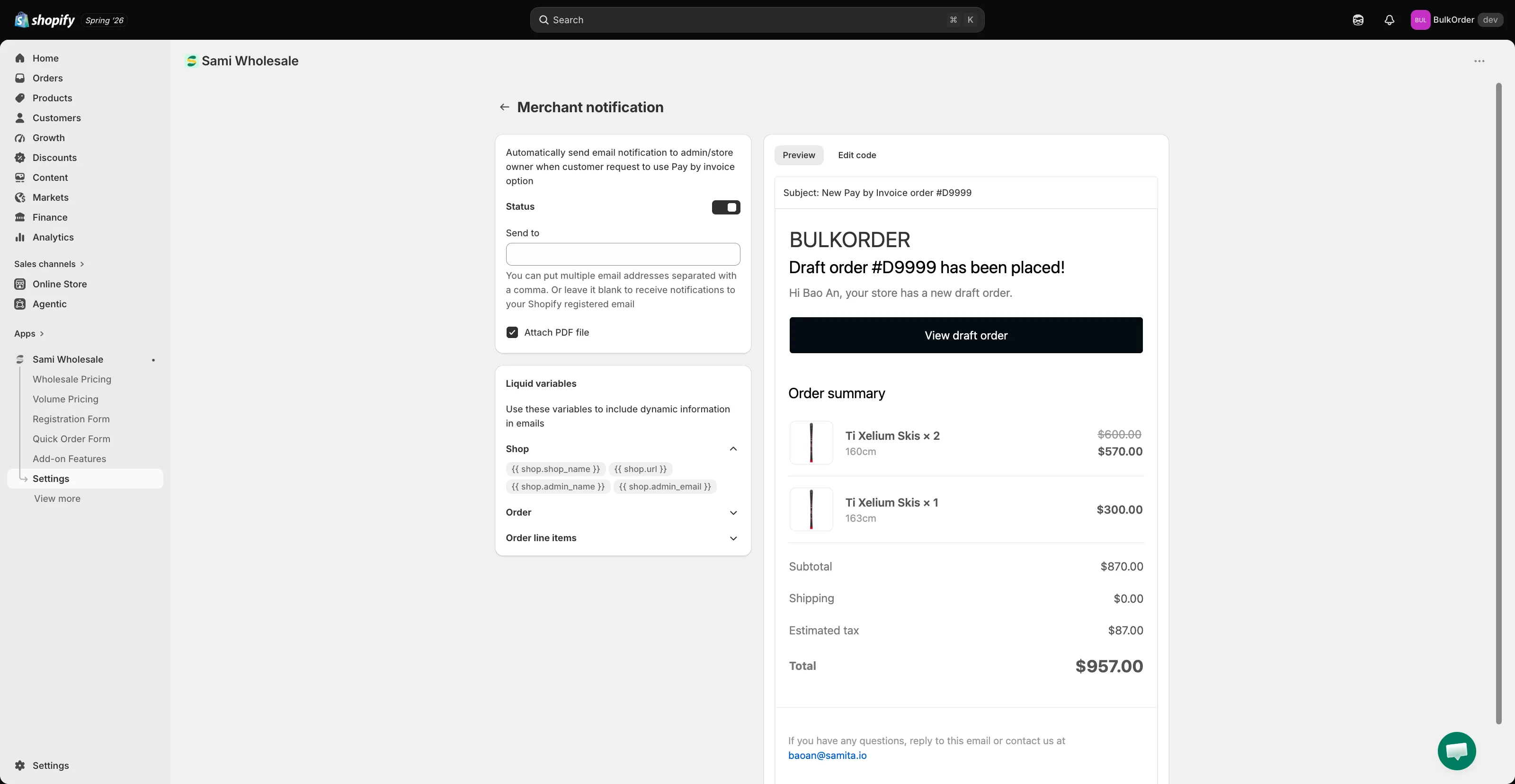
- To edit the email template, go to Settings > Notifications. Under Invoice payments, click Merchant notification (the email you receive) or Customer notification (the email your customer receives).
- To attach a PDF to the email, turn on Status, then tick Attach PDF file.
- To customize the PDF itself, go to Settings > PDF templates, then under Invoice payments click Draft order invoice. Choose which details show in Appearance, and check the Preview panel to see your changes live.