
Set up SMTP
Send the app's email notifications from your own Gmail (or other provider) address instead of our default mail server.
Here’s how to set up SMTP using a Google account.
Steps to manage
Section titled “Steps to manage”-
Log in to your Google account
Section titled “Log in to your Google account” -
Generate an app password
Section titled “Generate an app password”- Make sure 2-Step Verification is enabled on your Google account. Learn more.
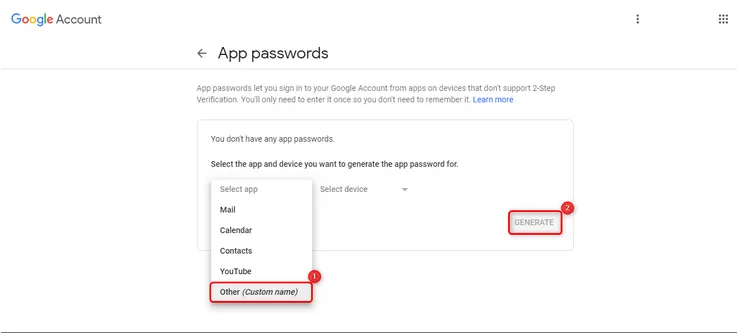
- Go to Google App passwords to generate one.
- Select Other/Custom name under Select App, give it a name (e.g. “DO – Production Server”), then click Generate.
- Note down the generated password — you’ll need it in the next step.
-
Configure SMTP in the app
Section titled “Configure SMTP in the app”- From the app, click Settings > Notifications > Mail SMTP & API.
- Toggle on Mail SMTP & API.
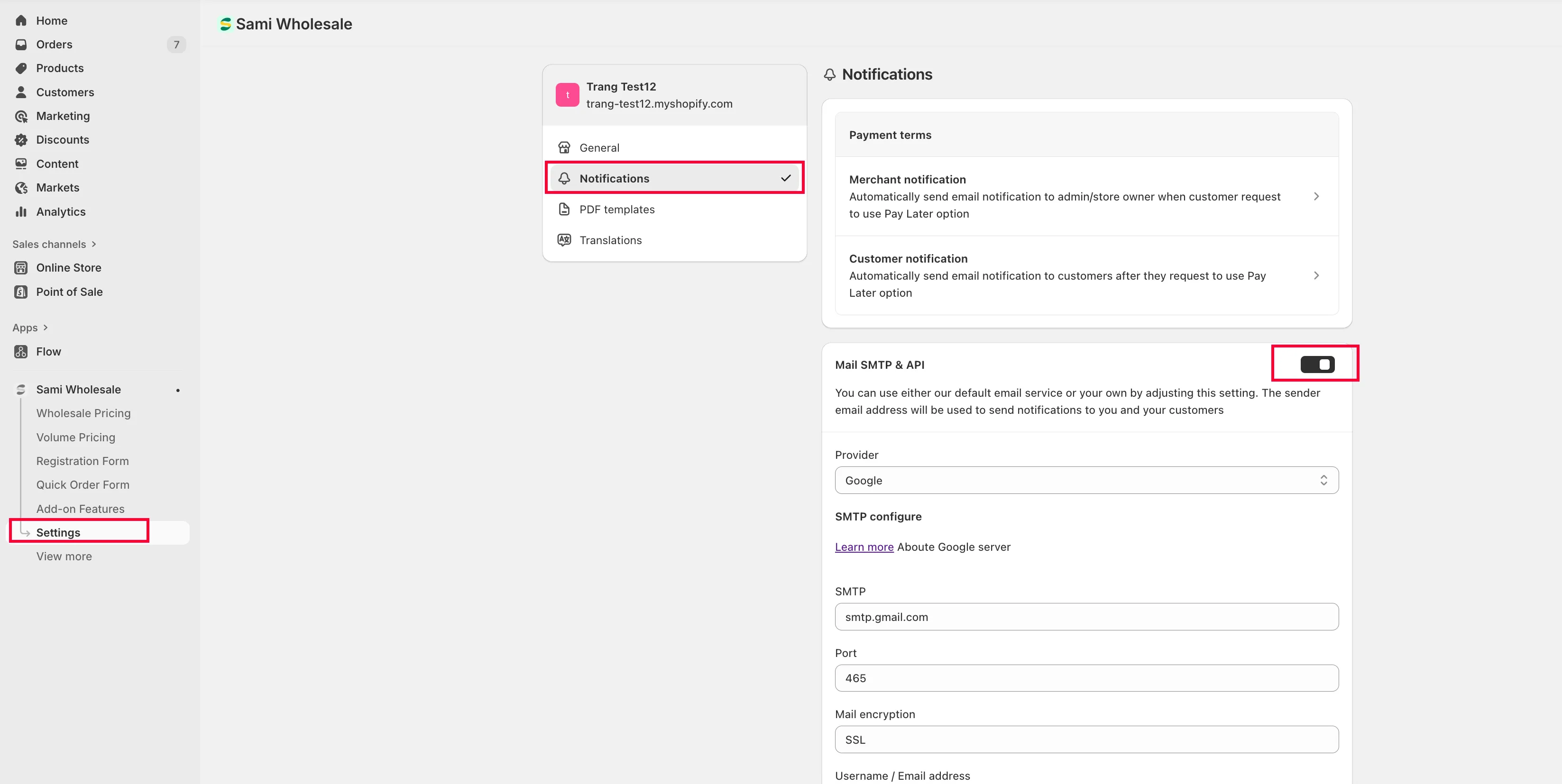
- Enter your SMTP details:
- SMTP (host):
smtp.gmail.comif you’re using a Google account - Port:
465 - Mail Encryption:
SSL - Username/Email address: your Gmail login, e.g.
[email protected] - Password: the app password you generated in the previous step
- SMTP (host):
- Click Save.
Using another provider
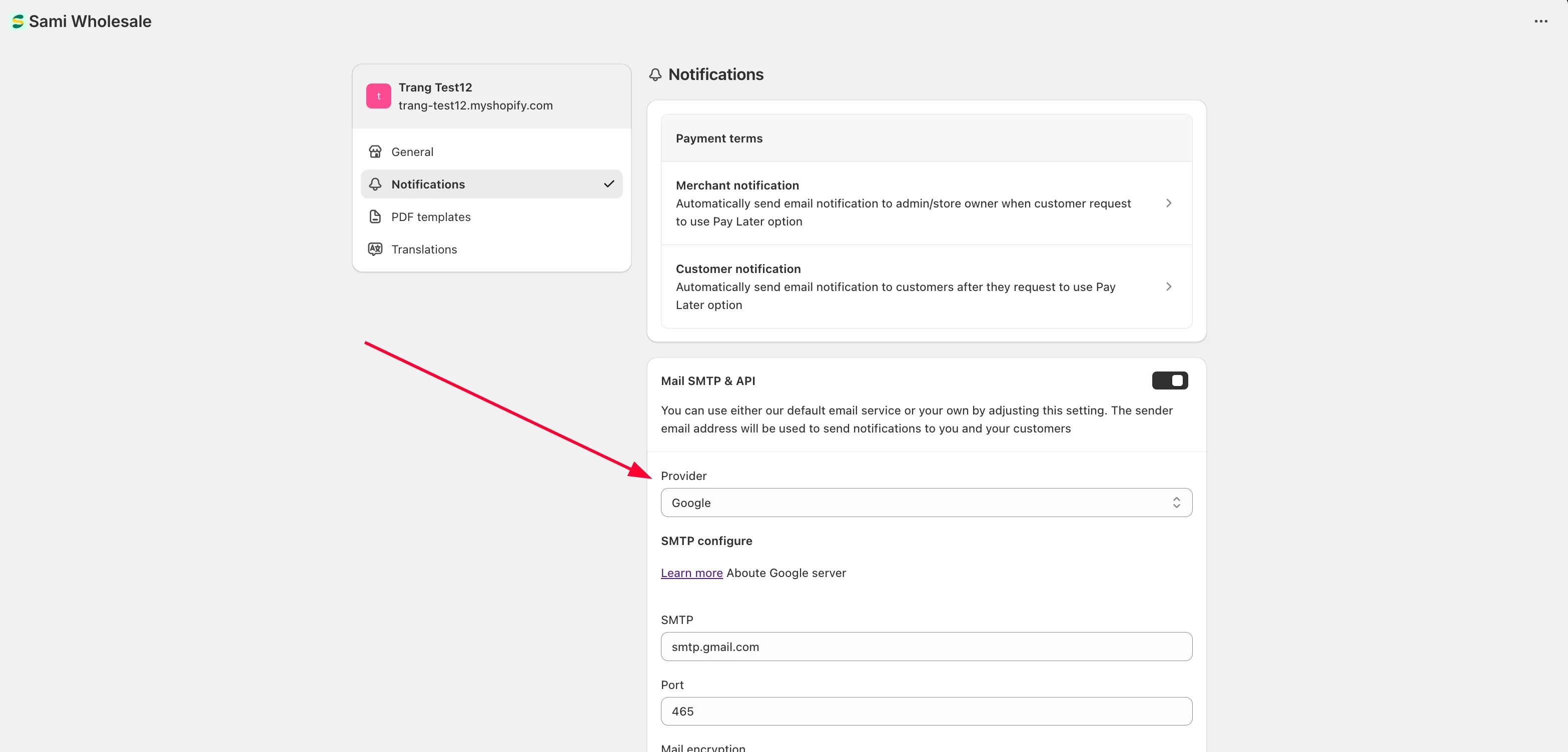
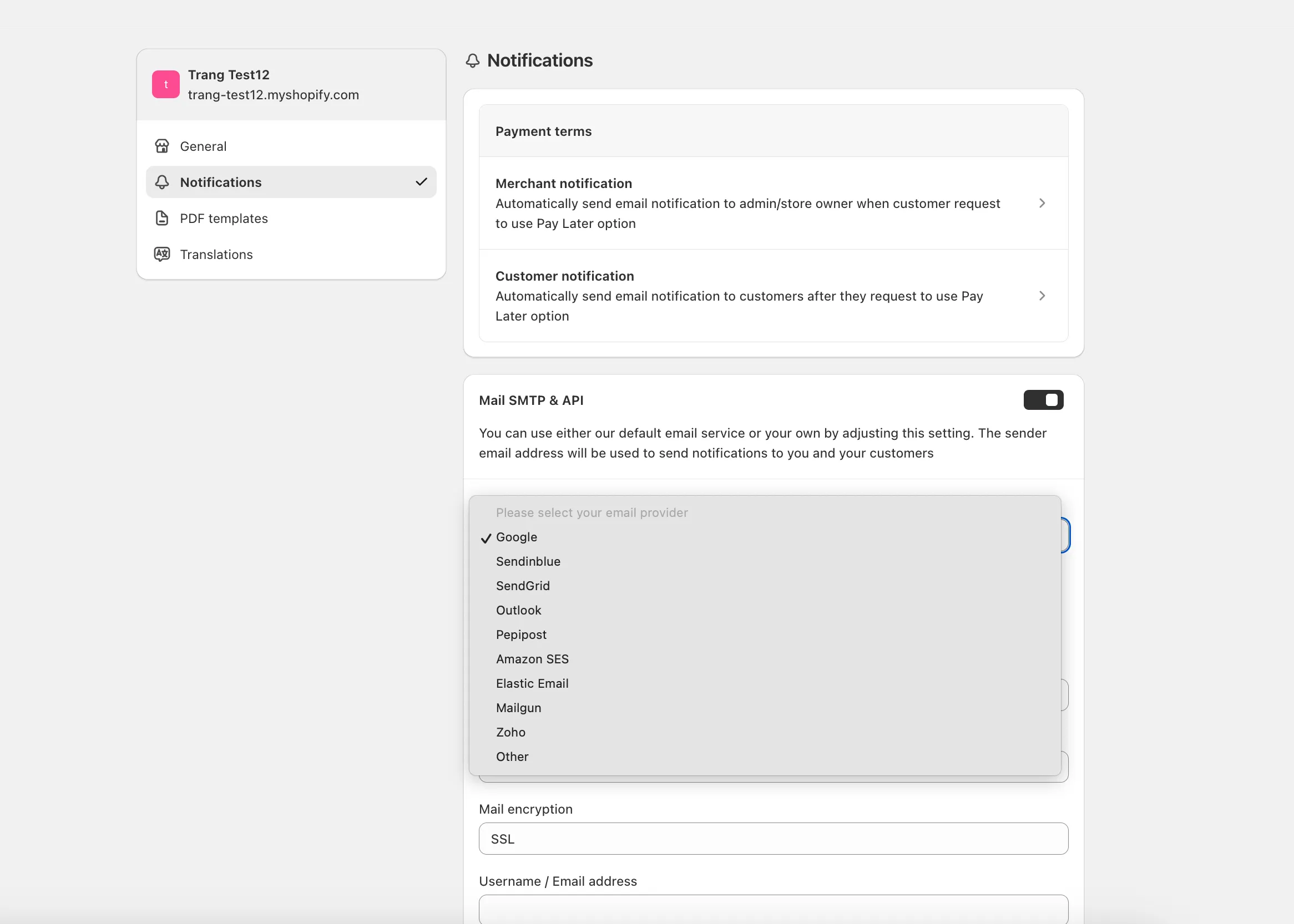
Section titled “Using another provider”The app also supports SMTP with other providers, like Outlook or Amazon SES. Click the Provider dropdown and select one:
Need support?
Section titled “Need support?”If you do encounter any difficulty while proceeding these steps, don’t show any hesitation to contact us promptly via the email address [email protected].