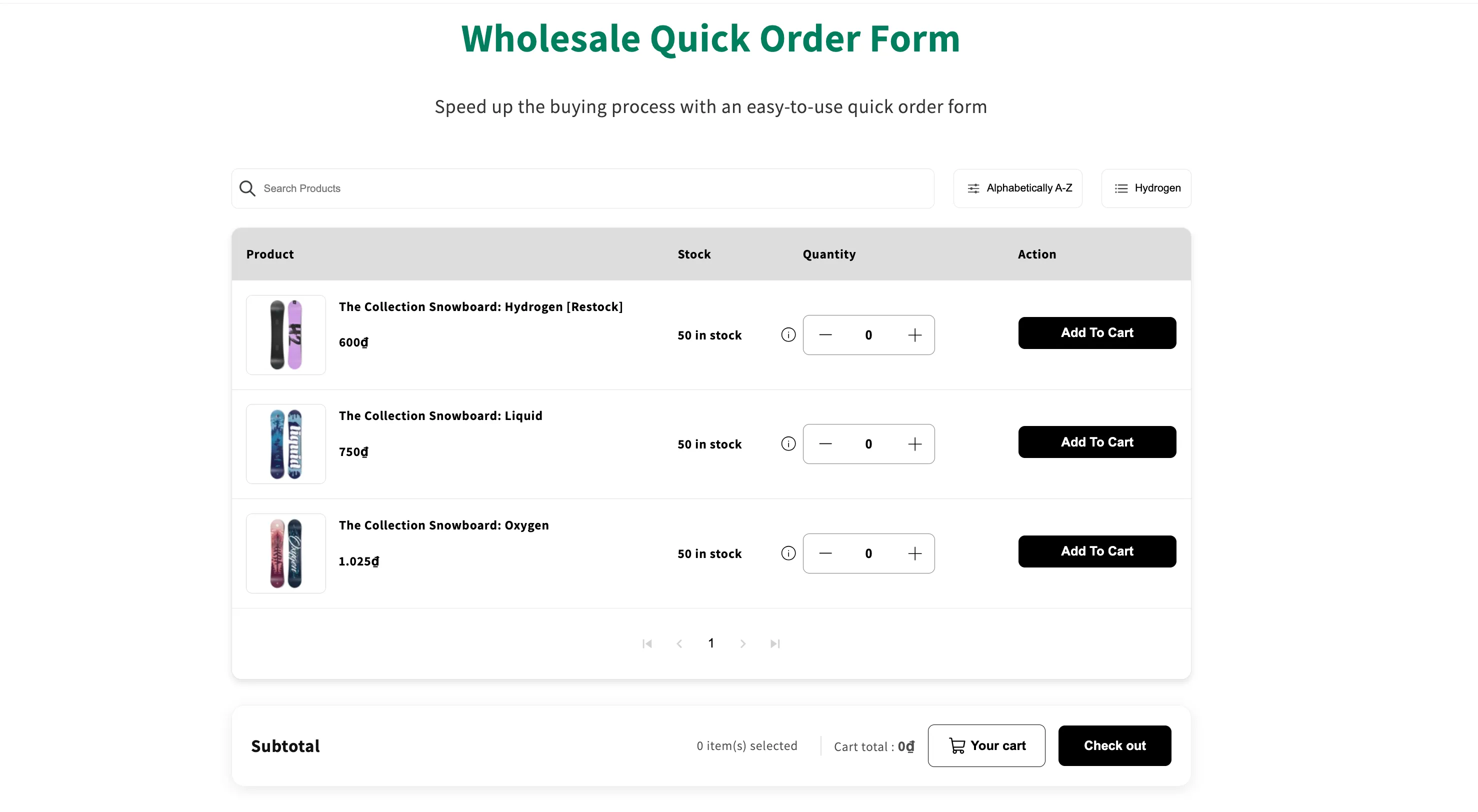
Create a Quick order form
Build a page that lists all your wholesale products in one table so B2B buyers can order many items at once.
The Quick Order Form shows all your wholesale products on one page, so customers can check and order many of them at once instead of visiting product pages one by one.
Steps to manage
Section titled “Steps to manage”-
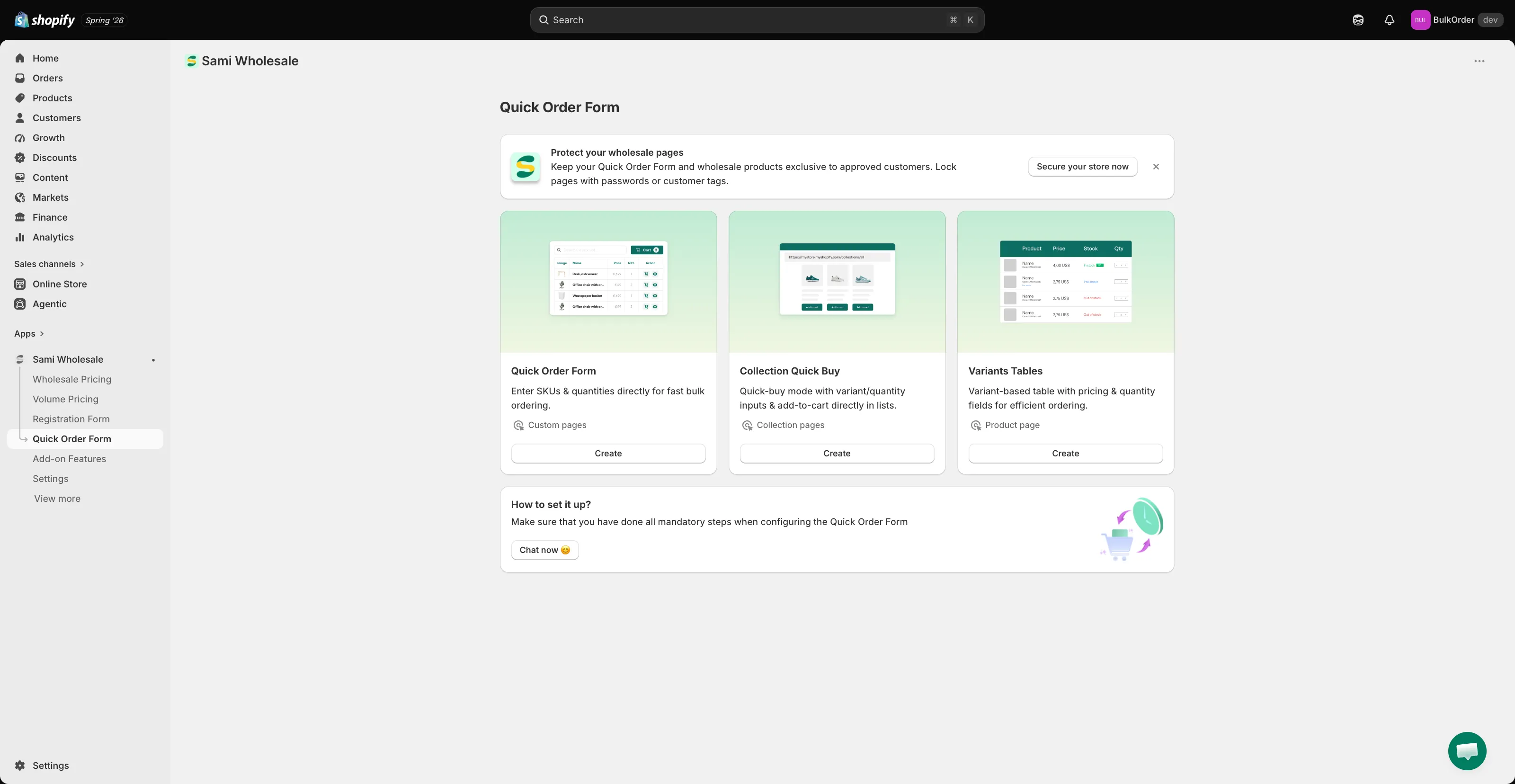
Start a new form
Section titled “Start a new form”From the app, click Quick Order Form. On the landing page, click Create under the Quick Order Form card (the other two cards, Collection Quick Buy and Variants Tables, are separate features — see Enable Quick Buy feature in Product card and Show Variant Table in Product detail).
-
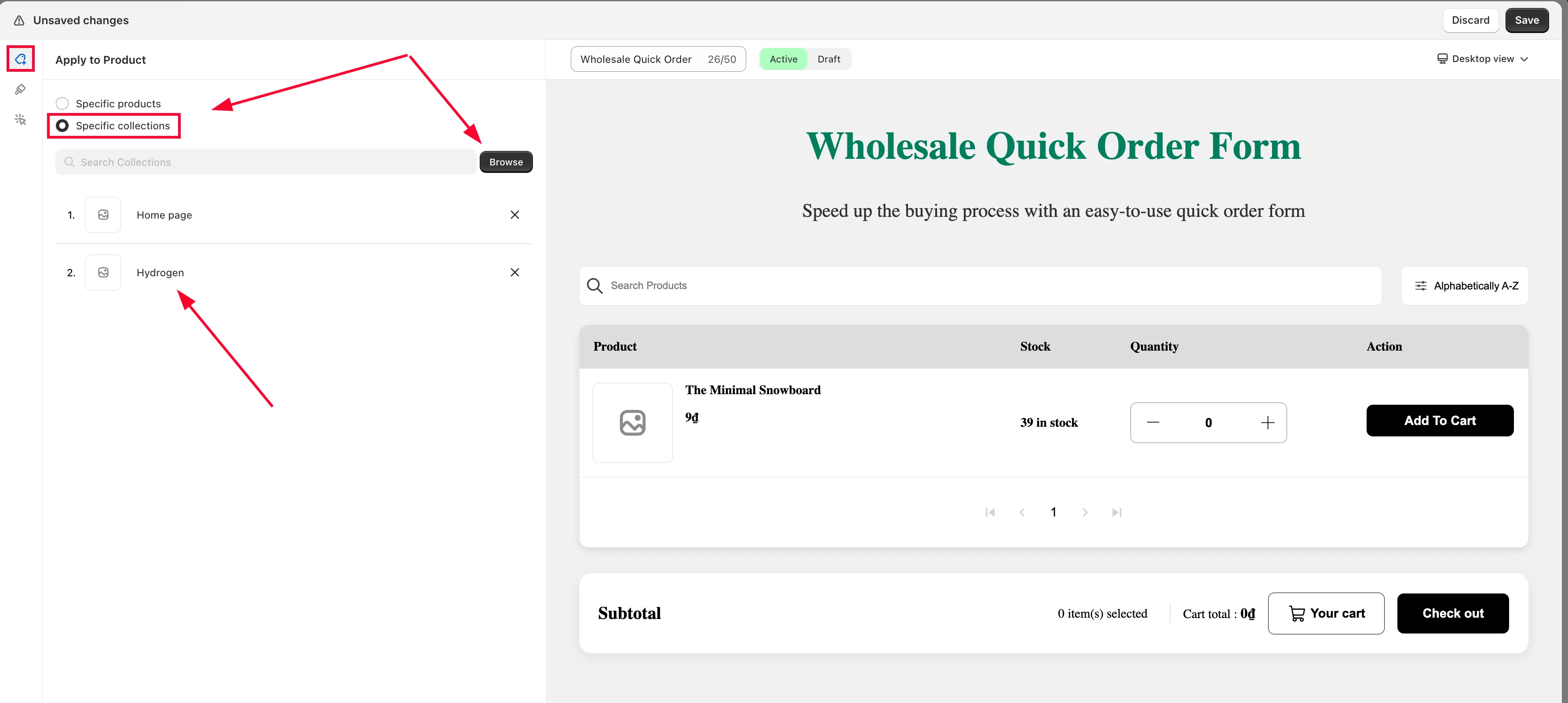
Choose which products to include
Section titled “Choose which products to include”In Apply to products, select the products or collections you want on the form.
-
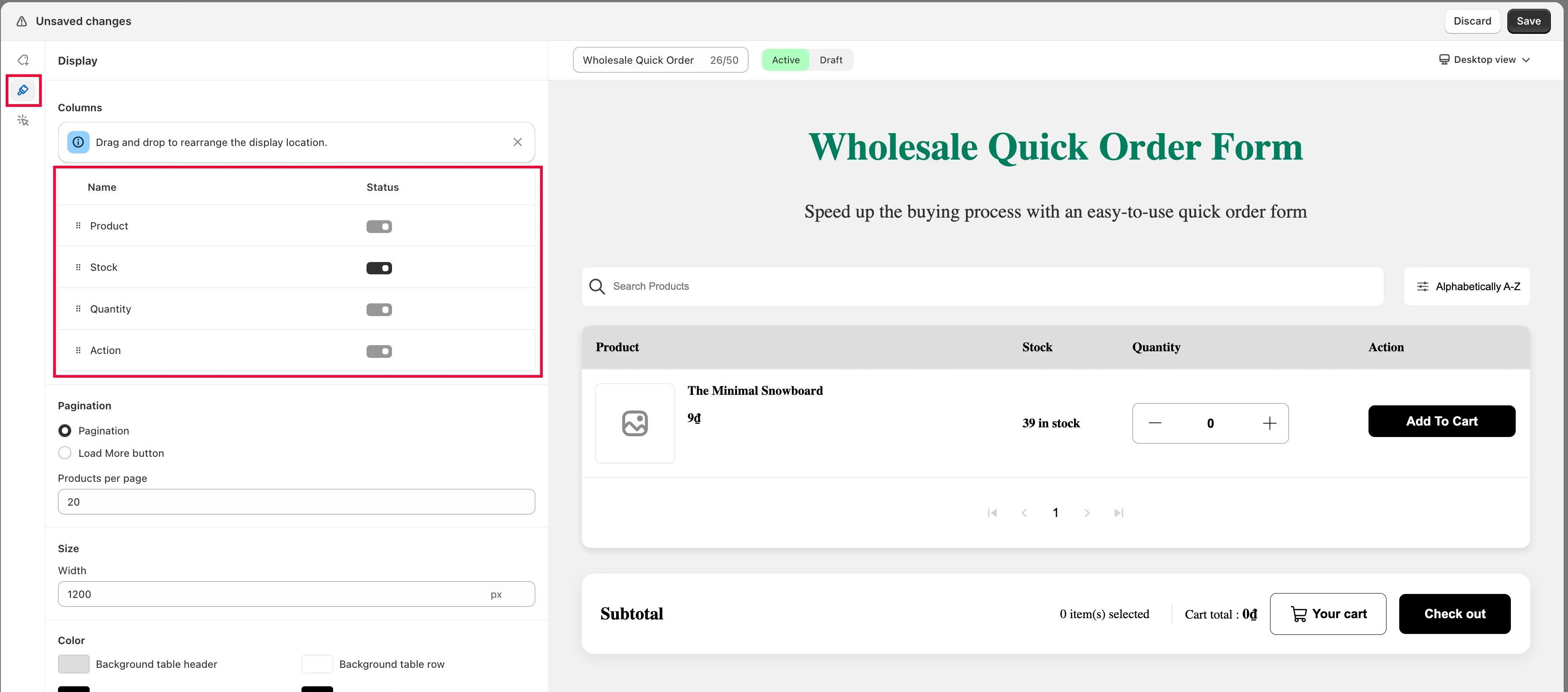
Choose which columns to show
Section titled “Choose which columns to show”In the Display section, select which information/columns appear on the form, and drag to reorder them.
-
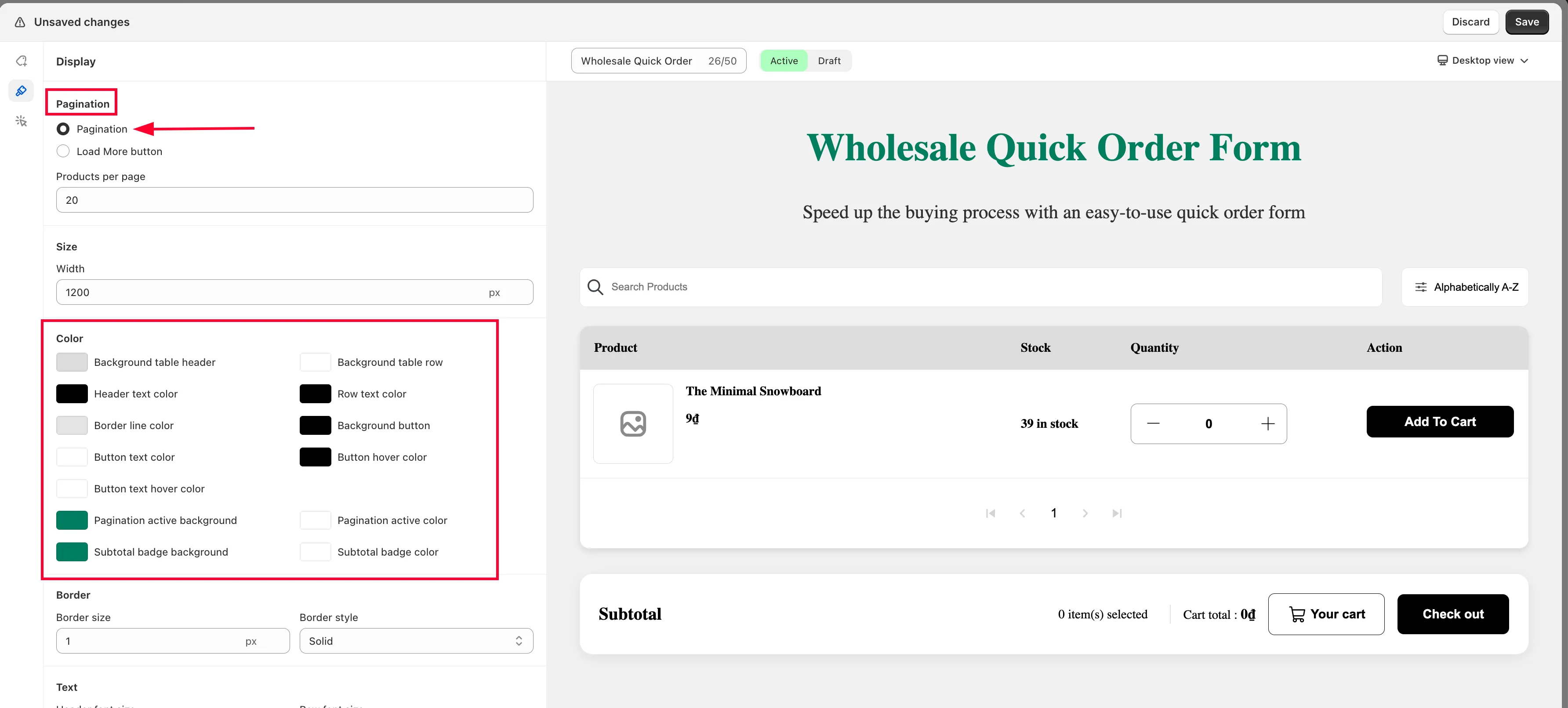
Set pagination and style
Section titled “Set pagination and style”Scroll down to set Pagination (how many products show per page) and style the form’s color, border, and text. You can also add custom CSS if you’re comfortable with it.
-
Click Save.
-
Publish it to your storefront
Section titled “Publish it to your storefront”Follow Show Quick order form in your store to display the form on a page.