
Shipping Rate
Set a custom shipping fee for a chosen group of wholesale customers or products.
Shipping Rate lets you charge a custom shipping fee — different from your store’s default rates — to specific customers or products.
Steps to manage
Section titled “Steps to manage”-
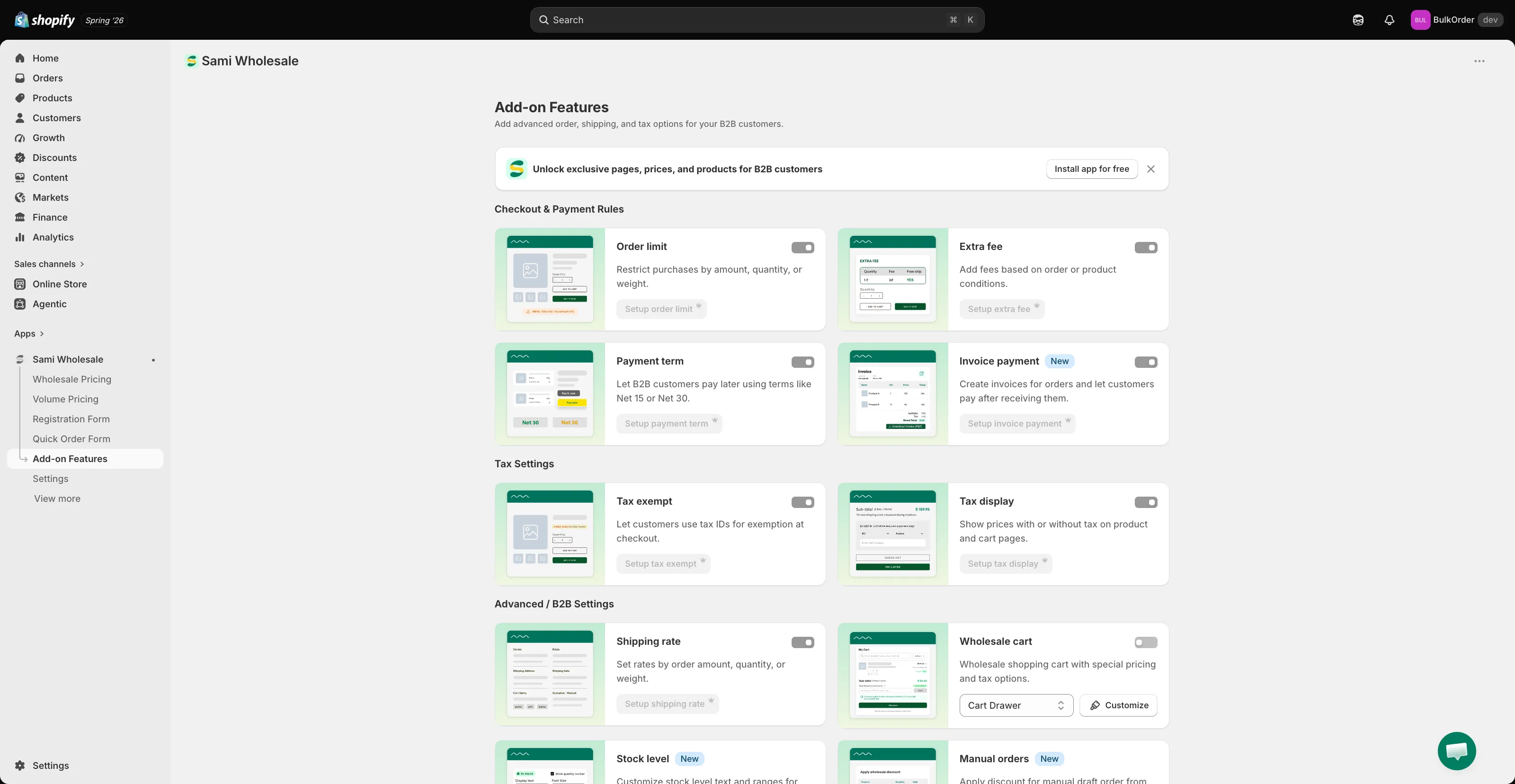
Open Shipping rate
Section titled “Open Shipping rate”Open the app, go to Add-on Features, then click Shipping rate > Setup shipping rate.
-
Start a new rule
Section titled “Start a new rule”Click Create new shipping rate.
-
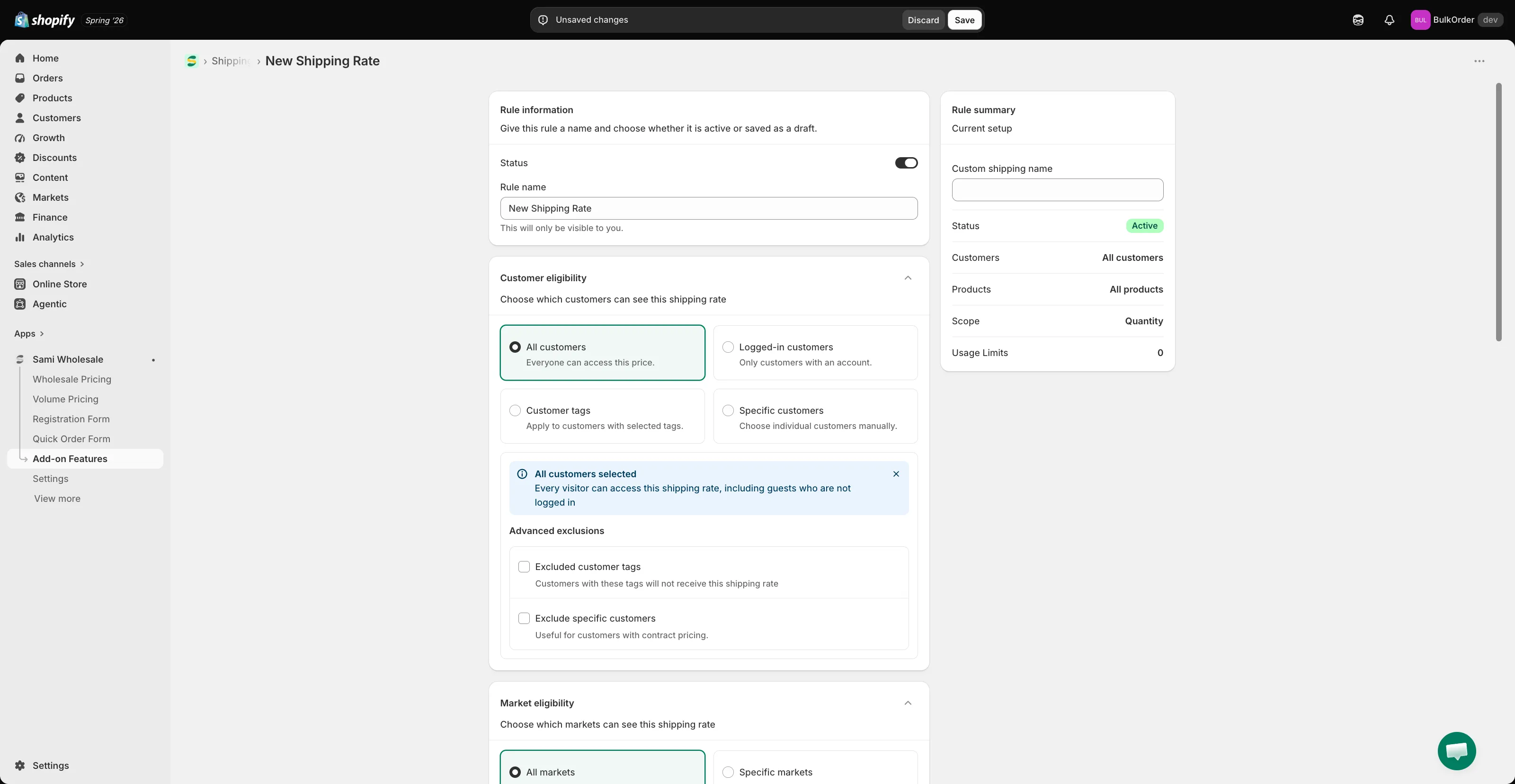
Name the rule
Section titled “Name the rule”Give the rule a title and set its status to active or draft. In Rule summary, set the shipping fee name that customers see at checkout.
-
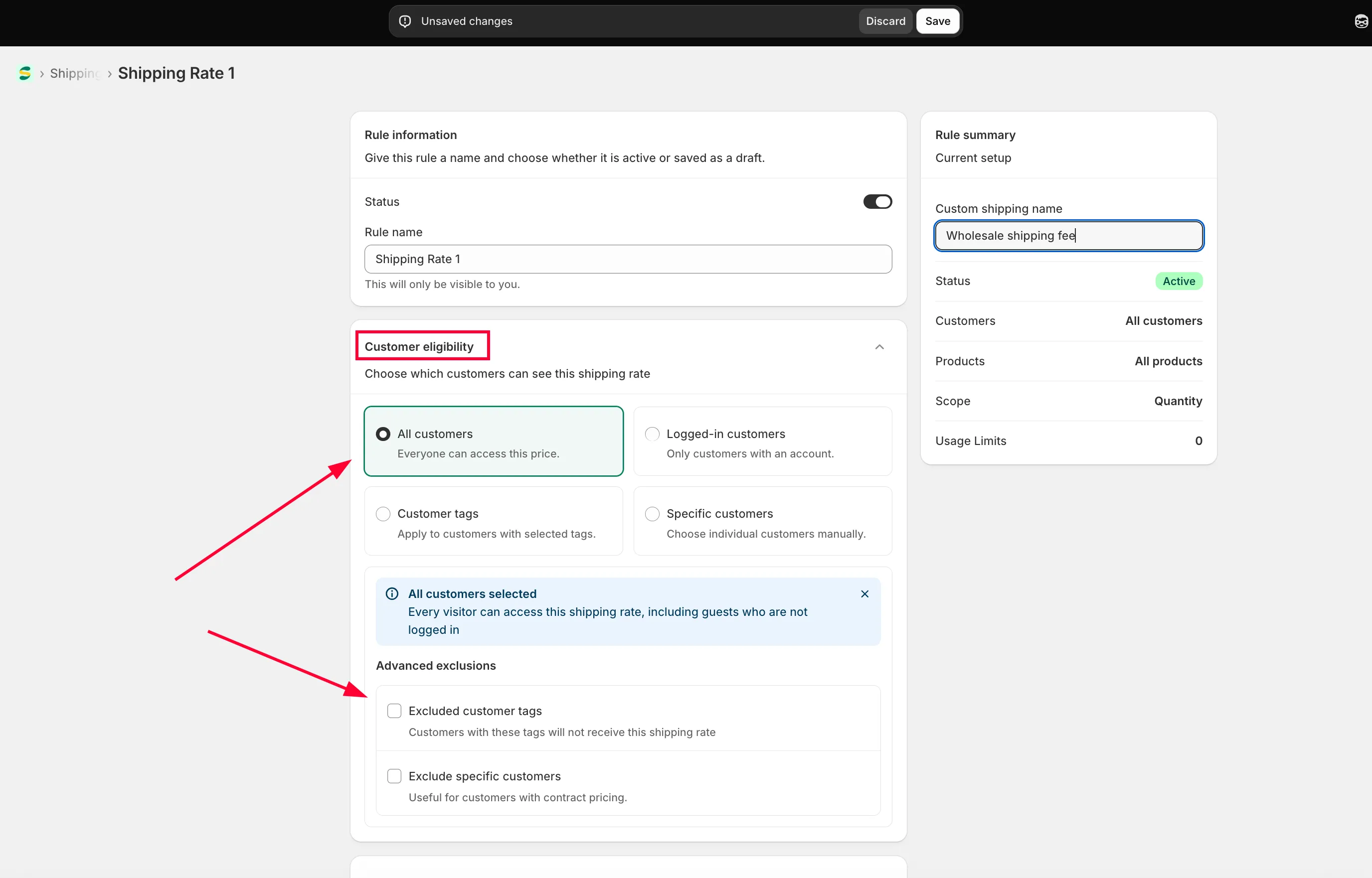
Choose which customers it applies to
Section titled “Choose which customers it applies to”In Customer condition, choose:
- All customers — everyone.
- Logged-in customers — only customers logged in to your store.
- Specific customers — one or a few chosen customer accounts.
- Customer tags — only logged-in customers with the tag you specify.
You can also exclude specific customers.
-
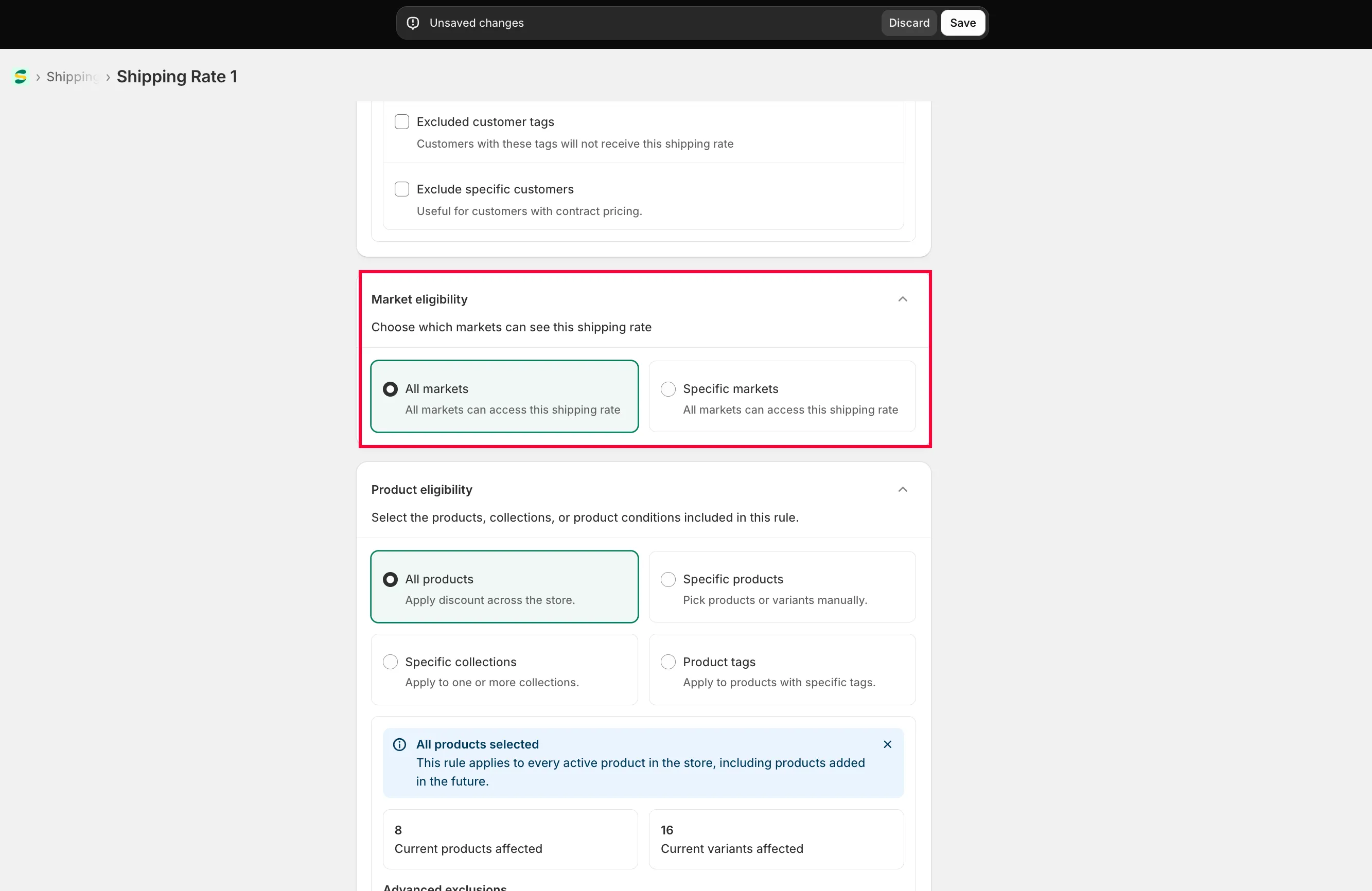
Choose a market
Section titled “Choose a market”In Market eligibility, choose Specific markets and tick the ones you want, or choose All markets.
-
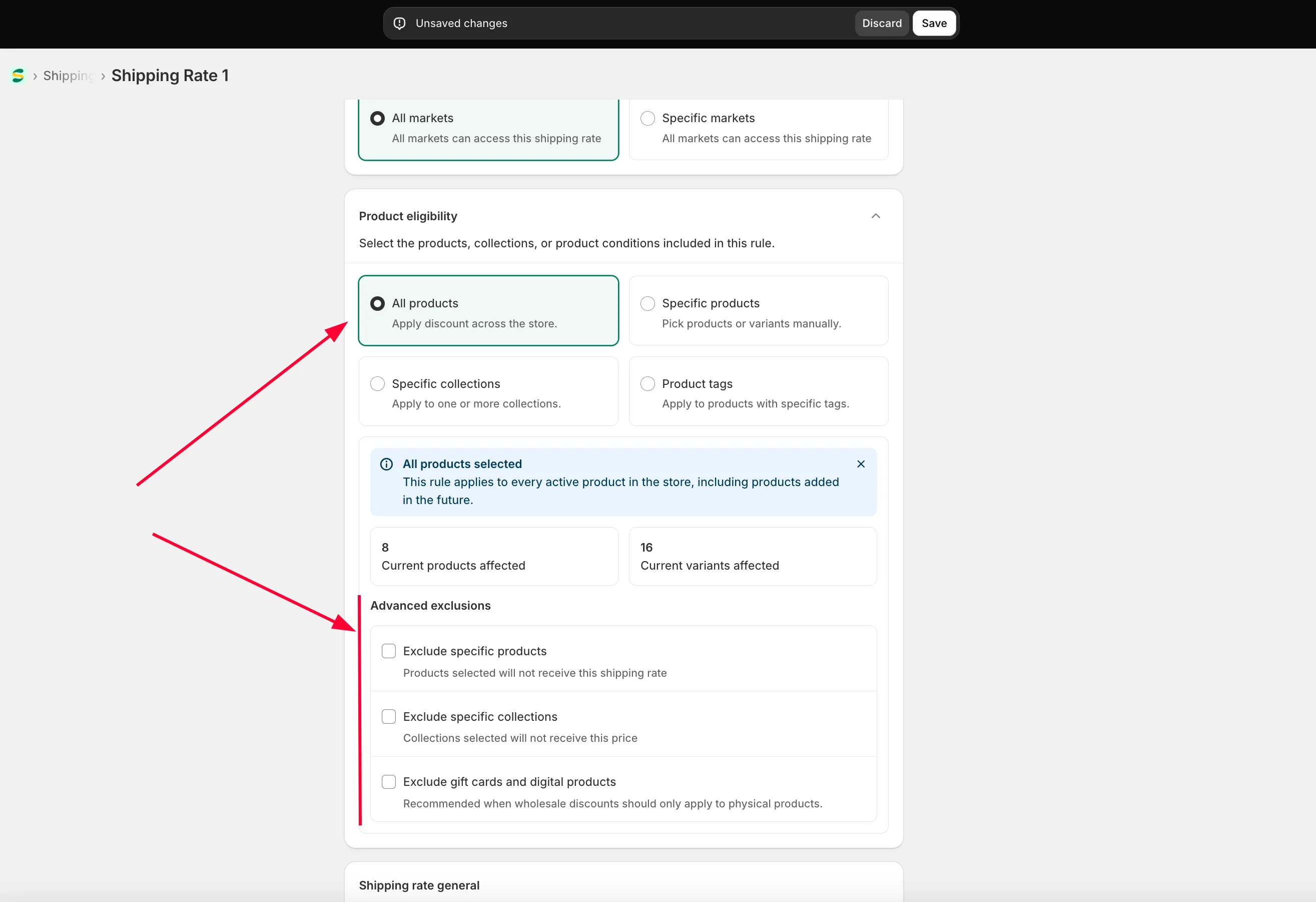
Choose which products it applies to
Section titled “Choose which products it applies to”In Product eligibility, choose All products, Specific products, Specific collections, or Product tag — and optionally exclude specific products.
-
Configure the shipping fee
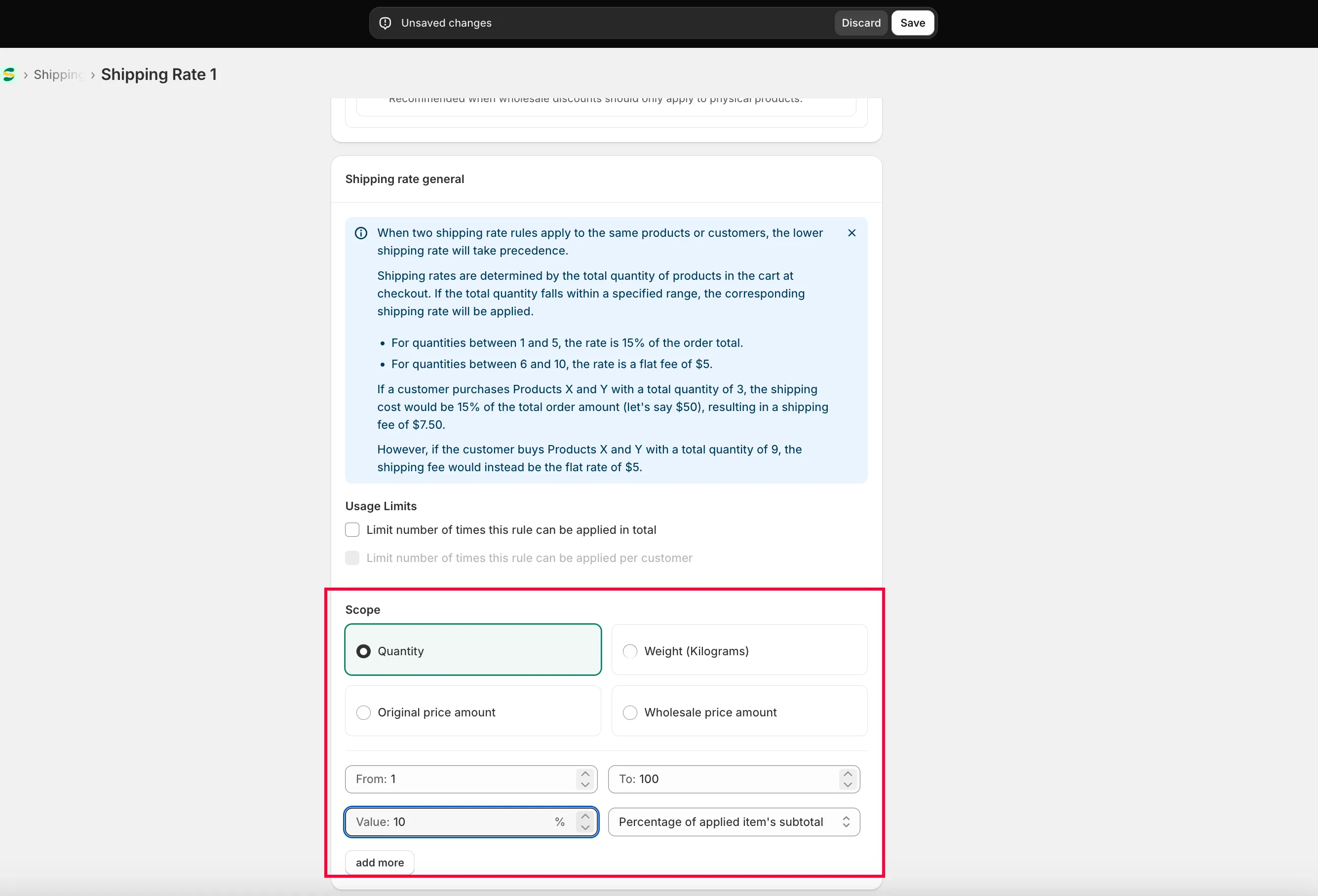
Section titled “Configure the shipping fee”In Shipping rate general, you can add as many fee ranges as you want.
- Choose the scope: Quantity, Amount, or Weight.
- Enter the range the app should use to decide which fee applies at checkout.
- Choose the fee format: Percentage of applied items’ subtotal (a percentage of the order total) or Flat rate (a fixed price, regardless of order total).
-
Click Save.
Need support?
Section titled “Need support?”If you do encounter any difficulty while proceeding these steps, don’t show any hesitation to contact us promptly via the email address [email protected].