
Show Draft order list on Shopify Order page
Let logged-in customers see their payment-term draft orders on their Shopify account page.
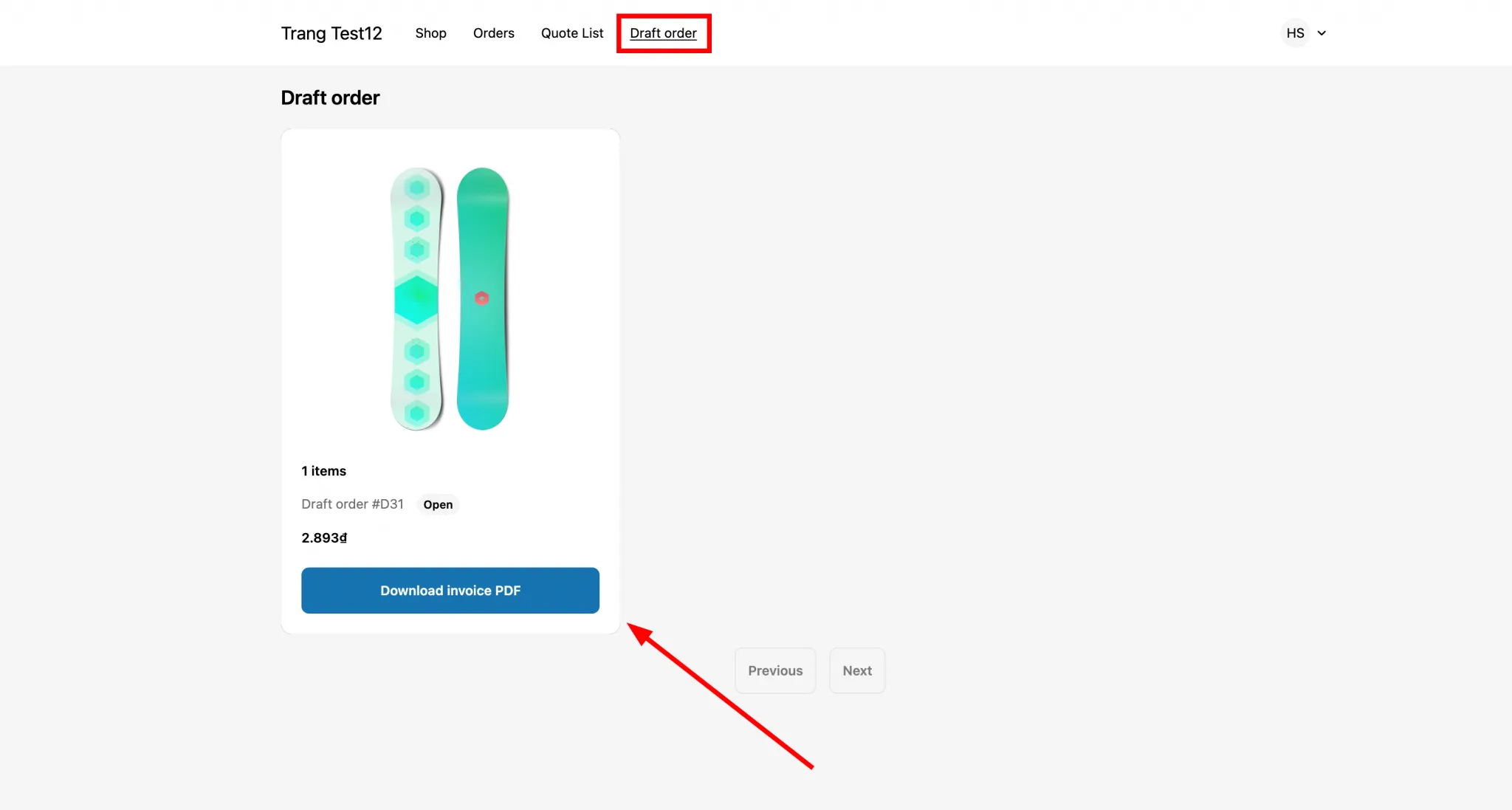
Payment Term can show each customer their own list of draft orders on their Account page. Customers must be logged in to your store to see it.
Steps to manage
Section titled “Steps to manage”-
Open Payment term settings
Section titled “Open Payment term settings”From the app, click Payment term > Setup payment term, then click Settings.
-
Open the customer account editor
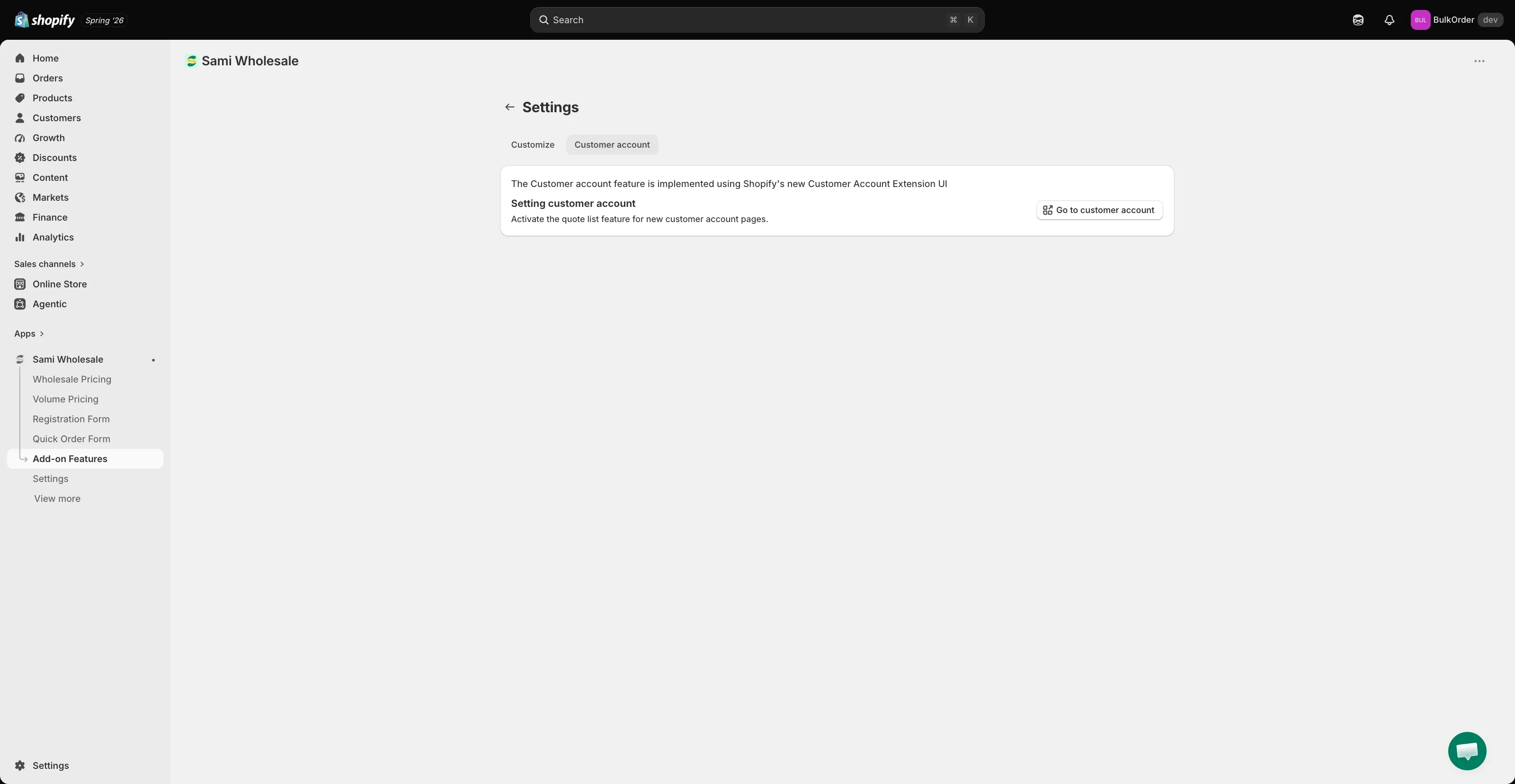
Section titled “Open the customer account editor”Click the Customer account tab, then click Go to customer account.
-
Add the draft order section
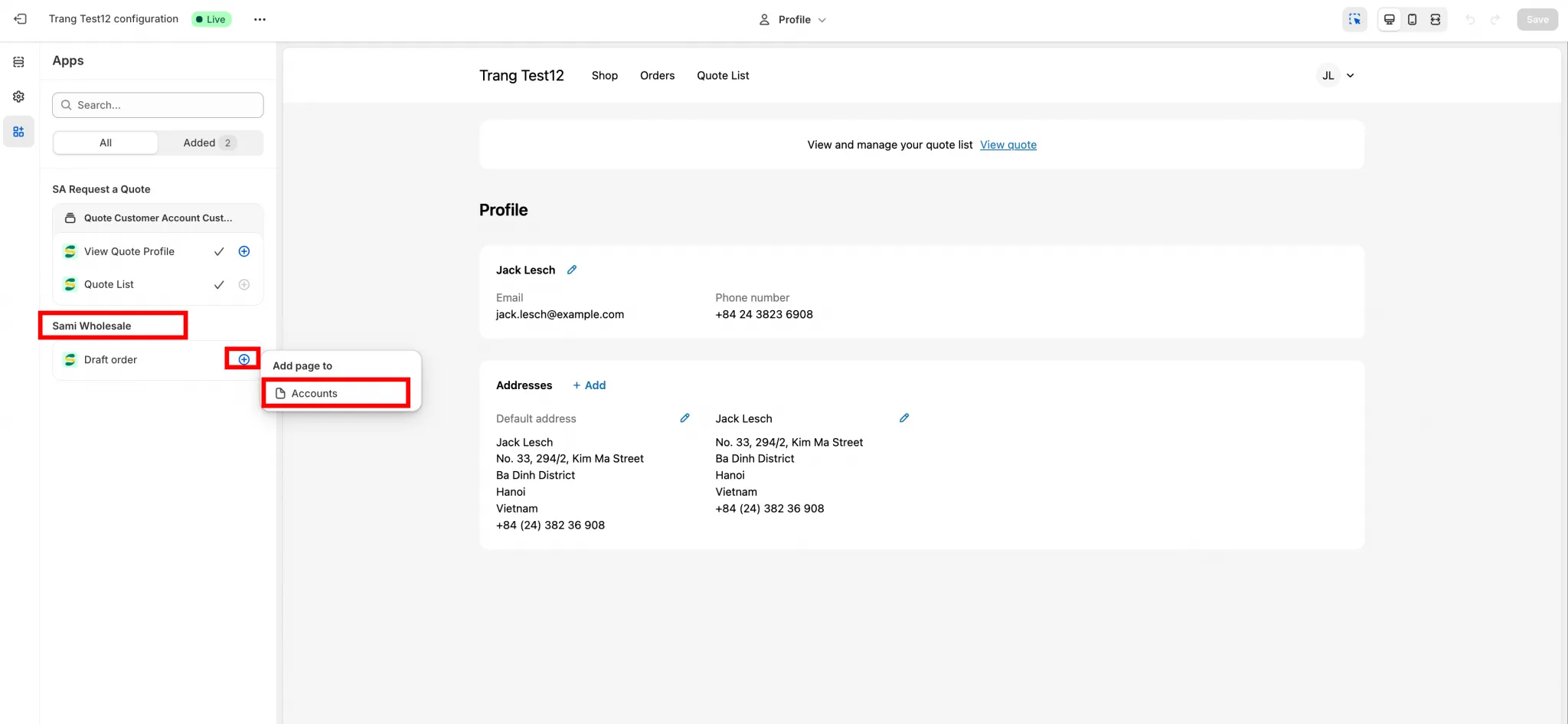
Section titled “Add the draft order section”On the checkout and customer account page editor in your Shopify theme, find the Sami Wholesale app section and click the + icon to add a Draft order list section.
-
Save and add it to the menu
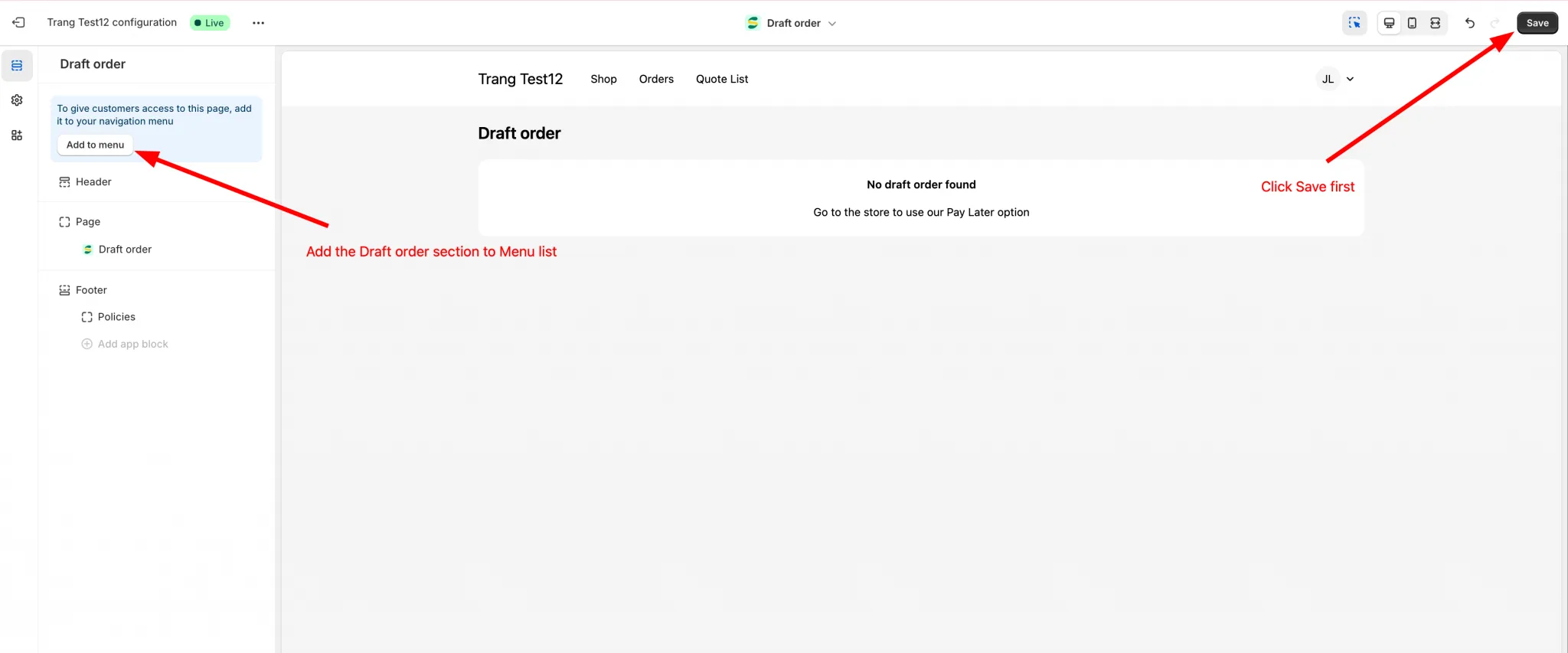
Section titled “Save and add it to the menu”Click Save, then add the section to the account menu.
-
Name it and save
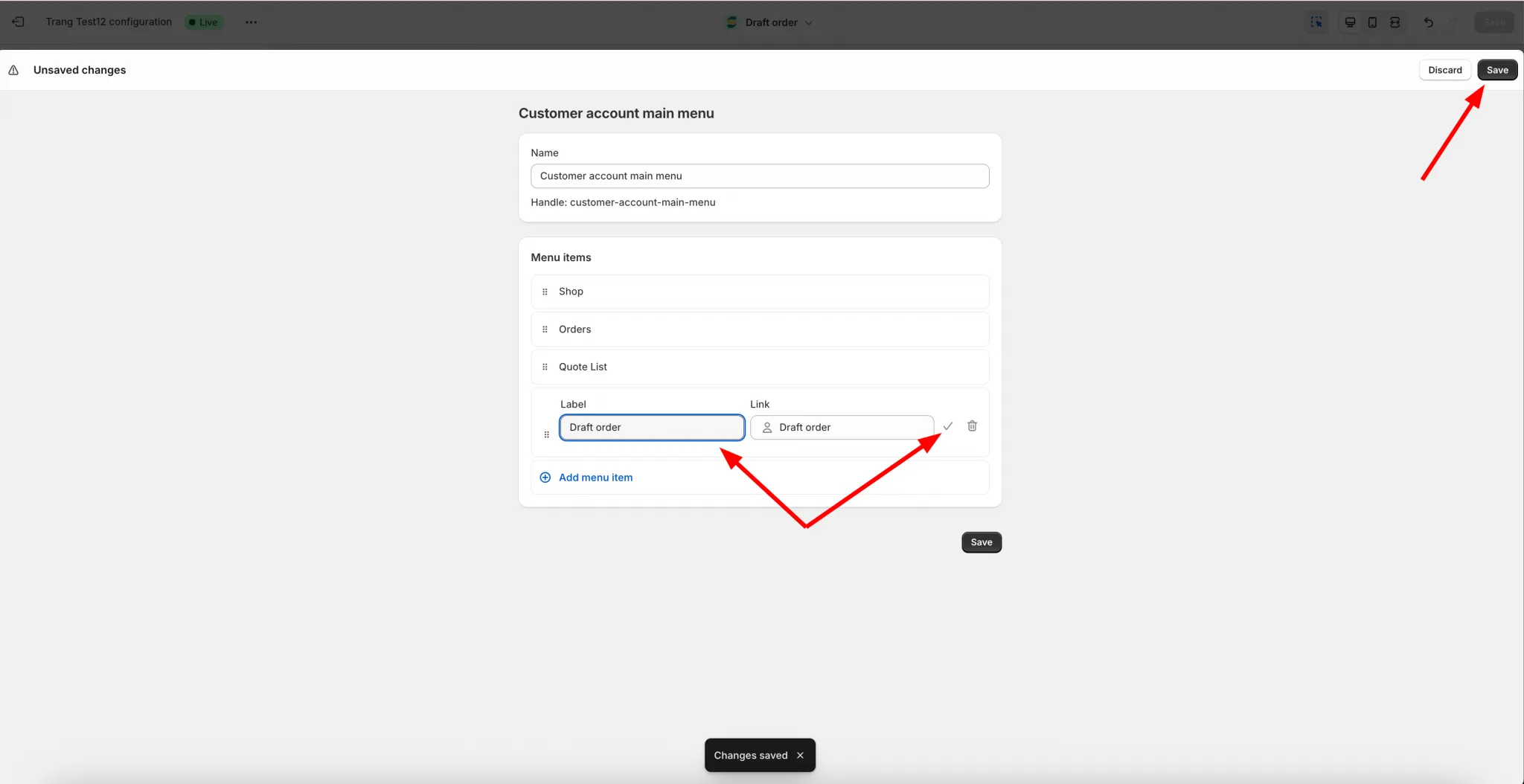
Section titled “Name it and save”Give the menu entry a name, then click Save.
-
Check the result
Section titled “Check the result”Log in to your store to see it in action. Make sure you’re using the new Shopify login type.
Need support?
Section titled “Need support?”If you do encounter any difficulty while proceeding these steps, don’t show any hesitation to contact us promptly via the email address [email protected].