
Automatically add customer to a Company (B2B)
Automatically assign new Registration Form customers as a contact of a Shopify B2B Company, with a location and role, as soon as they register.
If your store uses Shopify’s B2B Companies feature (grouping customers under a company for company-specific pricing, catalogs, locations, and roles), the Registration Form can now automatically assign a new or updated customer as a contact of a Company — no need to add each customer manually in Shopify Admin.
Two assignment modes
Section titled “Two assignment modes”1. Add to a fixed company
Section titled “1. Add to a fixed company”Best when this form is dedicated to one specific group of customers (for example, a registration form just for a regional distributor).
- Every customer who registers through this form is added to the one Company you pick.
2. Add based on customer tags
Section titled “2. Add based on customer tags”Best when the same form is shared across different customer groups and you want the app to sort them automatically.
- You set up rules: “if the customer has tag X → add to Company Y”.
- The app checks the customer’s tags (after this submission) against your rules, top to bottom, and assigns the Company from the first rule that matches.
- Because Shopify only allows a customer to be a contact of one Company at a time, if a customer matches more than one rule pointing to different companies, only the first match is used.
Assigning a Location and Role
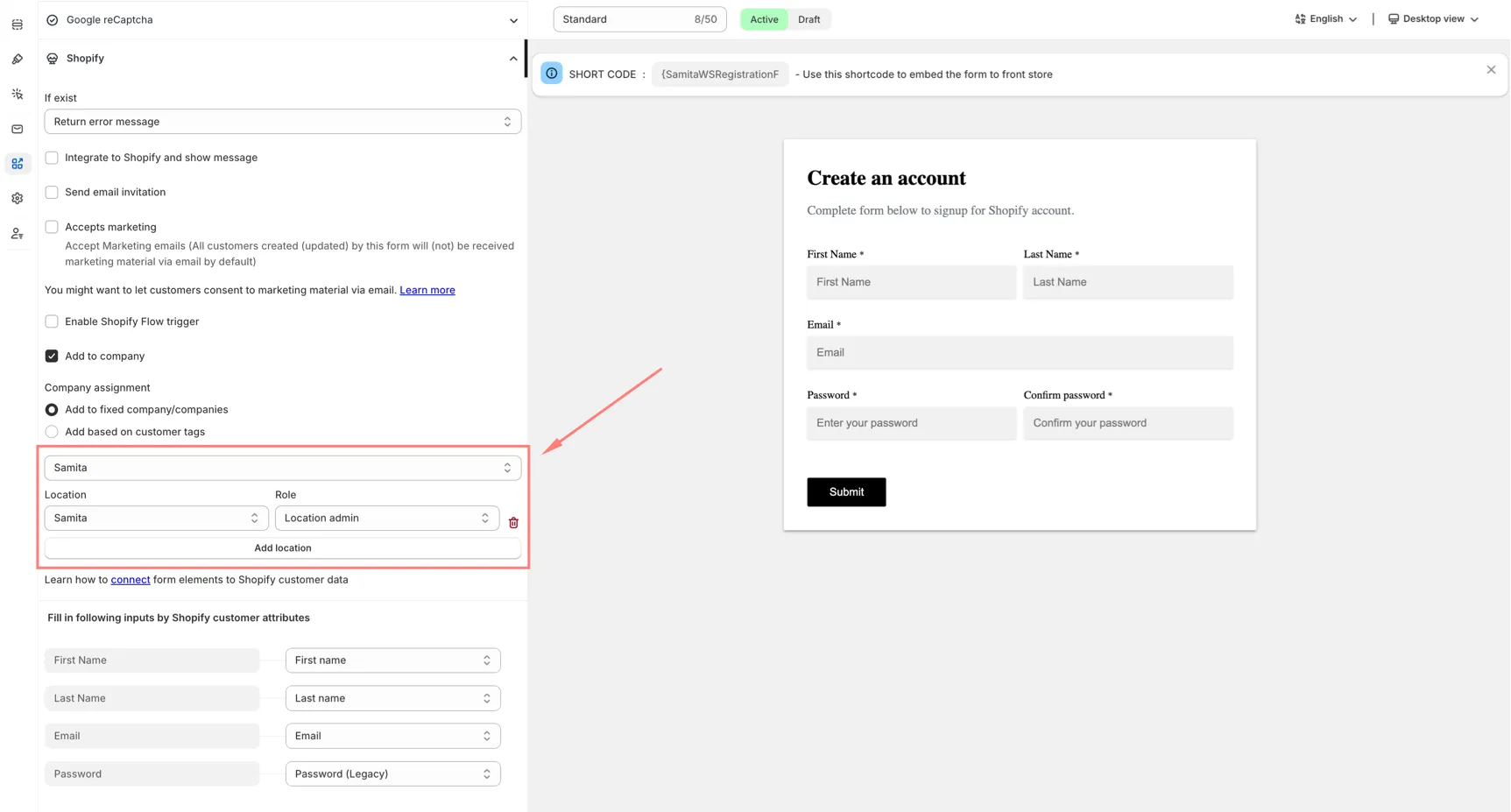
Section titled “Assigning a Location and Role”For each Company you pick (in either mode), you can also choose which Location and Role the customer is assigned at within that company. You can add more than one Location + Role pair per company if needed.
Steps to manage
Section titled “Steps to manage”-
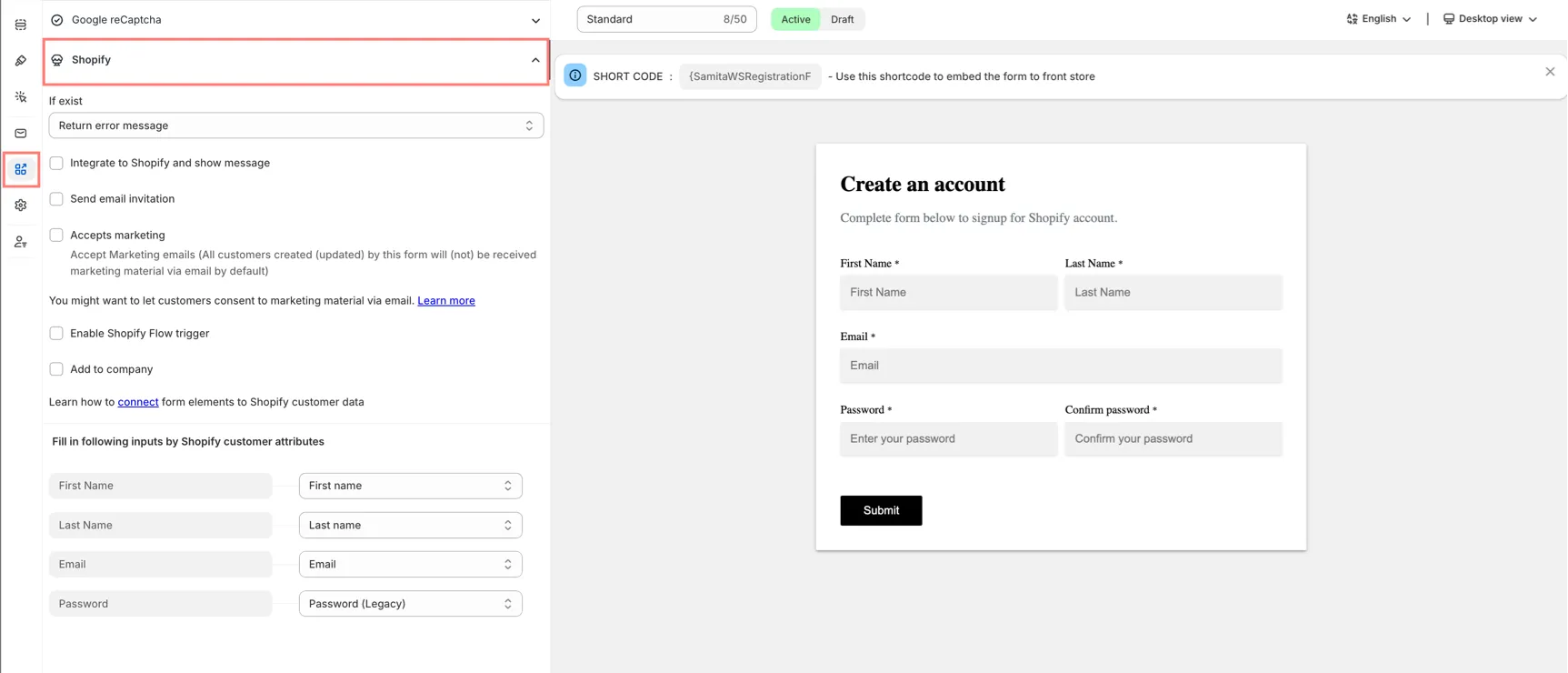
Open the form’s integration settings
Section titled “Open the form’s integration settings”From the app, click Registration Form, open the form you want, then click the Integration tab and choose Shopify.
-
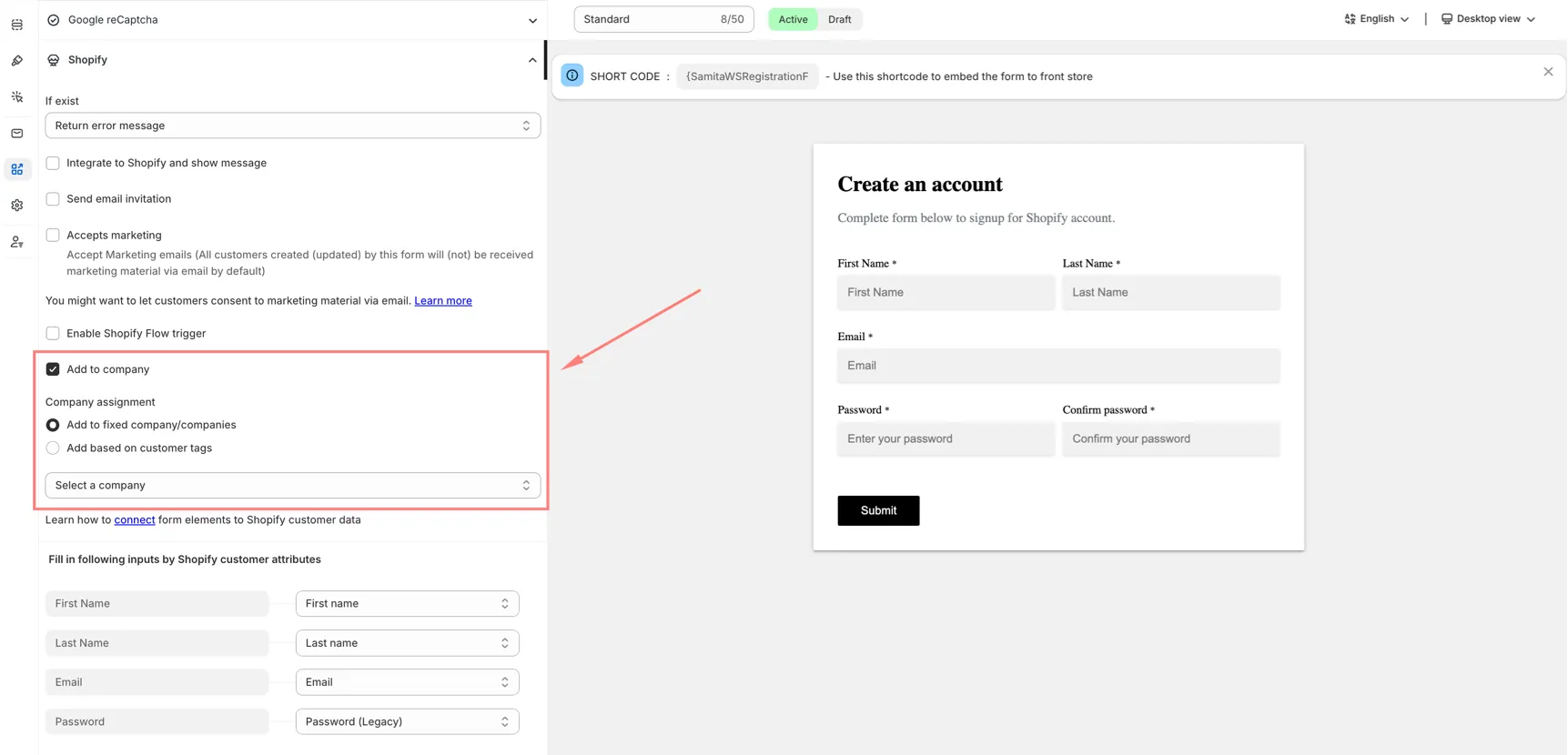
Enable “Add to company”
Section titled “Enable “Add to company””Turn on Add to company. The Company assignment options appear right below it.
-
Choose a Company assignment mode
Section titled “Choose a Company assignment mode”Under Company assignment, choose:
- Add to fixed company/companies — pick one Company, then optionally add Location + Role rows.
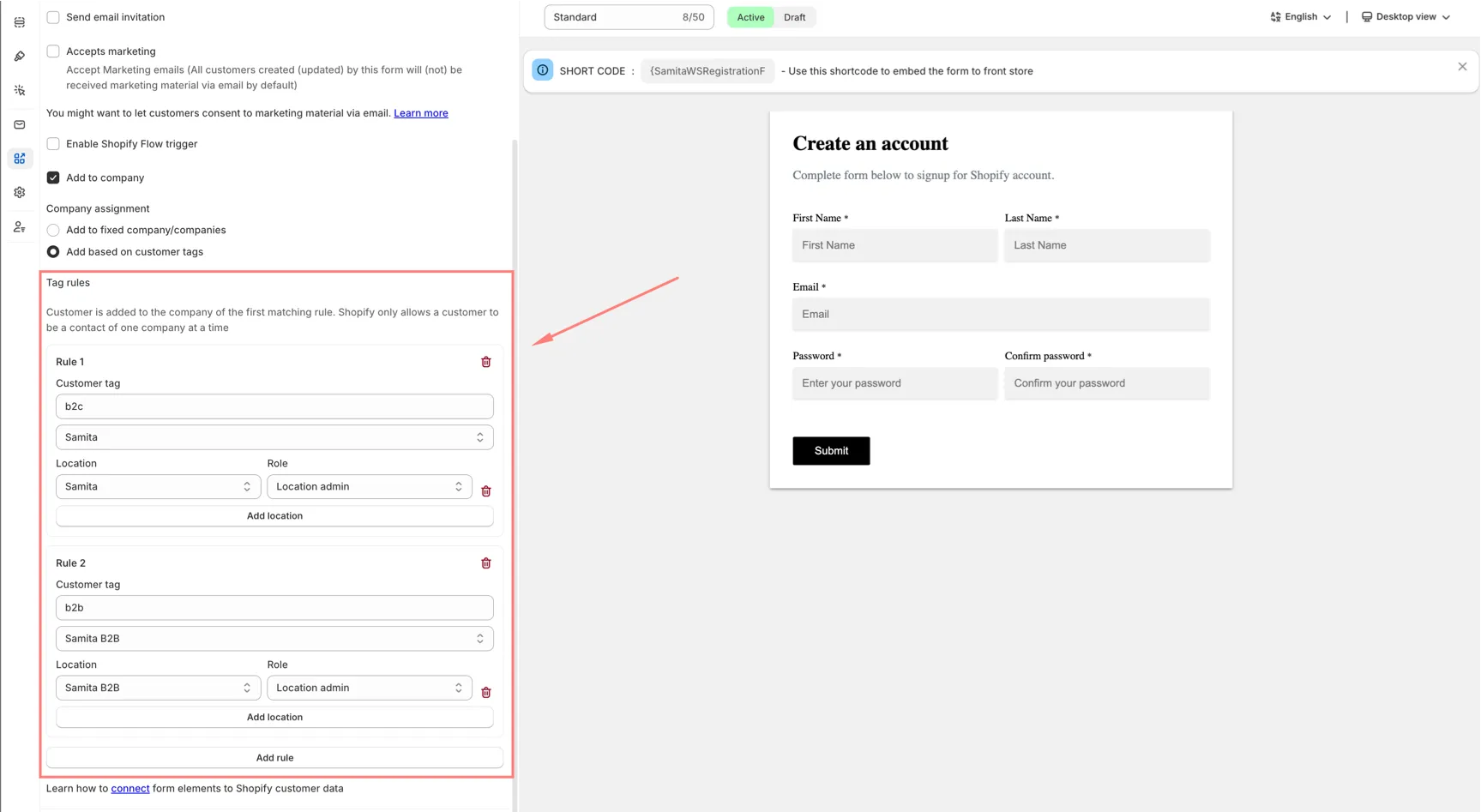
- Add based on customer tags — click Add rule for each tag → Company mapping you need; for each rule, pick the Company and optionally add Location + Role rows.
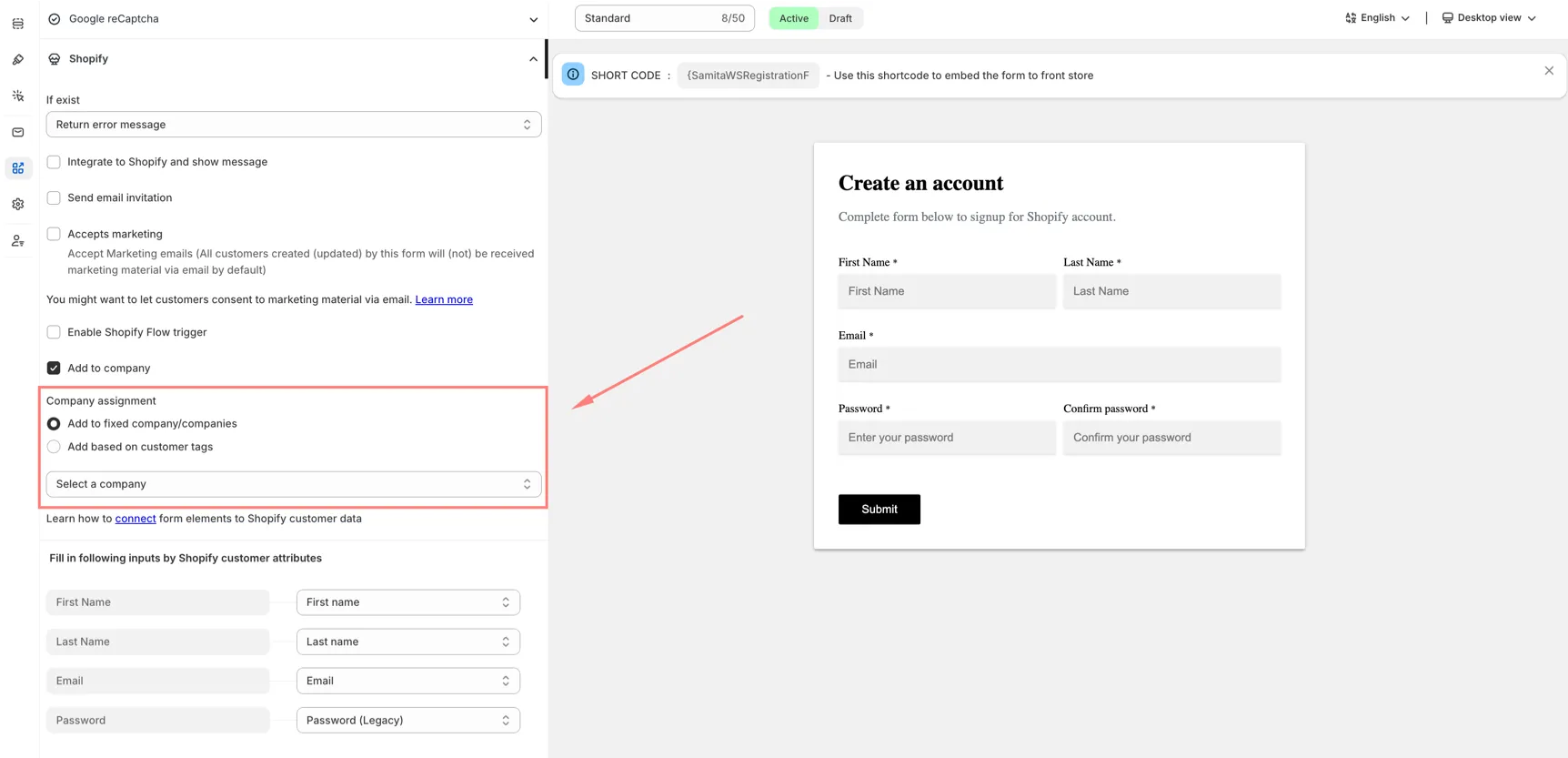
Once you pick a Company, its Location and Role pickers appear — click Add location to add more than one Location + Role pair.
In Add based on customer tags mode, add one rule per tag you want to match — each rule has its own Company, Location, and Role:
-
Click Save.
- Requires Shopify’s B2B / Companies feature to be available on your store.
- Assignment happens shortly after the customer is created/updated through the form, but can take a couple of minutes to complete — this is expected, not an error.
- A customer can only belong to one Company at a time (a Shopify limitation). If the customer already belongs to a different Company, this new assignment can move them to the newly matched Company.
Need support?
Section titled “Need support?”If you do encounter any difficulty while proceeding these steps, don’t show any hesitation to contact us promptly via the email address [email protected].