
Quick Buy Feature
Show customers a stock message — like "Low stock" or "Last items!" — based on inventory thresholds you set.
Stock Level shows customers a different stock message depending on how much inventory is left, using thresholds you define. This builds urgency and transparency, and encourages faster purchase decisions.
Steps to manage
Section titled “Steps to manage”-
Open Stock Level
Section titled “Open Stock Level”Open the app, go to Add-on Features, then click Stock level > Setup stock level.
-
Set your stock thresholds
Section titled “Set your stock thresholds”There are two parts to this feature: Stock Display Configuration and Status Messages and Colors.
In Stock Display Configuration, set up 3 thresholds — the app automatically shows the right message based on current inventory:
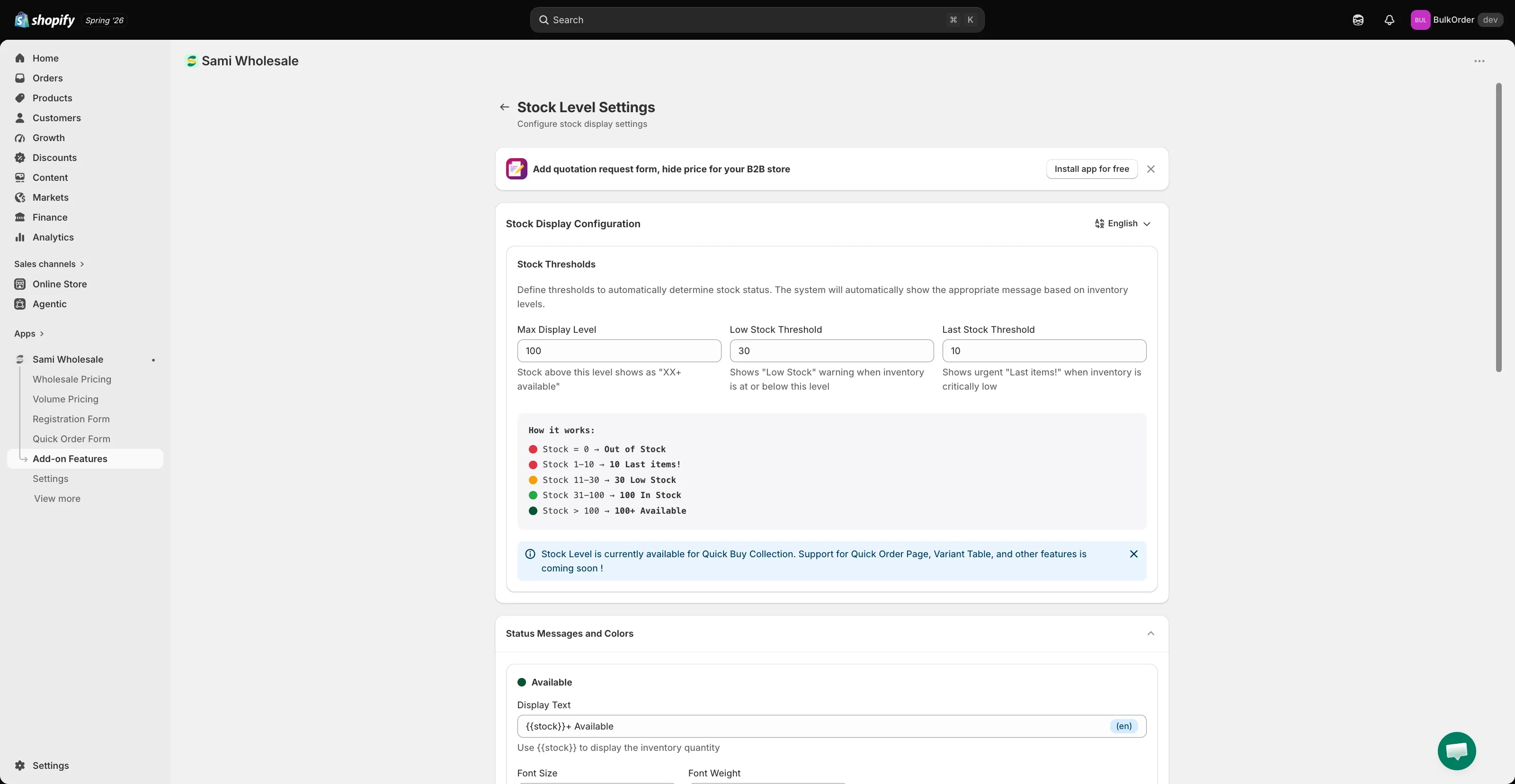
- Max Display Level — above this number, customers see a general message like “100+ Available.” Between this and the Low Stock Threshold, they see the exact quantity, like “36 in stock.”
- Low Stock Threshold — at or below this number, customers see a low-stock warning like “Low stock.”
- Last Stock Threshold — at this critical level, customers see an urgent message like “Last items!”
-
Style and translate the messages
Section titled “Style and translate the messages”In Status Messages and Colors, customize the Display Text (using the
{{stock}}variable to show the inventory quantity), font size, and font weight for each stock status.This also supports multiple languages. Click the language dropdown in the top-right of Stock Display Configuration, choose a language, and set up its translation.
-
Click Save, then check the result on your storefront.