
Show registration details on the customer Profile page
Show customers their registration answers and application status on the Profile page of new customer accounts, and let them edit the fields you allow.
With new customer accounts, account pages are hosted by Shopify, so the theme-based Edit account page option doesn’t apply. Instead, the app adds a Registration details block to the customer’s Profile page. The block shows:
- The application status: Approved, Under review or Not approved (optional).
- The answers you choose from the Registration Form, for example company name, phone or address.
- An Edit button, when you let customers change some of their answers.
Steps to manage
Section titled “Steps to manage”-
Turn on the block in your form
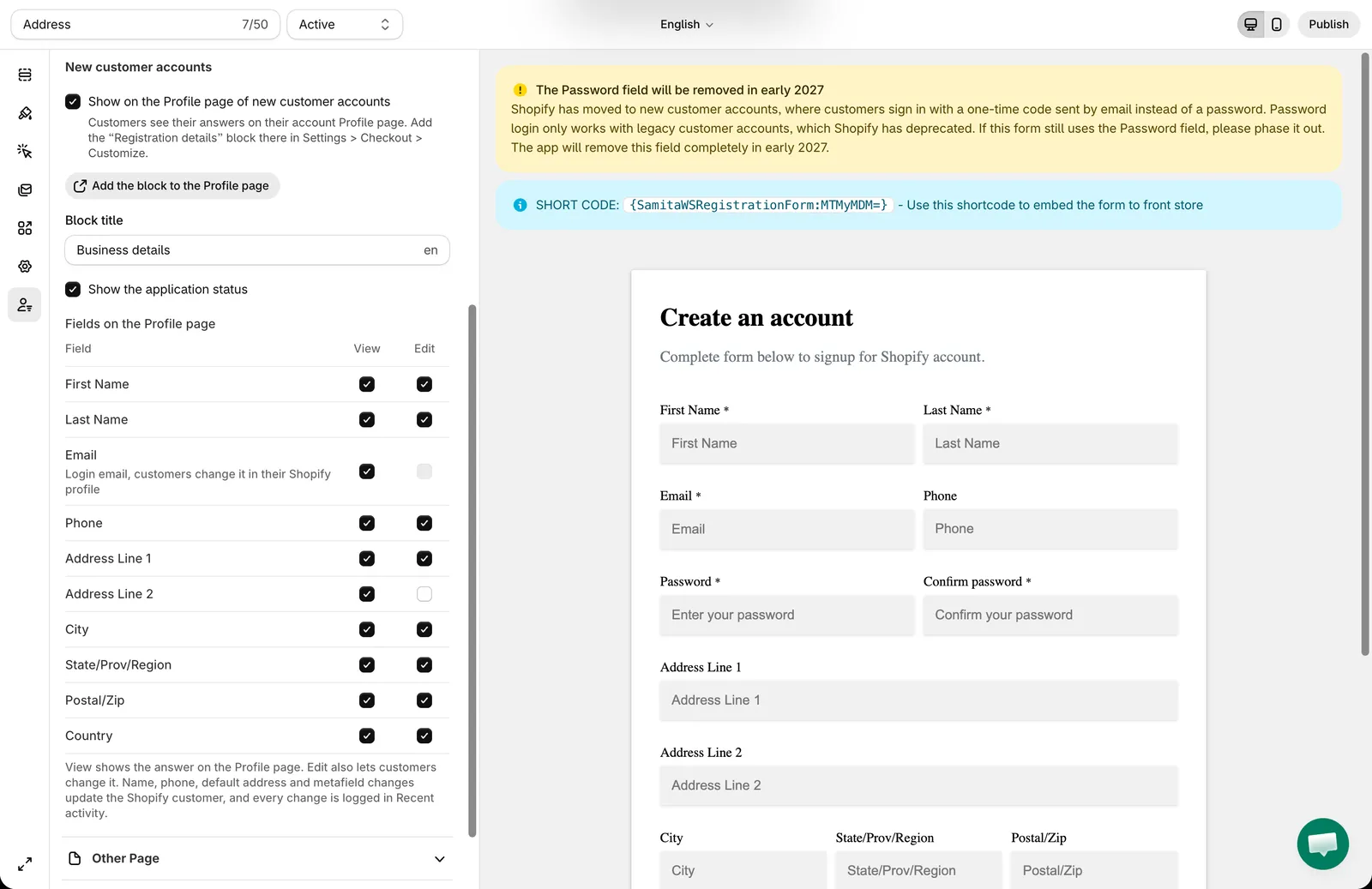
Section titled “Turn on the block in your form”Open the app, click Registration Form and open the form. In the Publish tab, open Account page and, under New customer accounts:
- Select Show on the Profile page of new customer accounts.
- Enter a Block title, for example Business details. If your form has other languages, you can enter a title for each one.
- Choose whether to Show the application status.
- In Fields on the Profile page, choose what customers can do with each field:
- View — the answer is shown on the Profile page.
- Edit — the answer is shown and customers can change it. Ticking Edit also ticks View.
- Leave both empty to hide the field.
Save the form.
-
Add the block to the Profile page
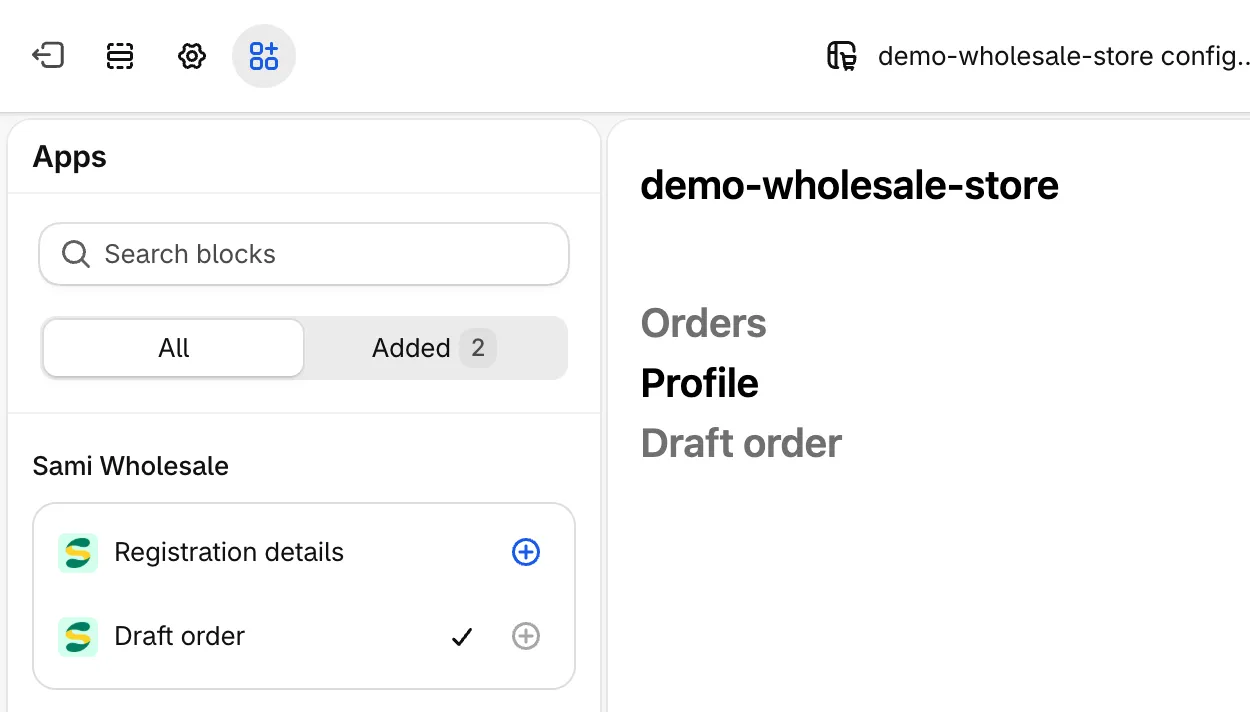
Section titled “Add the block to the Profile page”Click Add the block to the Profile page. The checkout and accounts editor opens on the Profile page with the Apps list.
Under Sami Wholesale, click the add button next to Registration details, then click Save.
-
Check the result
Section titled “Check the result”Log in to your store as a customer who registered through the form and open Profile. The block shows the title, the status and the answers of the fields set to View or Edit. If some fields are set to Edit, the customer can click Edit, change the answers in the Edit details window and click Save.
What happens when a customer edits their details
Section titled “What happens when a customer edits their details”- Approved customers: the new answers are saved right away. Answers mapped to the Shopify customer’s first name, last name, phone, address or metafields also update the Shopify customer. Address answers update the customer’s default address; if the customer has no default address yet, one is created from their answers.
- Under review customers: the new answers are saved in the registration only. When you approve the customer, the latest answers are used to create or update the Shopify customer.
- Not approved customers can see their details but can’t edit them.
- Each answer is checked the same way as in the form: required fields can’t be emptied, email, phone, number, URL and name formats are checked, and Dropdown, Radio, Checkbox and Country answers must be one of the field’s options.
- If Shopify refuses a change — for example, the phone number is already used by another customer, or the province doesn’t match the country — the customer sees the error in the Edit details window, using your form’s error messages, and can correct it.
- Every saved change is logged in Recent activity as Profile details edited by the customer, with each field’s old and new value. See Recent Activity log.
Fields customers can’t edit
Section titled “Fields customers can’t edit”Some fields can be shown with View but not changed. In Fields on the Profile page, their Edit box is disabled and the reason is shown under the field name:
- The field mapped to the customer’s email: it is their login email, which customers change in their Shopify profile.
- Fields that set customer tags: fields mapped to tags[], and fields you choose in Add tags based on form answers (see Tag customers by their form answers).
- Fields mapped to the Shopify password or marketing consent.
- Field types customers can’t edit: Accept terms and Rating star.
A field mapped to note[] can be edited, but the Shopify customer note keeps the answer given at registration.
Good to know
Section titled “Good to know”- Customers who didn’t register through a Samita Registration Form don’t see the block.
- The app finds the customer’s registration through their Shopify account or the email they log in with, so customers also see the block while their application is under review.
- Each email has one registration. If a customer submits another form with the same email, the new submission replaces the earlier one, and the block follows the Account page settings of the new form.
- Hidden, password and file upload fields are never shown.
- Field labels, options and the block title use the customer’s language when your form has translations.
- Empty answers are not shown.
- The status updates as soon as you approve or reject the registration in the app.
Need support?
Section titled “Need support?”If you do encounter any difficulty while proceeding these steps, don’t show any hesitation to contact us promptly via the email address [email protected].