
Tag customers by their form answers
Add each customer's answers to chosen Registration Form fields, such as their business type, to their Shopify account as tags.
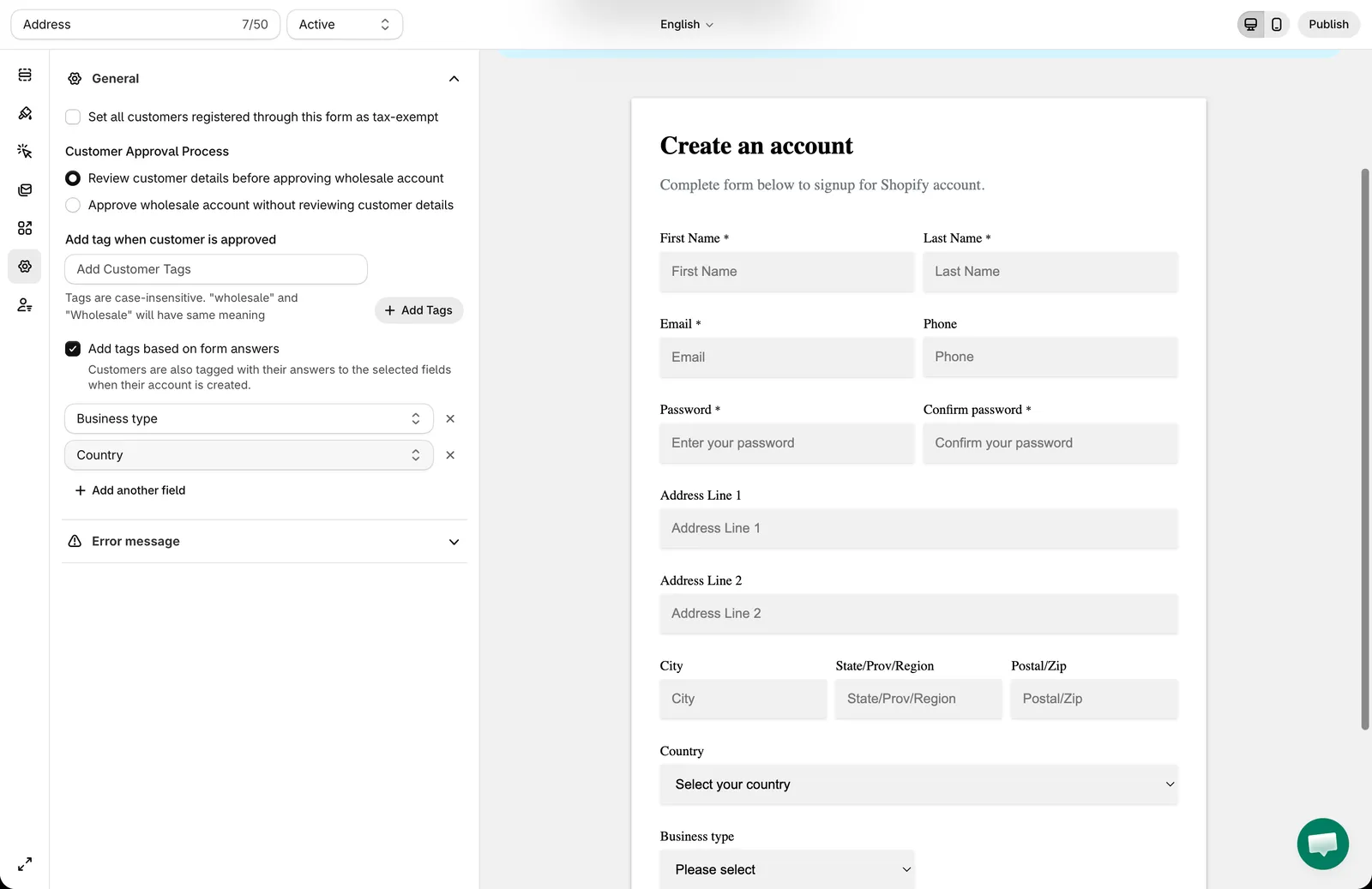
With Add tags based on form answers, the answers a customer gives to the fields you choose are added to their Shopify customer account as tags.
Example: your form has a Business type dropdown with the options Retailer, Distributor and Contractor. A customer who chooses Distributor gets the tag Distributor. You can then use that tag in your pricing rules with the Customer tags condition.
These tags are added together with the tags you set in Add tag when customer is approved.
Steps to manage
Section titled “Steps to manage”-
Open the form settings
Section titled “Open the form settings”From the app, click Registration Form, open the form you want, then click the Settings tab and open General.
-
Choose the fields
Section titled “Choose the fields”Select Add tags based on form answers, then choose a field in the list. Click Add another field to tag customers with the answers of more fields, or click × to remove one.
-
Save and test
Section titled “Save and test”Click Save, submit the form, then check the tags of the customer in Shopify Customers.
How answers become tags
Section titled “How answers become tags”- The tags are added when the app creates or updates the customer’s Shopify account from the registration: right after the form is submitted if the form approves accounts without review, or when you approve the customer.
- Each answer becomes a tag. For a Checkbox field, every selected option becomes its own tag.
- An answer that contains commas is split into several tags.
- Empty answers are skipped, and the same tag is never added twice.
- For Dropdown, Radio, Checkbox and Country fields, only answers that are options of the field become tags. A value that isn’t one of the field’s options is ignored.
Good to know
Section titled “Good to know”- You can choose any field except Password, File and layout elements (Heading, Paragraph, Divider, HTML and Group).
- A field used for tags can’t be edited by customers on the Profile page of new customer accounts, because changing it would change their tags. See Show registration details on the customer Profile page.
- This option is part of customer auto-tagging, which isn’t included in the Free plan. On the Free plan, the field is locked and shows an upgrade link.
- To add the same fixed tag to every customer, such as
wholesale, see Automatically add “wholesale” tag to Shopify customer account.
Need support?
Section titled “Need support?”If you do encounter any difficulty while proceeding these steps, don’t show any hesitation to contact us promptly via the email address [email protected].