
Show shipping rates on the cart
Show customers the shipping rate that matches their cart, its tiers, and how much more to add for a cheaper rate — right above the checkout button.
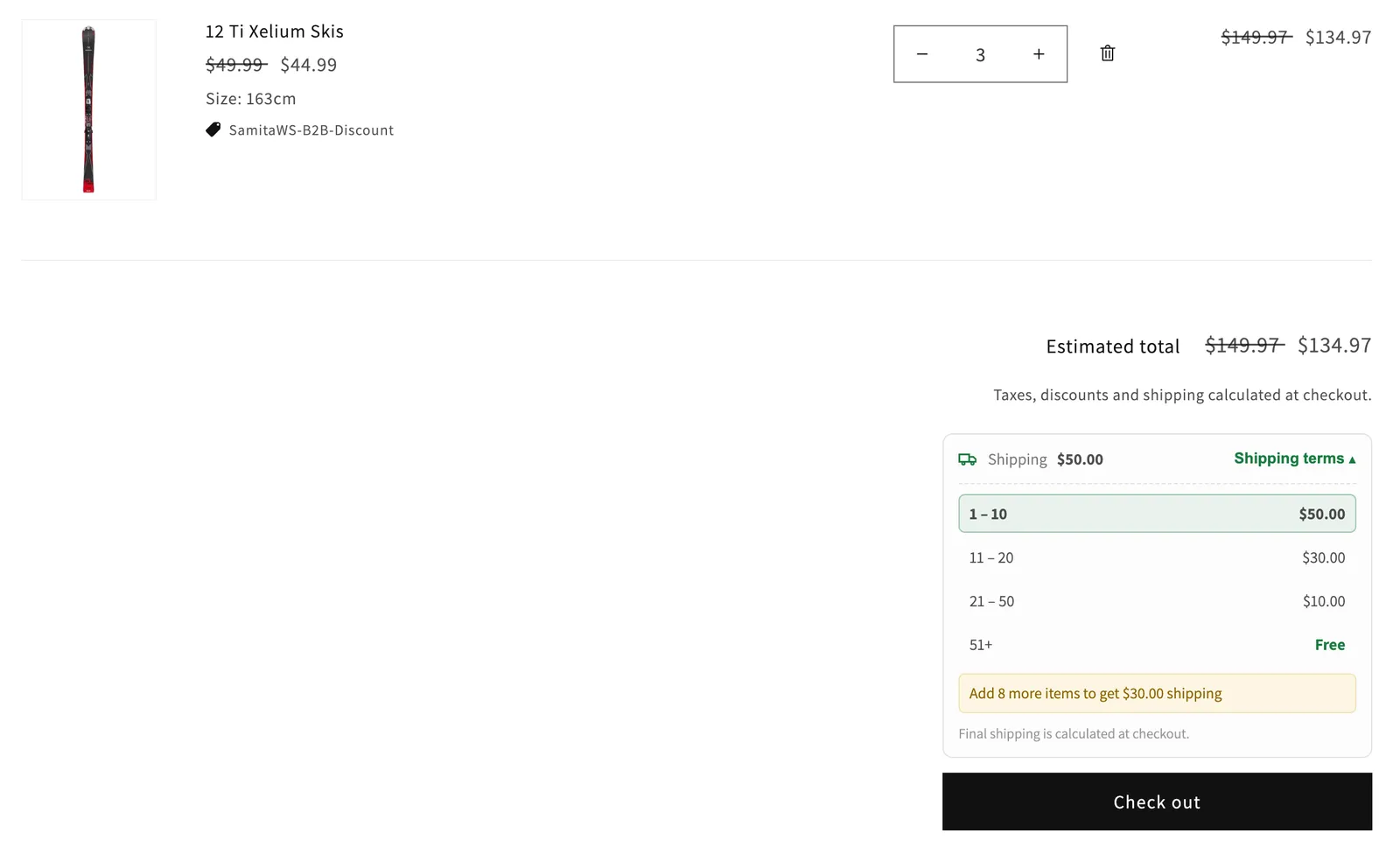
The shipping terms widget shows customers the shipping fee of your Shipping rate rules before they check out. It appears right above the checkout button, on the cart page and in the cart drawer.
The widget shows:
- Shipping and the fee that matches the cart, or Free.
- Shipping terms — customers click it to open the from–to tiers of the applied rule. The tier the cart is in is highlighted. You can turn this off.
- A progress hint, such as Add 8 more items to get $30.00 shipping, when a higher tier of the same rule has a lower fee. You can turn this off.
- Final shipping is calculated at checkout.
Steps to manage
Section titled “Steps to manage”-
Open Shipping rate settings
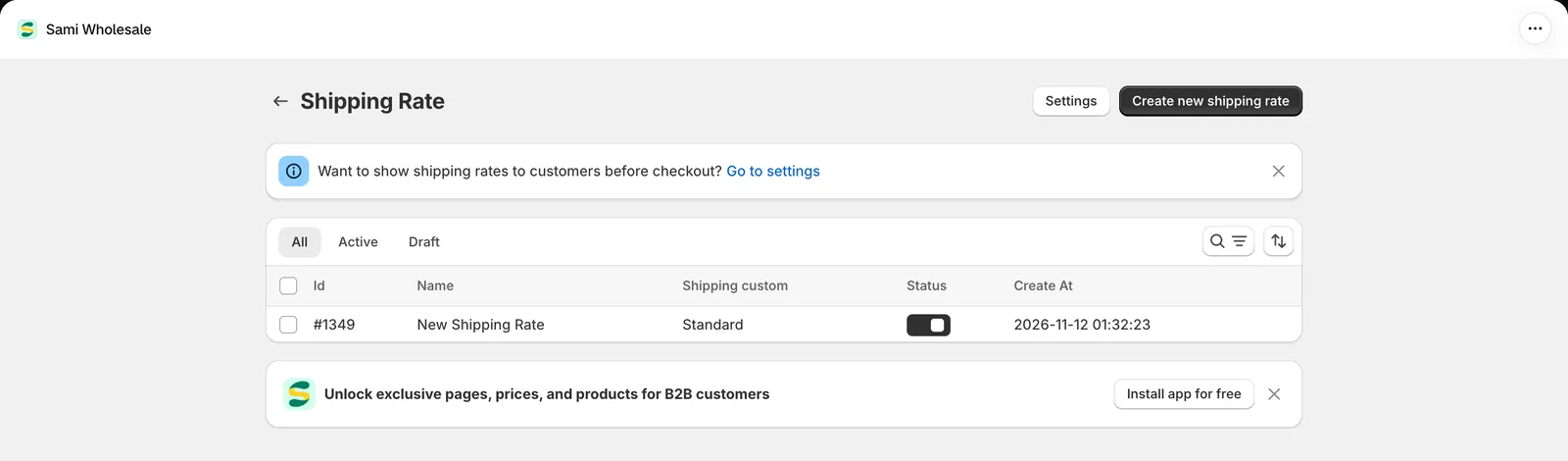
Section titled “Open Shipping rate settings”From the app, go to Add-on Features > Shipping rate > Setup shipping rate, then click Settings at the top of the page. You can also click Go to settings in the banner on that page.
-
Turn on the widget
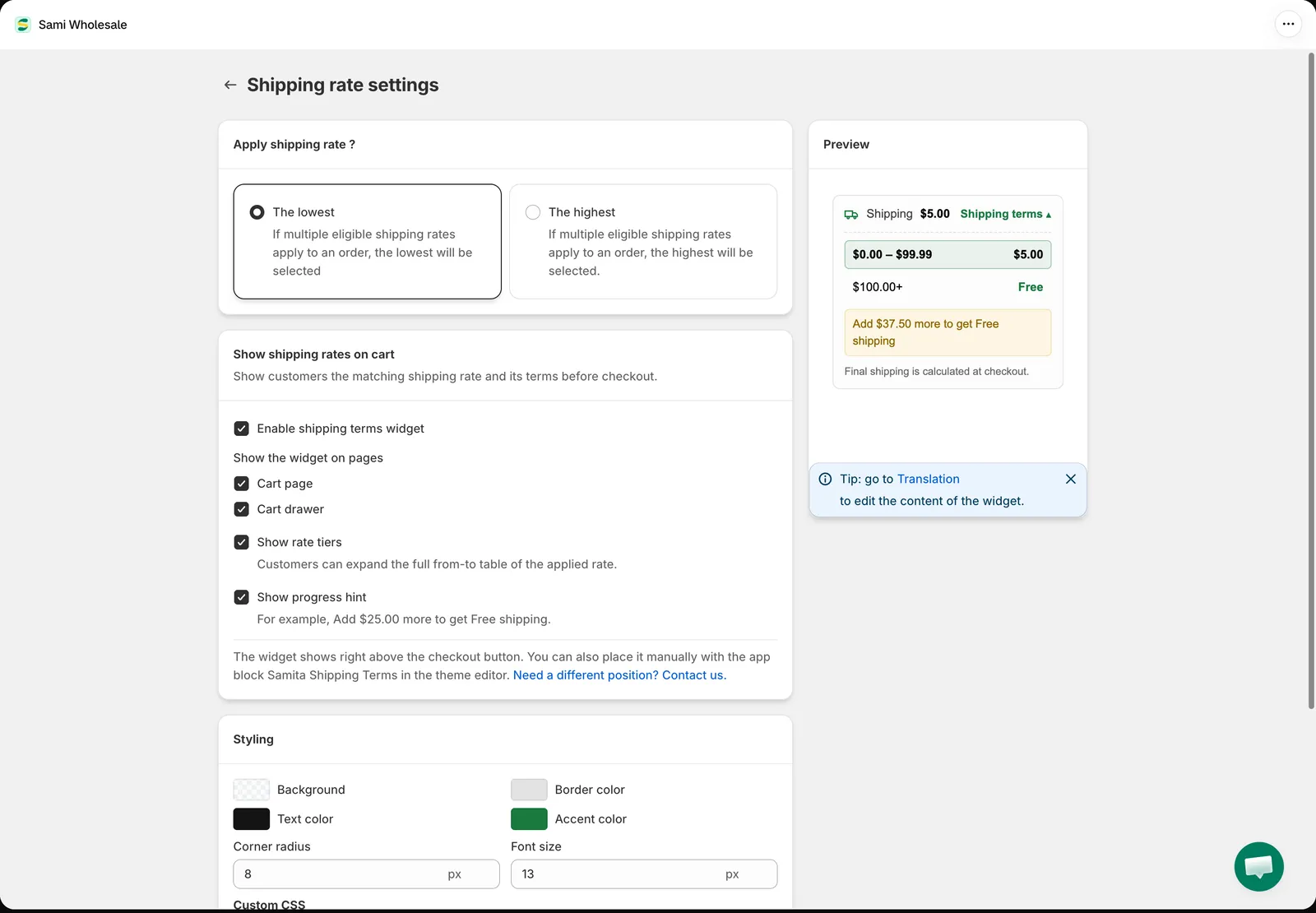
Section titled “Turn on the widget”In Show shipping rates on cart, select Enable shipping terms widget, then choose:
- Show the widget on pages — Cart page, Cart drawer, or both.
- Show rate tiers — customers can open the full from–to table of the applied rate.
- Show progress hint — for example, Add $25.00 more to get Free shipping.
-
Choose which rate applies when several rules match (optional)
Section titled “Choose which rate applies when several rules match (optional)”In Apply shipping rate ?, choose The lowest (default) or The highest. When more than one Shipping rate rule matches the cart, this decides which one is charged at checkout and shown in the widget.
-
Style the widget (optional)
Section titled “Style the widget (optional)”In Styling, set the Background, Border color, Text color, Accent color, Corner radius and Font size, or add your own rules in Custom CSS. The Preview shows the widget with sample data and your styling.
-
Click Save, then add products to the cart on your storefront to check the widget.
Change the widget text
Section titled “Change the widget text”Go to Settings > Translations, open the language you want, and choose Shipping terms. There you can edit or translate every text of the widget, such as Shipping terms, Free, the progress hints and Final shipping is calculated at checkout. See Edit and translate content for some of the app’s features.
Place the widget somewhere else
Section titled “Place the widget somewhere else”By default, the widget appears right above the checkout button. To show it in another place on the cart page, open the theme editor, go to the Cart page and add the Samita Shipping Terms app block where you want it.
If you need another position, click Need a different position? Contact us. in the settings and our team can help.
Good to know
Section titled “Good to know”- The widget appears only when the cart has products that match an active Shipping rate rule for that customer, and the cart falls into one of the rule’s tiers. It uses the same rules as checkout.
- The Shipping rate add-on must be turned on in Add-on Features.
- When several rules match, the rule chosen by Apply shipping rate ? is shown. Under its tiers, customers see that the lowest (or highest) matching rate is applied automatically.
- The progress hint counts items, order amount or weight, depending on the rule’s Scope.
- The widget updates when customers change quantities in the cart.
- The custom shipping name of a rule or tier is shown at checkout, not in the widget. See Shipping Rate.
Need support?
Section titled “Need support?”If you do encounter any difficulty while proceeding these steps, don’t show any hesitation to contact us promptly via the email address [email protected].