
Customers and markets
Limit an offer to logged-in or tagged customers, leave out B2B buyers, and choose the Shopify markets it runs in.
本頁內容尚未翻譯。
By default an offer is for every shopper in every market. These settings narrow it down: only logged-in customers, only customers with certain tags, or only some of your Shopify markets. They’re in the editor’s Settings tab, under Advanced › Customers, markets and channels.
These settings decide who gets the offer: a shopper who doesn’t match neither sees the block nor gets the discount at checkout. To only show or hide the block, for example on mobile, use display conditions instead.
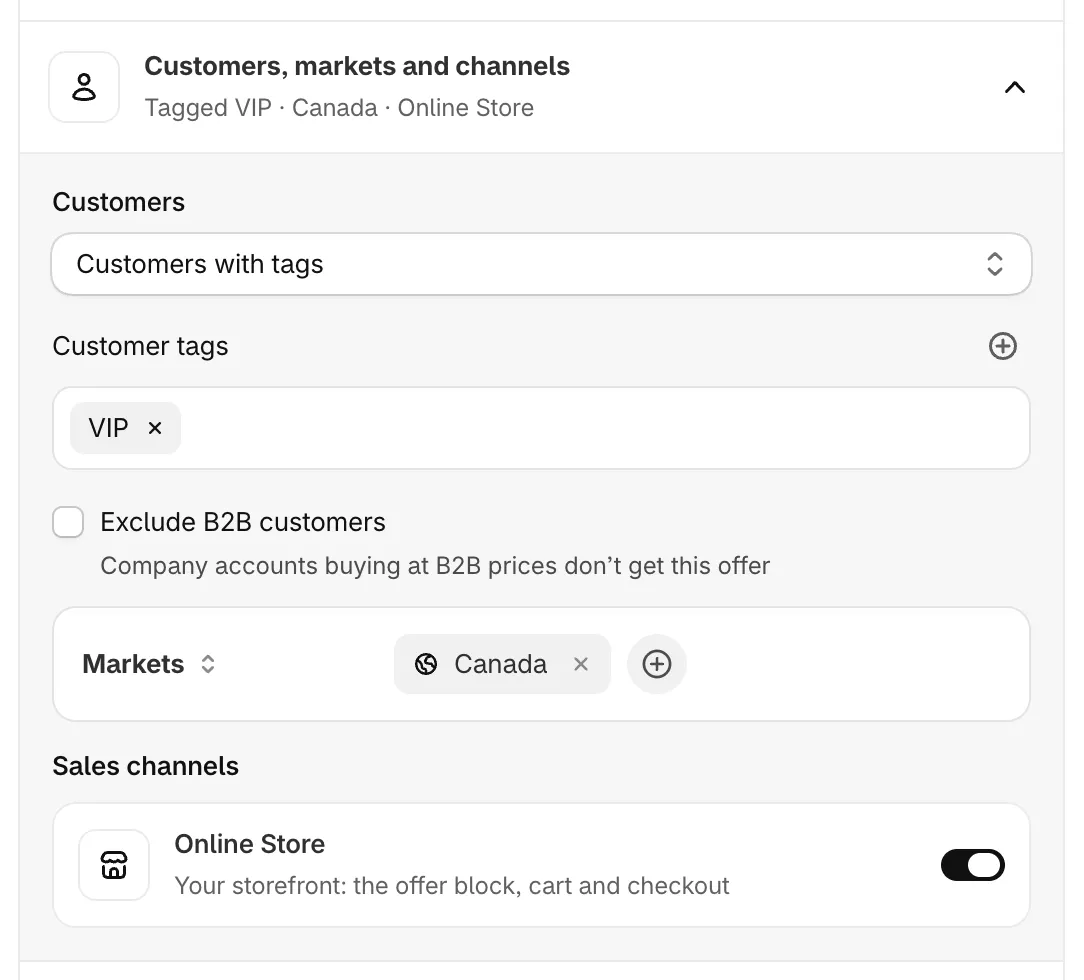
Who can use the offer, and where.
Customers
Section titled “Customers”Pick one under Customers:
| Option | Who gets the offer |
|---|---|
| All customers | Everyone, signed in or not. |
| Logged-in customers only | Shoppers signed in to a customer account. |
| Customers with tags | Signed-in customers who have at least one of the tags you add under Customer tags, such as VIP. |
Customer tags are the ones on the customer’s record in your Shopify admin. With Customers with tags, add at least one tag, or the offer can’t be saved.
Exclude B2B customers
Section titled “Exclude B2B customers”Tick Exclude B2B customers so that Company accounts buying at B2B prices don’t get this offer.
Markets
Section titled “Markets”The markets box limits the offer to some of your Shopify markets. With no market added, it Runs in all markets.
-
Choose the rule
Section titled “Choose the rule”Click the rule on the left of the box and pick one:
- Markets — Runs only in the markets you add.
- Excluded markets — Runs everywhere except the markets you add.
-
Add markets
Section titled “Add markets”Click Add a market. A searchable list of your store’s markets opens, with the countries in each. Your main market is marked Primary. Tick the markets you want.
Each market you add shows as a chip. Hover over it to see its countries, and click its × to remove it.
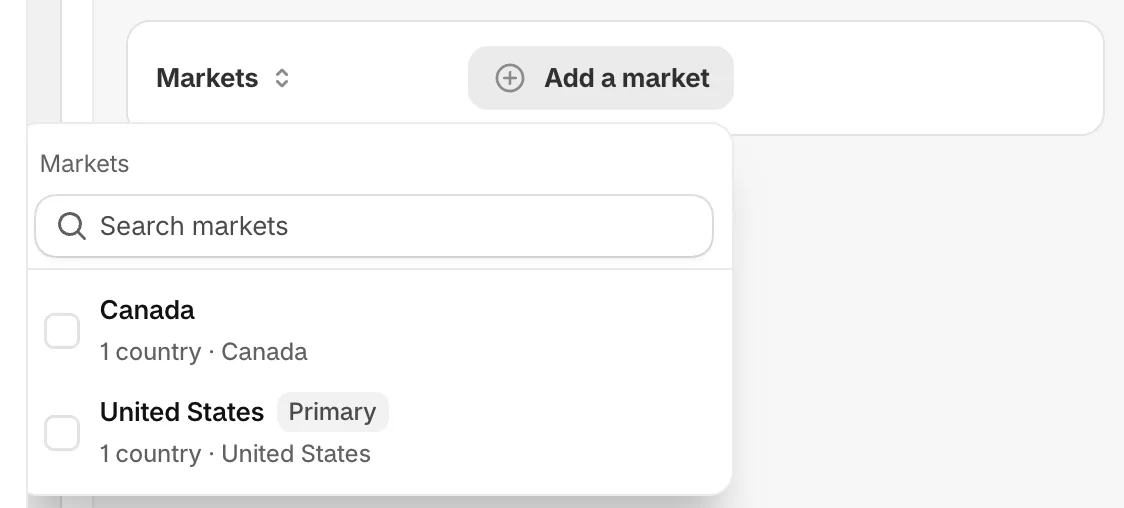
Pick markets from your Shopify store.
Which market a shopper is in
Section titled “Which market a shopper is in”On your store, the offer follows the market the shopper is browsing in. At checkout, the discount checks the shipping address country once the shopper has entered it. A shopper who browses in one market but ships to a country outside the offer’s markets doesn’t get the discount.
When your markets change
Section titled “When your markets change”The app checks your Shopify markets regularly and updates your offers to match:
- A market that gets new countries in Shopify covers them in the offer too.
- A deleted market is removed from the offer.
- If an offer set to Markets loses all its markets, the app pauses it, and the offer’s details page shows Its Shopify markets were deleted. Pick markets again and turn it back on.
- If an offer set to Excluded markets loses all its excluded markets, it runs in every market.
If the list can’t load, you’ll see Your markets couldn’t be loaded. Click Try again.
Offers limited by country
Section titled “Offers limited by country”Offers created before markets were available may be limited by country instead. They show This offer is limited by country, set before markets were available. and a Where it runs menu: All countries, Only in these countries or Everywhere except these countries, with Add a country to pick them.
These offers keep working as they are. Click Use markets instead to switch to markets; the offer then starts from all markets, so add the ones you want.
Sales channel
Section titled “Sales channel”Keep Online Store switched on. It covers your storefront: the offer block, cart and checkout. If it’s off, the offer doesn’t show on your online store.