
Manage offers
Find, filter, turn on or off, duplicate and delete offers, and keep an eye on Shopify's automatic discount limit.
本頁內容尚未翻譯。
The Offers page lists every offer in your store. From here you can see what’s running, switch offers on and off, and open any offer to edit it or check its results.
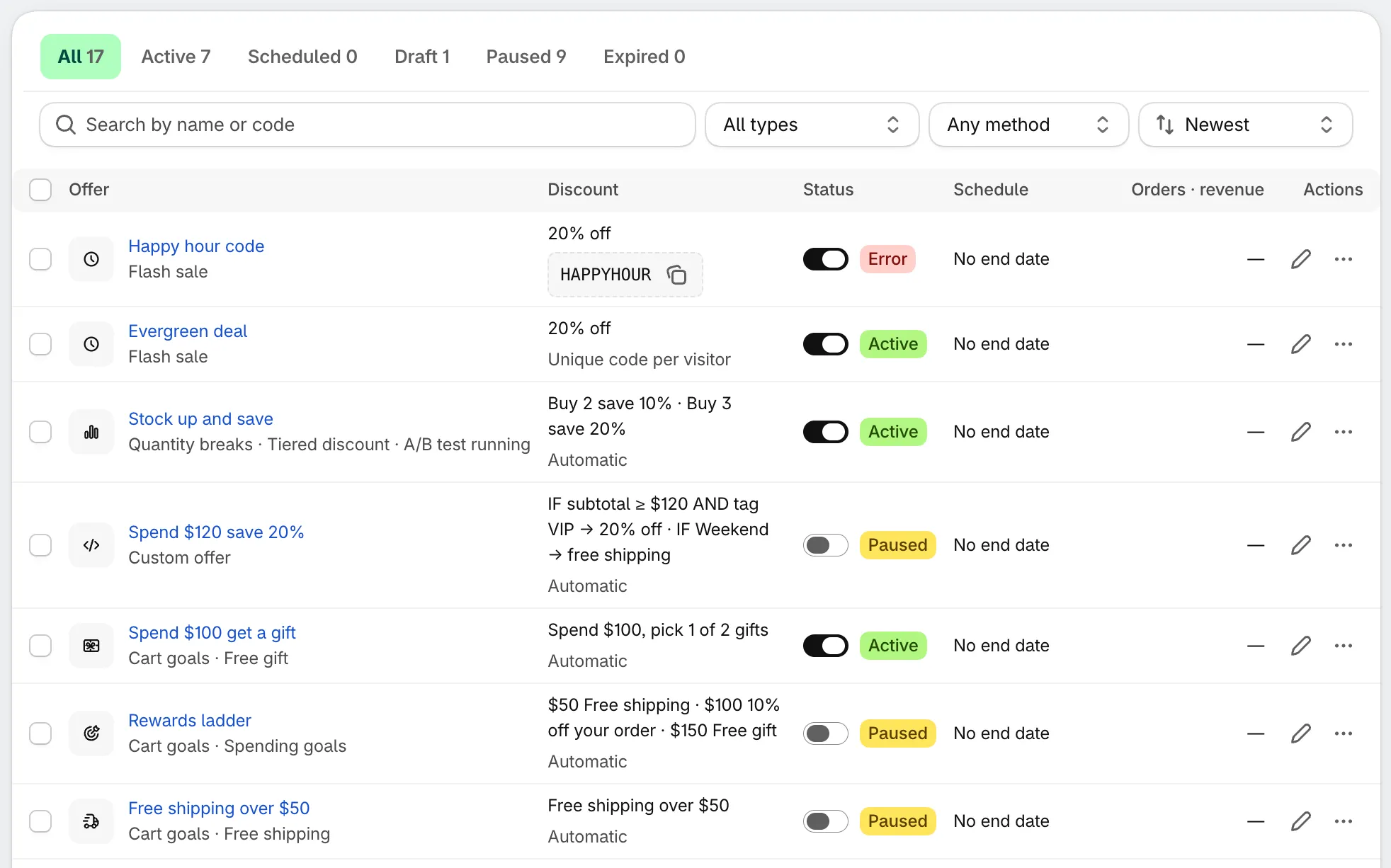
The Offers list.
What each row shows
Section titled “What each row shows”| Column | Shows |
|---|---|
| Offer | The internal name and the offer type. “A/B test running” is added while a test runs. Click the name to open Offer details. |
| Discount | A short summary of the rules, then how it applies: Automatic, Unique code per visitor, or the code itself with a copy button. |
| Status | An on/off switch and the status badge. |
| Schedule | The offer’s dates, or No end date. A live countdown shows Ends in or Starts in when there’s a date coming up. |
| Orders · revenue | Orders that used the offer’s discount and the revenue from them. Shows “—” until Shopify has numbers. |
| Actions | Edit (pencil) and More actions (⋯). |
Statuses
Section titled “Statuses”The tabs at the top filter the list by status, with a count on each.
| Status | Means |
|---|---|
| Active | Turned on and running now. |
| Scheduled | Turned on, but its start date is still ahead. It goes live on its own. |
| Draft | Saved but not turned on. New offers start here. |
| Paused | Turned off. Its Shopify discount is switched off too. |
| Expired | Its end date has passed. |
| Error | Shopify didn’t accept the offer’s discount, so the offer doesn’t run. There’s no tab for it: the badge shows in place of the usual one. Open the offer’s details to see why and retry. |
Search, filter and sort
Section titled “Search, filter and sort”- Search finds offers by name or by discount code.
- Type shows one offer type, for example only Flash sales.
- Method shows Automatic offers or Code offers. Code includes both single codes and unique codes.
- Sort orders the list by Newest or Ends soonest.
If nothing matches, click Clear filters to see everything again.
Turn an offer on or off
Section titled “Turn an offer on or off”Use the switch in the Status column:
- Switch on: the offer becomes Active, or Scheduled if its start date is ahead.
- Switch off: the offer becomes Paused, and its Shopify discount stops applying.
The switch is greyed out on an Expired offer. To run it again, open it with Edit and move or remove the end date in Settings › Active dates.
Row actions
Section titled “Row actions”Click Edit (pencil) to open the offer in the editor. Click More actions (⋯) for the rest:
- View details — opens the Offer details page.
- Duplicate — makes a copy saved as a Draft. Change it and turn it on when it’s ready.
- Pause, Resume or Activate — the same as the switch. The menu shows the one that fits the offer’s status.
- Delete — removes the offer. You’re asked to confirm.
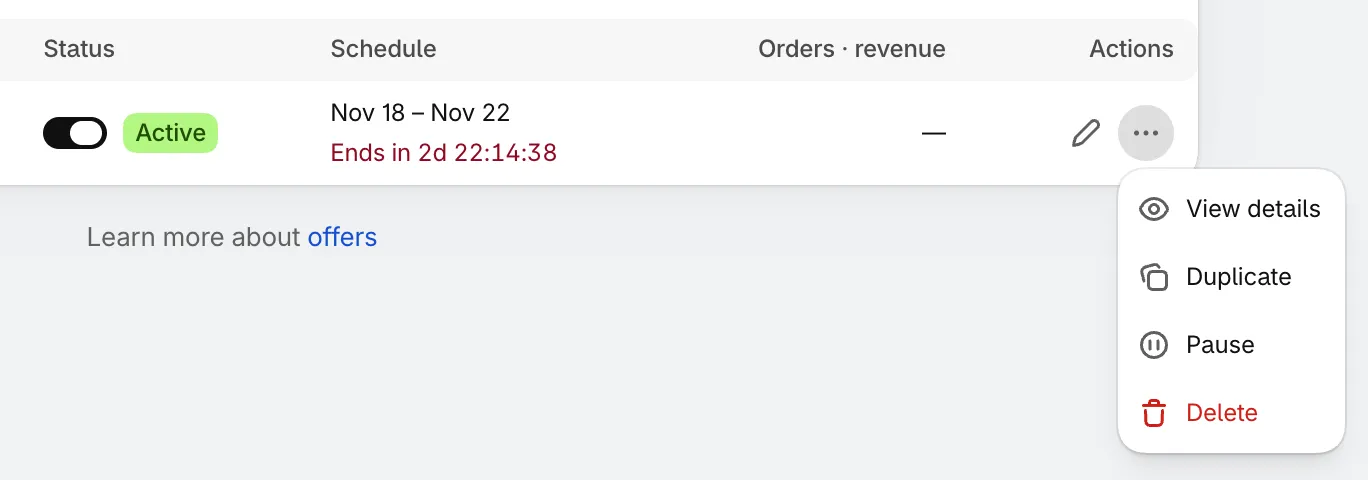
The row menu.
Work on several offers at once
Section titled “Work on several offers at once”Tick the checkboxes beside the offers, or the one in the header to select the whole page. A bar appears above the list with Activate, Pause, Duplicate and Delete. Click Clear to unselect.
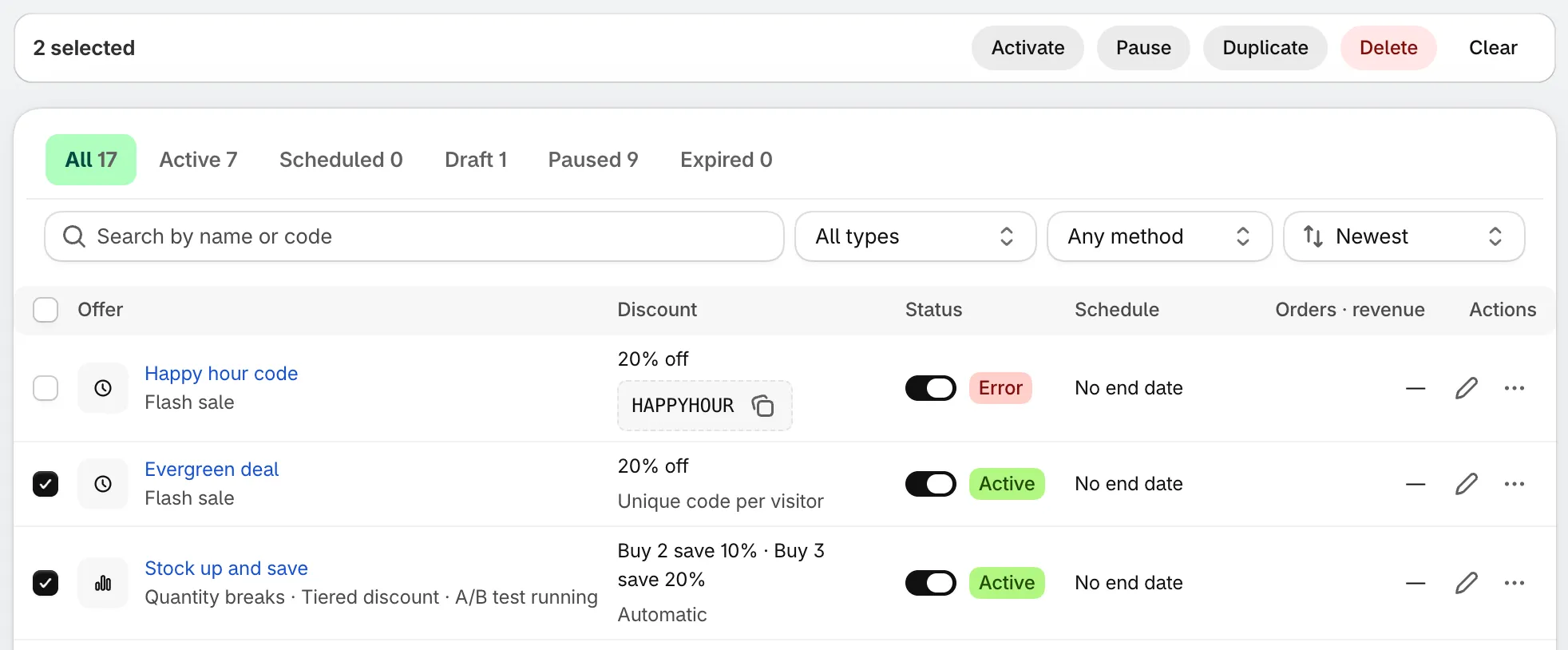
Bulk actions for the selected offers.
Shopify’s limit on automatic discounts
Section titled “Shopify’s limit on automatic discounts”Shopify lets a store have 25 active automatic discounts at once. The limit is for the whole store, not just this app: automatic discounts you made in Shopify and those from other apps count too.
- Every Active offer with the Automatic method uses one of the 25.
- Offers that use a Discount code don’t count. Neither do Draft or Paused offers.
When your store gets close to the limit, a banner above the list shows how many are used, for example 22 of 25 automatic discounts used in this store. It turns red when all 25 are used. At that point Shopify won’t accept another automatic discount, so a new automatic offer you turn on gets an Error badge.
To free up room, do one of these:
- Pause an automatic offer you don’t need right now.
- Switch an offer to a discount code. See Discount method.
- Turn off automatic discounts you no longer use in your Shopify admin under Discounts.