
Schedule and timer
Set when an offer runs, choose how its countdown works, and decide what shoppers see when it ends.
本頁內容尚未翻譯。
Every offer can run all the time or between two dates, and its countdown can count to the end date, run inside a daily window, or give each visitor their own time limit. These settings are on the editor’s Settings tab, in Active dates and Timer mode.
Active dates
Section titled “Active dates”A new offer is Always on: it Runs from the moment you turn it on until you turn it off. To give it dates:
-
Add a schedule
Section titled “Add a schedule”In Settings › Active dates, click Add a schedule. The card switches to Scheduled and opens the date fields, starting one hour from now.
-
Set the start
Section titled “Set the start”Pick the Start date and Start time. Times are in your shop’s time zone, shown under the fields as In shop time zone.
You can type a time the short way:
9becomes 09:00,930becomes 09:30, and9:30 pmbecomes 21:30. -
Set the end (optional)
Section titled “Set the end (optional)”Tick Set an end date and pick the End date and End time. Leave it unticked to run the offer until you turn it off.
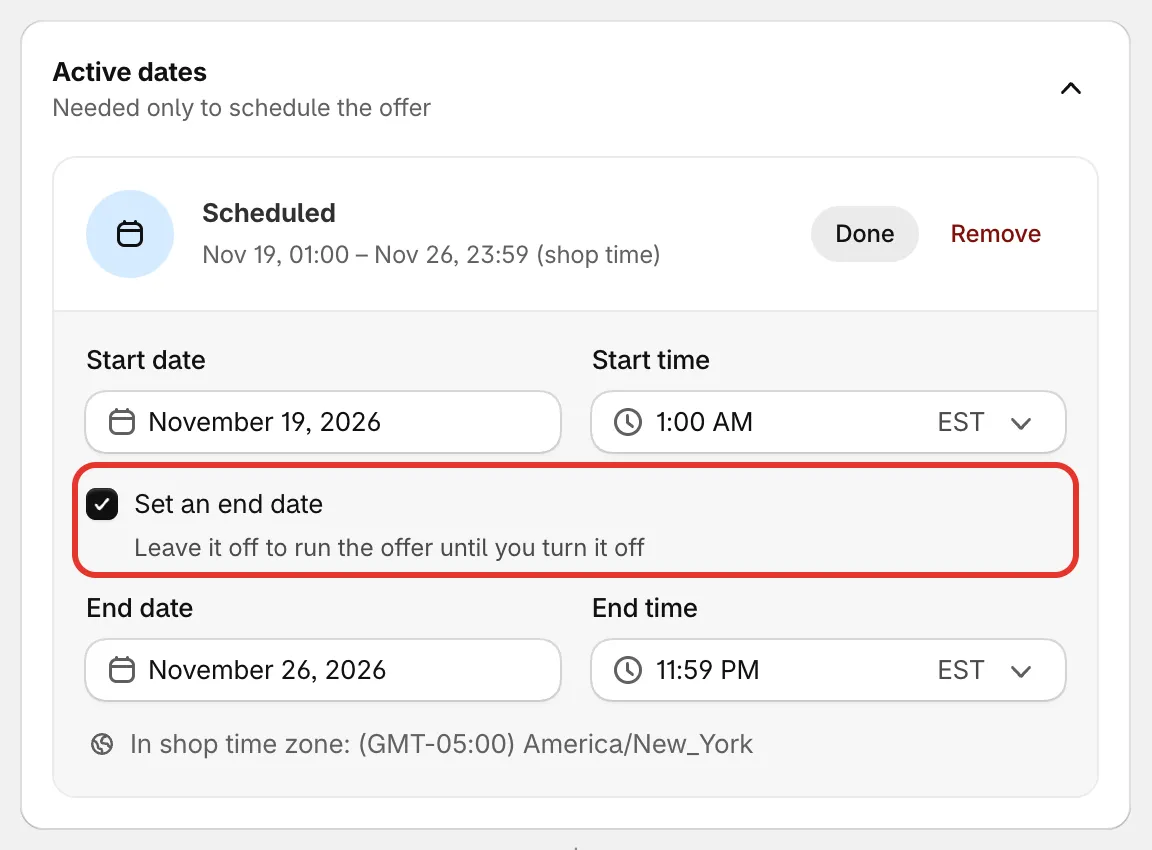
A scheduled offer with a start and an end.
-
Click Done to close the card, then save the offer. It needs to be Active for the schedule to take effect: before the start date it’s listed as Scheduled, then it goes live by itself.
The Shopify discount gets the same dates, so it starts and stops with the offer. To go back to running all the time, click Remove on the card.
When the end date passes, the offer becomes Expired. Its discount stops applying, and the block leaves your store unless you chose to show “Offer ended” (see The countdown on the block).
Timer mode
Section titled “Timer mode”Timer mode decides what the offer’s countdown counts to. Pick one of three:
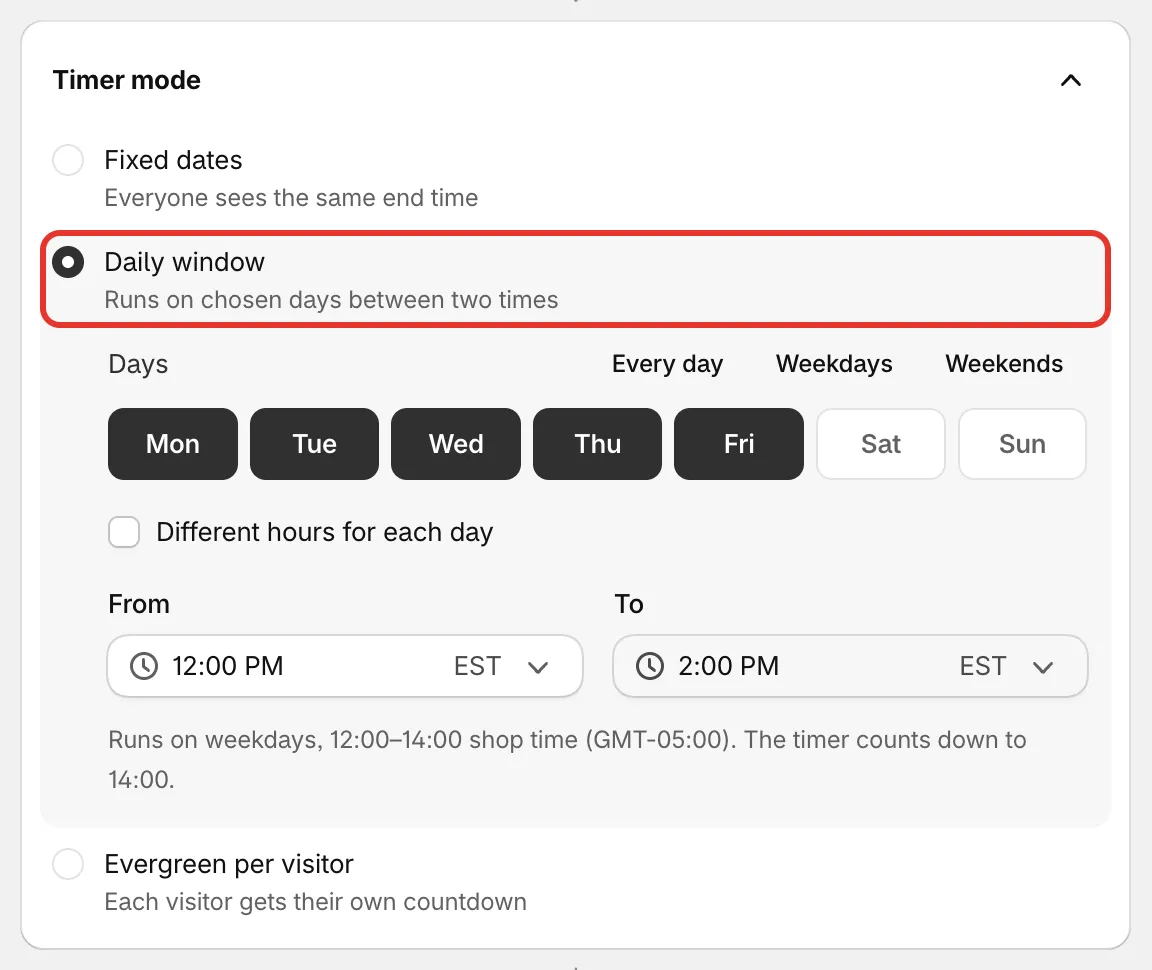
The three timer modes.
Fixed dates
Section titled “Fixed dates”Everyone sees the same end time. The countdown runs to the end date in Active dates.
Daily window
Section titled “Daily window”Runs on chosen days between two times, for example a happy hour every weekday from 12:00 to 14:00.
- Days — the days of the week it runs.
- From and To — the window, in shop time. If To is earlier than From, the window runs past midnight.
- Different hours for each day — gives each day its own times. A button such as Copy Mon’s hours to every day copies the first day’s times to the others.
The offer shows, and its discount applies, only inside the window. The countdown runs to the end of the day’s window. The summary under the fields spells out the result, for example “Runs on weekdays, 12:00–14:00 shop time”.
Evergreen per visitor
Section titled “Evergreen per visitor”Each visitor gets their own countdown, starting the first time they see the offer.
- Countdown per visitor — how many minutes each visitor gets.
- Restart after — how many hours after their countdown ends a visitor can get a new one. Enter 0 to never restart.
When a visitor’s time runs out, the offer disappears for them, or shows as ended if you picked Show “Offer ended” (see below). Their countdown is kept in their browser, so the same shopper on another device or browser starts a fresh one.
The countdown on the block
Section titled “The countdown on the block”The visible countdown on a product page block is the Countdown timer module, on the Design tab under Modules. It’s on by default for Flash sales. Turn it on for other types to add urgency. It follows the timer mode above, so there’s no separate countdown to set.
- Timer title — the text above the clock, for example “Hurry! Offer ends in”. Suggest cycles through ready-made titles.
- When the offer ends — Hide the offer removes the block and the sale price from the page. Show “Offer ended” keeps the block, marked as ended.
- Alignment and Size — where the timer sits and how big it is.
- Preview the ended state — shows the ended state in the preview only.
Some Flash sale looks, such as Countdown ring, Running band and Night panel, draw the timer inside the block itself. They have no separate timer look, but the title and the ending still apply.
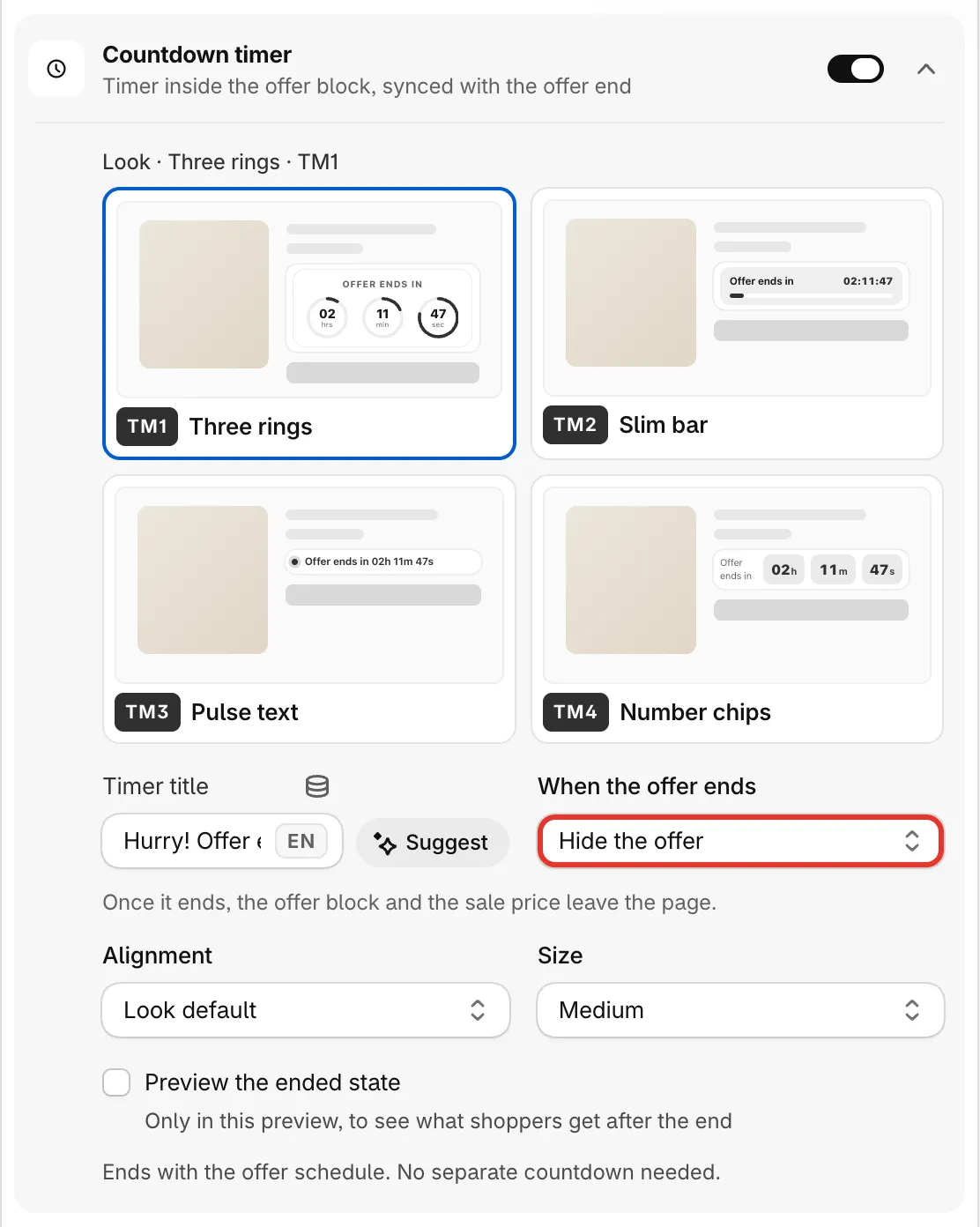
The Countdown timer module.