
啟用 Collection 條件
在您的佈景主題中新增一個範本檔案,讓 Collection 條件能夠比對商品。
Collections 條件需要在您的佈景主題中加入一個小型範本檔案。沒有它,應用程式就無法得知商品在商店前台屬於哪些商品系列,因此以商品系列為對象的倒數計時器不會顯示。
每個佈景主題只需要做一次,而且應用程式會在需要時提醒您:倒數計時器編輯器中會出現警告橫幅,如果您希望由支援團隊代為處理,可以點擊 Request setup 按鈕。
新增檔案的步驟
Section titled “新增檔案的步驟”-
開啟佈景主題的程式碼編輯器
Section titled “開啟佈景主題的程式碼編輯器”在您的 Shopify 後台中,前往「線上商店」>「佈景主題」。在您要設定的佈景主題上,點擊 …(更多動作)按鈕並選擇「編輯程式碼」。
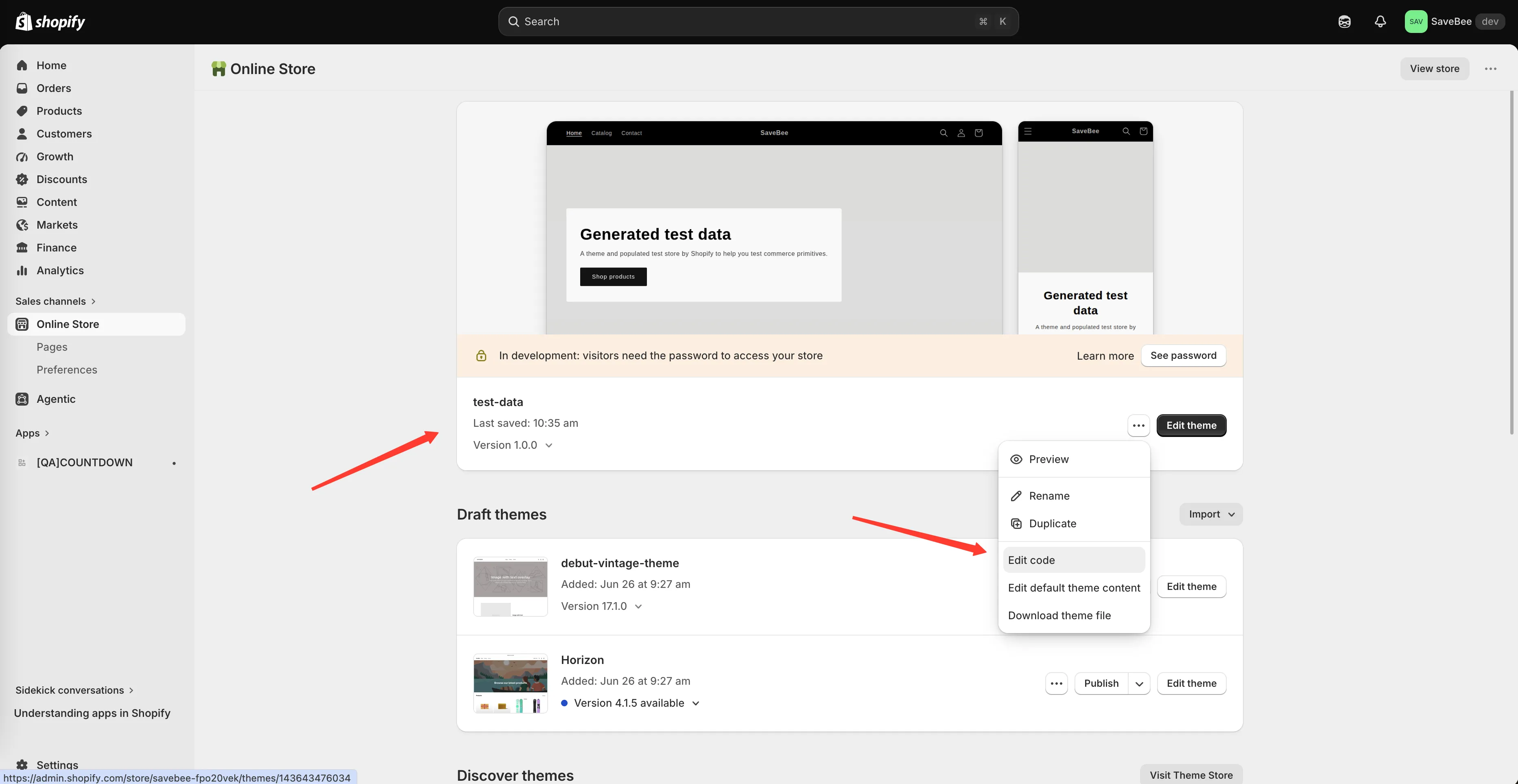
從「更多動作」>「編輯程式碼」開啟佈景主題的程式碼編輯器。
-
建立新的範本檔案
Section titled “建立新的範本檔案”在「範本」資料夾中,點擊「新增範本」,選擇類型為 liquid 的 search 範本,並將它命名為:
samiCountdownsProductsJsonShopify 會將它儲存為
templates/search.samiCountdownsProductsJson.liquid。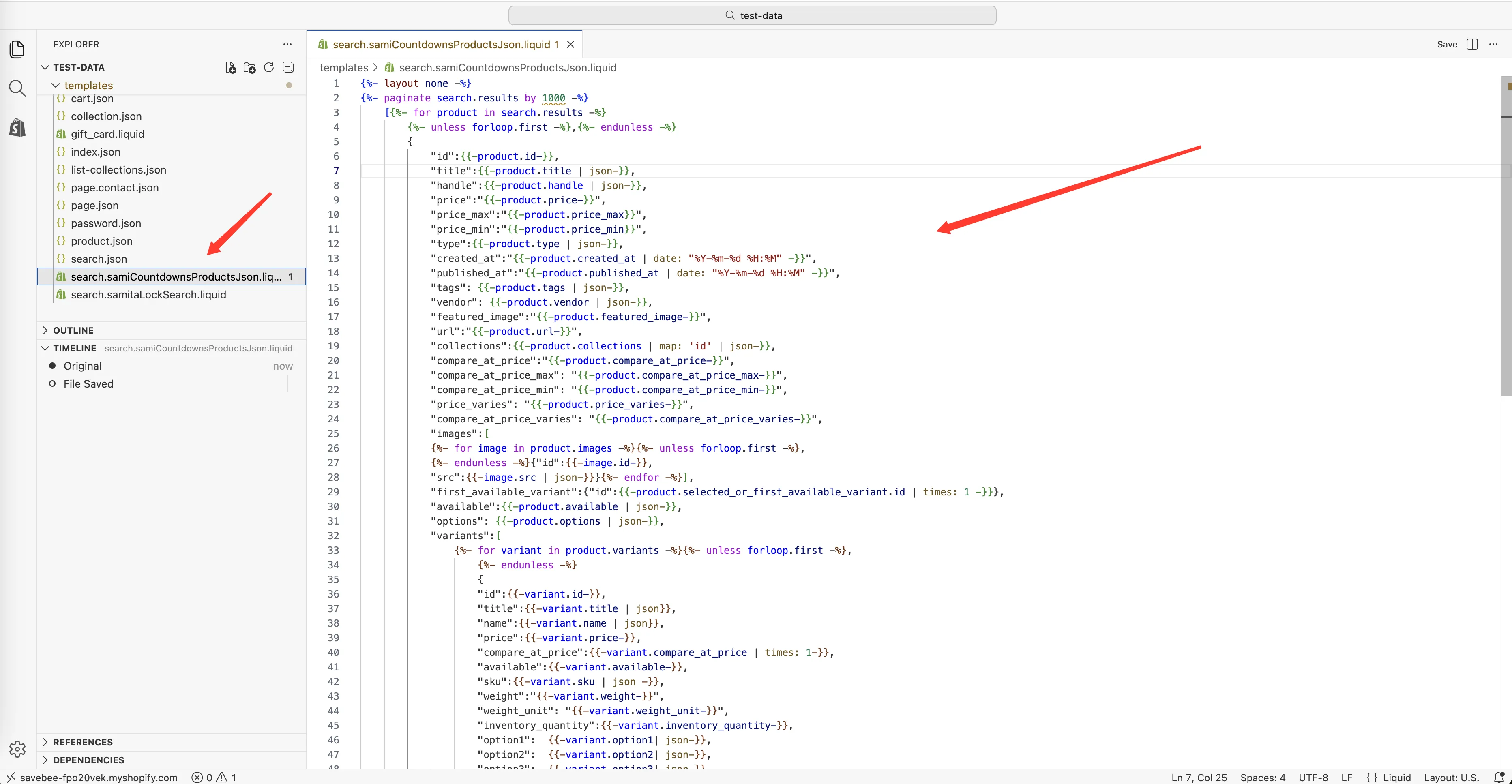
建立名為 samiCountdownsProductsJson 的 search 範本。
-
刪除 Shopify 放在新檔案中的任何內容,並貼上以下內容:
{%- layout none -%}{%- paginate search.results by 1000 -%}[{%- for product in search.results -%}{%- unless forloop.first -%},{%- endunless -%}{"id":{{-product.id-}},"title":{{-product.title | json-}},"handle":{{-product.handle | json-}},"price":"{{-product.price-}}","price_max":"{{-product.price_max}}","price_min":"{{-product.price_min}}","type":{{-product.type | json-}},"created_at":"{{-product.created_at | date: "%Y-%m-%d %H:%M" -}}","published_at":"{{-product.published_at | date: "%Y-%m-%d %H:%M" -}}","tags": {{-product.tags | json-}},"vendor": {{-product.vendor | json-}},"featured_image":"{{-product.featured_image-}}","url":"{{-product.url-}}","collections":{{-product.collections | map: 'id' | json-}},"compare_at_price":"{{-product.compare_at_price-}}","compare_at_price_max": "{{-product.compare_at_price_max-}}","compare_at_price_min": "{{-product.compare_at_price_min-}}","price_varies": "{{-product.price_varies-}}","compare_at_price_varies": "{{-product.compare_at_price_varies-}}","images":[{%- for image in product.images -%}{%- unless forloop.first -%},{%- endunless -%}{"id":{{-image.id-}},"src":{{-image.src | json-}}}{%- endfor -%}],"first_available_variant":{"id":{{-product.selected_or_first_available_variant.id | times: 1 -}}},"available":{{-product.available | json-}},"options": {{-product.options | json-}},"variants":[{%- for variant in product.variants -%}{%- unless forloop.first -%},{%- endunless -%}{"id":{{-variant.id-}},"title":{{-variant.title | json}},"name":{{-variant.name | json}},"price":{{-variant.price-}},"compare_at_price":{{-variant.compare_at_price | times: 1-}},"available":{{-variant.available-}},"sku":{{-variant.sku | json -}},"weight":"{{-variant.weight-}}","weight_unit": "{{-variant.weight_unit-}}","inventory_quantity":{{-variant.inventory_quantity-}},"option1": {{-variant.option1| json-}},"option2": {{-variant.option2| json-}},"option3": {{-variant.option3| json-}},"options": {{-variant.options| json-}},"selected": {%- if variant.selected -%} {{-variant.selected-}} {%- elsif product.selected_or_first_available_variant.id == variant.id -%} true {%- else -%} false {%- endif -%}}{%- endfor -%}]}{%- endfor -%}]{%- endpaginate -%} -
在程式碼編輯器中點擊 Save。
-
回到應用程式並開啟 Theme integration
Section titled “回到應用程式並開啟 Theme integration”回到 Countdown Timer Bar Samita 並開啟 Theme integration 頁面,讓應用程式在這個佈景主題上取得變更。
-
測試 Collection 條件
Section titled “測試 Collection 條件”開啟一個倒數計時器,將其條件設為 Collections 並選擇一個商品系列,儲存為 Active,然後在您線上的商店前台造訪該商品系列中的商品。倒數計時器應該會出現。
也請檢查不屬於該商品系列的商品,它應該不會顯示任何內容。
這個檔案實際的作用
Section titled “這個檔案實際的作用”這是一個 search 範本,會以資料而非網頁的形式傳回商品資訊,包括每個商品所屬的商品系列,而這項資訊在商店前台上應用程式原本無法取得。應用程式需要檢查 Collection 條件時,會在背景中請求它,顧客不會看到它。
- **依佈景主題分別設定。**更換佈景主題或安裝新的佈景主題時,也要在那裡新增這個檔案。
- 名稱必須完全相同。
samiCountdownsProductsJson,包括大寫字母。拼錯的話永遠找不到這個檔案,而且頁面上不會出現任何錯誤。 - **它只讀取,不寫入。**這個檔案不會改變您佈景主題的行為或外觀。