
Offer details
Check an offer's health, results, discount codes, schedule and placements on its details page.
本頁內容尚未翻譯。
Each offer has a details page that shows how it’s doing and whether anything needs your attention. Open it by clicking an offer’s name on the Offers list, or from More actions › View details.
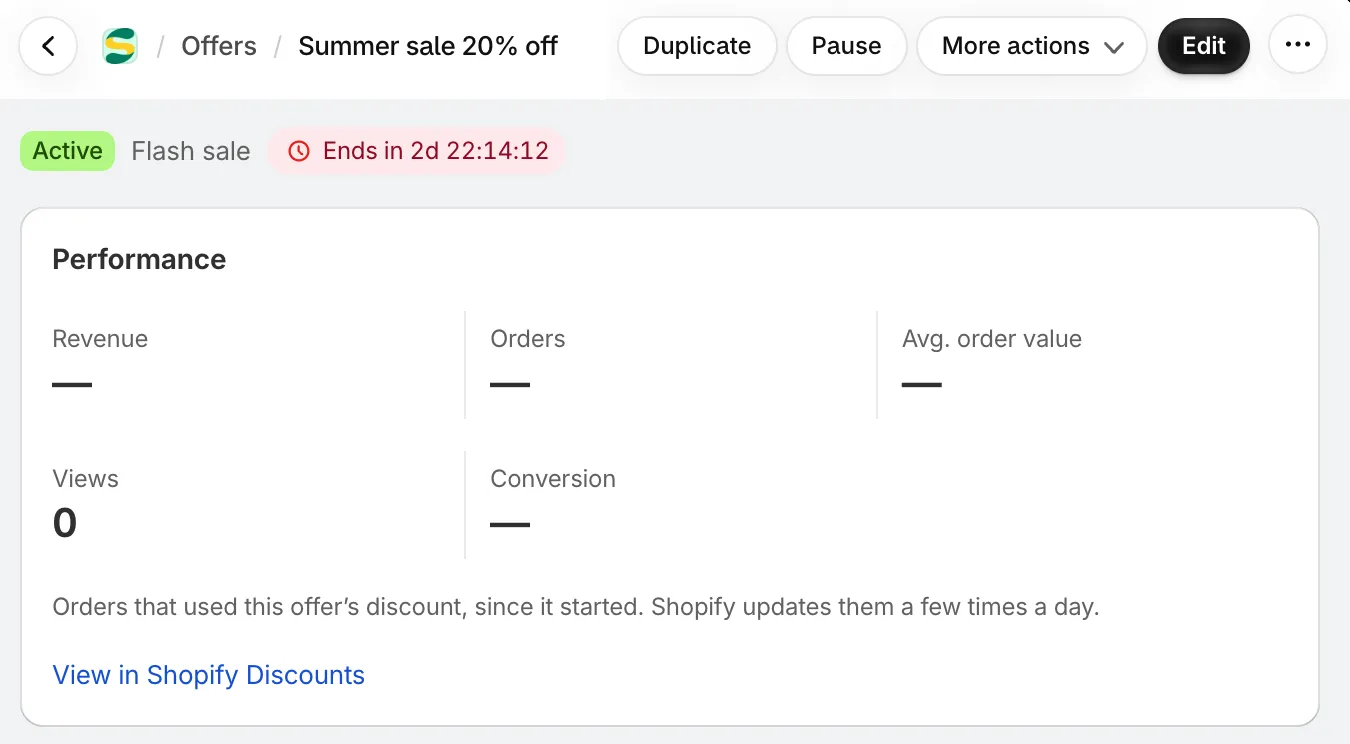
The top of an offer’s details page.
The header
Section titled “The header”Under the offer’s name you see its status badge, its type, and a live countdown when it ends or starts soon.
The buttons at the top right:
- Edit — opens the offer in the editor. The page refreshes when you close it.
- Duplicate — makes a copy saved as a draft.
- Pause, Resume or Activate — turns the offer off or on. Not shown on an expired offer.
- More actions — View in Shopify Discounts opens the offer’s discount in your Shopify admin; Delete removes the offer and its discount after you confirm.
Health check
Section titled “Health check”The Health check card appears only when something needs fixing. It lists each check with a green tick or a red warning, and how many are OK.
| Check | What it tells you | What to do |
|---|---|---|
| Discount synced with Shopify | When it fails, the reason shows here, for example a missing discount code or Shopify’s own message. Until it’s fixed the offer shows an Error badge and doesn’t run. | Fix what the message says in the editor, then click Retry. |
| Its Shopify markets were deleted | The offer ran only in markets that no longer exist in Shopify, so the app paused it. | Click Edit offer and pick markets again in Settings › Customers, markets and channels. |
| Automatic discount limit | For automatic offers: how many of Shopify’s 25 automatic discounts your store uses. It shows Automatic discount limit reached when all are used and this offer isn’t on yet. | Free one up. See Shopify’s limit on automatic discounts. |
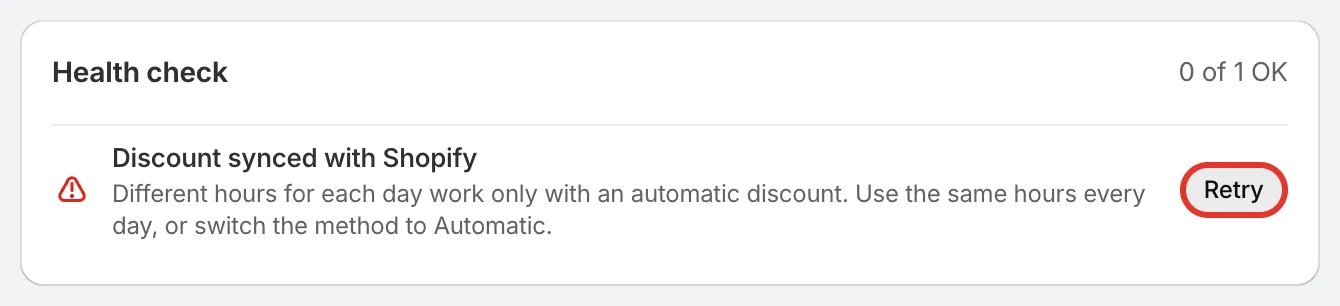
A failed sync, with the reason and Retry.
When Retry works you see Synced with Shopify and the card goes away. If it fails again, check the offer’s products and discount settings, then retry.
Performance
Section titled “Performance”The Performance card shows results since the offer started:
- Revenue — from orders that used the offer’s discount.
- Orders — orders that used the offer’s discount.
- Avg. order value — revenue divided by orders.
- Views and Conversion — how many shoppers saw the offer, and orders as a share of those views. These show once the app has view data for the offer.
The numbers come from Shopify, which updates them a few times a day, so a new order can take a while to appear. Before the first order the card says No orders yet. Numbers show here once shoppers use the discount.
For results across all your offers, see Analytics.
A/B test
Section titled “A/B test”If the offer has an A/B test, its card shows the visitors, rates and revenue of each version and lets you stop the test or keep a version. See A/B test an offer.
Offer summary
Section titled “Offer summary”A one-line summary of each part of the offer: Rules, Method, Eligibility (customers, markets and sales channel), Combinations and Limits. Click Edit on the card to change any of them.
Discount codes
Section titled “Discount codes”Offers that use a discount code also get a Discount codes card, with each code’s Uses and Status (Active, Used or Expired). Click a code to copy it.
- With one code for everyone, the card shows that code.
- With a unique code for each visitor, it shows The latest 50 codes. A visitor gets a code the first time they see the offer, so the list is empty until then.

The Discount codes card of a code offer.
Schedule and placements
Section titled “Schedule and placements”On the right:
- Schedule — the offer’s dates in your shop’s time zone, the timer mode, and a bar showing where the offer is: Scheduled, Live or Ended.
- Placements — every place the offer is turned on, such as Product page offer block or Cart drawer progress bar. If none is on, the card says so; turn one on in the editor’s Placement tab.
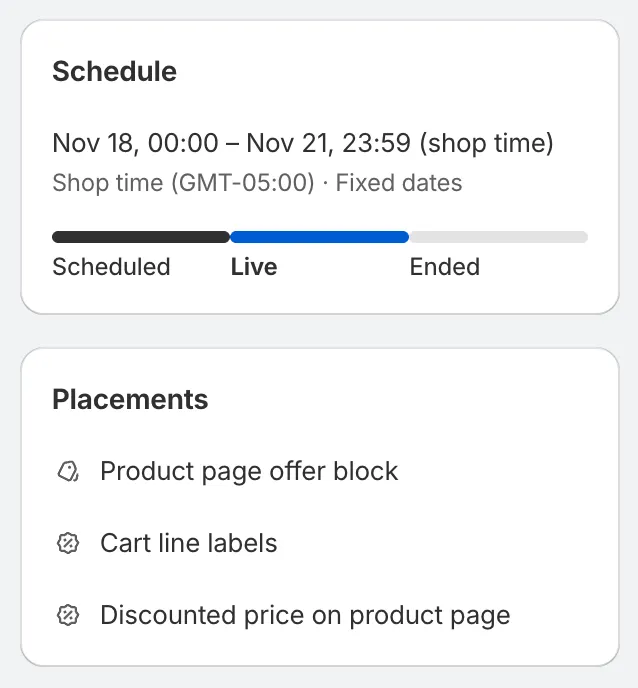
Schedule and placements.