
Flash sale
Put a percentage off, a fixed amount off, or a fixed sale price on the products you pick, with a sale badge and a countdown.
本頁內容尚未翻譯。
A flash sale takes the same discount off every product you pick, for a limited time. Use it for a weekend sale, a launch, or Black Friday, when you want one clear price cut and the urgency of a countdown.
What shoppers see
Section titled “What shoppers see”- On the product page, an offer block with the sale price, the original price crossed out, and a countdown to the end of the sale.
- Under the product title, the theme’s price is replaced by the sale price, the original price crossed out, and the saving (“Save 20%”).
- In the cart, a label under each discounted line, such as “Flash sale applied”.
- At checkout, the discount under the offer’s discount name.
Two more are off by default. Turn on the Badges module in Design for a sale badge such as “Flash sale” on the product image and next to the sale price. Turn on Collection page badge in Placement for a badge on product cards in collections and search results.
Templates that start a flash sale
Section titled “Templates that start a flash sale”| Template | Starts with |
|---|---|
| Flash sale (Discounts tab) | 20% off all products, the compare-at price shown, and the countdown timer turned on |
You can also click Start from blank in the Discounts category and pick Flash sale. See Create an offer.
Set up a flash sale
Section titled “Set up a flash sale”-
Choose the products
Section titled “Choose the products”In the offer editor, open the Offer tab. In the Products section, click Change and pick what the sale applies to:
- Specific products — products, or single variants of them.
- Collections — every product in the collections, now and later.
- Product tags — products with any of the tags you enter.
- All products — every product in your store.
To leave some items out, use Exclude products, Exclude collections, or Exclude tags. Excluded items never get the offer, even when they match the list above.
-
Set the discount
Section titled “Set the discount”In the Rules section, pick the Discount and enter its value:
Discount Field What each item costs Percentage off Percentage Its price minus that percentage Fixed amount off Amount Its price minus that amount, never below zero Fixed price Sale price That price. An item already cheaper than the sale price keeps its own price. 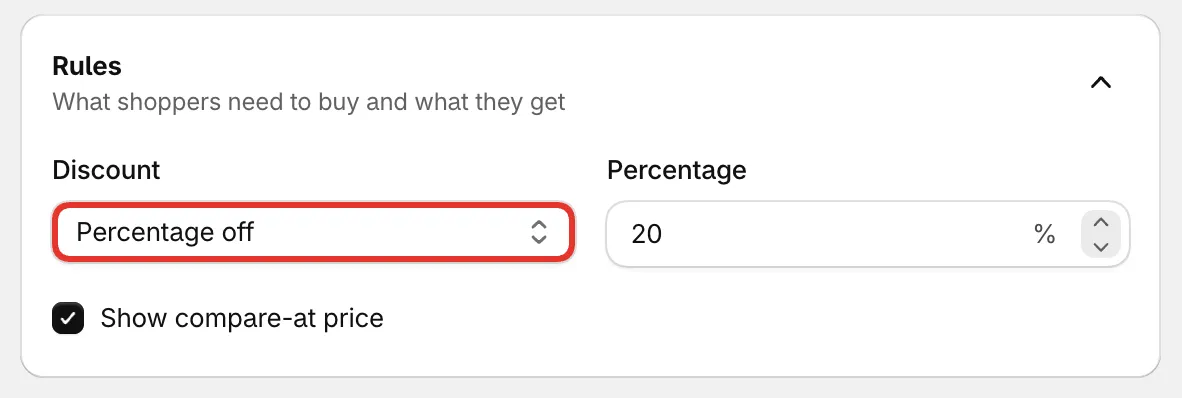
A flash sale’s rules: one discount for every item in the offer.
-
Choose how the price reads
Section titled “Choose how the price reads”- Show compare-at price — shows the original price crossed out beside the sale price. It’s on by default.
- Apply the amount once per order — only with Fixed amount off. The amount comes off once and is spread across all the discounted items in the order. Leave it off and every discounted item gets the amount off.
-
Give the countdown an end
Section titled “Give the countdown an end”The countdown counts to the end of the offer. Open the Settings tab and set an end date under Active dates, or switch the timer to a daily window or an evergreen timer.
If Active dates stays on Always on, there’s nothing to count down to, so the timer stays hidden. See Schedule and timer.
-
Save and check your store
Section titled “Save and check your store”Set the status to Active and click Save. Open one of the sale products on your store: the sale price and the block with its countdown should both be there.
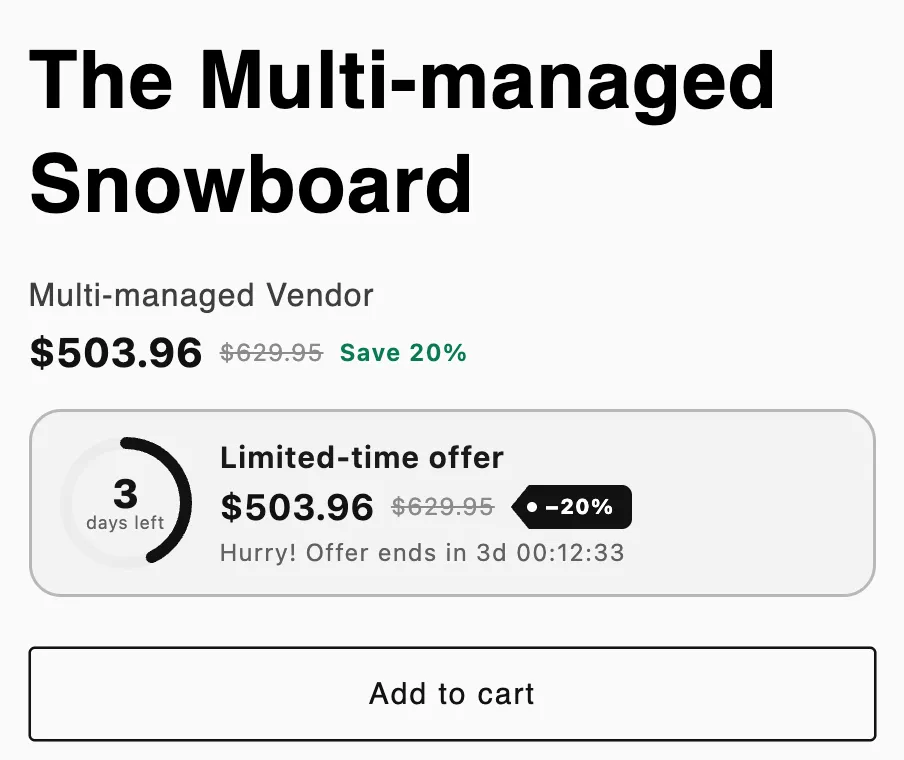
A flash sale on a product page: sale price and countdown.
Good to know
Section titled “Good to know”- Minimum purchase. To give the sale only when the shopper buys enough, open Settings › Advanced › Purchase requirements and set a Minimum purchase amount or quantity. It counts only the items in this offer. See Combinations and limits.
- Fewer discounted items. Settings › Advanced › Usage limits › Discounted items per order caps how many items get the sale price in one order.
- Round prices. Design › Variants and pricing › Round prices (End in .99, End in .95, or Whole numbers) rounds each sale price down. Checkout charges the same rounded price.
- Badge text. The sale badge reads “Flash sale” by default. Change it in the Badges module in Design (Sale badge on product images). What shows next to the sale price (the crossed-out price, the badge, the saving) is set under Placement › Discounted price on product page.
- Other currencies. A fixed amount or sale price converts to the shopper’s market currency at the market’s exchange rate.