
Free gift
Give a free gift once a shopper spends enough, buys certain products, or buys enough items, added by the app or picked from a list.
A free gift offer rewards a qualifying cart with a product at no charge: spend $100 and pick a gift. The app adds the gift to the cart, or lets the shopper choose one in a popup. Use it for gift-with-purchase campaigns, or to clear samples and accessories.
What shoppers see
Section titled “What shoppers see”- In the cart drawer and on the cart page, a progress bar such as “Spend $40.00 more to unlock Canvas tote free”.
- Once the cart qualifies, either the gift goes into the cart by itself, or a gift picker opens with your gifts and a Choose your gift button stays in the cart for later.
- The gift in the cart at no charge, with a label under the line.
With the default look, the gift picker is a popup on desktop and a sheet at the bottom of the screen on phones. Other picker looks are in Design.
Templates that start a free gift
Section titled “Templates that start a free gift”| Template | Starts with |
|---|---|
| Gift with purchase (Gifts & BOGO tab) | Unlocks at a $100 spend; the shopper picks 1 gift in a popup. You add the gift products. |
You can also click Start from blank in the Gifts & BOGO category and pick Free gift. See Create an offer.
Set up a free gift
Section titled “Set up a free gift”-
Choose what unlocks the gift
Section titled “Choose what unlocks the gift”In the offer editor, open the Offer tab. In the Rules section, pick Unlocks when:
Unlocks when Fields The gift unlocks when Spend an amount Spend at least The cart subtotal reaches this amount Buy specific products Min quantity, plus the products under Products to buy The cart has at least this many of those products Item quantity Minimum items The cart has at least this many items -
Add the gifts
Section titled “Add the gifts”Under Gift products, click Add gift and pick the products, or single variants of them, that shoppers can get.
-
Choose how the gift gets into the cart
Section titled “Choose how the gift gets into the cart”Pick How it is added:
- Added automatically — the first gift in stock is added to the cart.
- Shopper picks in a popup — shoppers choose from your gifts. Set Customer picks to how many gifts each shopper gets. It can’t be more than the number of gifts you added.
Then set the two switches:
- Remove the gift when the cart no longer qualifies — takes the gift out if the cart drops below what unlocked it. On by default.
- Hide the offer when the gift is out of stock — also on by default.
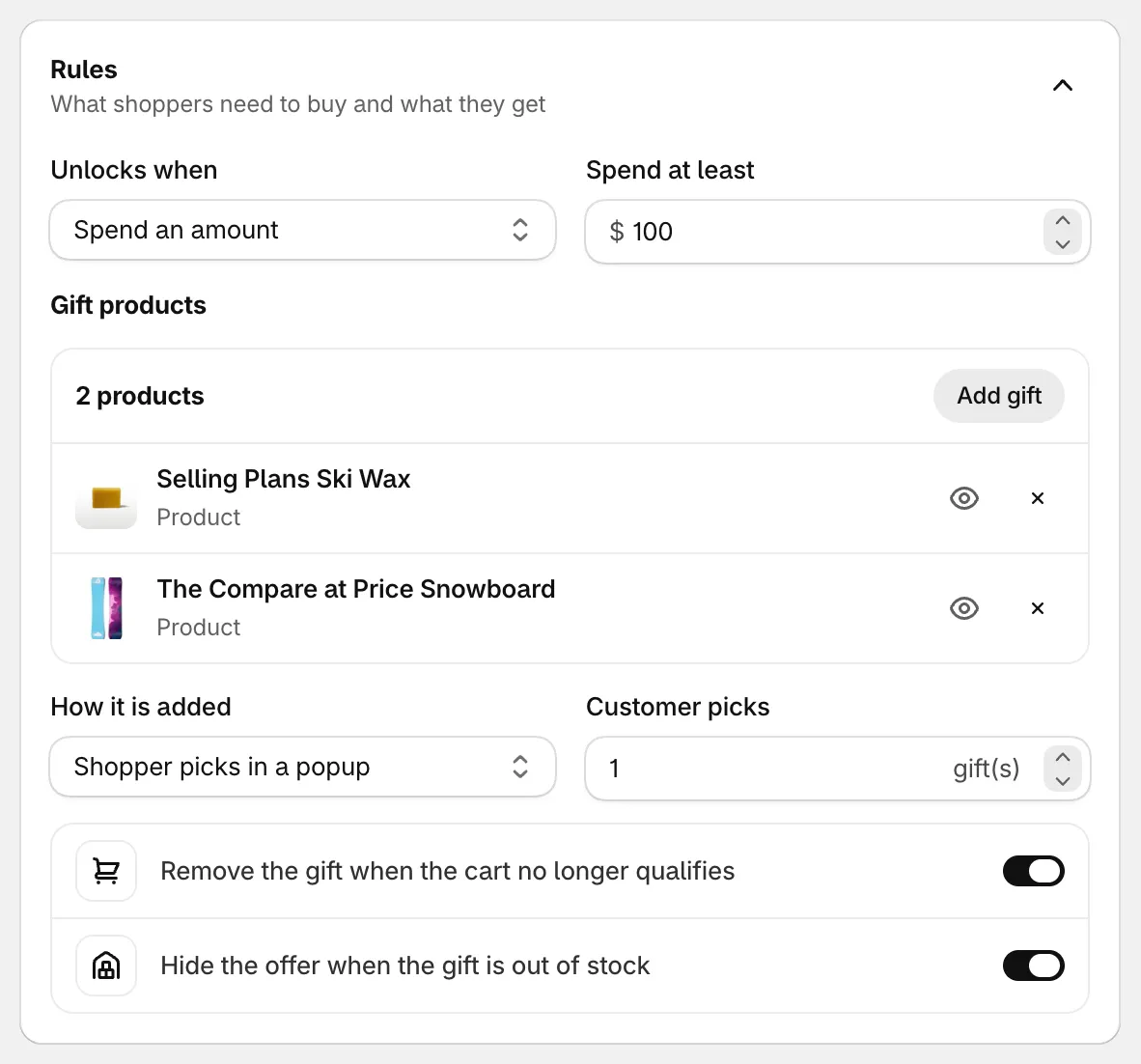
Spend $100, pick one of two gifts.
-
Save and check your store
Section titled “Save and check your store”Set the status to Active and click Save. Fill your cart past the threshold and open the cart drawer.
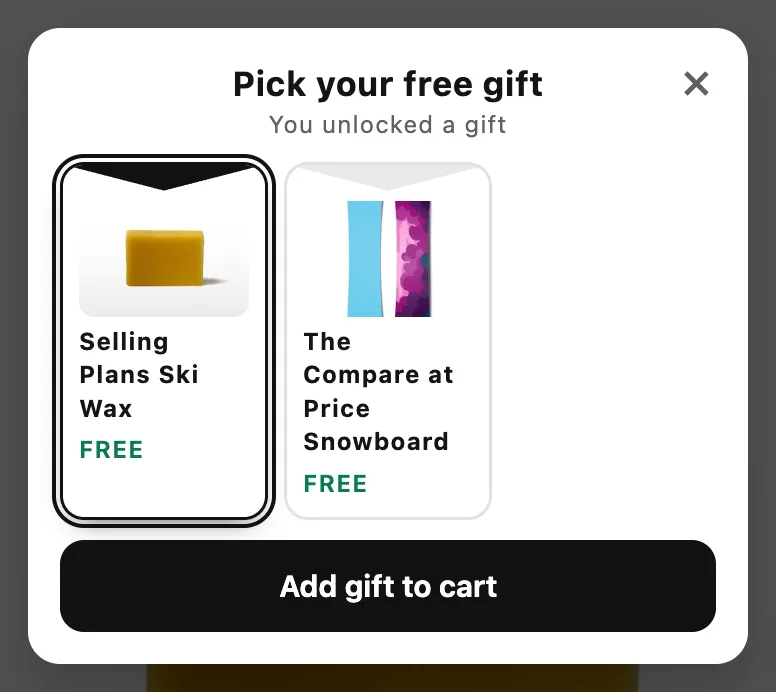
The gift picker on desktop.
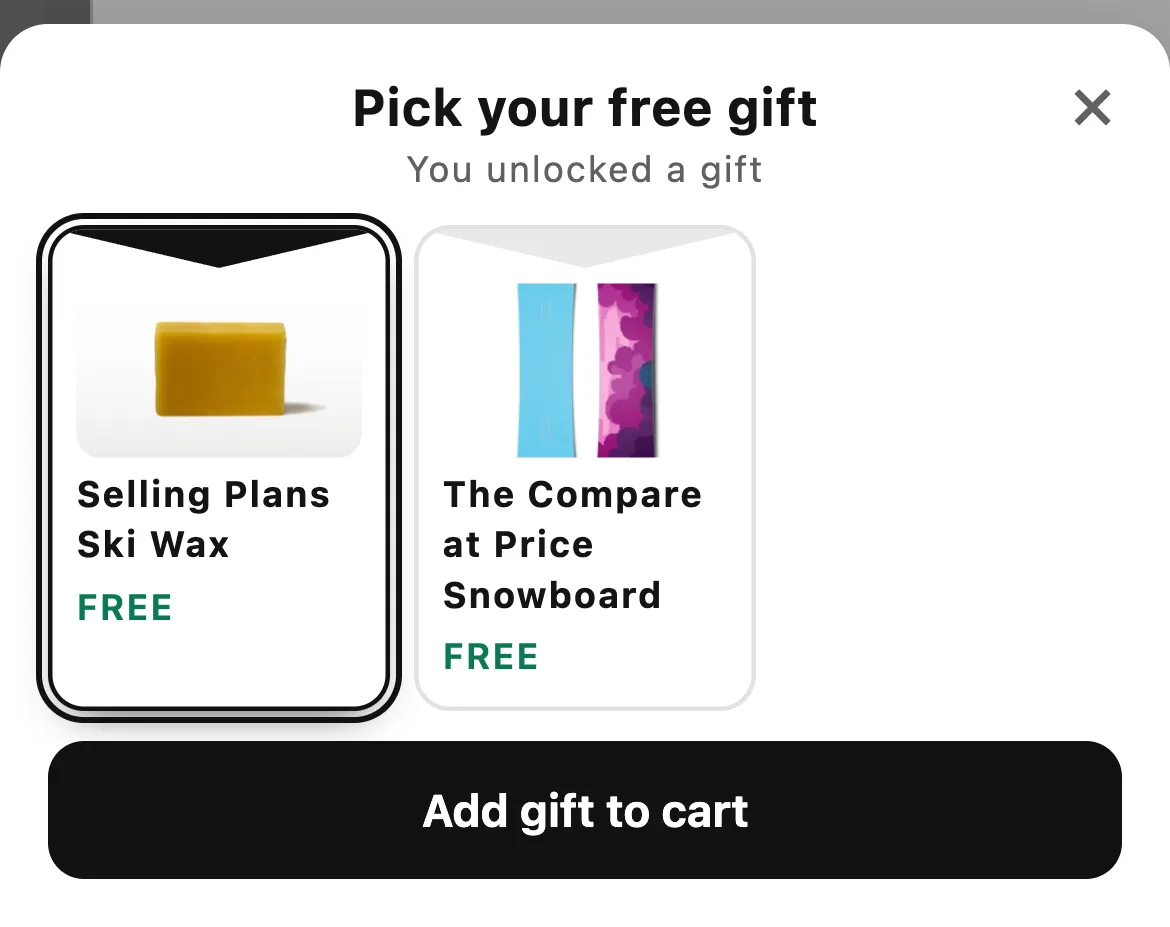
On phones, the picker is a sheet.
Good to know
Section titled “Good to know”- Only gifts the app adds are free. If a shopper adds the gift product from its own product page, it’s charged at full price. The gift has to come from the app: added automatically, or picked in the popup.
- Only the set number is free. With Customer picks at 1, one gift is free. If the shopper raises the gift’s quantity to 2, the second one is charged.
- Gifts don’t count toward the threshold. The gift’s own price never helps the cart qualify.
- When the popup opens. By default it opens by itself once per visit, when the gift unlocks and the cart is open. To show it only from the Choose your gift button, go to Placement › Gift picker popup › Open the gift picker and pick From a button in the cart. You can also change the popup’s title, button text and layout there.
- Automatic gifts. If the shopper removes an automatically added gift, the app doesn’t add it back during that visit.
- Other currencies. The spend amount converts to the shopper’s market currency at the market’s exchange rate.
- No A/B test. Free gift offers don’t have a product page block, so they can’t be A/B tested.