> For the complete documentation index, see [llms.txt](https://docs.samita.io/llms.txt). Markdown versions of documentation pages are available by appending `.md` to page URLs; this page is available as [Markdown](https://docs.samita.io/sami-b2b-onboarding/getting-started/your-home-page.md).

# Your Home page

Learn what each part of the Home page shows, and use it to find the work waiting for you.

Home is the page Sami B2B Onboarding opens on. It shows how applications are moving, the work waiting for your team, and any setup steps you haven't finished.

To get back to Home from anywhere in the app, click **Sami B2B Onboarding** in the Shopify admin sidebar.

## Application numbers

The strip across the top counts **All applications** over a period. It starts at **Last 30 days**.

| Number              | What it counts                                                                                                          |
| ------------------- | ----------------------------------------------------------------------------------------------------------------------- |
| **Applications**    | Applications submitted in the period.                                                                                   |
| **Approved**        | Applications approved in the period, by your team or by a rule.                                                         |
| **Rejected**        | Applications rejected in the period.                                                                                    |
| **Approval rate**   | Approvals as a share of all approvals and rejections in the period.                                                     |
| **Overdue**         | Applications still waiting for a decision more than 3 days after they were submitted, as of the last day of the period. |
| **Avg review time** | The average number of days from submission to decision, for applications decided in the period.                         |

Each number has a small trend line and the change since the previous period. The previous period is the same number of days, just before the one you picked. The change shows as a percentage for **Applications**, **Approved** and **Rejected**, in points (**pts**) for **Approval rate**, and as a plain difference for **Overdue** and **Avg review time**. A change in the direction you want, like more approvals or fewer overdue applications, shows in green. When the previous period has nothing to compare with, no change shows. A dash means there's nothing to measure yet, for example **Approval rate** before anything has been decided.

### See a number over time

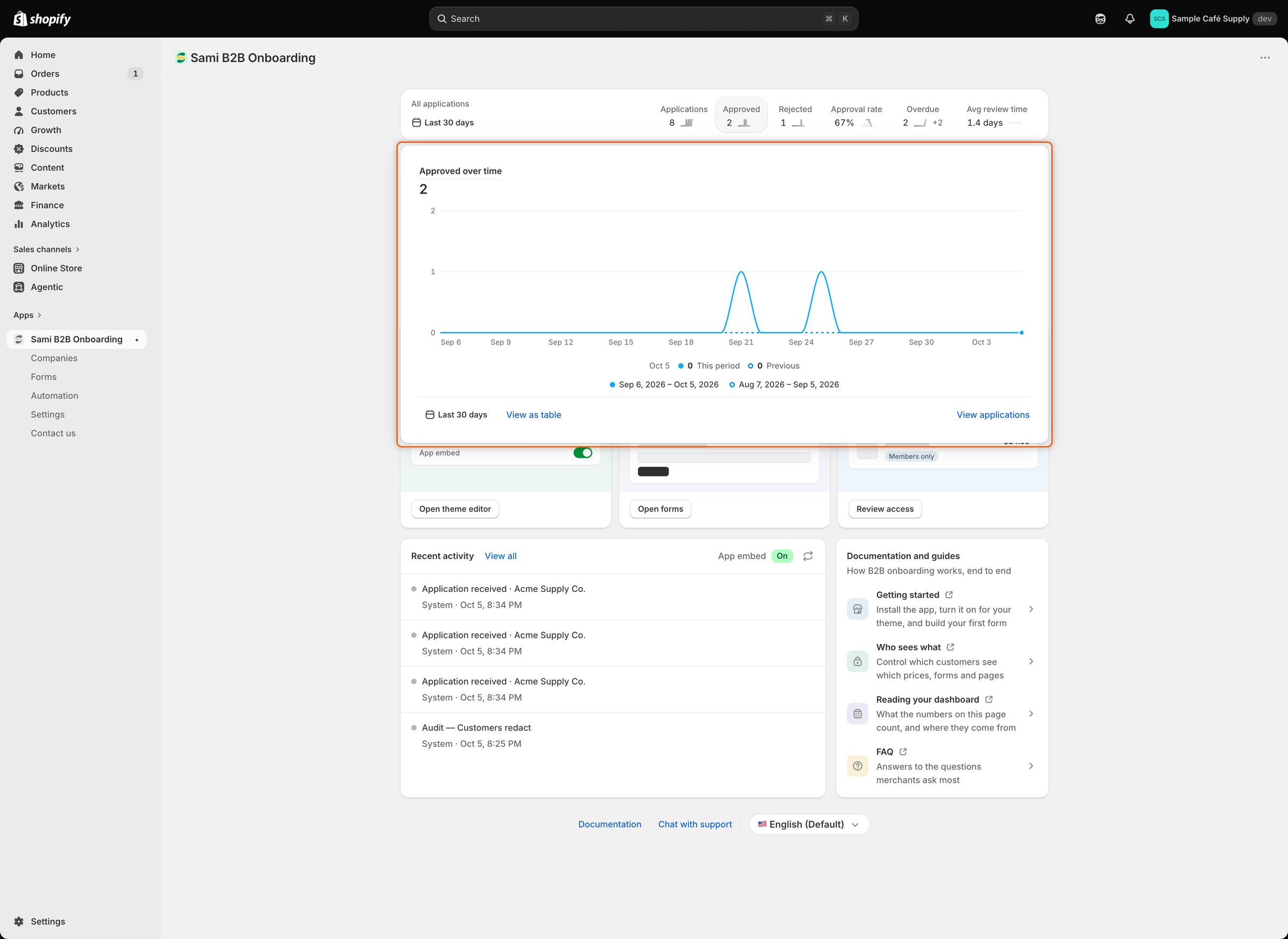
Point at a number, or click it, to open its chart, for example **Approved over time**. The chart draws this period against the previous one. Move along the line to read any day's values. Click **View as table** to see the same numbers as a table. Click **View applications** to go to your applications.

A chart you clicked stays open. Click the same number again to close it.

<figure><img src="https://3844812229-files.gitbook.io/~/files/v0/b/gitbook-x-prod.appspot.com/o/spaces%2FRrf4pQPgjvb3GW7IN3Ci%2Fuploads%2Fgit-blob-6992cd1a60655ea18ce68c7ae658075270b39ac0%2Fscreenshot-home-overview-metric-chart.png?alt=media" alt="The Home numbers strip with the Approved over time chart open beneath it."><figcaption><p>Click a number to compare this period with the previous one, day by day.</p></figcaption></figure>

## Change the period

{% stepper %}
{% step %}

### Open the period picker

Click the period button, which shows a calendar icon and the current period.
{% endstep %}

{% step %}

### Pick a period

Pick **Today**, **Yesterday**, **Last 7 days**, **Last 30 days**, **Last 90 days** or **Last 12 months**. You can also pick a start and an end date on the calendar.
{% endstep %}

{% step %}

### Apply it

Click **Apply**. The numbers and charts update.
{% endstep %}
{% endstepper %}

Home doesn't keep the period you picked. It starts at **Last 30 days** each time you open it.

## Search

The search box reads **Ask about an application, company, or setting**. Type at least two letters to find applications and companies. It also lists the app's pages and, for admins, actions such as **Create a registration form**. Press `Enter` to open the first result.

To search from most other pages in the app, press `⌘` `K` on a Mac or `Ctrl` `K` on Windows.

## Work waiting for you

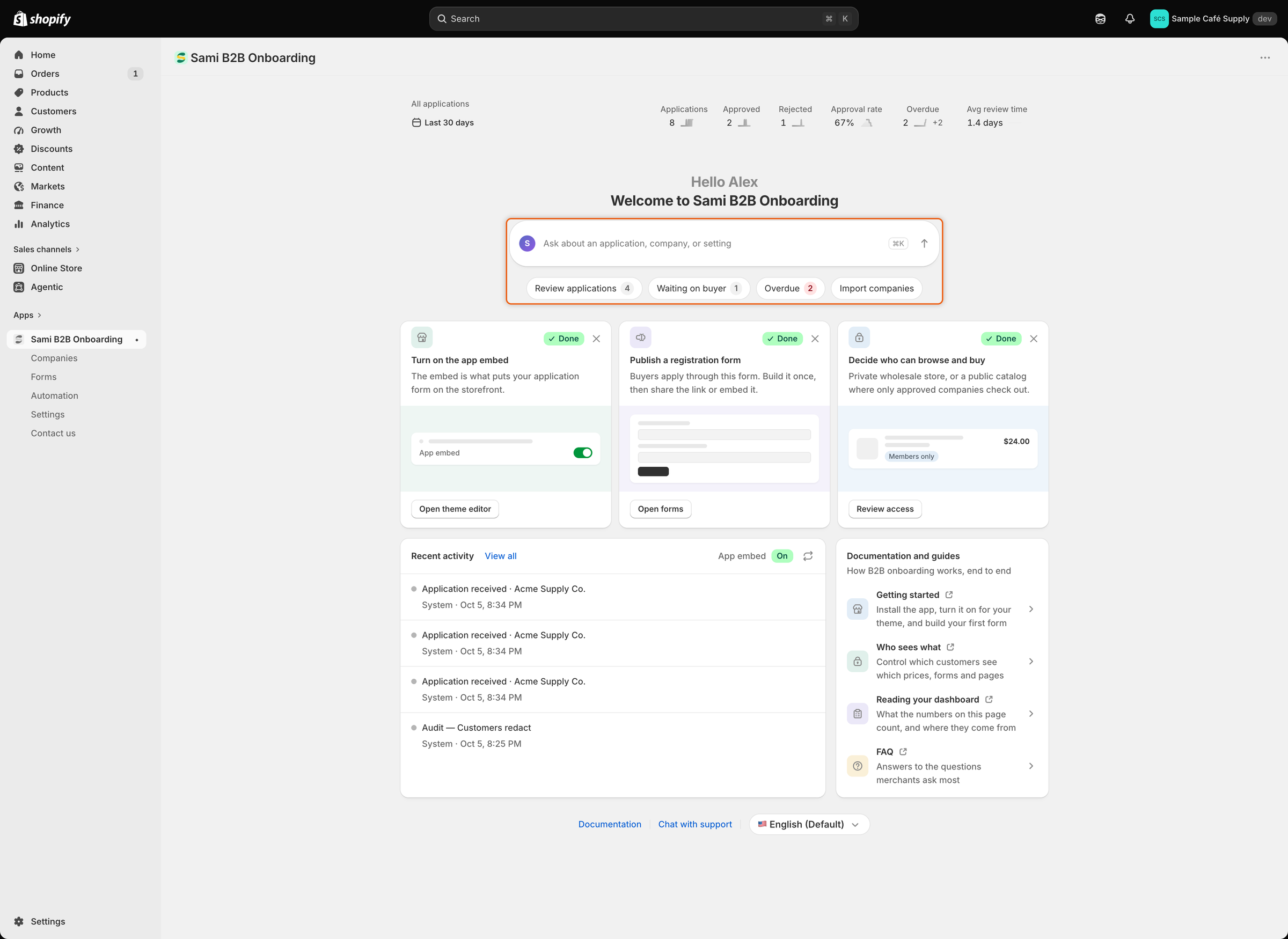
Under the search box, buttons show the work waiting, each with a count. A button only appears when its count is above zero. Click a button to open the list behind it.

| Button                  | What it counts                                                                    | Where it goes                                            |
| ----------------------- | --------------------------------------------------------------------------------- | -------------------------------------------------------- |
| **Review applications** | New and resubmitted applications.                                                 | **Companies › Applications**, **Needs your action** view |
| **Waiting on buyer**    | Applications in **Needs info**, waiting for the buyer to send what was asked for. | **Companies › Applications**, **Waiting on buyer** view  |
| **Overdue**             | Applications still undecided more than 3 days after they were submitted.          | **Companies › Applications**, **Overdue** view           |
| **Documents expiring**  | Documents that have expired or expire within 30 days.                             | **Companies › Documents**                                |

Admins also see **Import companies**, which opens the page for importing companies from a CSV file.

<figure><img src="https://3844812229-files.gitbook.io/~/files/v0/b/gitbook-x-prod.appspot.com/o/spaces%2FRrf4pQPgjvb3GW7IN3Ci%2Fuploads%2Fgit-blob-33f37342232461d2802f91bc06c3fa1bef5574ae%2Fscreenshot-home-overview-waiting-work.png?alt=media" alt="The Home search box with Review applications (4), Waiting on buyer (1), Overdue (2) and Import companies buttons below it."><figcaption><p>Each button opens the list behind its count.</p></figcaption></figure>

## Setup cards

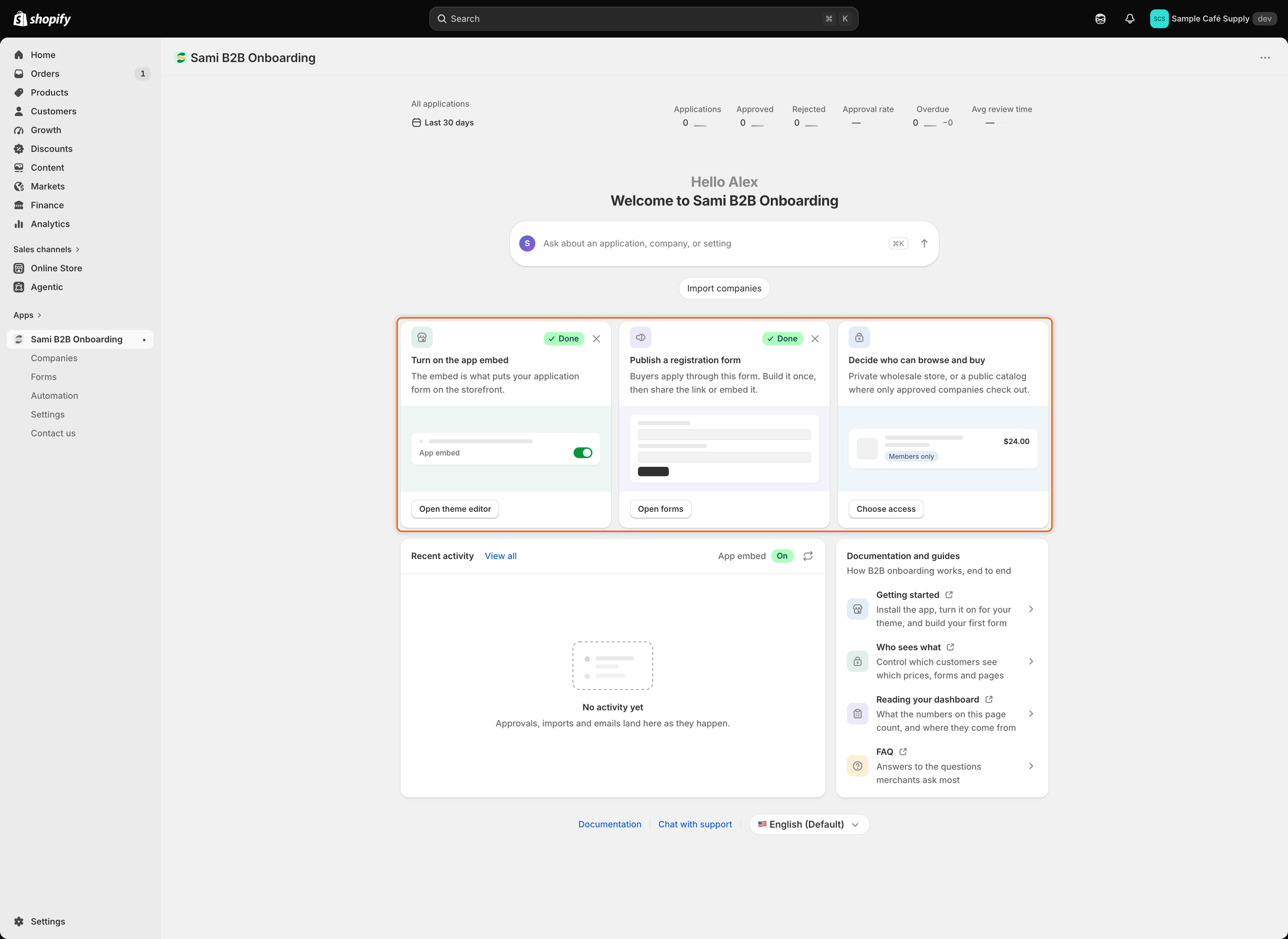
Admins see up to three setup cards. Each card shows **Done** once its step is finished.

| Card                              | Button                                                                | Done when                                                                                         |
| --------------------------------- | --------------------------------------------------------------------- | ------------------------------------------------------------------------------------------------- |
| **Turn on the app embed**         | **Activate embed** opens the theme editor with the embed switched on. | The embed is on in your published theme. The button then reads **Open theme editor**.             |
| **Publish a registration form**   | **Open forms** opens **Forms**.                                       | At least one application form is published. The default form is, so this card starts as **Done**. |
| **Decide who can browse and buy** | **Choose access** opens **Settings › Access**.                        | You've saved your access settings. The button then reads **Review access**.                       |

To hide a card, click its **✕**. It shows on cards marked **Done**, and on the others when you point at the card. A hidden card is hidden for your whole team. The cards still showing widen to fill the row. Once all three are hidden, click **Show the setup steps again** to bring them back.

<figure><img src="https://3844812229-files.gitbook.io/~/files/v0/b/gitbook-x-prod.appspot.com/o/spaces%2FRrf4pQPgjvb3GW7IN3Ci%2Fuploads%2Fgit-blob-fc2dfbefab29e69ca39481897aa45075886359c6%2Fscreenshot-home-overview-setup-cards.png?alt=media" alt="Three setup cards on Home, two marked Done and one waiting."><figcaption><p>Finished steps show Done; click ✕ to hide a card you no longer need.</p></figcaption></figure>

## Recent activity

The **Recent activity** card lists the latest four things that happened. Examples are a new application, an approval, an import or an email. Each line says who did it and when. **View all** opens **Companies**. For the full history, go to [Activity log](/sami-b2b-onboarding/settings/activity-log.md).

The card's header shows the **App embed** status: **On**, **Off** or **Checking…**. When the embed is on, the refresh button checks again. When it's off, admins see **Open theme editor** instead.

## Documentation and help

* The **Documentation and guides** card links to four topics: **Getting started**, **Who sees what**, **Reading your dashboard** and **FAQ**. Each opens in a new tab.
* At the bottom of the page are a **Documentation** link and **Chat with support**, which opens the support chat.
* From time to time, Home asks admins to rate the app from one to five stars. To answer later, open the menu beside the stars and click **Remind me later**.

If Home can't load its numbers, a **Couldn't load your latest numbers** banner appears. Click **Retry**.

## Change the app's language

The language picker sits at the bottom of Home, beside **Chat with support**. It shows your current language. Click it and pick another.

The app is available in English, Chinese (Simplified), Chinese (Traditional), Czech, Danish, Dutch, Finnish, French, German, Italian, Japanese, Korean, Norwegian (Bokmål), Polish, Portuguese, Spanish, Swedish, Turkish and Vietnamese.

Your choice applies only to you. Your teammates keep their own. Until you pick one, the app uses your Shopify admin language if it's on that list, then your store's language, then English. The picker changes the app's screens only. To translate what buyers see, use [Translate](/sami-b2b-onboarding/settings/translate.md).

## Next steps

* [Quickstart](/sami-b2b-onboarding/getting-started/quickstart.md) — finish the setup steps and approve a test application.
* [Review an application](/sami-b2b-onboarding/reviewing-applications/review-an-application.md) — work through the applications Home points you to.
* [Turn on the app embed](/sami-b2b-onboarding/getting-started/turn-on-the-app-embed.md) — get the first setup card to **Done**.
* [Team and roles](/sami-b2b-onboarding/settings/team-and-roles.md) — choose who is an admin and who is a reviewer.


---

# Agent Instructions
This documentation is published with GitBook. GitBook is the documentation platform designed so that both humans and AI agents can read, navigate, and reason over technical content effectively. Learn more at gitbook.com.

## Querying This Documentation
If you need additional information that is not directly available in this page, you can query the documentation dynamically by asking a question.

Perform an HTTP GET request on the current page URL with the `ask` query parameter, and the optional `goal` query parameter:

```
GET https://docs.samita.io/sami-b2b-onboarding/getting-started/your-home-page.md?ask=<question>&goal=<endgoal>
```

`ask` is the immediate question: it should be specific, self-contained, and written in natural language.
`goal` is optional and describes the broader end goal you are ultimately trying to accomplish on behalf of the user. GitBook uses it to tailor the answer towards what is most useful for that goal.

The response will contain a direct answer to the question and relevant excerpts and sources from the documentation.

Use this mechanism when the answer is not explicitly present in the current page, you need clarification or additional context, or you want to retrieve related documentation sections.