> For the complete documentation index, see [llms.txt](https://docs.samita.io/llms.txt). Markdown versions of documentation pages are available by appending `.md` to page URLs; this page is available as [Markdown](https://docs.samita.io/sami-b2b-onboarding/application-forms/create-and-publish-a-form.md).

# Create and publish a form

Make a new application form, publish it, put it on your store and check it works.

Create a new application form when the **Wholesale application** that Sami B2B Onboarding made at install doesn't fit, or when you need a second form, for example one for café owners and one for resellers. This page takes you from an empty form to a form buyers can fill in on your store.

{% hint style="info" %}
Before you start: you need the admin role in the app, and the app embed must be on in your theme for the form to show on your store. See [Turn on the app embed](/sami-b2b-onboarding/getting-started/turn-on-the-app-embed.md).
{% endhint %}

## Create the form

{% stepper %}
{% step %}

### Open the builder

In the app, go to **Forms** and click **Create form**.

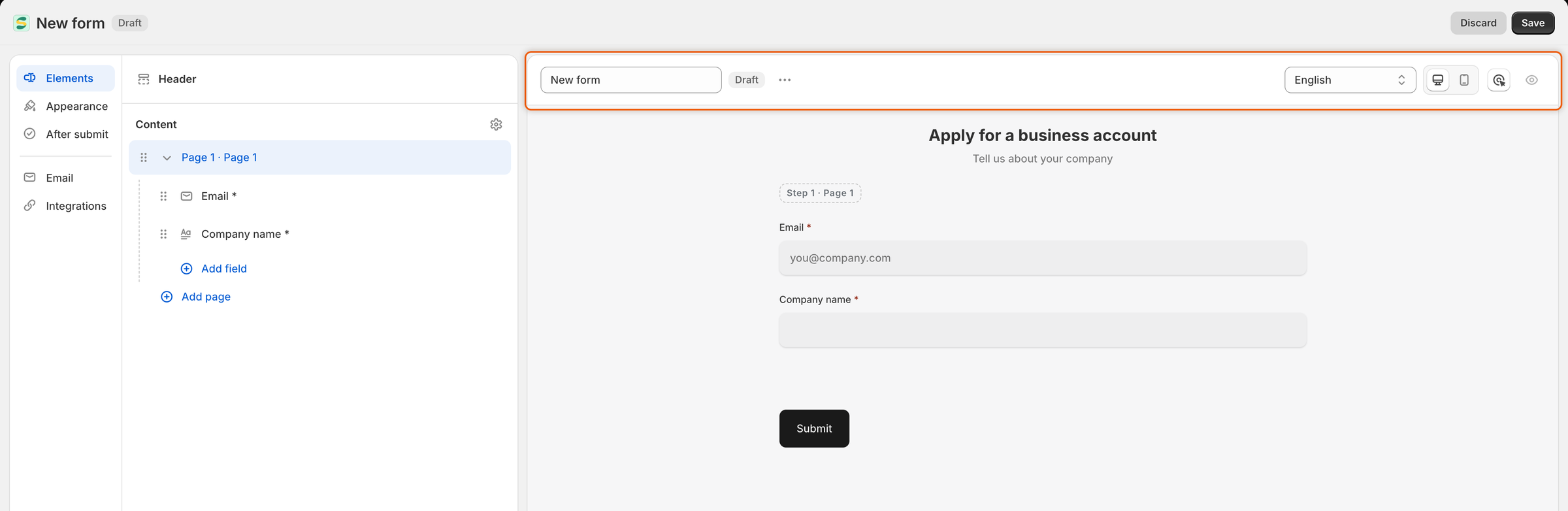
The builder opens in a full-screen window titled **New form**, with a **Draft** badge. The form already holds one page, **Page 1**, with two required fields: **Email** and **Company name**. The header reads **Apply for a business account** and **Tell us about your company**.

<figure><img src="https://3844812229-files.gitbook.io/~/files/v0/b/gitbook-x-prod.appspot.com/o/spaces%2FRrf4pQPgjvb3GW7IN3Ci%2Fuploads%2Fgit-blob-5c18af4611aab66baeebfd77b2cb32c1776d800f%2Fscreenshot-forms-create-new-form-builder.png?alt=media" alt="The form builder for a new form, with the Form name box at the top, a page holding Email and Company name in the left panel, and the form preview in the middle."><figcaption><p>A new form opens as a Draft called New form, with Email and Company name already on Page 1.</p></figcaption></figure>
{% endstep %}

{% step %}

### Name the form

Click the **Form name** box at the top of the preview, delete **New form** and type a name, for example `Café wholesale application`.

The name is what you see on the **Forms** page. It is also the title of the form's page on your store.
{% endstep %}

{% step %}

### Add your questions

Click **Add field** under **Page 1** in the Elements panel on the left, or **Add a field** at the end of the page in the preview. Pick a field from the list, for example **Phone** or **Tax ID**. The field is added to the page and its settings open on the right, where you can change its label and turn on **Required**.

Repeat for every question you want to ask. For every field type and setting, see [Build your form](/sami-b2b-onboarding/application-forms/build-your-form.md).
{% endstep %}

{% step %}

### Save

Click **Save** in the save bar.

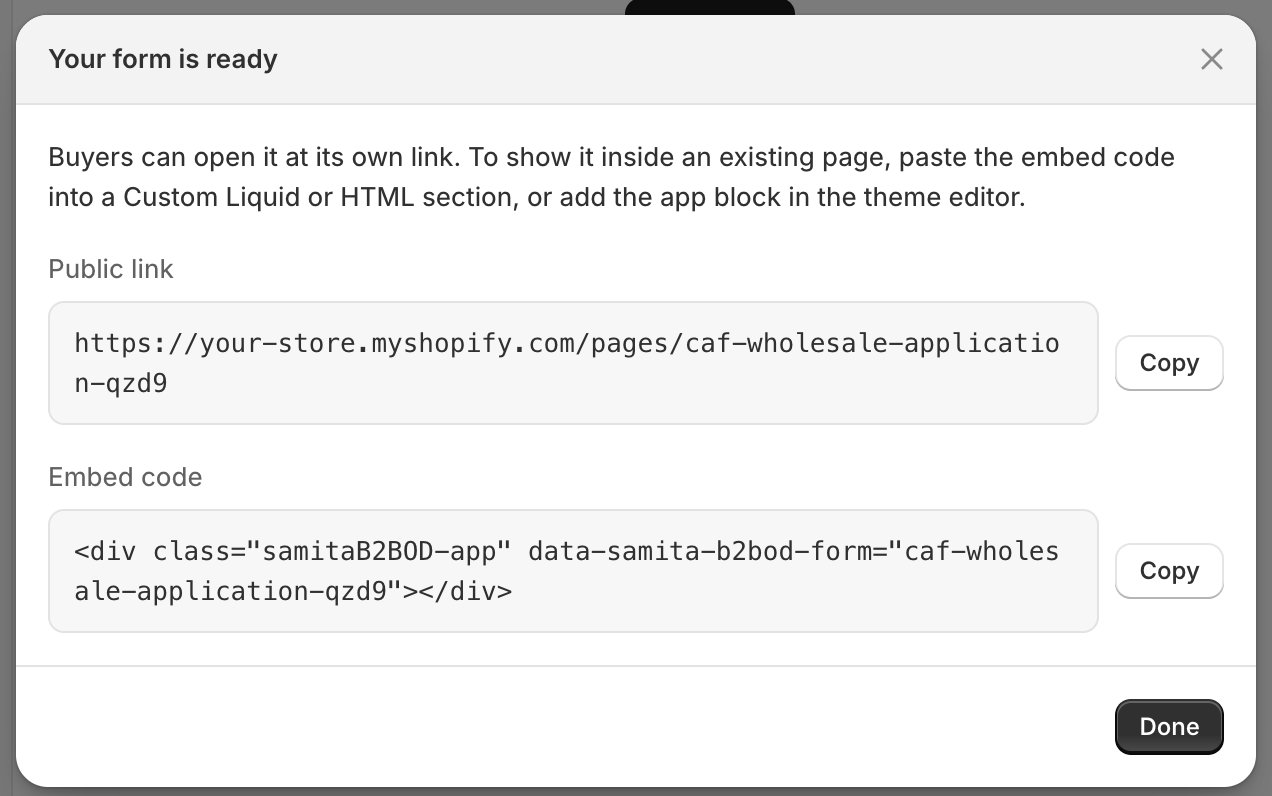
The app saves the form and publishes it. The badge changes to **Active**, a **Form saved** message appears, and the **Your form is ready** dialog opens with two things you can copy:

* **Public link**: the address of the page the app created for this form on your Online Store. Click **Copy** beside it to copy it.
* **Embed code**: a snippet that shows the form inside another page. Click **Copy** beside it to copy it.

Click **Done** to close the dialog.

<figure><img src="https://3844812229-files.gitbook.io/~/files/v0/b/gitbook-x-prod.appspot.com/o/spaces%2FRrf4pQPgjvb3GW7IN3Ci%2Fuploads%2Fgit-blob-0d92027a0ae63bb3ba8a4dd03c1b156b8f2cc925%2Fscreenshot-forms-create-your-form-is-ready.png?alt=media" alt="The Your form is ready dialog showing the form&#x27;s public link and embed code, each with a copy button."><figcaption><p>After the first save, the dialog gives you the form's own link and an embed code.</p></figcaption></figure>

{% hint style="warning" %}
The first save publishes the form, so buyers can open its link straight away. If you aren't ready, open **…** (More actions) in the builder's toolbar, choose **Unpublish** and click **Save** again.
{% endhint %}
{% endstep %}

{% step %}

### Make it the default (optional)

Close the builder window to go back to the **Forms** page. On the form's row, click **…** (More actions) and choose **Set as default**.

A **Default form set** message appears and the form gets a **Default** badge. The badge moves off the form that had it. Only an **Active** form can be made the default.

The default form is the one the app uses wherever you haven't picked a specific form, such as the theme editor's form block with its **Form** setting left empty, and the **Apply for an account** button on a locked store.
{% endstep %}

{% step %}

### Put the form on your store

The quickest way is the page the app already created. On the **Forms** page, the page's address, starting with `/pages/`, is shown under the form's name. Click **Copy link** beside it, then add that link to your store's menu or send it to buyers.

To show the form inside a page of your own instead, use the theme editor block or the embed code. See [Add a form to your store](/sami-b2b-onboarding/add-a-form-to-your-store/add-a-form-to-your-store.md).
{% endstep %}

{% step %}

### Check it on your store

Open the copied link in a private browser window, so you see the form the way a new buyer does.

1. Click **Submit** without filling anything in. Each required field shows an error under it, for example **Company name is required**.
2. Fill in the form and click **Submit**. The thank-you message replaces the form.
3. In the app, go to **Forms**. The form's row now shows **1 submission**. Click it to see the application in **Companies › Applications**.

If the page shows no form, check that the app embed is on and that the form's badge says **Active**. If it shows **Log in to apply** instead, your store asks buyers to log in first. See [Ask buyers to log in before applying](/sami-b2b-onboarding/store-access/log-in-before-applying.md).
{% endstep %}
{% endstepper %}

## Duplicate a form

Copy a form when you want a second one with most of the same questions.

{% stepper %}
{% step %}

### Make the copy

On the **Forms** page, click **…** (More actions) on the form you want to copy and choose **Duplicate form**.
{% endstep %}

{% step %}

### Edit the copy

The app makes a copy named after the original with **copy** at the end, for example **Wholesale application copy**, and opens it in the builder. The copy is a **Draft**, so buyers can't see it yet. Rename it, change what you need and click **Save**.
{% endstep %}

{% step %}

### Publish the copy

Close the builder. On the copy's row, click **…** (More actions) and choose **Publish**. A **Form published** message appears and the badge changes to **Active**.
{% endstep %}
{% endstepper %}

## Unpublish or publish a form

Unpublish a form to stop new applications through it without losing anything.

* **From the Forms page:** click **…** (More actions) on the form and choose **Unpublish** or **Publish**. The change takes effect at once, and a **Form unpublished** or **Form published** message appears.
* **From the builder:** click **…** (More actions) in the toolbar, choose **Unpublish** or **Publish**, then click **Save**.

When a form is unpublished, its badge says **Draft** and its page is taken off your store. If the form is embedded in another page, buyers see **This form is not available right now.** Applications you already received stay where they are.

If you unpublish the default form, the app uses your oldest published form in its place until you publish the default again or choose another one.

## Delete a form

{% stepper %}
{% step %}

### Choose Delete form

On the **Forms** page, click **…** (More actions) on the form and choose **Delete form**. You can also choose **Delete form** from **…** (More actions) in the builder's toolbar.
{% endstep %}

{% step %}

### Confirm

A dialog asks you to confirm and reminds you that buyers who open the form's link will no longer be able to apply. Click **Delete form**. A **Form deleted** message appears and the form leaves the list.
{% endstep %}
{% endstepper %}

What happens next:

* Applications already submitted through the form are kept in **Companies › Applications**.
* The form's page is unpublished, not deleted, so any text you added to it is safe. You can delete the page yourself in Shopify under **Online Store › Pages**.
* If you deleted the default form, your oldest remaining form becomes the default.
* You can't delete your only application form. Create another one first.

## Next steps

* [Build your form](/sami-b2b-onboarding/application-forms/build-your-form.md) — add fields, rows and pages, and set up each field.
* [Show, require or disable fields with rules](/sami-b2b-onboarding/application-forms/field-rules.md) — ask some questions only when they apply.
* [Map answers to Shopify](/sami-b2b-onboarding/application-forms/map-answers-to-shopify.md) — decide where each answer goes when you approve.
* [Add a form to your store](/sami-b2b-onboarding/add-a-form-to-your-store/add-a-form-to-your-store.md) — show the form inside your own pages.


---

# Agent Instructions
This documentation is published with GitBook. GitBook is the documentation platform designed so that both humans and AI agents can read, navigate, and reason over technical content effectively. Learn more at gitbook.com.

## Querying This Documentation
If you need additional information that is not directly available in this page, you can query the documentation dynamically by asking a question.

Perform an HTTP GET request on the current page URL with the `ask` query parameter, and the optional `goal` query parameter:

```
GET https://docs.samita.io/sami-b2b-onboarding/application-forms/create-and-publish-a-form.md?ask=<question>&goal=<endgoal>
```

`ask` is the immediate question: it should be specific, self-contained, and written in natural language.
`goal` is optional and describes the broader end goal you are ultimately trying to accomplish on behalf of the user. GitBook uses it to tailor the answer towards what is most useful for that goal.

The response will contain a direct answer to the question and relevant excerpts and sources from the documentation.

Use this mechanism when the answer is not explicitly present in the current page, you need clarification or additional context, or you want to retrieve related documentation sections.