> For the complete documentation index, see [llms.txt](https://docs.samita.io/llms.txt). Markdown versions of documentation pages are available by appending `.md` to page URLs; this page is available as [Markdown](https://docs.samita.io/sami-b2b-onboarding/reference/how-it-works.md).
# How it works
Follow an application from the buyer's submit to an approved company in Shopify, and see what each status means.
This page follows one application through Sami B2B Onboarding, from the moment a buyer clicks **Submit** to the company they buy for in Shopify. Use it to understand why an application is where it is, and what the app will do next.
## The journey at a glance
| Stage | What happens | Where you see it |
| ------------- | ---------------------------------------------------------------------------- | ------------------------------ |
| 1. Submit | The buyer fills in your form and sends it. The app checks it before saving. | Your storefront |
| 2. First pass | Emails go out, and the tax ID check, the duplicate check and your rules run. | The application's timeline |
| 3. Review | Your team approves, asks for more information or rejects. | **Companies › Applications** |
| 4. Approval | The app creates the customer and the company in Shopify, with your terms. | Shopify admin and the timeline |
| 5. Follow-up | The buyer answers your questions, or the application is closed. | The application's status |
## 1. The buyer submits
The buyer opens your form's page, fills it in page by page and clicks **Submit**. A file is uploaded as soon as they pick it, to private storage.
Before the application is saved, the app checks it. If a check fails, the buyer sees why and nothing is saved.
| Check | When it runs | What the buyer sees if it fails |
| --------------------------- | ------------------------------------------------------------------------------------------ | ---------------------------------------------------------------------------------------------- |
| Logged in | **Account required** is **Log in first, then apply** | A log-in prompt instead of the form |
| One application per account | The buyer is logged in | Where their application stands, instead of the form |
| Captcha | The form has a captcha and the buyer isn't logged in | "That captcha check failed. Please try again." |
| Answers | Always | A message under each box that's missing or wrong. A field your rules make required counts too. |
| Tax ID format | The tax ID check is set to **Block the submit and show the error** | "That tax ID doesn't look valid for" their country |
| Duplicate company | **Duplicate companies** is set to **Block the submit and tell the buyer to contact sales** | "Your company already has an account with us. Contact us and we'll add you to it." |
Answers typed into a field that a rule then hid are dropped, so you only get what the buyer was asked.
When the checks pass, the application is saved as **Pending**, with a reference of its own. Uploads from fields mapped to a document type are filed in **Documents**. The buyer sees your thank-you screen, or goes to the page you redirect to. Nothing is written to Shopify yet.
## 2. The app's first pass
Right after the submit, in the background, the app works through these steps in order. Most of them leave an entry on the application's timeline.
1. **Default reviewer.** If you picked a **Default reviewer** in **Settings › Reviewers**, the application is assigned to them.
2. **Application received.** The buyer gets the **Application received** email and your team gets **New application**. The **Application received** trigger runs in Shopify Flow, and integrations set to send submissions get the application.
3. **Tax ID check.** If it's on, the app checks the tax ID. With **Reject automatically and email the buyer**, a number that fails rejects the application here, and the rules don't run. A registry that can't be reached never decides anything.
4. **Duplicate check.** If **Settings › Application rules › Duplicate companies** is set to flag the application or to offer to add the buyer, the app compares it with your companies and other applications, using the matches you chose there. On a match, the timeline names the company and the rules leave the application for a person to decide.
5. **Rules.** Your **Live** rules run top to bottom, and the first one that matches decides: approve with a preset, reject, request information, assign to a reviewer, or flag for review. A rule can't approve while an answer that's required for approval is empty.
See [Tax ID checks](/sami-b2b-onboarding/automation/tax-id-checks.md), [Application rules](/sami-b2b-onboarding/settings/application-rules.md) and [Rules that decide applications](/sami-b2b-onboarding/automation/rules.md).
## 3. Your team reviews
Applications that need a decision are in the **Needs your action** view of **Companies › Applications**. Admins and reviewers can both decide. On each application, the readiness checks say **Ready to approve**, or list what still needs attention, such as a missing company name or answers the form requires before approval.
There are three decisions:
* **Approve**: the app creates the customer and the company, as described below. See [Approve an application](/sami-b2b-onboarding/reviewing-applications/approve-an-application.md).
* **Request info**: the buyer is asked for more. See [Request more information](/sami-b2b-onboarding/reviewing-applications/request-more-information.md).
* **Reject**: the application is turned down. See [Reject an application](/sami-b2b-onboarding/reviewing-applications/reject-an-application.md).
A Shopify Flow workflow can make the same three decisions with the app's actions.
## 4. What approval writes to Shopify
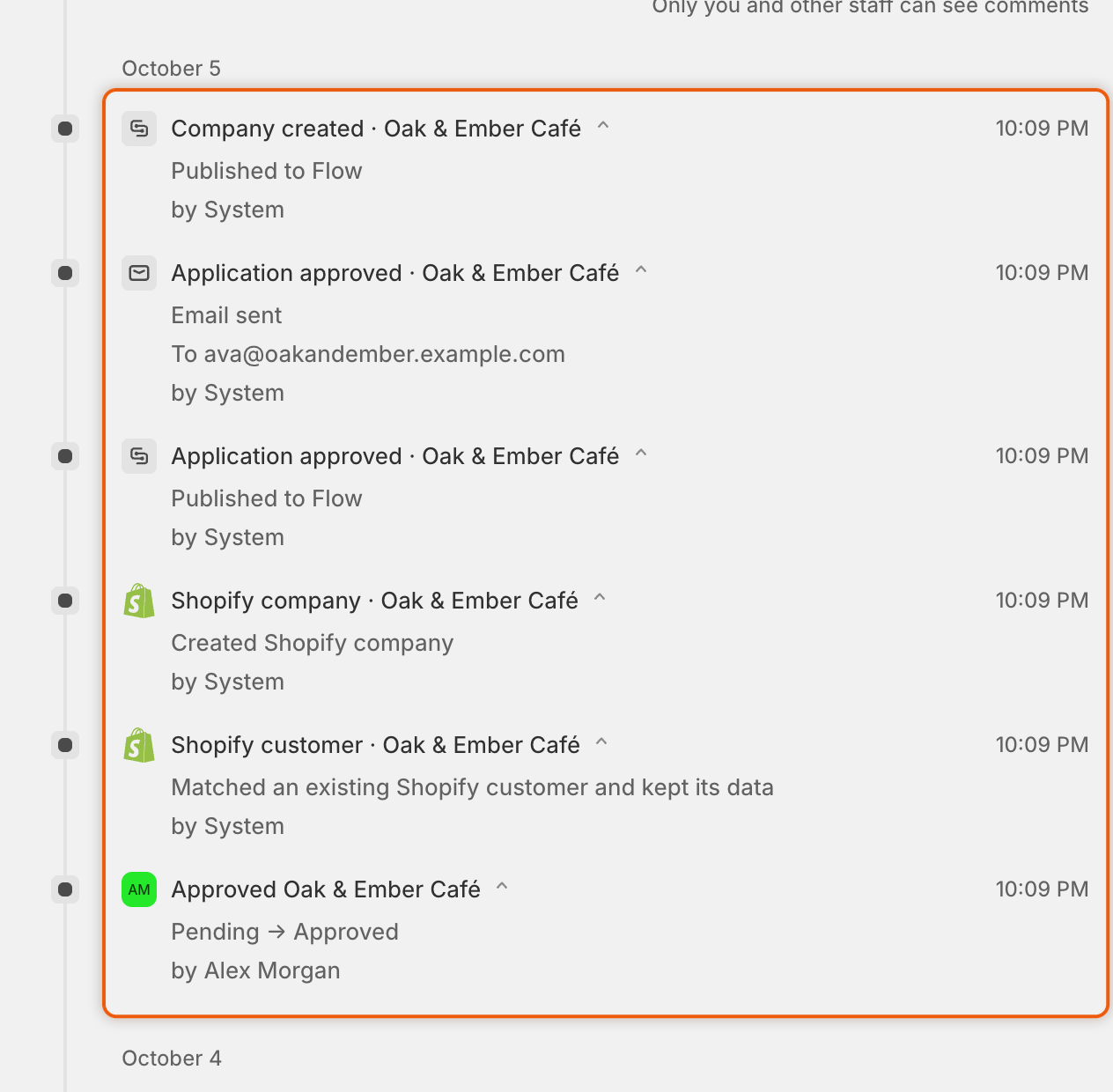
Nothing from an application reaches Shopify before it's approved. Approval runs the same way whether a person, a rule or a Flow workflow approved. The steps take a few moments and each one is on the timeline, with Shopify's reason if it refused.
1. **Customer.** The app finds the Shopify customer with the buyer's email, or creates one from the mapped answers. Your form decides whether an existing customer's details are kept or updated. The preset's customer tags are added.
2. **Approved flag.** The customer's **B2B approved** field is turned on and the tag `b2b-approved` is added. Your store access rules and the checkout block read the field, not the tag.
3. **Company.** The app creates the company in Shopify, with a location at the mapped address, the buyer as its main contact, and any mapped metafields. This needs a plan that includes B2B.
4. **Terms.** The location gets the approval terms: catalog, payment terms, deposit, shipping address rule, order submission, tax settings with the buyer's tax ID, and the buyer's contact role. Assigned staff are added to the location.
5. **Company in the app.** The company appears on the **Companies** tab as **Active**. The person assigned to the application becomes its sales rep.
6. **Email and events.** The **Company created** trigger runs in Shopify Flow when a company was created. Then the buyer gets the **Account approved** email and the **Application approved** trigger runs. Integrations set to send approvals, such as Klaviyo or a webhook, get the application too, except when a rule approved it.
On a plan without B2B, steps 3 and 4 don't happen. The customer is still created and approved, the approval's tax setting goes on the customer, and the company is kept in the app only.
If you add the buyer to a company you already have instead, the buyer becomes a contact of that company and no second company is made.
Each step of an approval leaves an entry on the timeline, with its result.
## 5. Requests, resubmissions and closing
**When you ask for more.** The application moves to **Needs info**, and the buyer gets the **More information needed** email. Its link opens your form's page with their answers already filled in. When they send it, the application becomes **Resubmitted** and your team gets **Buyer resubmitted**.
The checks and rules from the first pass run again on a resubmission, with one difference. When a person on your team asked for more, the answer comes back to that person: the tax ID check and the rules still note what they found, but they don't approve, reject or ask again. When a rule or a Flow workflow asked, automation can decide again.
**When you reject.** Choose **Let them update it and send it again** to let the buyer change their application and send it back, which makes it **Resubmitted**. Choose **Close the application** to end it. The **Application declined** email starts turned off, so turn it on in the form's **Email** section if rejected buyers should hear from you.
**When the buyer doesn't answer.** After the time set in **Settings › Application rules › Data retention**, an application waiting on the buyer closes as **Abandoned**, and its link stops working.
**After approval.** You can change the company's terms later. The app applies the new terms to the Shopify company location and sends no email.
## Statuses
| Status | What it means | What happens next |
| ---------------------------------- | --------------------------------------------------------------------- | ------------------------------------------------- |
| **Pending** | A new application. | Your team or a rule decides. |
| **Needs info** | You, a rule or a Flow workflow asked the buyer for more. | The buyer answers, or it closes as **Abandoned**. |
| **Resubmitted** | The buyer sent the application back. | Your team, or automation if it asked, decides. |
| **Approved** | Approved by a person or a Flow workflow. | The buyer can buy at your wholesale terms. |
| **Approved** with **Auto-applied** | Approved by one of your rules. | Same as **Approved**. |
| **Rejected** | Turned down by a person, a rule, the tax ID check or a Flow workflow. | The buyer can send it again only if you let them. |
| **Abandoned** | The buyer never answered your request. | Nothing. It's deleted on your retention schedule. |
## Events and the emails they send
Each step above fires an event: **Application received**, **Application revised**, **Revision requested**, **Application approved**, **Application rejected** and **Company created**. Each event has one switch under **Automation › Automations**. It controls the emails the event sends and the Shopify Flow trigger of the same name. Each application email also has its own switch in the form builder's **Email** section, and goes out only when both are on. For which email each event sends, see [Automations and Shopify Flow](/sami-b2b-onboarding/automation/automations-and-shopify-flow.md#the-events).
## Next steps
* [Applications](/sami-b2b-onboarding/reviewing-applications/applications.md) — find and decide the applications waiting for you.
* [Map answers to Shopify](/sami-b2b-onboarding/application-forms/map-answers-to-shopify.md) — choose what approval writes to the customer and company.
* [Automation](/sami-b2b-onboarding/automation/automation.md) — let presets, rules and Flow do part of the work.
* [Permissions and data](/sami-b2b-onboarding/reference/permissions-and-data.md) — what the app reads, writes and stores.
---
# Agent Instructions
This documentation is published with GitBook. GitBook is the documentation platform designed so that both humans and AI agents can read, navigate, and reason over technical content effectively. Learn more at gitbook.com.
## Querying This Documentation
If you need additional information that is not directly available in this page, you can query the documentation dynamically by asking a question.
Perform an HTTP GET request on the current page URL with the `ask` query parameter, and the optional `goal` query parameter:
```
GET https://docs.samita.io/sami-b2b-onboarding/reference/how-it-works.md?ask=&goal=
```
`ask` is the immediate question: it should be specific, self-contained, and written in natural language.
`goal` is optional and describes the broader end goal you are ultimately trying to accomplish on behalf of the user. GitBook uses it to tailor the answer towards what is most useful for that goal.
The response will contain a direct answer to the question and relevant excerpts and sources from the documentation.
Use this mechanism when the answer is not explicitly present in the current page, you need clarification or additional context, or you want to retrieve related documentation sections.