> For the complete documentation index, see [llms.txt](https://docs.samita.io/llms.txt). Markdown versions of documentation pages are available by appending `.md` to page URLs; this page is available as [Markdown](https://docs.samita.io/sami-b2b-onboarding/integrations/klaviyo.md).

# Klaviyo

Connect Klaviyo so buyers who apply through a form, or the ones you approve, join a Klaviyo list with their answers on their profile.

Sami B2B Onboarding can add each buyer who applies, or each buyer you approve, to a Klaviyo list. The app creates or updates the buyer's Klaviyo profile with the answers you choose, then subscribes them to the list. You add your Klaviyo key once for the store, and each form picks its own list.

The app sends Klaviyo a profile and a list subscription. It doesn't send Klaviyo events.

{% hint style="info" %}
Before you start, you need a Klaviyo account with at least one list, and the admin role in the app.
{% endhint %}

## Create a private API key in Klaviyo

{% stepper %}
{% step %}

### Open your API keys

In Klaviyo, open **Settings › API keys**.
{% endstep %}

{% step %}

### Create a private key

Click **Create Private API Key** and give it a name you'll recognize, such as "Sami B2B Onboarding".

The app reads your lists, creates and updates profiles, and subscribes them to a list. Choose **Full Access Key**, or a **Custom Key** with full access to **Lists**, **Profiles** and **Subscriptions**.
{% endstep %}

{% step %}

### Copy the key

Create the key and copy it. A private key starts with `pk_`.
{% endstep %}
{% endstepper %}

## Add the key to the app

{% stepper %}
{% step %}

### Open the Klaviyo panel

Go to **Forms** and click **Edit** beside the form. In the rail on the left, click **Integrations**. Under **Connected apps**, click **Connect** on the **Klaviyo** row.

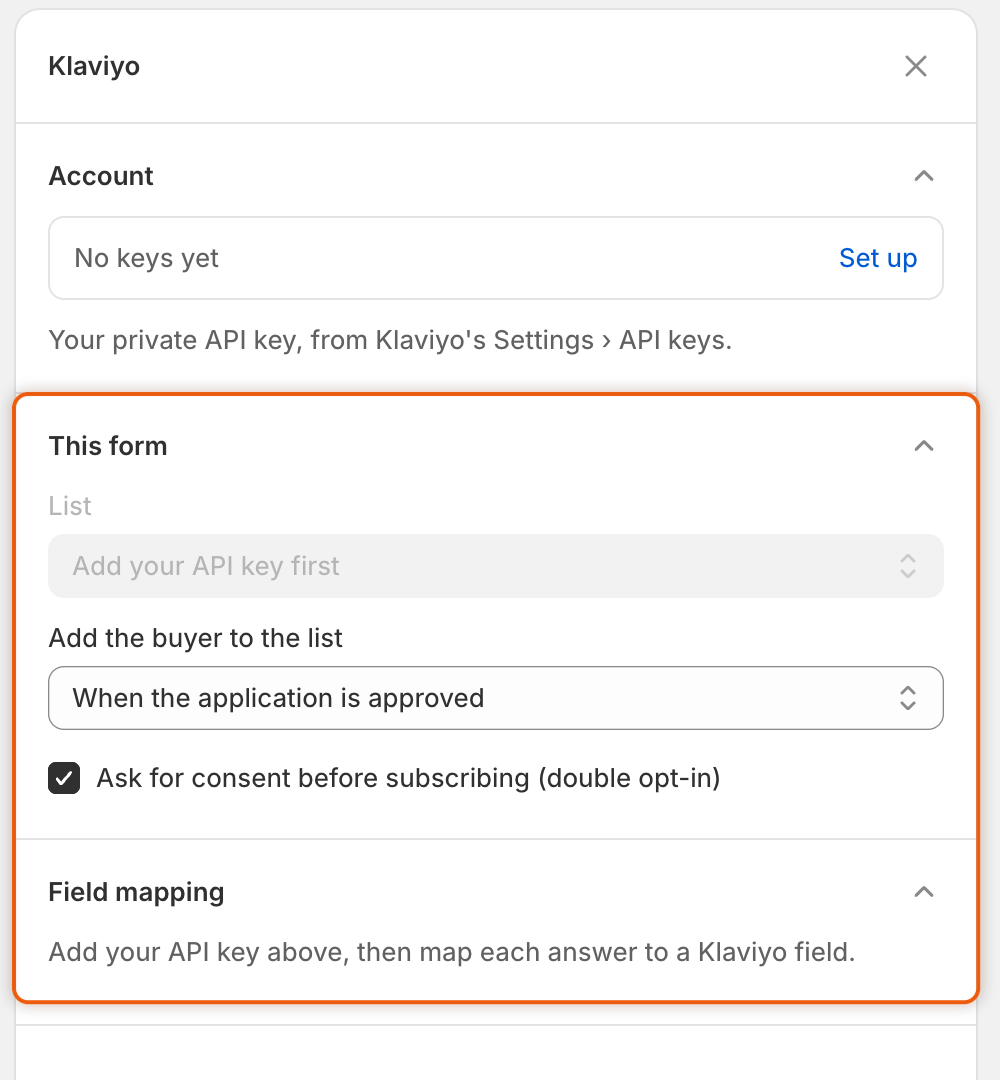
The **Klaviyo** panel opens with three sections: **Account**, **This form** and **Field mapping**.

<figure><img src="https://3844812229-files.gitbook.io/~/files/v0/b/gitbook-x-prod.appspot.com/o/spaces%2FRrf4pQPgjvb3GW7IN3Ci%2Fuploads%2Fgit-blob-17f56a1569b0164cb88dd7dbaa07a12fe1ccba95%2Fscreenshot-integrations-klaviyo-panel.png?alt=media" alt="The Klaviyo panel with no key saved: Account reads No keys yet, List is greyed out (Add your API key first), When the application is approved is chosen, double opt-in is ticked, and Field mapping waits for the key."><figcaption><p>Until you add your API key under Account, you can't pick a list or map answers, but you can already choose when buyers join and the double opt-in setting.</p></figcaption></figure>
{% endstep %}

{% step %}

### Paste the key

Under **Account**, click **Set up**. In the **Klaviyo** dialog, paste the key into **Private API key** and click **Save**.

You see **Keys saved**. The **Account** row now shows the start and end of the key, and the line under it reads **Used by every form in this store.**
{% endstep %}
{% endstepper %}

## Choose the list and when buyers join

All of these are under **This form**.

1. In **List**, pick the Klaviyo list. While the app reads your lists, the box says **Checking your keys…**.
2. In **Add the buyer to the list**, choose **When the application is submitted** (the default) or **When the application is approved**. Choose approval if you only want buyers you accepted on the list.
3. Leave **Ask for consent before subscribing (double opt-in)** ticked, or clear it. See the table below.

| **Ask for consent before subscribing (double opt-in)** | What the app does                                                                                                                      |
| ------------------------------------------------------ | -------------------------------------------------------------------------------------------------------------------------------------- |
| Ticked (default)                                       | Asks Klaviyo to subscribe the buyer to the list. If the list uses double opt-in in Klaviyo, Klaviyo first emails the buyer to confirm. |
| Cleared                                                | Adds the buyer's profile to the list straight away, without a consent request.                                                         |

{% hint style="warning" %}
Clear the box only if you already have the buyer's consent to receive your marketing emails.
{% endhint %}

If **List** can't be filled, the panel says why:

| Message                                                                               | What to do                                                                                                    |
| ------------------------------------------------------------------------------------- | ------------------------------------------------------------------------------------------------------------- |
| Klaviyo would not accept that API key. Change it above and try again.                 | The key is wrong, was deleted in Klaviyo, or can't read lists. Create a new key and paste it with **Change**. |
| Klaviyo didn't answer. Close this panel and open it again to retry.                   | Klaviyo couldn't be reached. Close the panel and open it again.                                               |
| This Klaviyo account has no lists yet. Create one in Klaviyo, then reopen this panel. | Create a list in Klaviyo, then open the panel again.                                                          |

## Map answers to Klaviyo fields

Once a list is chosen, **Field mapping** lists your form's questions. Each one has a dropdown that starts at **Don't send**. Pick the Klaviyo field it fills: **Email**, **Phone**, **First name**, **Last name**, **Title**, **Organization**, **Address line 1**, **Address line 2**, **City**, **Region**, **Postal code** or **Country**.

For the **Wholesale application** form, a good start is:

| Question on the form                                                 | Klaviyo field                                                          |
| -------------------------------------------------------------------- | ---------------------------------------------------------------------- |
| Company name                                                         | **Organization**                                                       |
| First name                                                           | **First name**                                                         |
| Last name                                                            | **Last name**                                                          |
| Email                                                                | **Email**                                                              |
| Job title                                                            | **Title**                                                              |
| Address line 1, City, State or province, ZIP or postal code, Country | **Address line 1**, **City**, **Region**, **Postal code**, **Country** |

The form has a shipping and a billing address with the same question names. Map one of them, not both. The list also shows the form's headings, such as **Company information**. They hold no answer, so leave them at **Don't send**.

As the panel says, **An answer with no Klaviyo field is not sent. Email is what Klaviyo keys a profile by.** If no question is mapped to **Email**, the app uses the email on the application. A buyer who applies twice updates the same profile.

## Connect and save

{% stepper %}
{% step %}

### Connect the form

At the bottom of the panel, click **Connect**. The button changes to **Disconnect**, and the **Klaviyo** row in **Connected apps** shows **Connected**.

If the key isn't saved yet, a banner reads **Add your Klaviyo private API key first.**
{% endstep %}

{% step %}

### Save the form

Click **Save** in the save bar. You see **Form saved**. Nothing is sent to Klaviyo until you save.
{% endstep %}
{% endstepper %}

## Check it works

{% stepper %}
{% step %}

### Send a test application

Go to **Forms** and click **Copy link** beside the form. Open the link in a private browser window and submit an application with an email address you can open, for example as Acme Supply Co. If you chose **When the application is approved**, approve it in **Companies › Applications**.
{% endstep %}

{% step %}

### Read the result in the app

Open the application. On its **Timeline**, click the **Klaviyo · Acme Supply Co.** entry. It opens to show **Added to the Klaviyo list**. The same entry appears under **Recent runs** on the **Automations** tab of **Automation**, and in **Settings › Activity log** on its **Emails** view.
{% endstep %}

{% step %}

### Check the list in Klaviyo

In Klaviyo, open the list. The buyer's profile is on it. With double opt-in on the list, the buyer joins after they confirm the email Klaviyo sends.
{% endstep %}
{% endstepper %}

If the entry says something else:

| Result                                                   | What it means                                                                                                                                                                                                 |
| -------------------------------------------------------- | ------------------------------------------------------------------------------------------------------------------------------------------------------------------------------------------------------------- |
| Skipped — the answers have no email to subscribe         | No answer mapped to **Email** had a value, and the application had no email address either. Check that the form still has its email field.                                                                    |
| Klaviyo refused the profile, with a number such as (400) | With 401 or 403, Klaviyo refused the key: paste a working one with **Change** under **Account**. With another number, Klaviyo didn't accept one of the mapped answers. Check what you map, such as **Phone**. |
| Klaviyo didn't answer                                    | Klaviyo couldn't be reached, or refused the subscription. Check the key and the list in the panel.                                                                                                            |

{% hint style="info" %}
**When the application is approved** counts approvals made by your team, by adding the buyer to a company you already have, or by a Shopify Flow workflow. An application that a rule approves on its own isn't sent to Klaviyo.
{% endhint %}

## Disconnect a form or remove the key

* **Stop one form**: open its **Klaviyo** panel, click **Disconnect**, then **Save**. The list and mapping stay, so you can connect again later.
* **Change the key**: under **Account**, click **Change**, paste the new key and click **Save**. Leave the box empty to keep the key you already saved.
* **Remove the key for every form**: under **Account**, click **Change**, then **Remove keys**. The dialog warns **Every form in this store stops using Klaviyo until you add keys again.** Click **Remove keys** to confirm, or **Keep keys**. You see **Keys removed**. This takes effect at once, with no save needed.

## Next steps

* [Webhooks (Zapier, Make, n8n)](/sami-b2b-onboarding/integrations/webhooks.md) — send application events to other tools.
* [Map answers to Shopify](/sami-b2b-onboarding/application-forms/map-answers-to-shopify.md) — choose which answers fill the Shopify customer and company.
* [Activity log](/sami-b2b-onboarding/settings/activity-log.md) — see every delivery the app made.


---

# Agent Instructions
This documentation is published with GitBook. GitBook is the documentation platform designed so that both humans and AI agents can read, navigate, and reason over technical content effectively. Learn more at gitbook.com.

## Querying This Documentation
If you need additional information that is not directly available in this page, you can query the documentation dynamically by asking a question.

Perform an HTTP GET request on the current page URL with the `ask` query parameter, and the optional `goal` query parameter:

```
GET https://docs.samita.io/sami-b2b-onboarding/integrations/klaviyo.md?ask=<question>&goal=<endgoal>
```

`ask` is the immediate question: it should be specific, self-contained, and written in natural language.
`goal` is optional and describes the broader end goal you are ultimately trying to accomplish on behalf of the user. GitBook uses it to tailor the answer towards what is most useful for that goal.

The response will contain a direct answer to the question and relevant excerpts and sources from the documentation.

Use this mechanism when the answer is not explicitly present in the current page, you need clarification or additional context, or you want to retrieve related documentation sections.
