> For the complete documentation index, see [llms.txt](https://docs.samita.io/llms.txt). Markdown versions of documentation pages are available by appending `.md` to page URLs; this page is available as [Markdown](https://docs.samita.io/sami-b2b-onboarding/settings/email.md).

# Email settings overview

Understand which emails the app sends, who gets them and where each one is set up.

Sami B2B Onboarding emails buyers as their application moves along, and emails your team when there is something to review. **Settings › Email** is where you choose how that mail is sent, who on your team receives it, and the wording of the emails that don't belong to any one form. Only admins can open it.

<table data-view="cards"><thead><tr><th></th><th></th><th data-hidden data-card-target data-type="content-ref"></th></tr></thead><tbody><tr><td><strong>Send from your own address (SMTP)</strong></td><td>Send through your own mail server so buyers see your address, then test it.</td><td><a href="/sami-b2b-onboarding/settings/smtp.md">Send from your own address (SMTP)</a></td></tr><tr><td><strong>Choose who gets notified</strong></td><td>Pick the team members who get new-application emails, the daily summary and import results.</td><td><a href="/sami-b2b-onboarding/settings/notification-recipients.md">Choose who gets notified</a></td></tr><tr><td><strong>Edit email templates</strong></td><td>Change the subject and message of each email, turn emails on or off, and preview them.</td><td><a href="/sami-b2b-onboarding/settings/email-templates.md">Edit email templates</a></td></tr></tbody></table>

## How it fits together

**How mail is sent.** By default, emails go out through the app's mail service. They carry your store's name, and replies go to your store's contact email in Shopify. To send from your own address instead, connect your own mail server under **How your emails are sent**. A banner at the top of **Settings › Email** warns you when your own server hasn't been tested or when emails are failing to send.

**Who gets team emails.** Team emails go to the **Default recipients** list in **Settings › Email**. A form can have its own list in the form builder's **Email** section, which replaces the default list for that form's **New application** and **Buyer resubmitted** emails. Buyer emails go to the email address on the application.

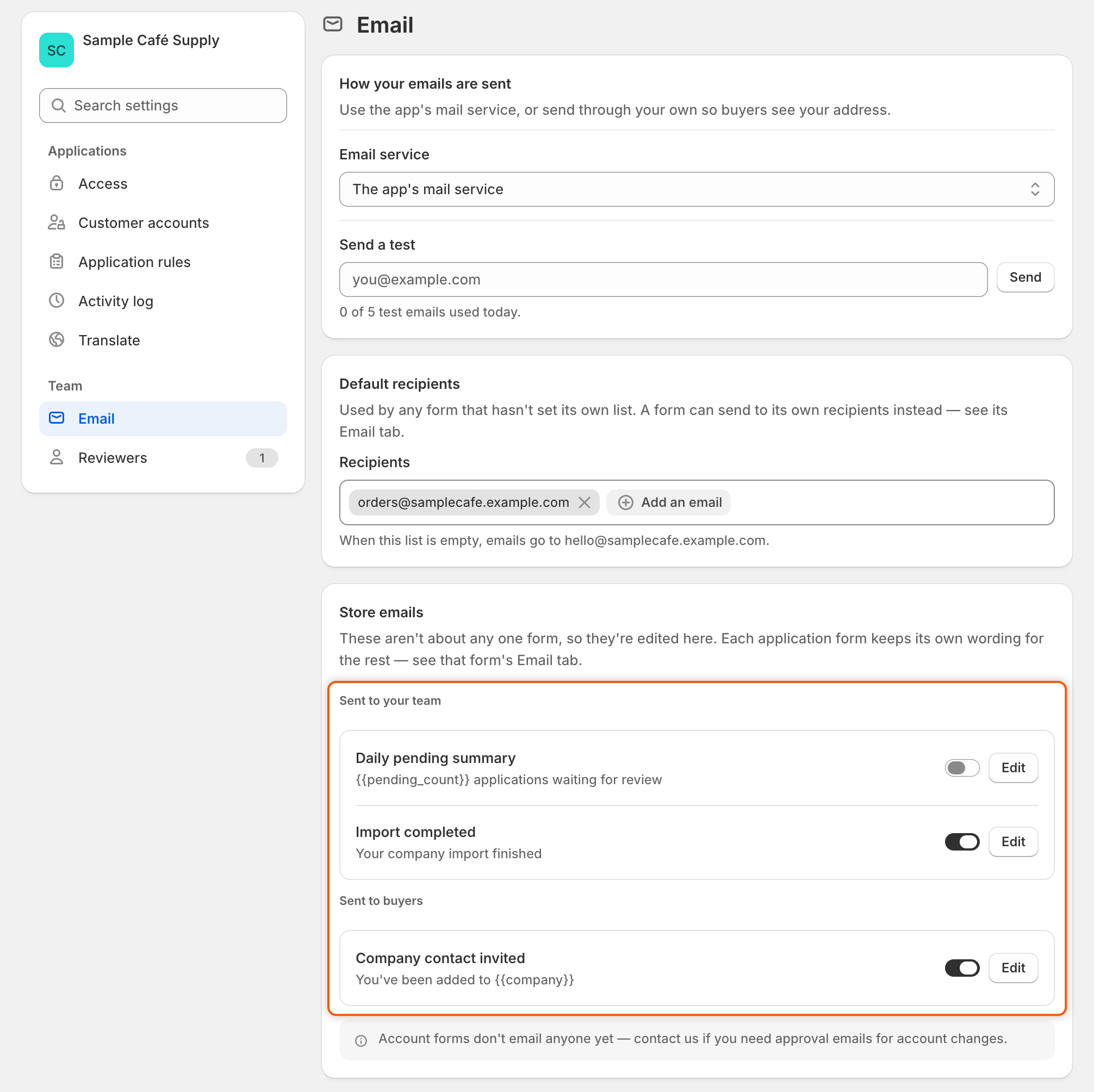
**Where each email is edited.** Most emails belong to an application form, so each form keeps its own version in the builder's **Email** section. The three emails that aren't about any one form are listed under **Store emails** in **Settings › Email**.

| Email                       | Sent to         | When it's sent                                                                                  | Where to edit it                    | On at first |
| --------------------------- | --------------- | ----------------------------------------------------------------------------------------------- | ----------------------------------- | ----------- |
| **New application**         | Your team       | A buyer submits an application.                                                                 | Form builder › **Email**            | Yes         |
| **Buyer resubmitted**       | Your team       | A buyer sends the information you asked for.                                                    | Form builder › **Email**            | Yes         |
| **Application received**    | Buyer           | The buyer submits an application.                                                               | Form builder › **Email**            | Yes         |
| **More information needed** | Buyer           | You or a rule ask the buyer for more information.                                               | Form builder › **Email**            | Yes         |
| **Account approved**        | Buyer           | The application is approved, by a person, a rule or Shopify Flow.                               | Form builder › **Email**            | Yes         |
| **Application declined**    | Buyer           | The application is rejected.                                                                    | Form builder › **Email**            | No          |
| **Daily pending summary**   | Your team       | Each morning around 8 a.m. in your store's time zone, when applications are waiting for review. | **Settings › Email › Store emails** | No          |
| **Import completed**        | Your team       | A company import from a CSV file finishes.                                                      | **Settings › Email › Store emails** | Yes         |
| **Company contact invited** | The new contact | A buyer adds a colleague from their company page in their customer account.                     | **Settings › Email › Store emails** | Yes         |

An application email also needs its event switched on under **Automation › Automations**. If the event is off, the email shows "Its automation trigger is off, so this won't send." See [Automations and Shopify Flow](/sami-b2b-onboarding/automation/automations-and-shopify-flow.md).

**Emails in the buyer's language.** A buyer who applied in another language gets the form's buyer emails in that language, once you've translated them in [Translate](/sami-b2b-onboarding/settings/translate.md). Team emails stay in your store's language, and the three store emails use the wording you write.

<figure><img src="https://3844812229-files.gitbook.io/~/files/v0/b/gitbook-x-prod.appspot.com/o/spaces%2FRrf4pQPgjvb3GW7IN3Ci%2Fuploads%2Fgit-blob-6ae741bbe769cbc36b12ebab4dd199c56569a91b%2Fscreenshot-email-settings-overview.png?alt=media" alt="The Store emails list in Settings › Email with Daily pending summary and Import completed under Sent to your team and Company contact invited under Sent to buyers, each with a switch and an Edit button."><figcaption><p>The Store emails list holds the three emails that don't belong to a form, each with its own switch and Edit button.</p></figcaption></figure>

## Next steps

* [Send from your own address (SMTP)](/sami-b2b-onboarding/settings/smtp.md) — connect your own mail server and send a test.
* [Choose who gets notified](/sami-b2b-onboarding/settings/notification-recipients.md) — set who on your team receives each email.
* [Edit email templates](/sami-b2b-onboarding/settings/email-templates.md) — reword an email or turn it off.
* [Activity log](/sami-b2b-onboarding/settings/activity-log.md) — check whether a particular email went out.


---

# Agent Instructions
This documentation is published with GitBook. GitBook is the documentation platform designed so that both humans and AI agents can read, navigate, and reason over technical content effectively. Learn more at gitbook.com.

## Querying This Documentation
If you need additional information that is not directly available in this page, you can query the documentation dynamically by asking a question.

Perform an HTTP GET request on the current page URL with the `ask` query parameter, and the optional `goal` query parameter:

```
GET https://docs.samita.io/sami-b2b-onboarding/settings/email.md?ask=<question>&goal=<endgoal>
```

`ask` is the immediate question: it should be specific, self-contained, and written in natural language.
`goal` is optional and describes the broader end goal you are ultimately trying to accomplish on behalf of the user. GitBook uses it to tailor the answer towards what is most useful for that goal.

The response will contain a direct answer to the question and relevant excerpts and sources from the documentation.

Use this mechanism when the answer is not explicitly present in the current page, you need clarification or additional context, or you want to retrieve related documentation sections.
