
帳號橫幅
在買家顧客帳號的 Orders 和 Profile 頁面,向每位已登入的買家顯示申請連結、申請狀態或前往其公司的連結。
帳號橫幅是 Sami B2B Onboarding 新增到買家顧客帳號中常用頁面的兩個小區塊。Orders 頁面上的橫幅與 Profile 頁面上的一行文字,會告訴每位買家下一步該做什麼:申請、回覆您的要求,或管理他們的公司。在 Shopify 編輯器中,這兩個區塊會以同一個名稱顯示:B2B account banners。
您需要放置此區塊兩次:一次在 Orders 頁面,一次在 Profile 頁面。
-
開啟結帳與帳號編輯器
Section titled “開啟結帳與帳號編輯器”在應用程式中,前往 Settings › Customer accounts。在 Extensions 卡片中,點擊 Add blocks in Customer accounts。Shopify 會開啟其結帳與帳號編輯器。
-
將橫幅新增到 Orders 頁面
Section titled “將橫幅新增到 Orders 頁面”在編輯器的應用程式區塊清單中,於 Sami B2B Onboarding 下方,點擊 B2B account banners 旁的 +,然後選擇 Orders。Shopify 會將區塊放在頁面 Main 區段的頂端、訂單清單上方,讓買家一開啟訂單就能看到。若要移動,請開啟 Sections 清單並拖曳。
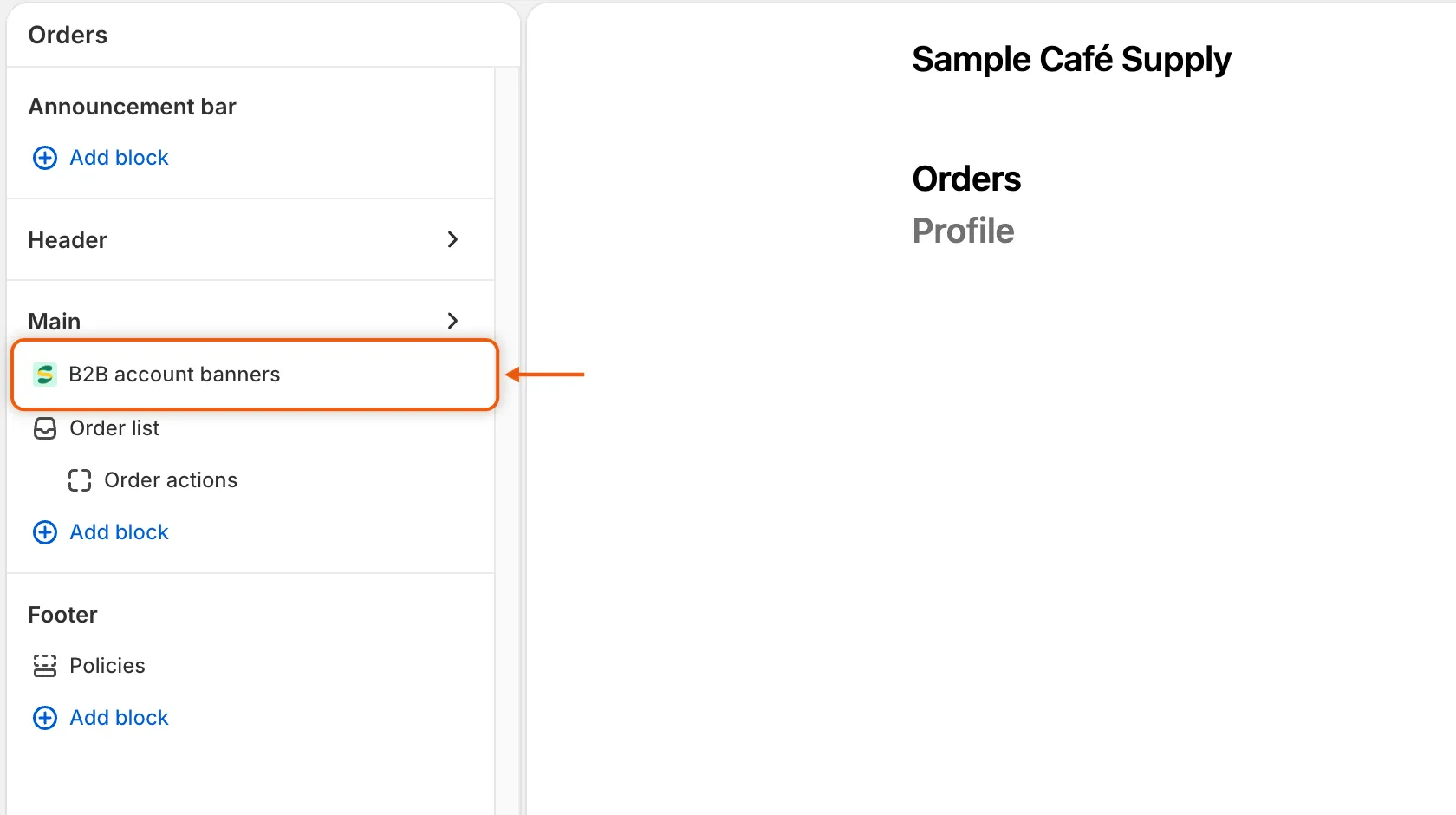
橫幅位於訂單清單上方,買家一開啟訂單就能看到。
-
將區塊新增到 Profile 頁面
Section titled “將區塊新增到 Profile 頁面”再次點擊 B2B account banners 旁的 +,然後選擇 Profile。在這個頁面上,它會以單行文字顯示在個人資料卡片之間。
-
儲存並檢查狀態
Section titled “儲存並檢查狀態”在編輯器中儲存您的變更。回到應用程式,開啟 Settings › Customer accounts,然後點擊 Refresh statuses(圓形箭頭)。Account banners 會顯示 Active。
只要區塊放在兩個頁面其中之一,就會顯示 Active,因此請確認您已在兩個頁面都放置了區塊。
Orders 頁面上的橫幅會顯示什麼
Section titled “Orders 頁面上的橫幅會顯示什麼”| 買家的情況… | 他們會看到 |
|---|---|
| 尚未申請,且不是公司聯絡人 | “Buying for a business?”,以及 “Apply for a business account to see your own prices and payment terms. If your company already buys from us, ask your company’s admin to add you instead.”,還有指向您表單頁面的 Apply for a business account 連結。 |
| 已提出申請 | 他們的申請狀態,與公司申請頁面上的相同,例如 “Your application is being reviewed”。 |
| 被要求提供更多資訊,或被拒絕並選擇 Let them update it and send it again | 狀態,以及指向您表單頁面的 Update your application 連結,並會重新開啟他們的申請。 |
| 已代表公司購買 | 不顯示橫幅。 |
買家可以關閉橫幅。買家以訪客身分送出的申請,在他們使用相同電子郵件地址登入後就會顯示。
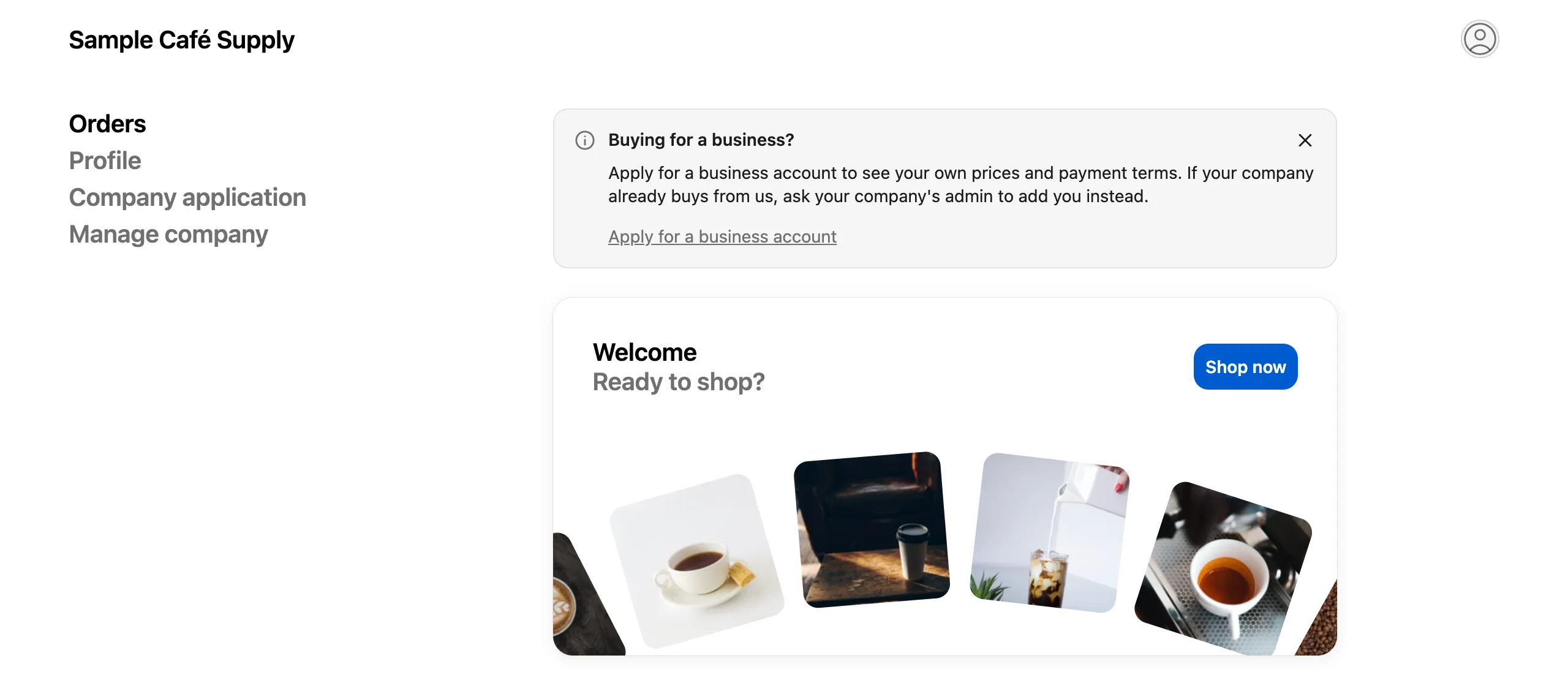
尚未申請的買家可以直接從訂單頁面獲得申請邀請。
Profile 頁面上的區塊會顯示什麼
Section titled “Profile 頁面上的區塊會顯示什麼”每位已登入的買家在 Profile 頁面上都會看到一行文字。
| 買家的情況… | 他們會看到 |
|---|---|
| 是具有 Location admin 角色的公司聯絡人 | “Update your company’s details, addresses and team in one place.” 以及 Manage company 按鈕。 |
| 是具有其他角色的公司聯絡人 | “See your company’s details and who else can order for it.” 以及 Manage company 按鈕。 |
| 已提出申請 | 他們的申請狀態,且在需要他們處理時會顯示 Update your application 按鈕。 |
| 尚未申請 | “Buying for a business?”,其訊息與 Orders 橫幅相同,以及 Apply for a business account 按鈕。 |
Manage company 會開啟公司自助服務頁面。
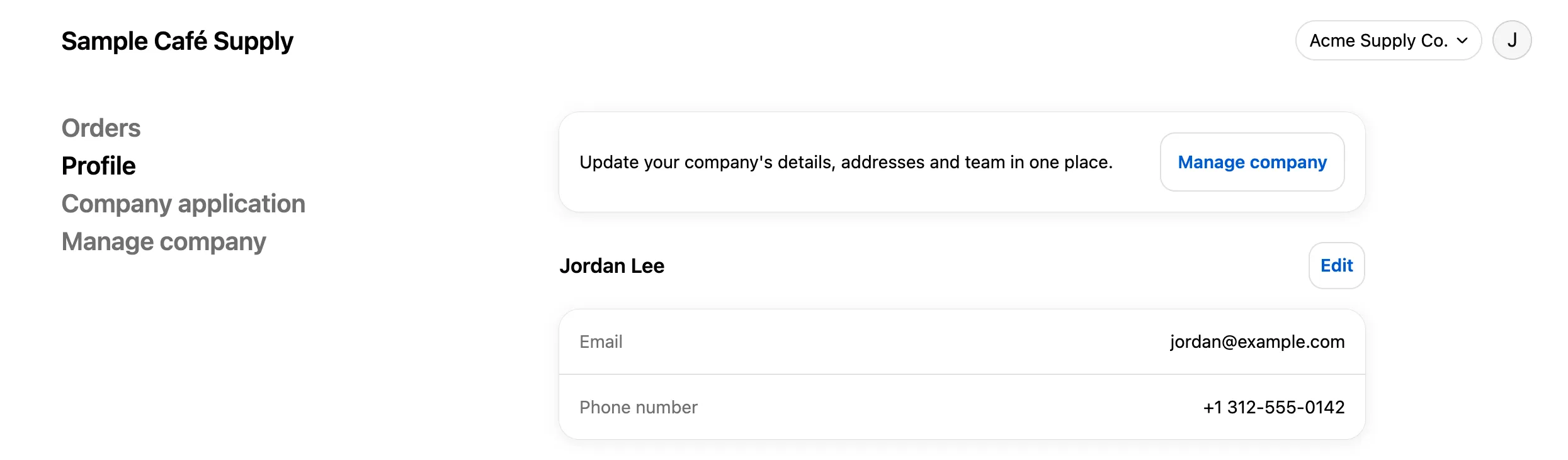
已核准的買家可以從個人資料前往其公司的自助服務頁面。
變更文字內容
Section titled “變更文字內容”橫幅的句子和按鈕位於 Settings › Translate。開啟您的預設語言(Edit)即可修改英文文字,或開啟其他語言(Translate)進行翻譯。選擇 Storefront messages,並找到 Customer account pages 卡片。橫幅的列包括:
| 列 | 預設文字 |
|---|---|
| Apply prompt heading | Buying for a business? |
| Apply prompt message | Apply for a business account to see your own prices and payment terms. If your company already buys from us, ask your company’s admin to add you instead. |
| Apply link | Apply for a business account |
| Update application button | Update your application |
| Company card message, admin | Update your company’s details, addresses and team in one place. |
| Company card message, contact | See your company’s details and who else can order for it. |
| Manage company button | Manage company |
狀態列以 “Status heading” 和 “Status message” 開頭。公司申請頁面也會使用這些列,因此變更會同時顯示在兩個地方。請參閱翻譯。