
拒绝申请
附上原因拒绝申请,选择买家是否可以再次尝试,并决定是否向其发送邮件。
当您不会为买家开通 B2B 账户时,请拒绝其申请。Sami B2B Onboarding 会记录您的原因,可以向买家发送邮件,并让您选择他们是否可以更新申请并重新发送。不会在 Shopify 中创建任何内容。
如果只是缺少某些内容,请改为 请求更多信息。
-
打开拒绝对话框
Section titled “打开拒绝对话框”使用以下任一方式:
- 在 Applications 标签页上,点击该行末尾的 …,然后选择 Reject。
- 在快速审核抽屉中,点击 Reject,或按
R。 - 在完整的申请页面上,点击 More actions › Reject。
Reject application 对话框会打开。
-
在 Reason 下,选择 Doesn’t meet requirements、Information doesn’t check out、Duplicate application 或 Other。
-
添加详细信息
Section titled “添加详细信息”在 Details 下,写下买家应当知道的内容。拒绝邮件会引用这部分内容和原因。
-
选择之后的处理
Section titled “选择之后的处理”在 After rejecting 下,选择其一:
- Let them update it and send it again(默认):“Their account shows your reason and reopens the application for them to change.”
- Close the application:“They can’t change it or apply again from their account.”
-
选择是否向买家发送邮件
Section titled “选择是否向买家发送邮件”保持勾选 Email the buyer about this decision 即可发送 Application declined 邮件,取消勾选则静默拒绝。
-
点击 Reject application。“Application rejected” 表示已拒绝。状态会变为 Rejected,申请会移到 Decided 视图,时间线会显示“Rejected Acme Supply Co.”及原因。
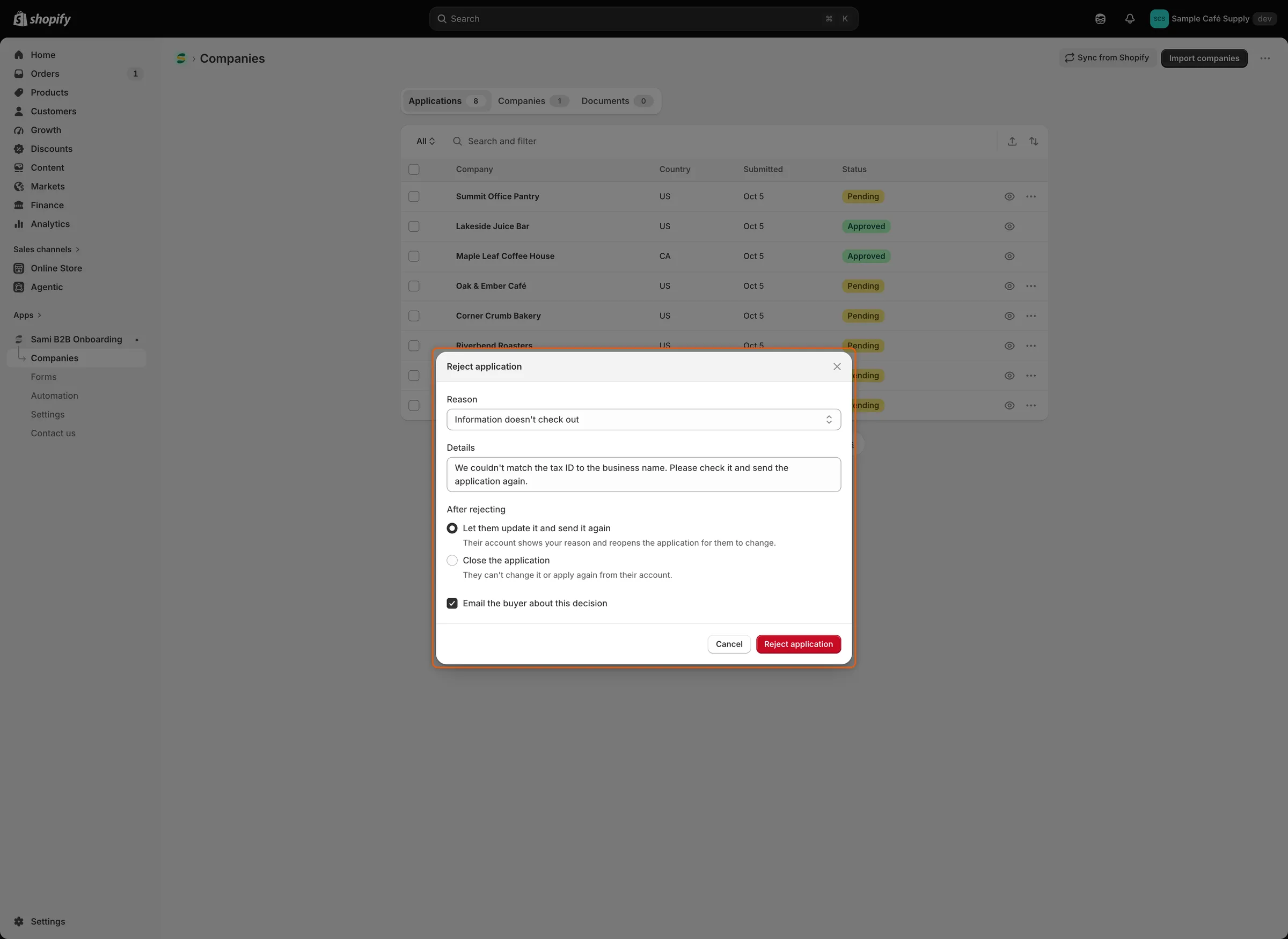
原因和详细信息会发送给买家;After rejecting 决定他们是否可以重新发送申请。
开启拒绝邮件
Section titled “开启拒绝邮件”每个申请表单都有自己的这封邮件开关。
-
打开表单的邮件
Section titled “打开表单的邮件”前往 Forms,点击表单旁边的 Edit,例如 Wholesale application。在构建器左侧栏中,点击 Email。Application declined 列在 Sent to buyers 下。
-
开启 Application declined 旁边的开关,然后点击构建器保存栏中的 Save。
对每个希望被拒绝的买家收到通知的表单,都请这样操作。Automation › Automations 下的 Application rejected 也必须处于开启状态。它默认是开启的。当它关闭时,构建器中该邮件所在行会显示“Its automation trigger is off, so this won’t send.”
这封邮件标题为“About your application”,会感谢买家,说明您目前无法批准该申请,并引用您的原因和详细信息。邮件会告知他们仍可按常规价格购物,如果信息有变可以再次申请,并带有 Visit the store 按钮。若要修改其措辞,请参阅 编辑邮件模板。
买家看到的内容
Section titled “买家看到的内容”买家登录后,其客户账户和您的表单页面会显示“Your application wasn’t approved”。在其账户中,其下方的一行是您的原因和详细信息。在您的表单页面上:
- 如果您选择了 Let them update it and send it again,他们会看到“You can update your application and send it again.”,并获得一个 Update your application 按钮,其账户中也会显示该按钮。他们发送后,申请会以 Resubmitted 状态回到您手中,由您的团队做出决定。请参阅 请求更多信息。
- 如果您选择了 Close the application,他们会看到“Get in touch if you think this was a mistake.”,且没有按钮。
请参阅 公司申请页面。
申请会如何处理
Section titled “申请会如何处理”被拒绝的申请会保留在 Decided 视图中。当 Automation › Automations 下开启了 Shopify Flow 的 Application rejected 触发器时,它会运行,您设置为发送拒绝信息的集成也会收到该信息。
被拒绝的申请会在 Settings › Application rules › Data retention › Rejected applications 中设定的时间之后,连同其文件和时间线一起被永久删除:Keep for 1 year(默认)、Keep for 90 days 或 Keep indefinitely。请参阅 申请规则。
您仍然可以批准已被拒绝的申请。请从列表中打开它。完整页面仍保留 Approve application 按钮。请先检查 Approval 卡片:被拒绝的申请不会从您的默认预设开始,因此请用铅笔图标设置条款并点击 Save。然后点击 Approve application。当摘要显示 Ready to approve 时,会直接批准,不会弹出对话框。请参阅 批准申请。
只有在申请尚未决定时,申请页面、抽屉和该行的 … 菜单才会提供 Reject。