
按多属性和元字段定位
按产品多属性、多属性库存,或您在 Shopify 中定义的元字段值来定位徽章。
多属性和元字段定位让您能够最精细地控制哪些产品显示徽章:可以按产品的多属性和库存水平定位,也可以与您在 Shopify 中定义的自定义元字段属性进行匹配。
两者都是徽章编辑器 Products 标签页中的条件类型,因此设置方式与其他产品条件相同,只是需要填写的字段不同。
- 从 Badges & Labels 中打开要编辑的徽章,或创建一个新徽章。如果不确定如何打开编辑器,请参阅 定位产品。
- 对于元字段定位,该元字段必须已在 Shopify 中存在。请先在 设置 → 自定义数据 下创建,参阅 查找元字段的命名空间和键。
| 条件 | 定位对象 | 常用选项 |
|---|---|---|
| Select specific variants | 您手动选择的单个多属性 | 搜索或浏览 · 勾选应显示徽章的多属性 |
| Product variants | 产品是否有多属性 | products with variants · product has no variants |
| Variant inventory | 单个多属性的库存水平 | in stock · out of stock · stock availability greater than · stock availability less than |
| Product metafield | 产品上定义的元字段 | is equal to · is not equal to · contains · does not contain · is greater than · is less than |
| Variant metafield | 多属性上定义的元字段 | is equal to · is not equal to · contains · does not contain · is greater than · is less than |
产品多属性定位
Section titled “产品多属性定位”根据多属性级别而非产品级别的数据来显示徽章,适用于只有特定尺寸、颜色或配置才应触发徽章的情况。
如何设置多属性定位
Section titled “如何设置多属性定位”-
打开 Products 标签页
Section titled “打开 Products 标签页”在徽章编辑器中,点击左侧面板顶部标签行中的 Products(位于 Design 和 Display 旁边)。
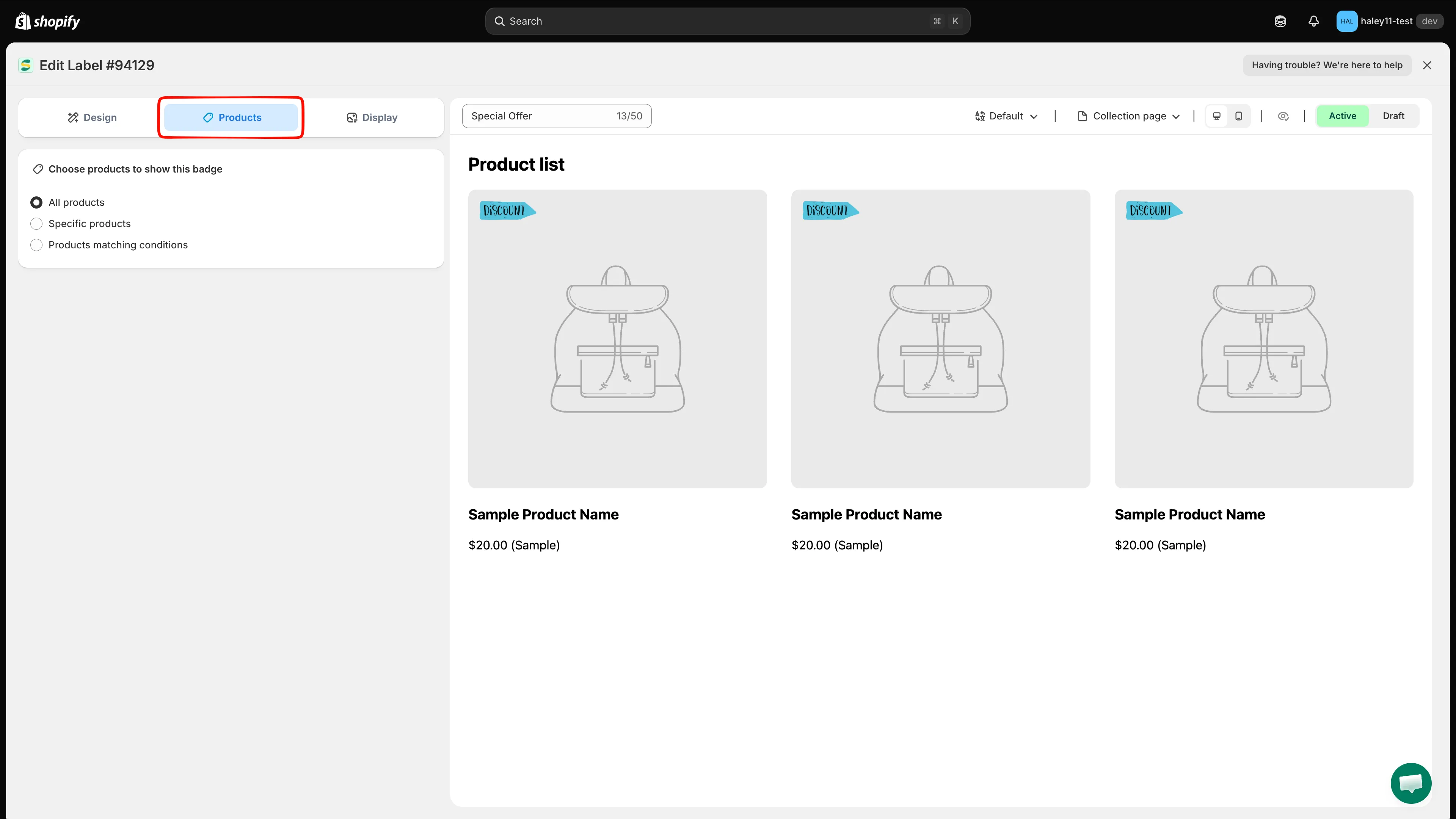
徽章编辑器的标签页:Design、Products 和 Display。
-
选择“Products matching conditions”
Section titled “选择“Products matching conditions””在 Choose products to show this badge 下,选择 Products matching conditions。下方会出现 Conditions 卡片。
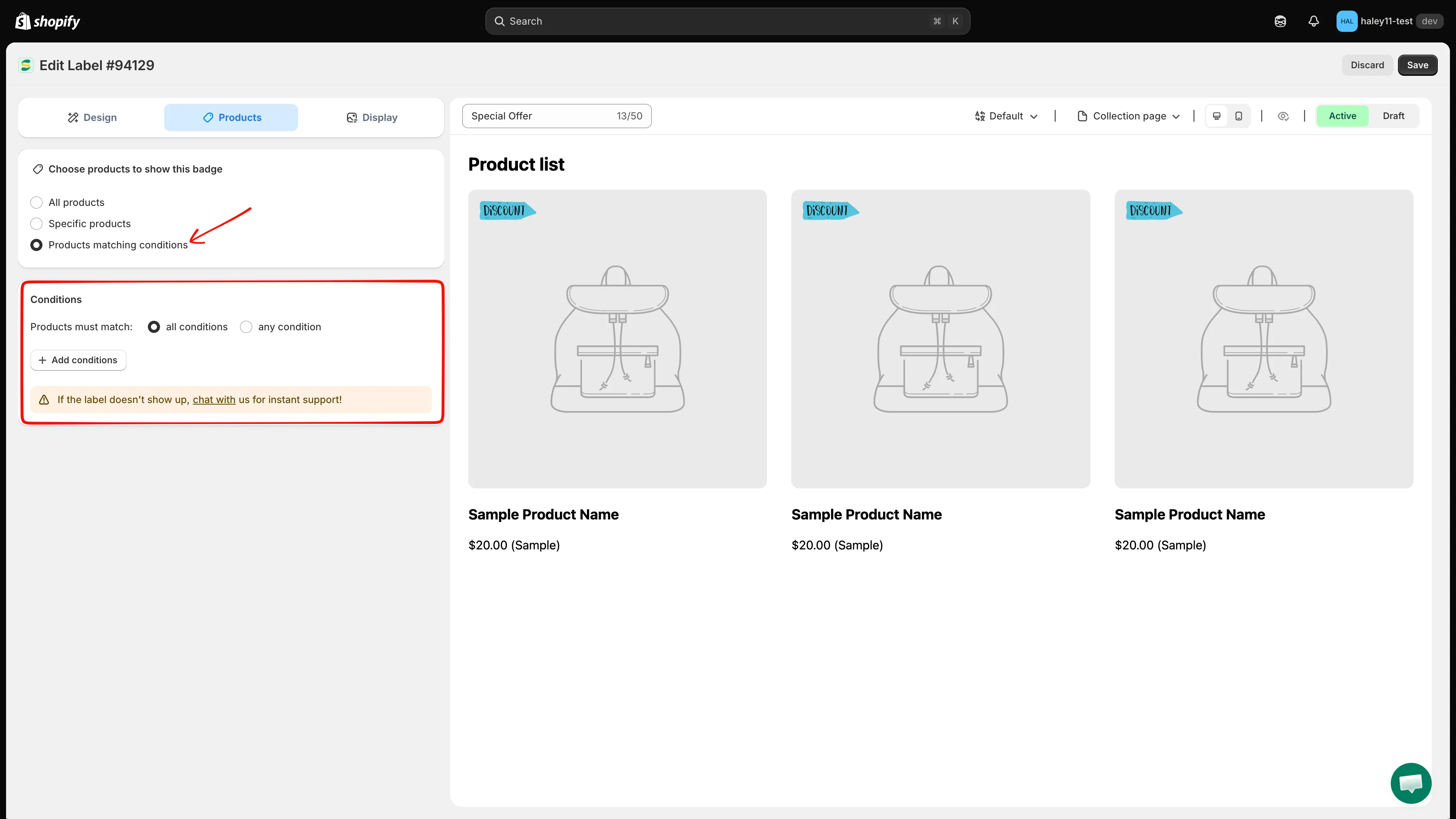
选择 Products matching conditions 后会显示 Conditions 卡片。
-
选择规则的组合方式
Section titled “选择规则的组合方式”在 Products must match 旁边,选择 all conditions(AND)或 any condition(OR)。如果只添加一条规则,请保持 all conditions。
-
点击 + Add conditions,然后从条件下拉菜单中选择 Product variants 或 Variant inventory。
-
对于 Product variants,选择 products with variants 或 product has no variants。
对于 Variant inventory,选择库存运算符;如果选择的是“greater than”和“less than”运算符,还需输入库存阈值。
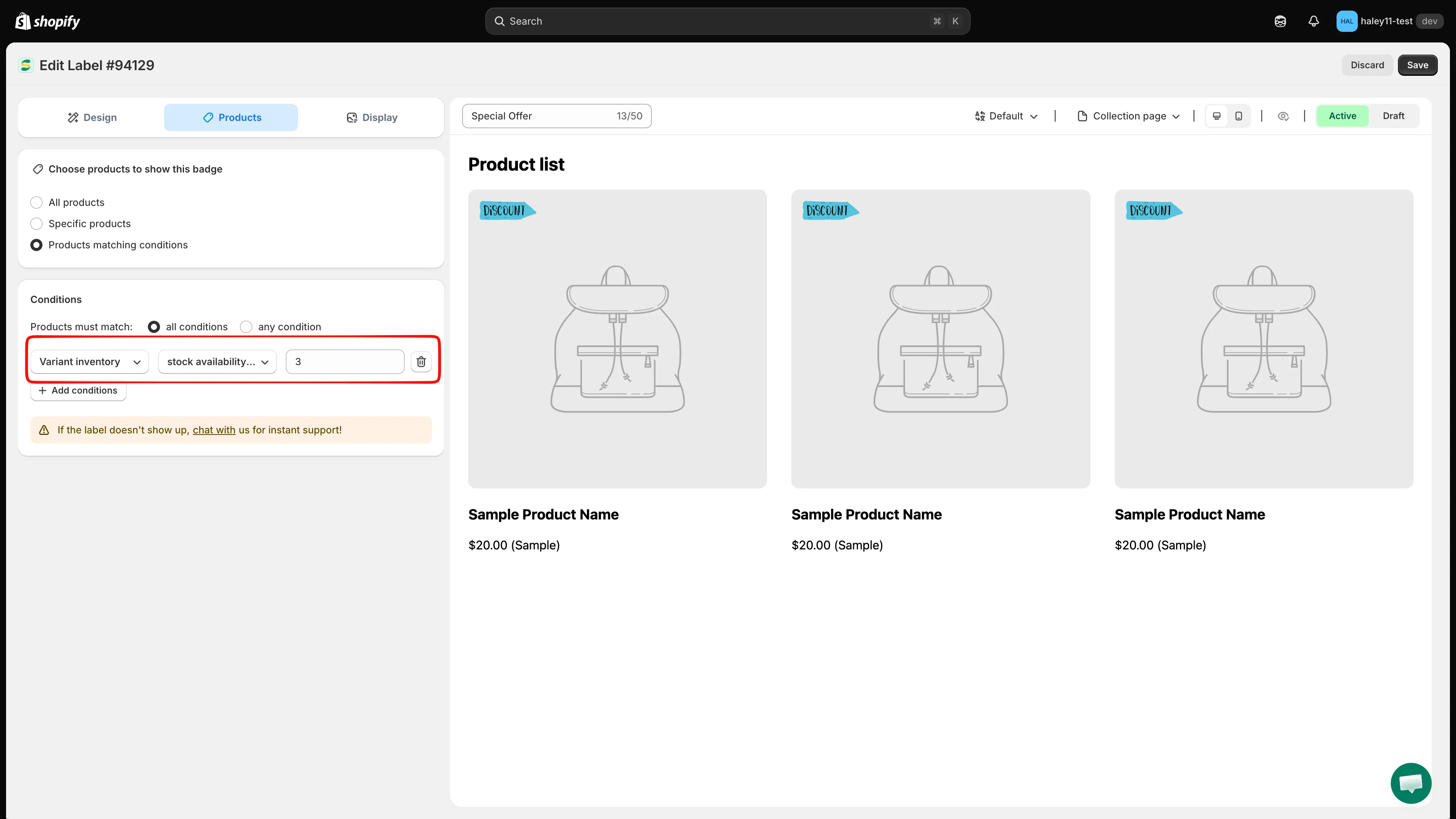
示例:定位库存少于 3 件的多属性。
-
点击右上角的 Save。会显示 Badge/Label updated 确认信息,规则随即在您的店面生效。
元字段条件会根据存储在 Shopify 元字段中的自定义数据来定位产品,即您为产品或多属性定义的任何自定义属性。
查找元字段的命名空间和键
Section titled “查找元字段的命名空间和键”在定位元字段之前,您需要先获取它的引用:
- 在 Shopify 后台中,前往 设置 → 自定义数据。
- 选择 产品(如果是多属性元字段,则选择多属性)。
- 打开要使用的元字段定义。
- 复制其 namespace 和 key:应用需要将两者合在一起,格式为
namespace.key,例如custom.material。
命名空间和键显示在 Shopify 后台的元字段定义页面上。
如何设置元字段定位
Section titled “如何设置元字段定位”-
打开 Products 标签页并选择“Products matching conditions”
Section titled “打开 Products 标签页并选择“Products matching conditions””与多属性定位相同:Products 标签页 → Products matching conditions → 选择 all conditions 或 any condition。
-
点击 + Add conditions,然后选择 Product metafield 或 Variant metafield。
-
输入命名空间和键
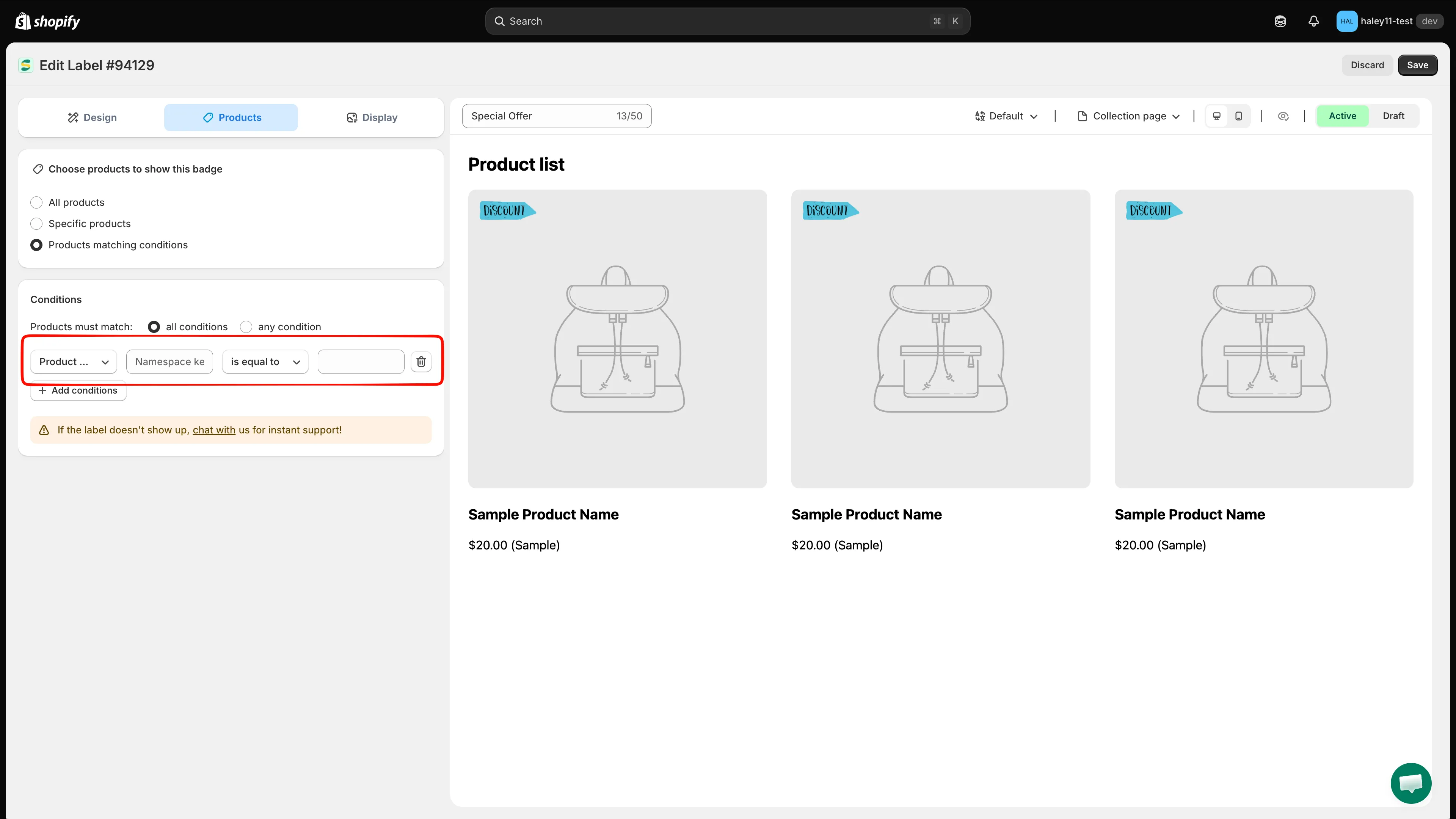
Section titled “输入命名空间和键”按 namespace.key 格式输入元字段引用。例如:
custom.material:自定义材质元字段custom.certification:认证状态元字段descriptors.subtitle:产品副标题元字段
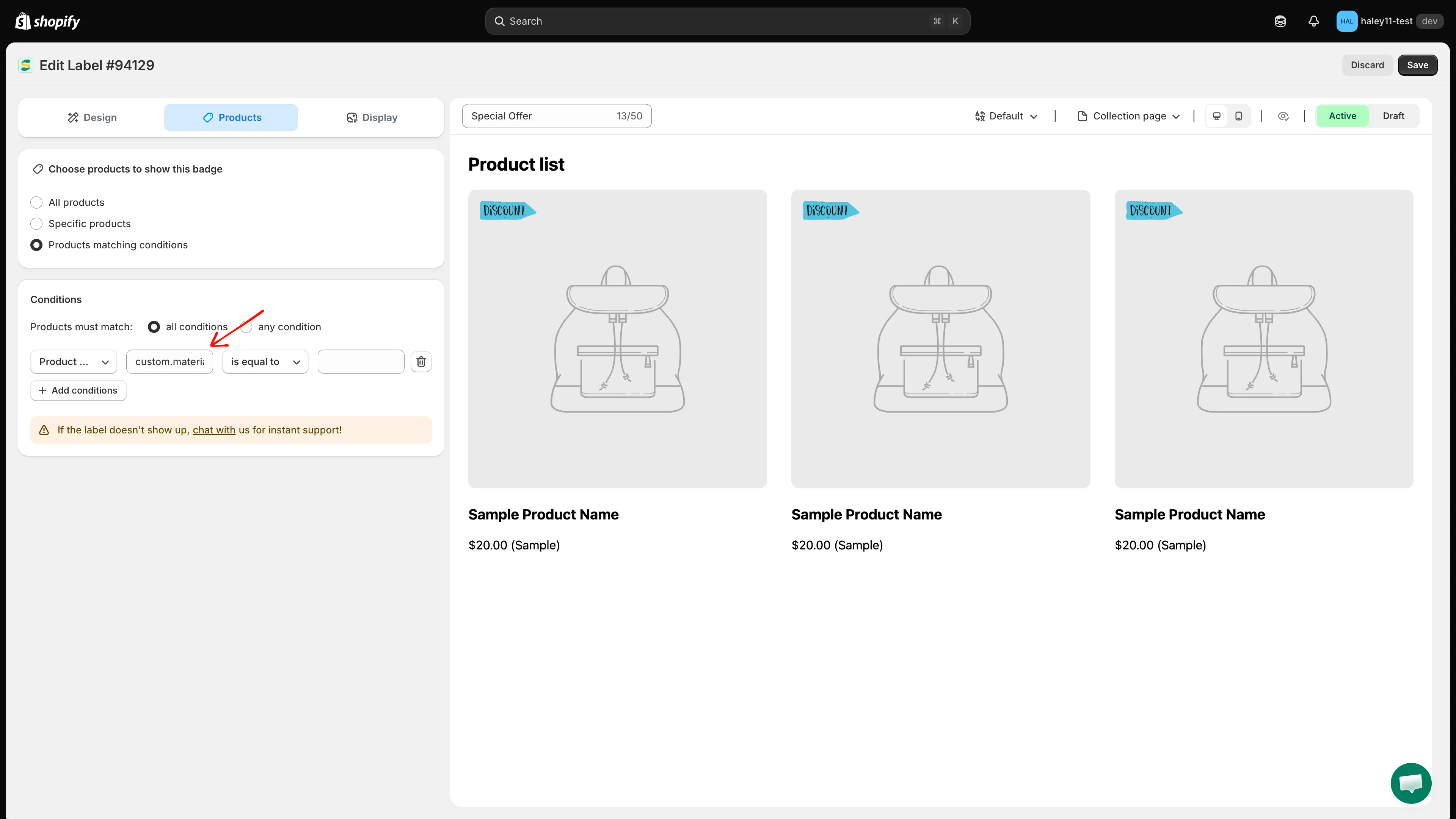
使用 namespace.key 格式输入元字段引用。
-
选择运算符和值
Section titled “选择运算符和值”选择运算符(is equal to、contains、is greater than 等),并输入要匹配的值。数字运算符仅用于存储数字的元字段。
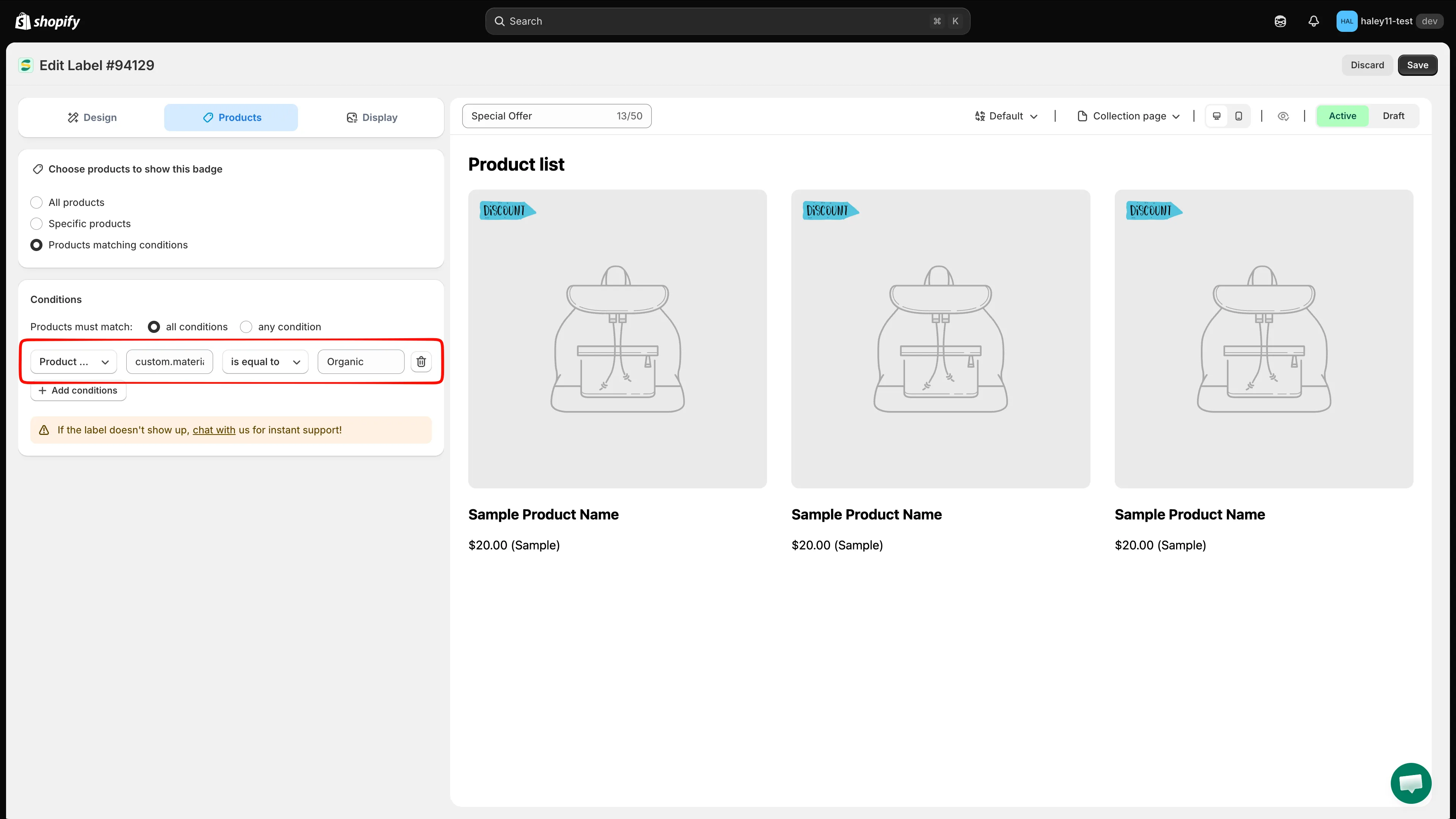
一条完成的元字段规则:custom.material is equal to Organic。
-
点击右上角的 Save。会显示 Badge/Label updated 确认信息。
元字段定位示例
Section titled “元字段定位示例”| 元字段 (namespace.key) | 运算符 | 值 | 使用场景 |
|---|---|---|---|
custom.material |
is equal to | Organic | 在有机产品上显示“Organic”徽章 |
custom.certification |
contains | ISO | 为所有通过 ISO 认证的产品添加徽章 |
custom.country_of_origin |
is equal to | Italy | 显示“Made in Italy”徽章 |
custom.is_bestseller |
is equal to | true | 显示“Bestseller”徽章 |
custom.rating |
is greater than | 4 | 在高评分商品上显示“Top Rated”徽章 |
组合多属性和元字段条件
Section titled “组合多属性和元字段条件”多属性和元字段条件可以相互组合,也可以与任何其他产品条件组合。使用 + Add conditions 添加每条规则,然后将 Products must match 设置为 all conditions,使每条规则都必须为真。
- Variant inventory stock availability less than 3 AND Product metafield
custom.is_featuredis equal totrue - 结果:一个“Last Few Left”徽章,仅出现在多属性级别库存少于 3 件的精选产品上。
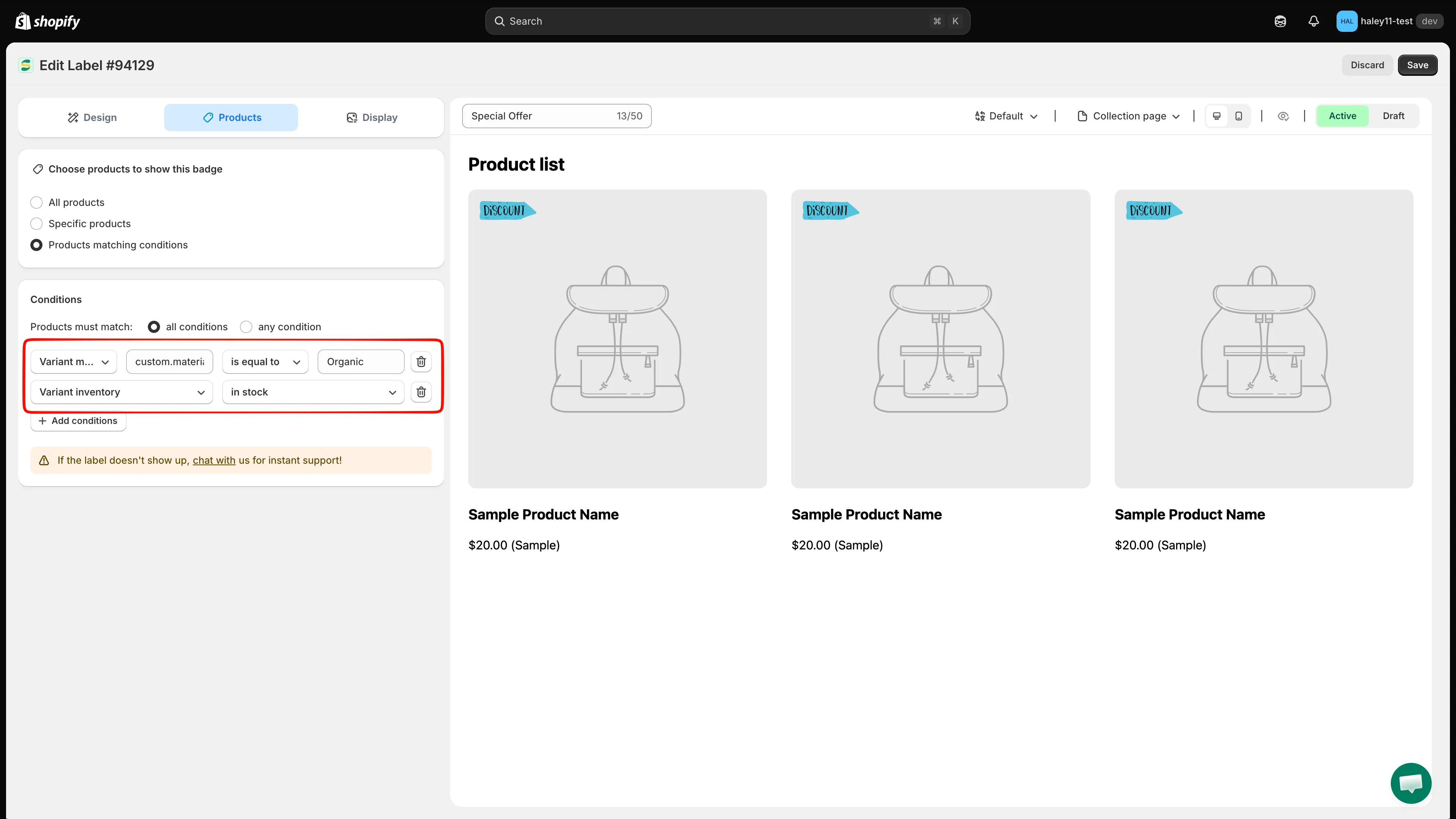
使用 all conditions (AND) 逻辑组合的两条规则。
- 按产品属性定位:按产品标题、类型、供应商、价格等筛选徽章。
- 按国家/地区和语言定位:向特定国家/地区或使用特定语言的访客显示徽章。
- 动态变量:在徽章文字中使用价格、折扣和库存数量等实时数据。