
依款式和中繼欄位指定
依商品款式、款式庫存,或您在 Shopify 中定義的中繼欄位值來指定徽章。
依款式和中繼欄位指定,讓您能最精細地控制哪些商品顯示徽章:可依商品的款式和庫存量來指定,或比對您在 Shopify 中定義的自訂中繼欄位屬性。
兩者都是徽章編輯器 Products 索引標籤中的條件類型,因此設定方式與其他商品條件相同,差別只在於您要填寫的欄位。
- 從 Badges & Labels 開啟您要編輯的徽章,或建立新的徽章。如果不確定如何開啟編輯器,請參閱指定商品。
- 若要使用中繼欄位指定,該中繼欄位必須已存在於 Shopify 中。請先在設定 → 自訂資料下建立,詳見尋找中繼欄位的命名空間和索引鍵。
| 條件 | 指定對象 | 常見選項 |
|---|---|---|
| Select specific variants | 您手動挑選的個別款式 | 搜尋或瀏覽 · 勾選要顯示徽章的款式 |
| Product variants | 商品是否有款式 | products with variants · product has no variants |
| Variant inventory | 個別款式的庫存量 | in stock · out of stock · stock availability greater than · stock availability less than |
| Product metafield | 在商品上定義的中繼欄位 | is equal to · is not equal to · contains · does not contain · is greater than · is less than |
| Variant metafield | 在款式上定義的中繼欄位 | is equal to · is not equal to · contains · does not contain · is greater than · is less than |
依商品款式指定
Section titled “依商品款式指定”依款式層級而非商品層級的資料顯示徽章,適用於只有特定尺寸、顏色或配置才應觸發徽章的情況。
如何設定依款式指定
Section titled “如何設定依款式指定”-
開啟 Products 索引標籤
Section titled “開啟 Products 索引標籤”在徽章編輯器中,點擊左側面板頂端索引標籤列中的 Products(位於 Design 和 Display 旁邊)。
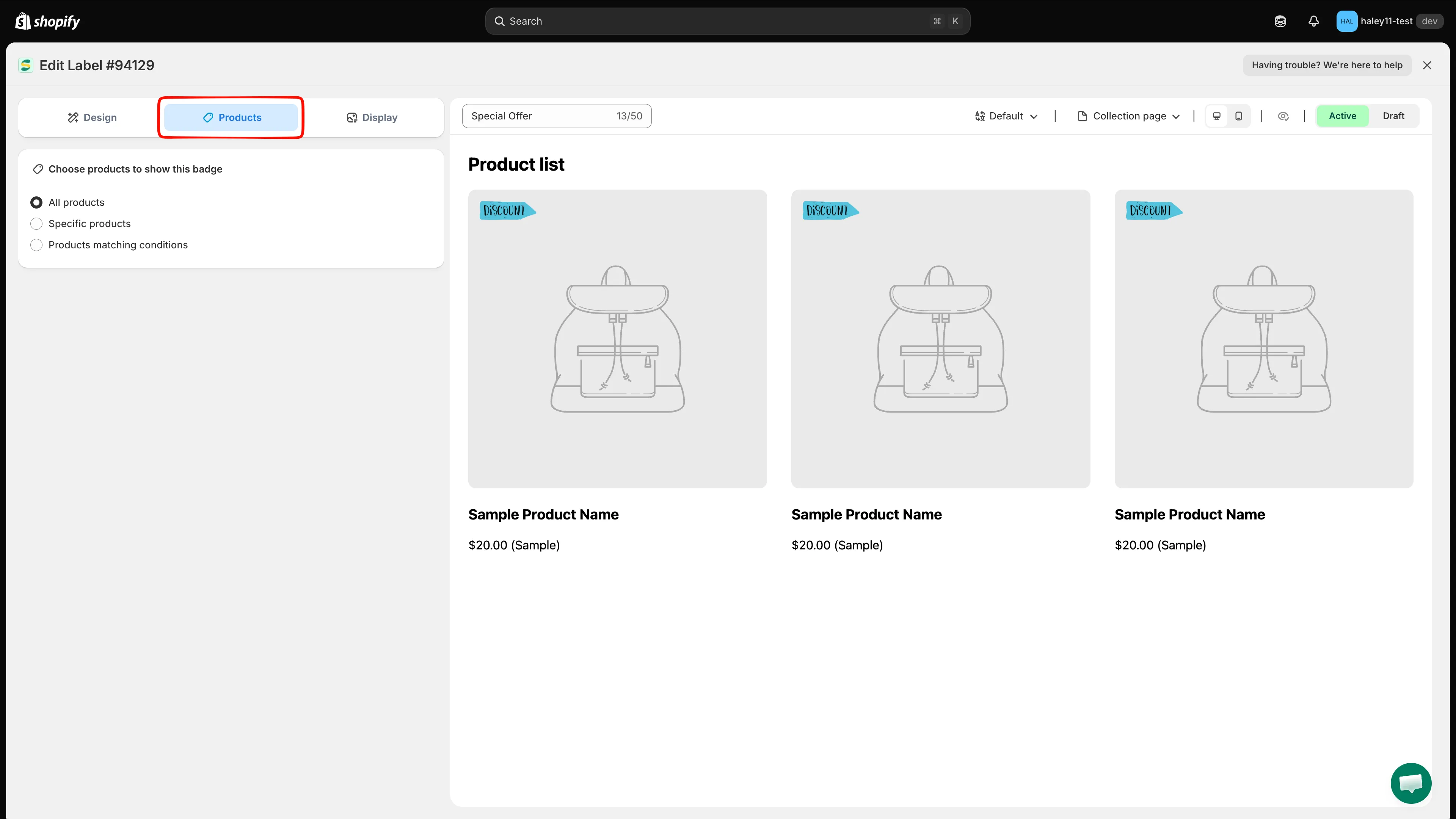
徽章編輯器的索引標籤:Design、Products 和 Display。
-
選取「Products matching conditions」
Section titled “選取「Products matching conditions」”在 Choose products to show this badge 下,選取 Products matching conditions。下方會出現 Conditions 卡片。
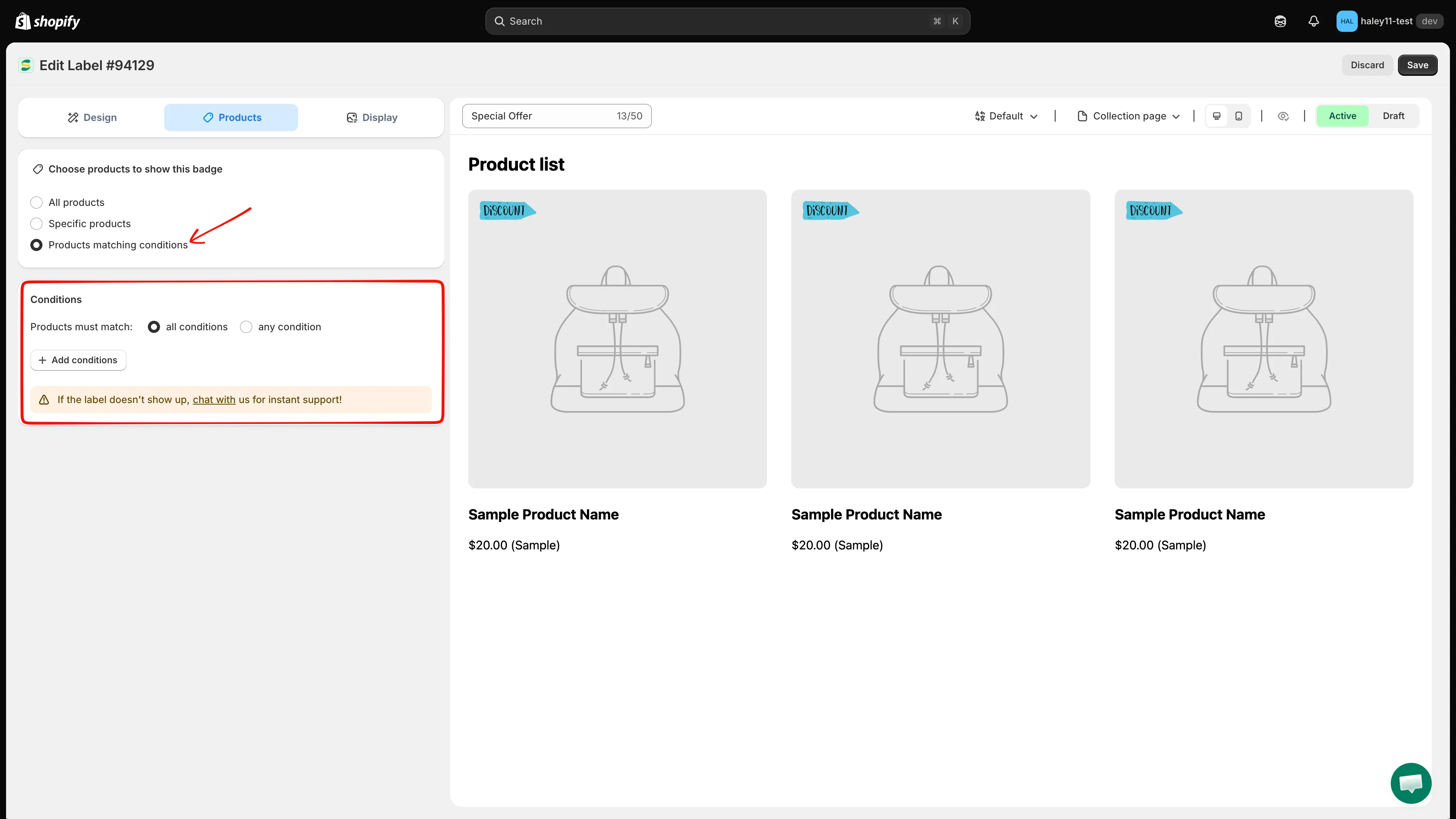
選擇 Products matching conditions 後會顯示 Conditions 卡片。
-
選擇規則的合併方式
Section titled “選擇規則的合併方式”在 Products must match 旁,選擇 all conditions (AND) 或 any condition (OR)。若只新增一條規則,請維持在 all conditions。
-
點擊 + Add conditions,然後從條件下拉式選單中選擇 Product variants 或 Variant inventory。
-
若選擇 Product variants,請選擇 products with variants 或 product has no variants。
若選擇 Variant inventory,請選擇庫存運算子;若使用「greater than」和「less than」運算子,還需輸入庫存門檻。
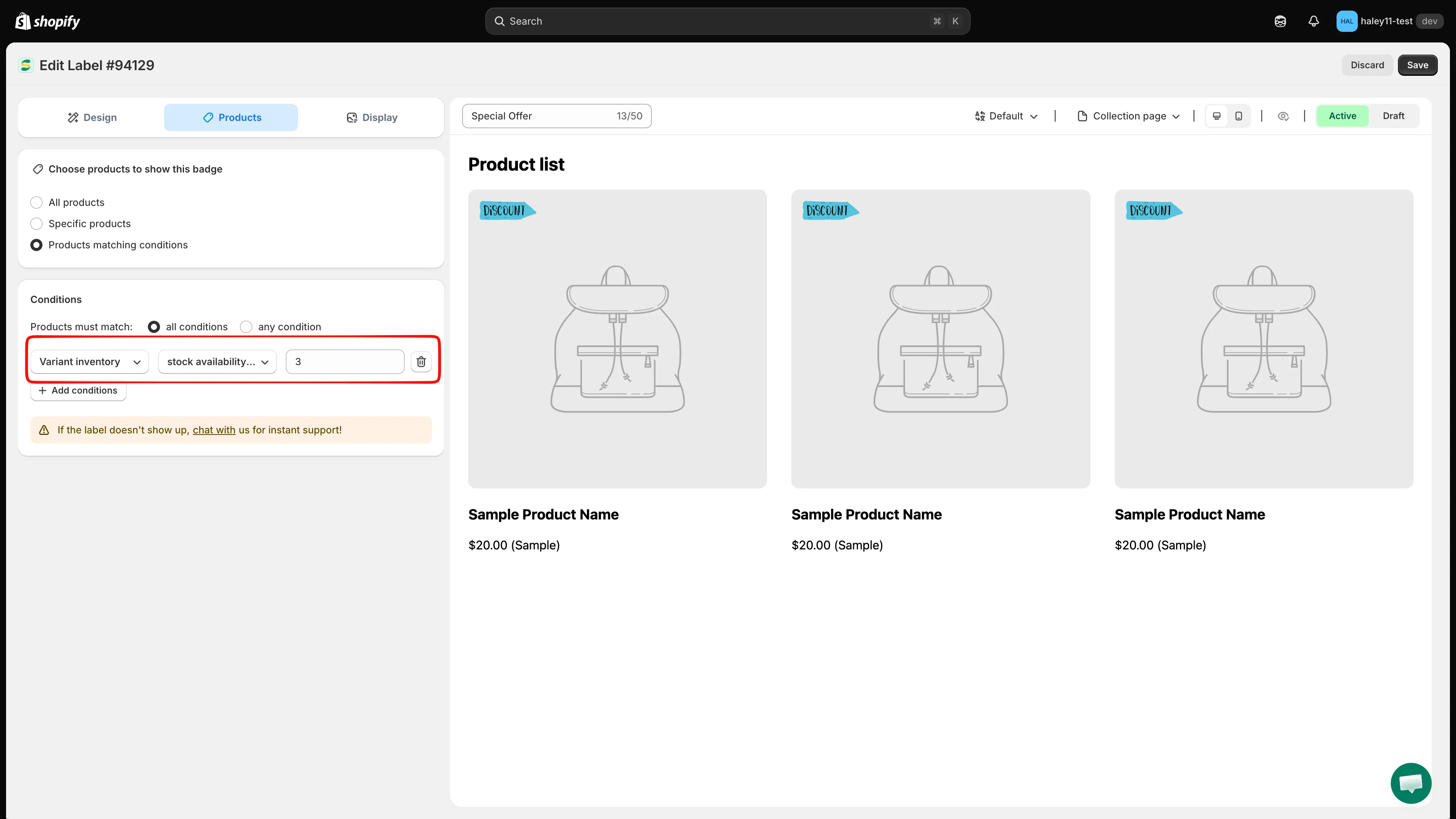
範例:指定庫存少於 3 件的款式。
-
點擊右上角的 Save。畫面會顯示 Badge/Label updated 確認訊息,規則隨即在您的商店前台生效。
依中繼欄位指定
Section titled “依中繼欄位指定”中繼欄位條件會根據儲存在 Shopify 中繼欄位中的自訂資料來指定商品,也就是您為商品或款式定義的任何自訂屬性。
尋找中繼欄位的命名空間和索引鍵
Section titled “尋找中繼欄位的命名空間和索引鍵”指定中繼欄位之前,您需要先取得它的參照:
- 在 Shopify 後台中,前往設定 → 自訂資料。
- 選取商品(若是款式中繼欄位則選取款式)。
- 開啟您要使用的中繼欄位定義。
- 複製其 namespace 和 key。應用程式要求將兩者合併為
namespace.key,例如custom.material。
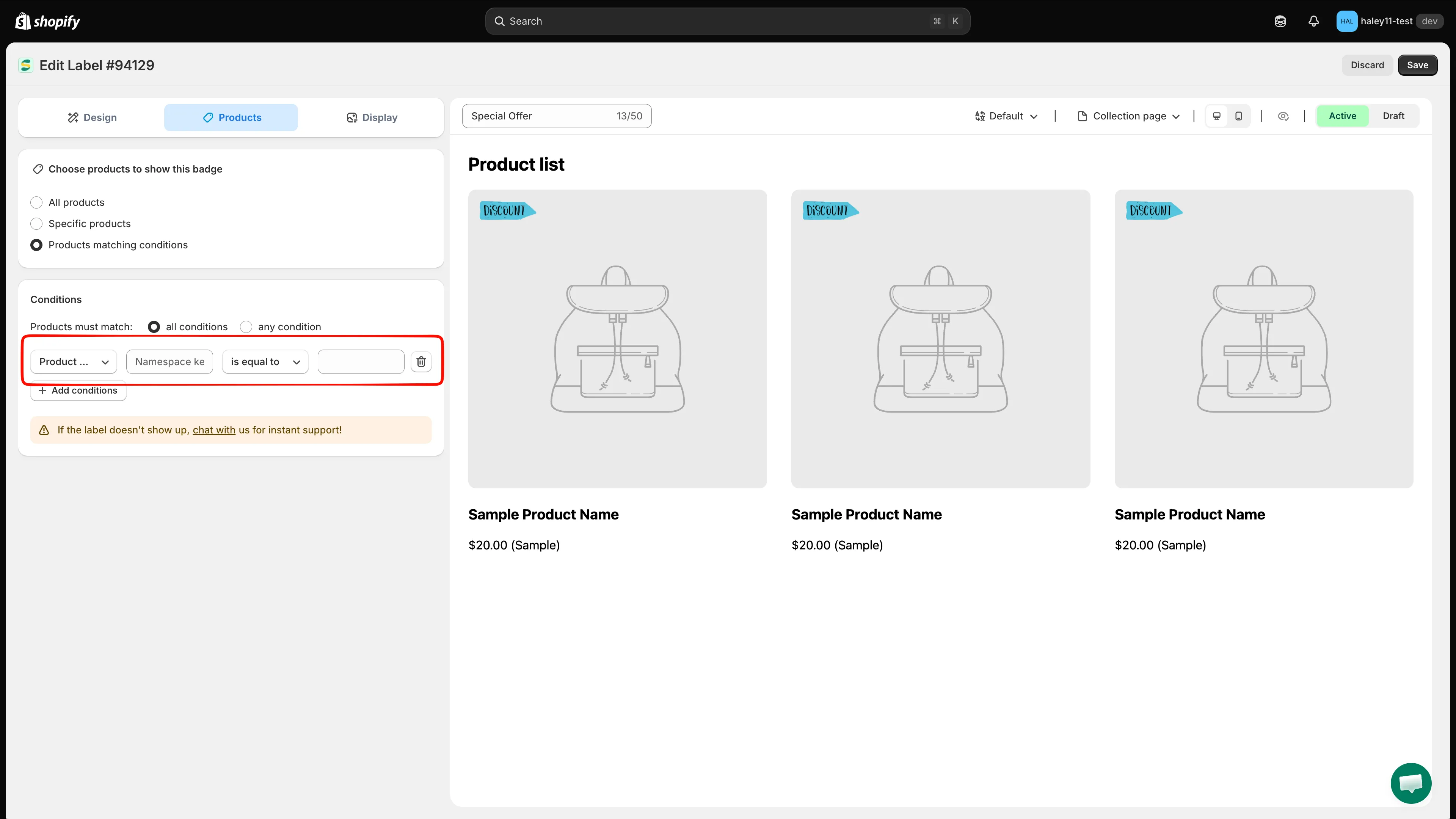
命名空間和索引鍵會顯示在 Shopify 後台的中繼欄位定義頁面上。
如何設定依中繼欄位指定
Section titled “如何設定依中繼欄位指定”-
開啟 Products 索引標籤並選取「Products matching conditions」
Section titled “開啟 Products 索引標籤並選取「Products matching conditions」”與依款式指定相同:Products 索引標籤 → Products matching conditions → 選擇 all conditions 或 any condition。
-
點擊 + Add conditions,然後選擇 Product metafield 或 Variant metafield。
-
輸入命名空間和索引鍵
Section titled “輸入命名空間和索引鍵”以 namespace.key 格式輸入中繼欄位的參照。例如:
custom.material:自訂材質中繼欄位custom.certification:認證狀態中繼欄位descriptors.subtitle:商品副標題中繼欄位
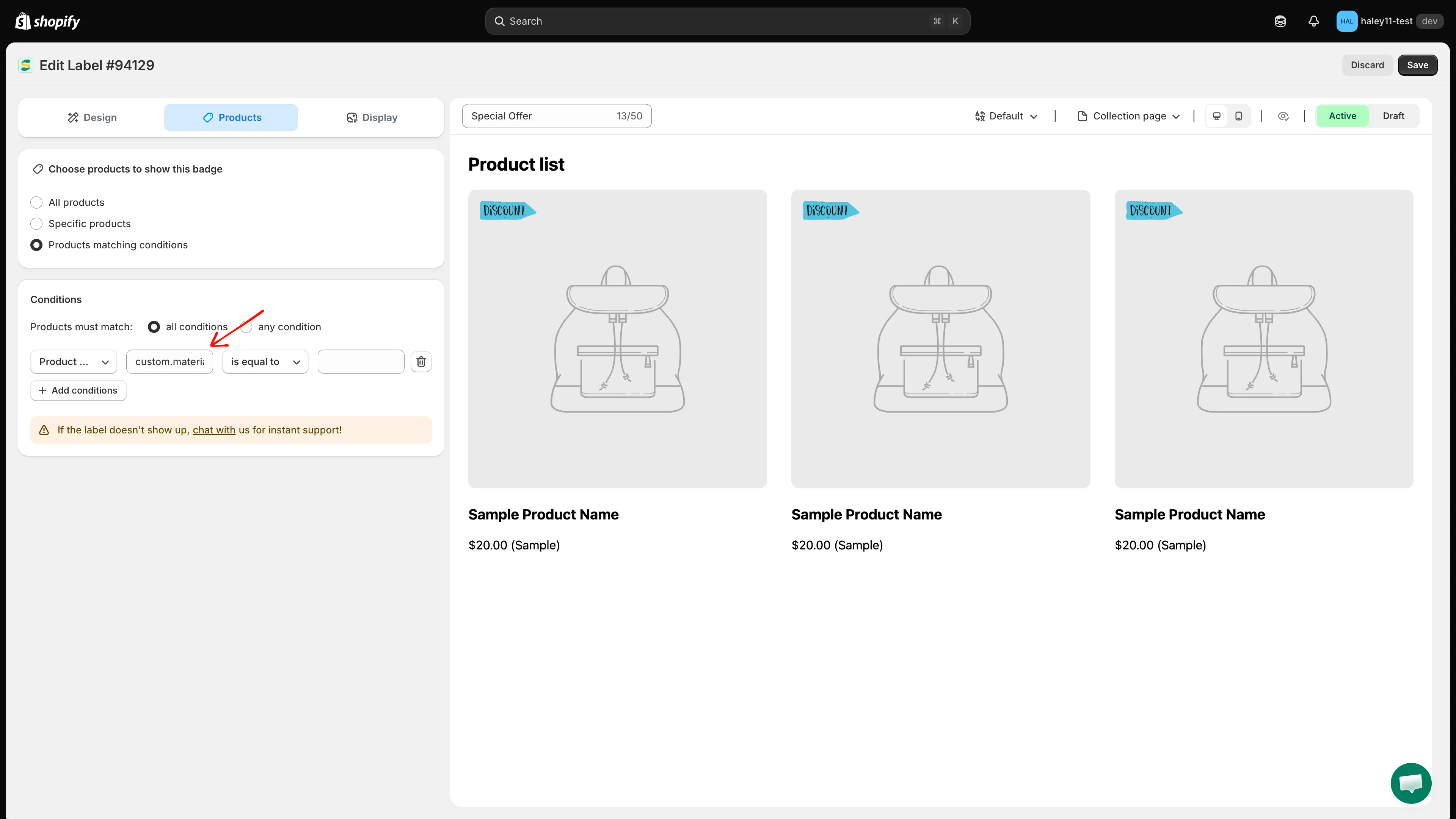
以 namespace.key 格式輸入中繼欄位的參照。
-
選擇運算子和值
Section titled “選擇運算子和值”選擇運算子(is equal to、contains、is greater than 等),並輸入要比對的值。數字運算子只適用於儲存數字的中繼欄位。
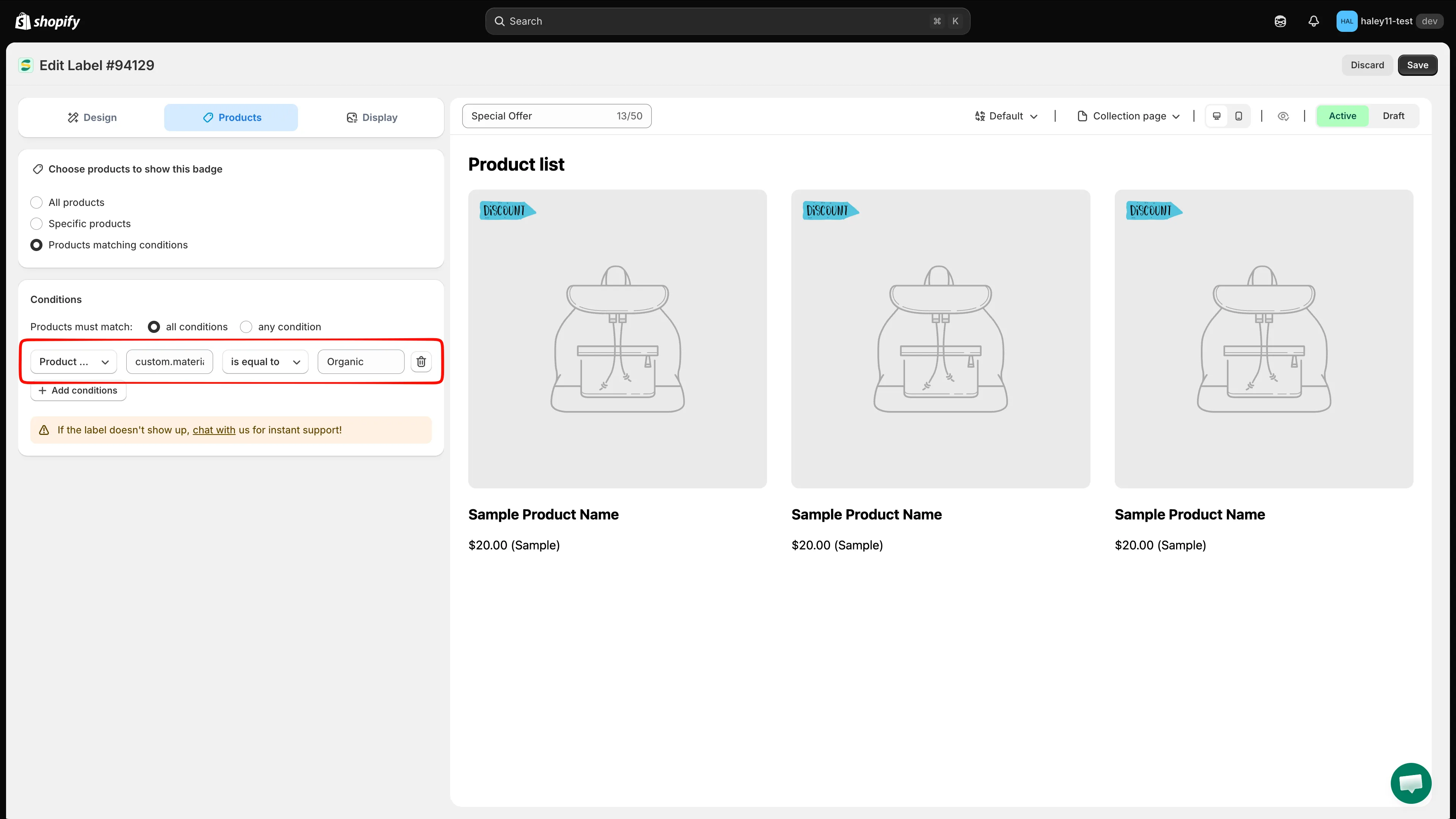
完成的中繼欄位規則:custom.material is equal to Organic。
-
點擊右上角的 Save。畫面會顯示 Badge/Label updated 確認訊息。
中繼欄位指定範例
Section titled “中繼欄位指定範例”| 中繼欄位 (namespace.key) | 運算子 | 值 | 使用情境 |
|---|---|---|---|
custom.material |
is equal to | Organic | 在有機商品上顯示「Organic」徽章 |
custom.certification |
contains | ISO | 為所有通過 ISO 認證的商品加上徽章 |
custom.country_of_origin |
is equal to | Italy | 顯示「Made in Italy」徽章 |
custom.is_bestseller |
is equal to | true | 顯示「Bestseller」徽章 |
custom.rating |
is greater than | 4 | 在高評分商品上顯示「Top Rated」徽章 |
合併款式與中繼欄位條件
Section titled “合併款式與中繼欄位條件”款式和中繼欄位條件可以彼此合併,也可以與任何其他商品條件合併。請以 + Add conditions 逐一新增每條規則,然後將 Products must match 設為 all conditions,讓每條規則都必須成立。
- Variant inventory stock availability less than 3 AND Product metafield
custom.is_featuredis equal totrue - 結果:「Last Few Left」徽章,只會出現在款式層級庫存少於 3 件的精選商品上。
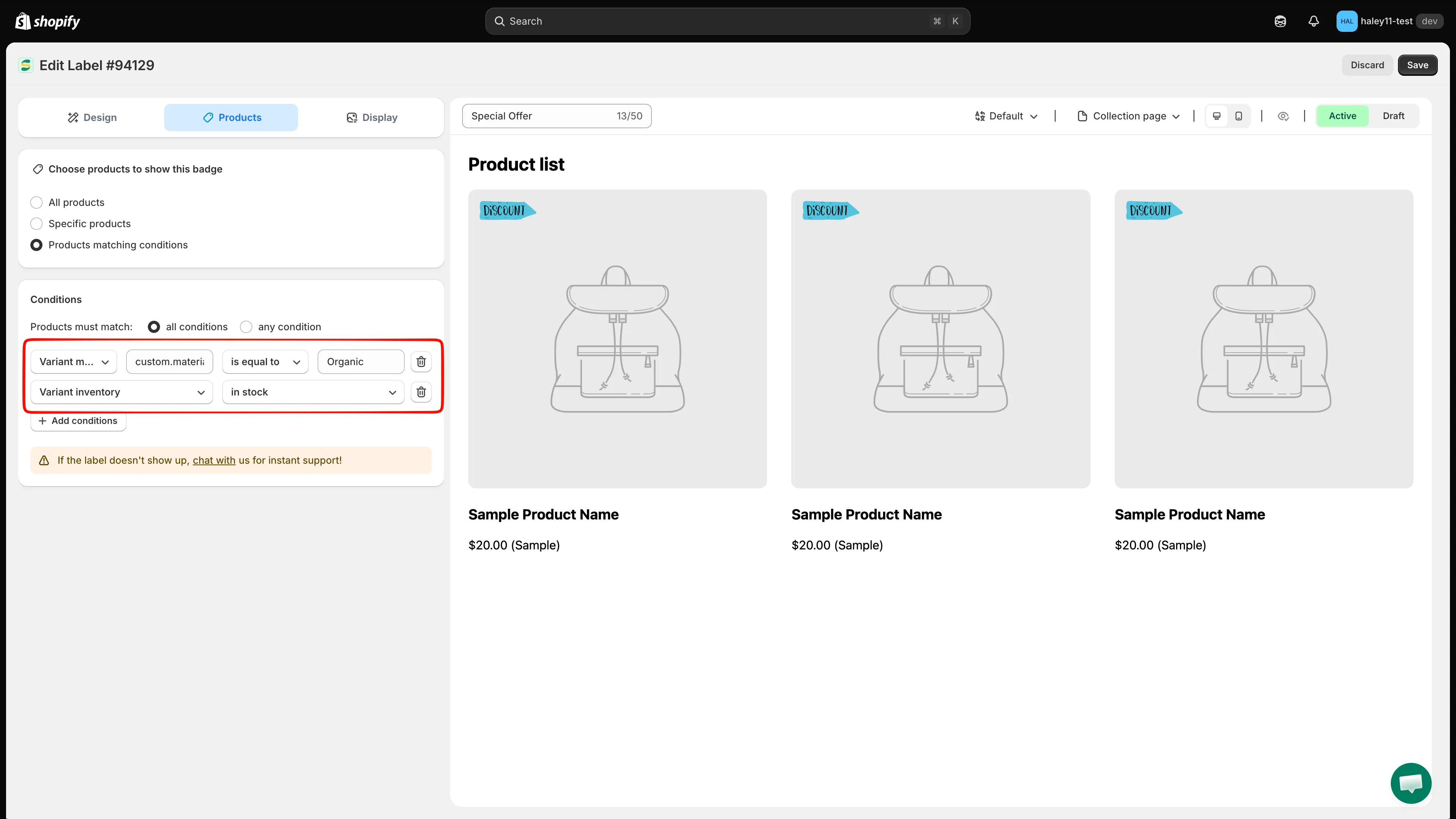
以 all conditions (AND) 邏輯合併的兩條規則。
- 依商品屬性指定:依商品標題、類型、供應商、價格等條件篩選徽章。
- 依國家/地區和語言指定:將徽章顯示給特定國家/地區或語言的訪客。
- 動態變數:在徽章文字中使用價格、折扣和庫存數量等即時資料。