
使用 AI 编辑图片
使用 AI 修改徽章当前的图片:移除背景、更改颜色或调整风格。
Edit AI Image 对话框用于修改徽章上已有的图片,无论该图片是您上传的、从图库中选择的,还是通过 AI 生成的。它使用与生成器相同的引导式字段,并提供结果的实时 Preview。
-
打开徽章图片选择器
Section titled “打开徽章图片选择器”在 Sami Product Labels 中打开您的徽章。在 Design 标签页的 Content 面板中,点击徽章图片下方的 Change Image。Select Image 面板会从右侧滑入。
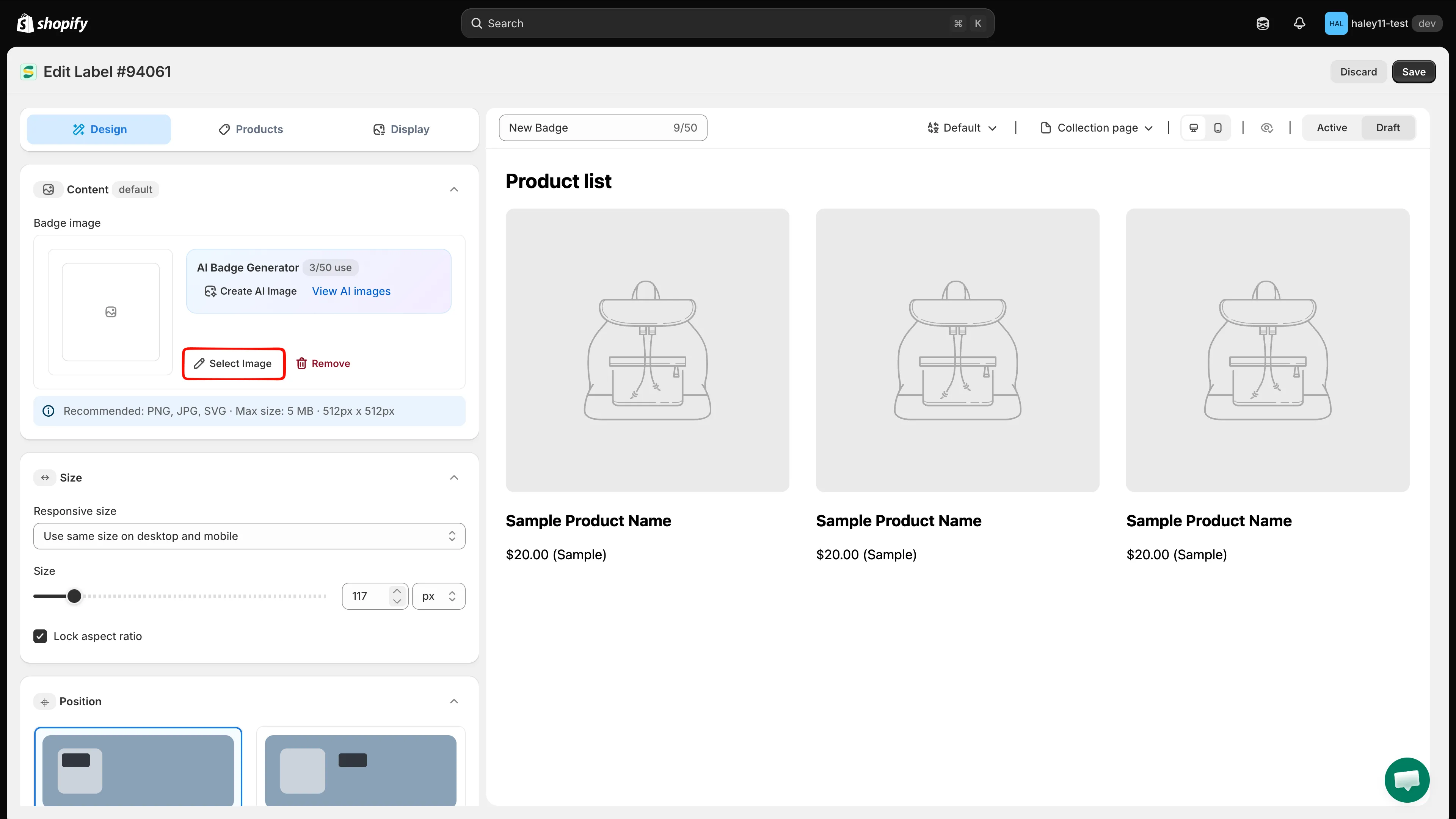
点击 Change Image 打开图片选择器。
-
点击 Edit with AI
Section titled “点击 Edit with AI”在 Select Image 面板底部,Cancel 和 Select Image 旁边,点击 Edit with AI。Edit AI Image 对话框随即打开,右侧的 Preview 面板中已载入您当前的图片。
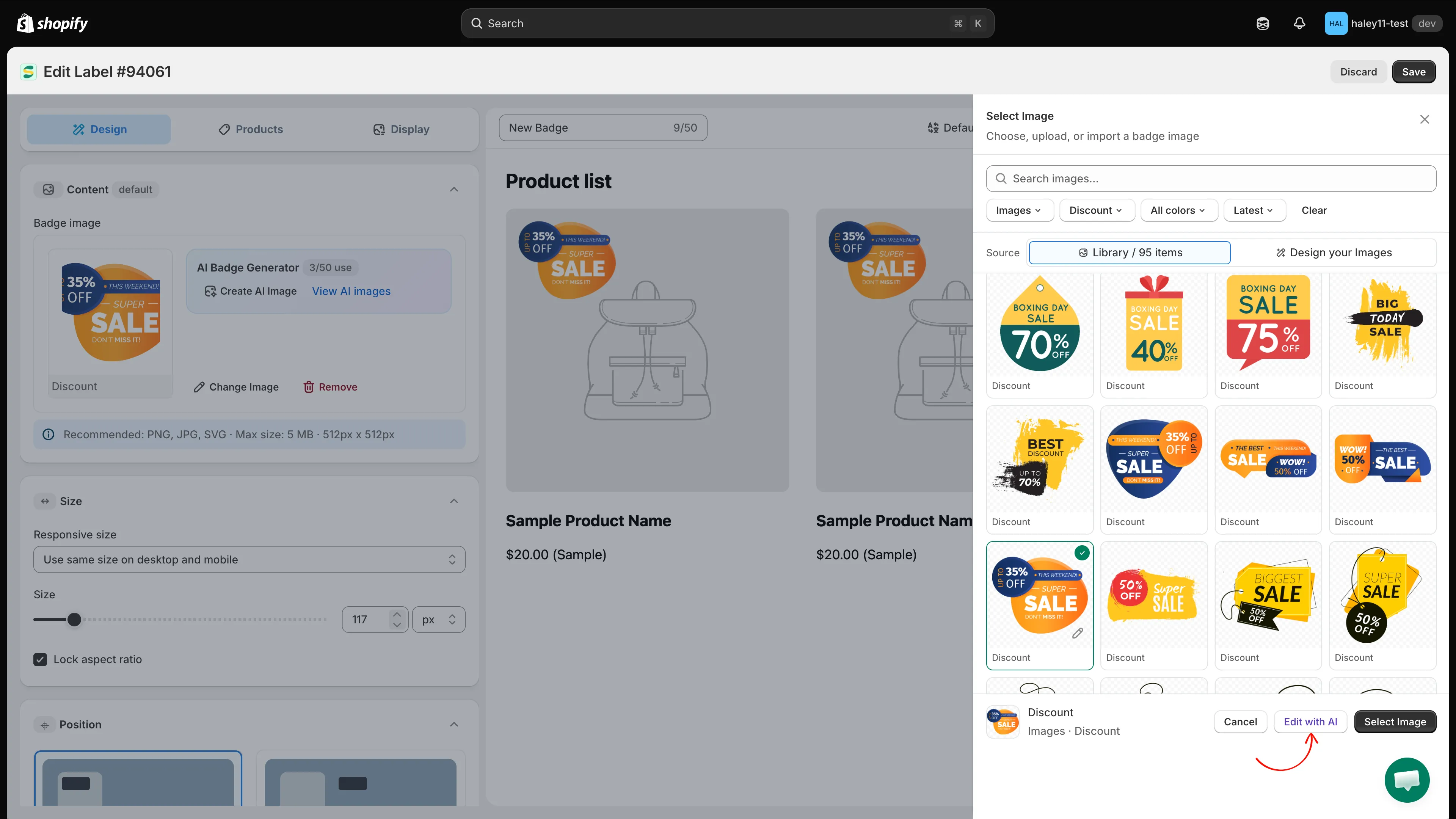
Edit with AI 位于图片选择器的底部。
-
使用引导式字段描述修改内容
Section titled “使用引导式字段描述修改内容”填写这些字段,描述图片修改后的样子,其余字段留空即可。
字段 示例 Background color Red、green、blue 等。 Shape Circle、round corners 等。 Text Save 36% Text color White、black 等。 Illustration Related to Black Friday 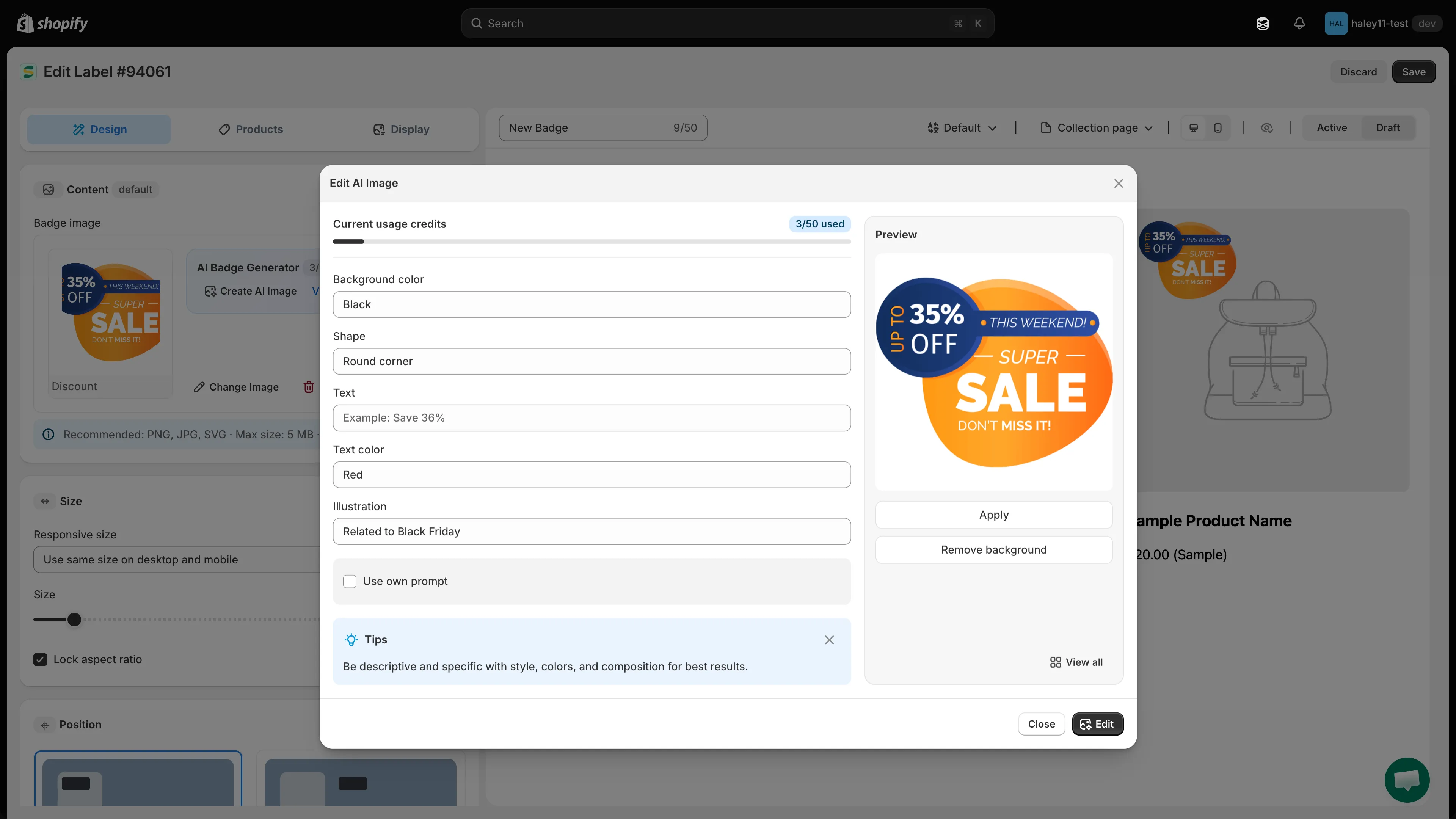
在左侧描述修改内容,当前图片显示在右侧的预览中。
-
(可选)改为输入您自己的提示词
Section titled “(可选)改为输入您自己的提示词”勾选 Use own prompt,即可在一个自由输入的文本框中描述编辑内容,例如“make the ribbon gold”或“flatten this into a minimalist style”。
-
点击 Edit
Section titled “点击 Edit”点击对话框底部的 Edit。点击 Close 会关闭对话框,不做任何更改。
-
在 Preview 面板中查看结果。如果不满意,请调整字段或提示词,然后再次点击 Edit。
操作 结果 Apply 将编辑后的图片用于您的徽章。 Remove background 去除当前图片的背景。 View all 打开 All AI images 图库。 应用后,请继续在编辑器中调整徽章的大小、位置和其他设置,然后点击 Save。
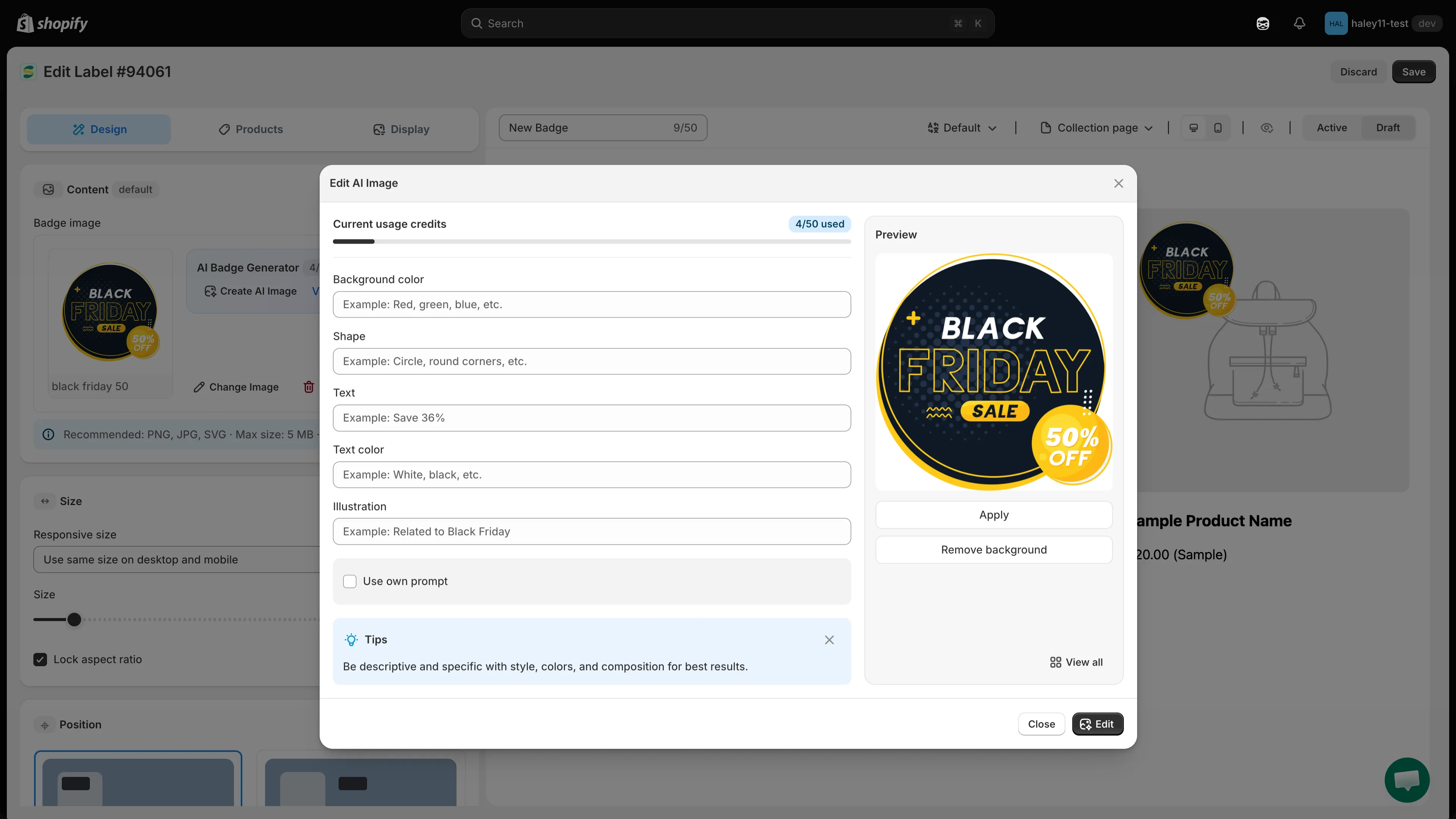
在应用到徽章之前,先查看编辑后的图片。
常见编辑场景
Section titled “常见编辑场景”| 场景 | 操作方法 |
|---|---|
| 去除背景 | 点击 Remove background,无需提示词。 |
| 调整颜色 | 使用 Background color 或 Text color,或输入类似“change the red elements to blue”的提示词。 |
| 更改形状 | 使用 Shape,例如“circle”或“round corners”。 |
| 修改文字 | 使用 Text 和 Text color。 |
| 更改风格 | 使用自己的提示词,例如“make the image look more minimalist”。 |