
變更徽章位置
將徽章放在商品圖片內或圖片外,使用預設或自訂位置,並微調其間距。
使用 Position 區段,將文字或圖片徽章放在商品圖片上、商品頁面元素下方,或自訂佈景主題元素旁邊。
開啟 Position 區段
Section titled “開啟 Position 區段”-
開啟 Badges & Labels
Section titled “開啟 Badges & Labels”在 Shopify 後台中,開啟 Sami Product Labels > Badges & Labels。
-
建立或選取徽章
Section titled “建立或選取徽章”若要建立徽章,請點擊 Create badge,然後選擇 Text badge 或 Image badge。
若要更新現有的徽章,請點擊該徽章列中的 Edit badge/label。
-
展開 Position
Section titled “展開 Position”在徽章編輯器中,停留在 Design 標籤,捲動到 Position 並展開該區段。
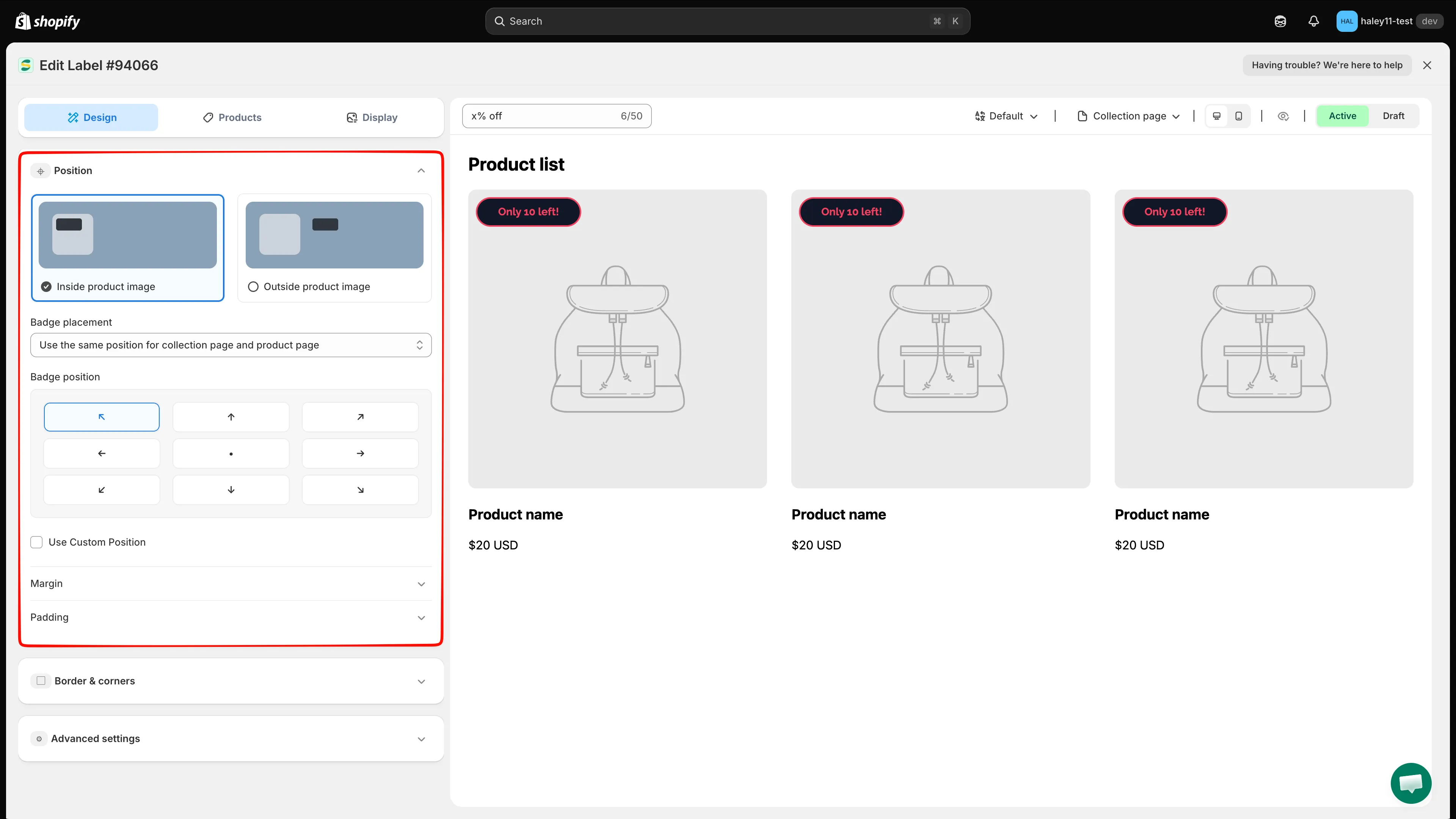
開啟 Design 標籤並展開 Position。
將徽章放在商品圖片內
Section titled “將徽章放在商品圖片內”當徽章應覆蓋在商品圖片上時,請選擇 Inside product image。
選擇設定的適用範圍
Section titled “選擇設定的適用範圍”使用 Badge placement 選擇下列其中一種模式:
- Use the same position for collection page and product page:同一個位置同時套用到兩種頁面類型。
- Set different position for collection page and product page:使用 Listing pages 和 Product page 標籤分別設定各自的位置。
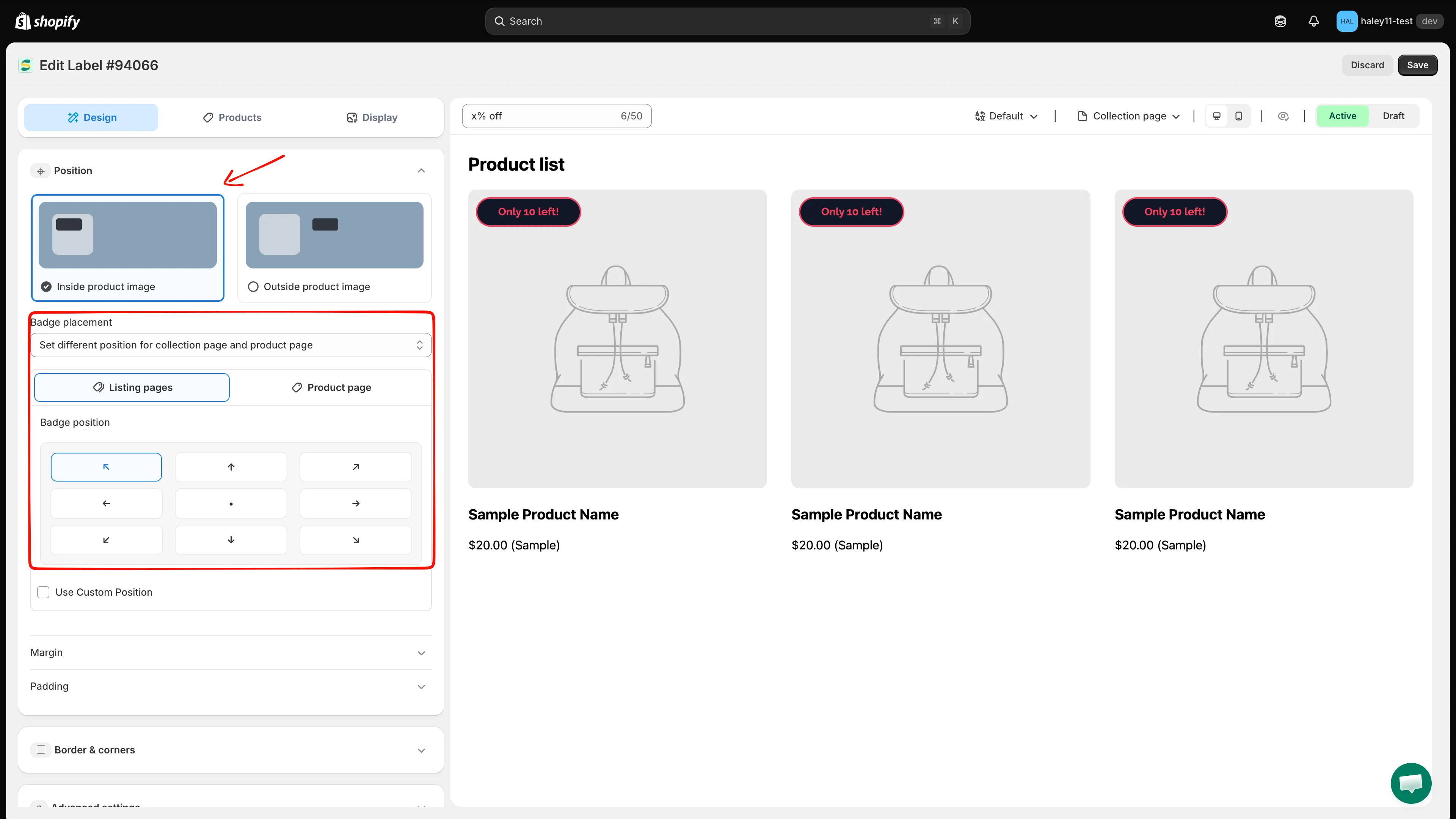
在所有地方套用同一個圖片內位置,或分別設定 Listing pages 和 Product page。
選擇預設位置
Section titled “選擇預設位置”在 Badge position 下,選取位置格線中的九個點之一。
| Position | Placement on the image |
|---|---|
| Top left | 左上角 |
| Top center | 上緣中央 |
| Top right | 右上角 |
| Center left | 左緣中央 |
| Center | 圖片中央 |
| Center right | 右緣中央 |
| Bottom left | 左下角 |
| Bottom center | 下緣中央 |
| Bottom right | 右下角 |
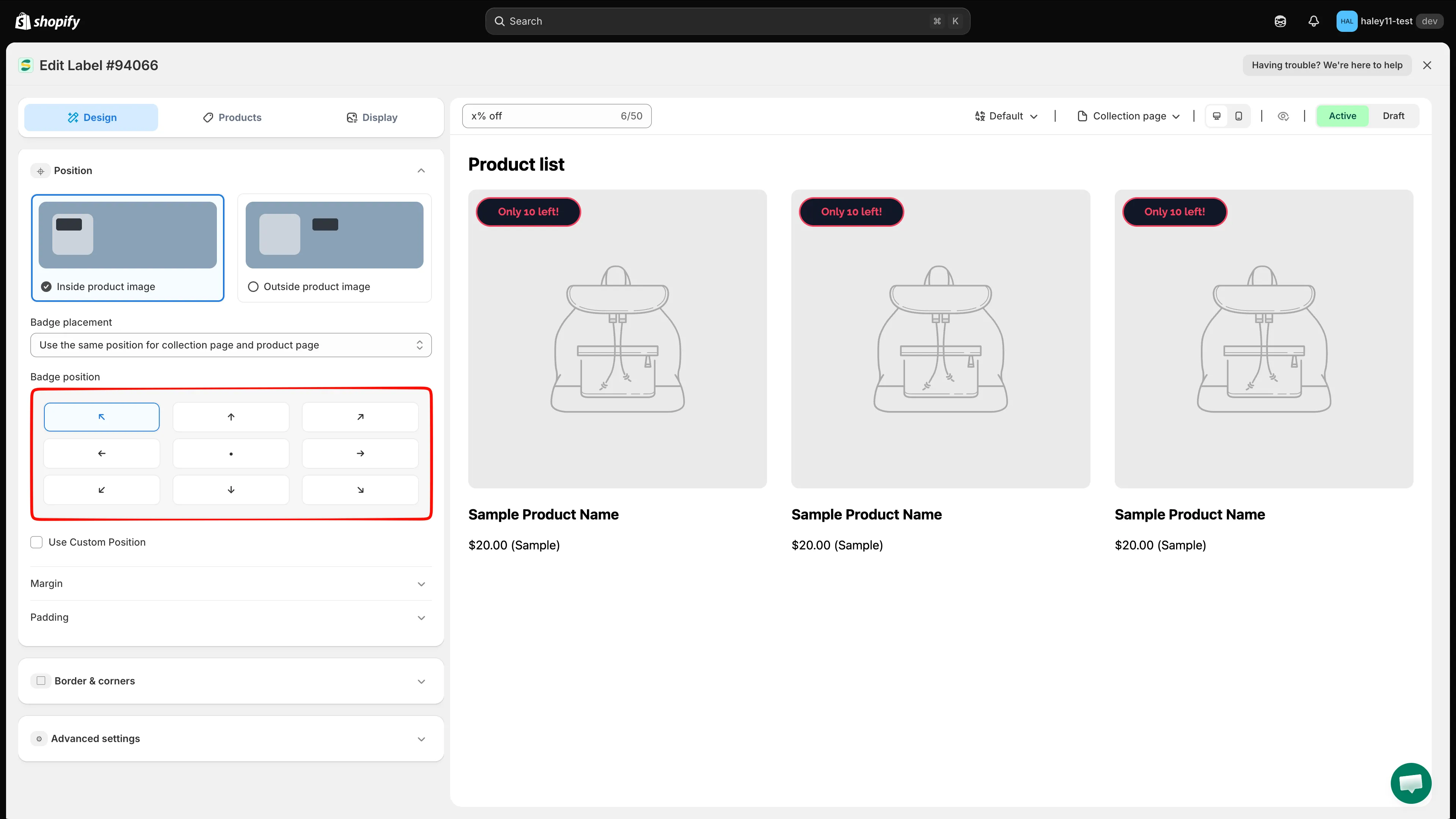
在商品圖片內選取九個預設位置之一。
以百分比設定自訂位置
Section titled “以百分比設定自訂位置”當九個預設位置不夠精確時,請開啟 Use Custom Position。編輯器會以下列項目取代格線:
- 垂直錨點:Top 或 Bottom。
- 水平錨點:Left 或 Right。
- 一個百分比滑桿,用於設定與各選定錨點的位移。
使用變更位置的按鈕切換錨點,然後在查看預覽的同時調整滑桿。
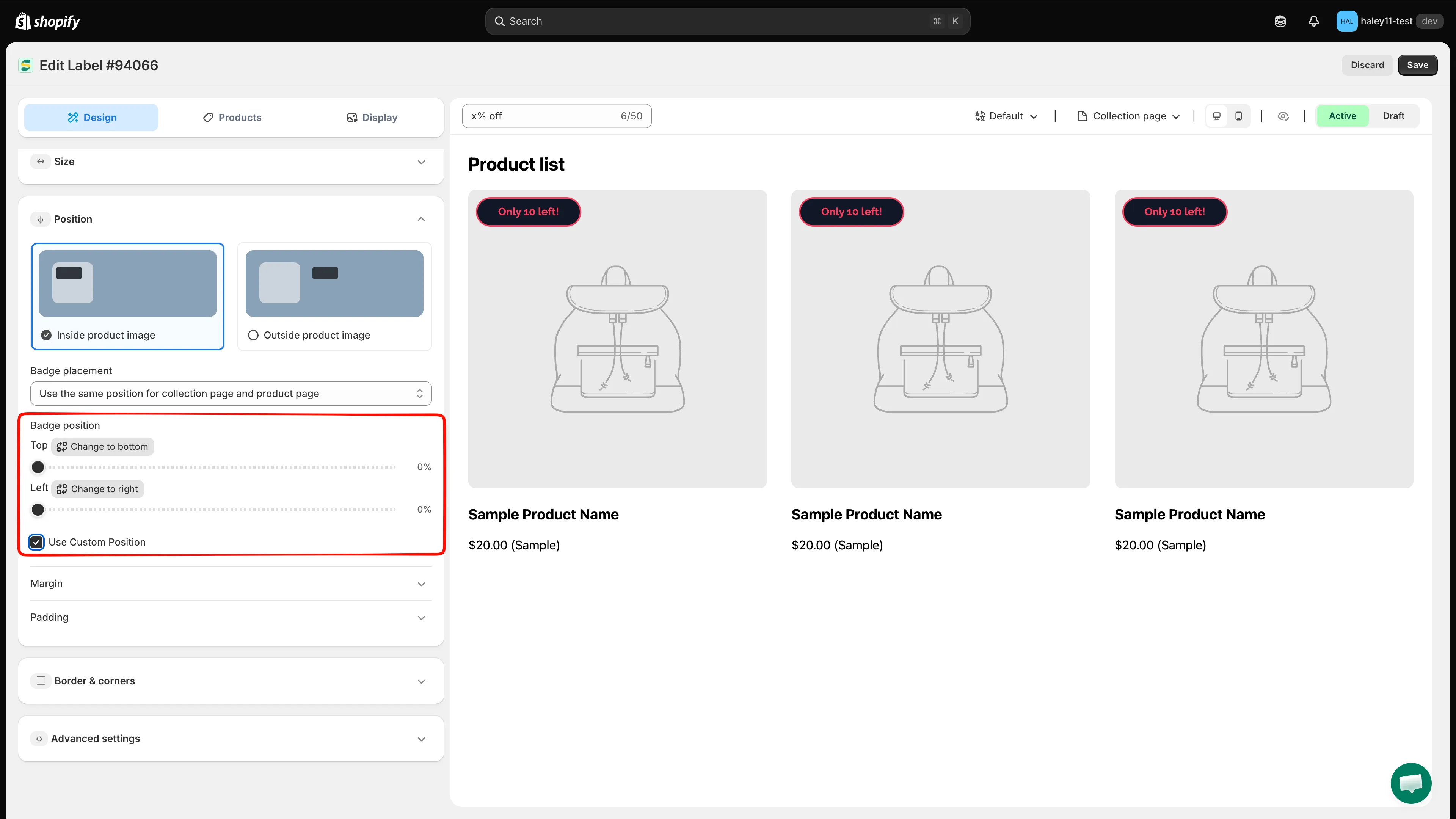
選擇垂直和水平錨點,然後設定其百分比位移。
將徽章放在商品圖片外
Section titled “將徽章放在商品圖片外”當徽章應顯示在商品資訊旁,而不是覆蓋圖片時,請選擇 Outside product image。
開啟 Predefined position 並選擇下列其中一個選項:
| Option | Placement on the product page |
|---|---|
| Below the product image | 商品圖片正下方 |
| Below the product title | 商品標題正下方 |
| Below the product price | 商品價格正下方 |
| Below the product quantity | 數量控制項正下方 |
| Below the add to cart button | 加入購物車按鈕正下方 |
| Below the buy now button | 立即購買按鈕正下方 |
| Custom | 在您佈景主題中以 ID 或 class 識別的元素旁邊 |
在 Badge position 下,選擇徽章靠左、置中或靠右對齊。
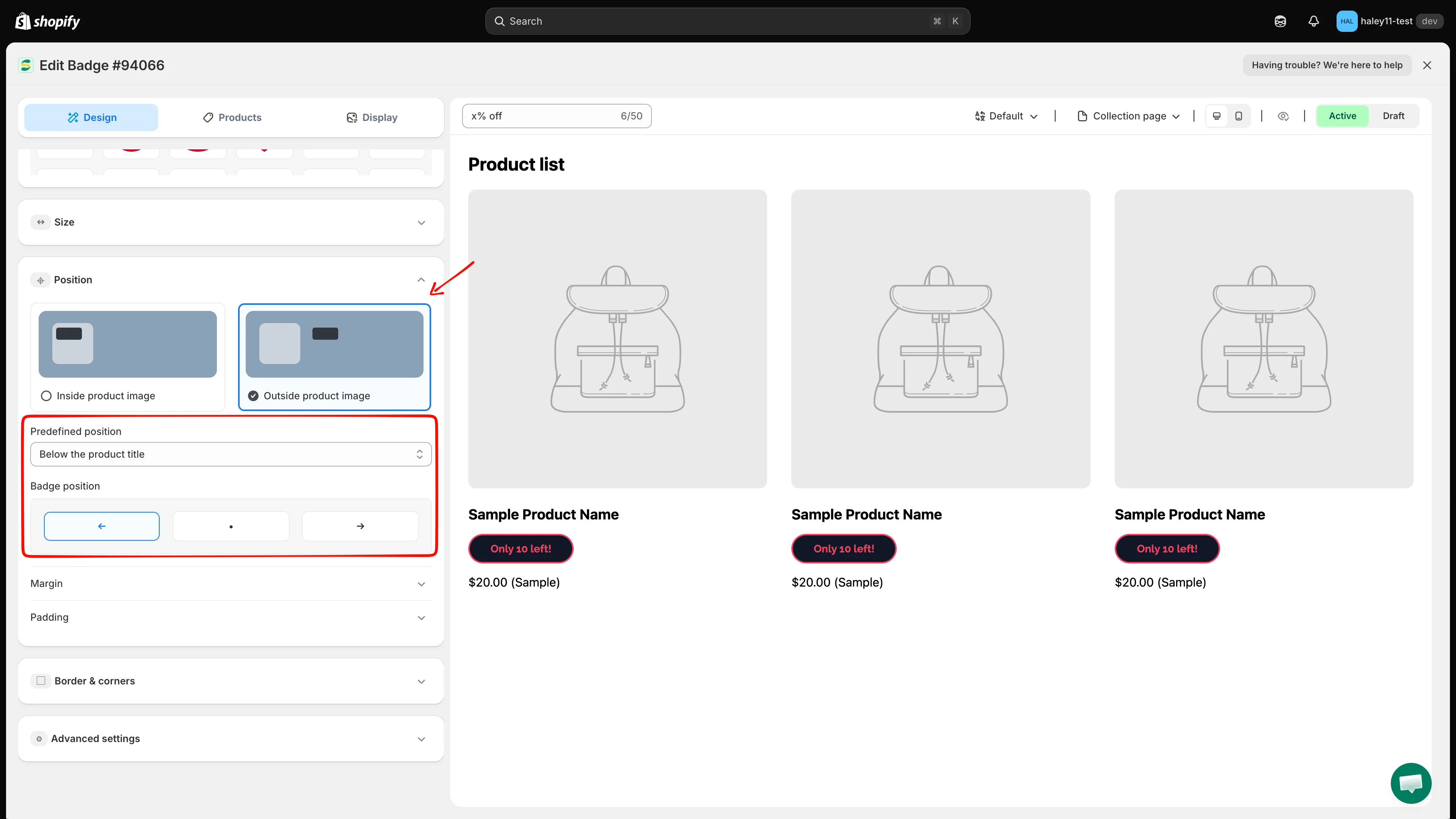
選擇商品頁面元素,然後將徽章靠左、置中或靠右對齊。
使用佈景主題選擇器放置徽章
Section titled “使用佈景主題選擇器放置徽章”從 Predefined position 選擇 Custom,即可指定佈景主題中的元素。在您需要的任何欄位中輸入相關的 ID 或 class:
| Field | Page type |
|---|---|
| Position in product page | 商品頁面 |
| Position in home page | 首頁 |
| Position in collection page | 商品系列頁面 |
| Position in other page | 其他頁面類型 |
例如,以 class 輸入 .product-form,或以 ID 輸入 #ProductInfo。請為徽章需要此自訂位置的每種頁面類型各輸入一個值。
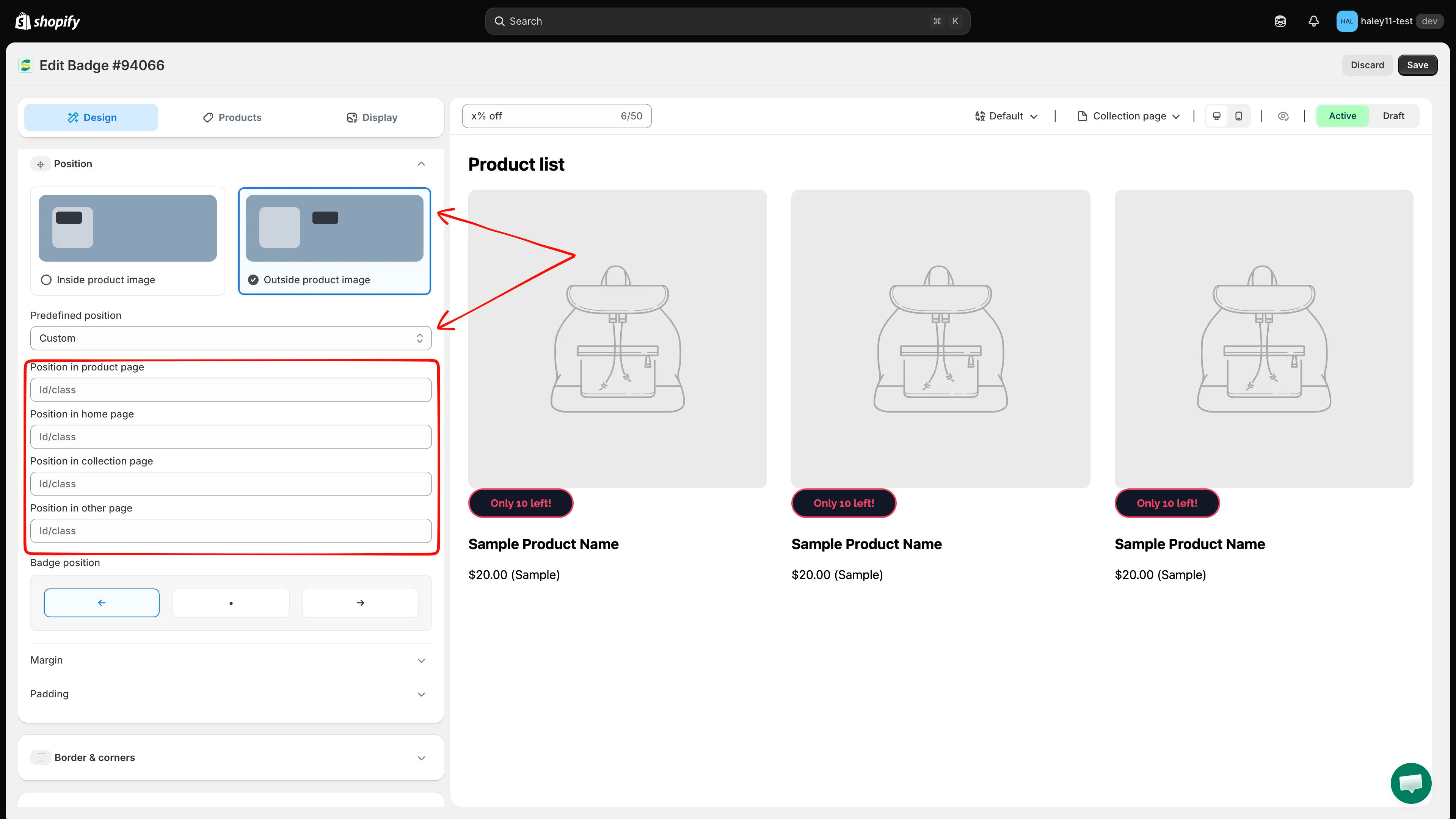
為每種需要自訂徽章位置的頁面類型輸入佈景主題 ID 或 class。
調整 Margin 和 Padding
Section titled “調整 Margin 和 Padding”展開 Margin 以變更外部間距(以像素為單位)。編輯器會顯示與所選位置相關的邊。
展開 Padding 以變更徽章內容與其邊緣之間的間距。您可以獨立設定上、下、左、右的值。
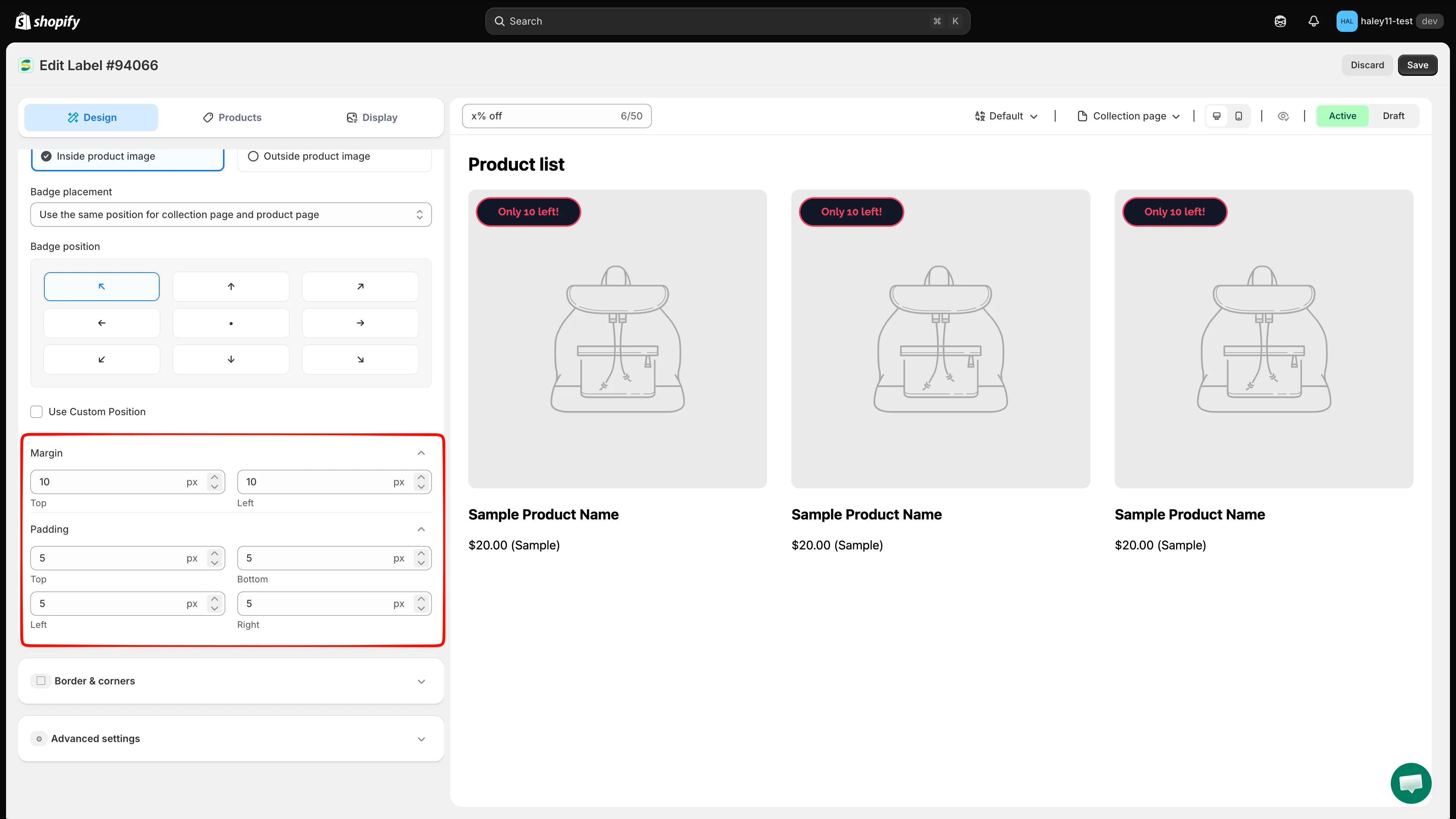
使用以像素為單位的 Margin 和 Padding 值微調徽章。
使用預覽控制項檢查 Collection page 和 Product page,然後在 Desktop view 和 Mobile view 之間切換。徽章出現在預期位置後,請點擊 Save。