
依商品屬性指定
根據標題、類型、供應商、價格、標籤、庫存等屬性,將徽章指定給商品。
條件式指定會自動將徽章顯示在符合您所定義規則的商品上,不需要逐一手動挑選商品。
可用的商品條件
Section titled “可用的商品條件”條件選擇器目前包含:
- 商品標題、類型、供應商、選項和標籤
- 商品價格、原價、特價和重量
- 商品建立日期和發佈日期
- 商品庫存和商品系列
- 商品與款式中繼欄位
- 商品款式和款式庫存
運算子清單會隨所選條件而變化。文字條件包含 contains 和 starts with 等運算子;數值條件包含 is greater than 和 is less than;庫存條件則有庫存專用的選項。
如何新增條件
Section titled “如何新增條件”-
開啟 Products 索引標籤
Section titled “開啟 Products 索引標籤”在徽章編輯器中,前往 Products。
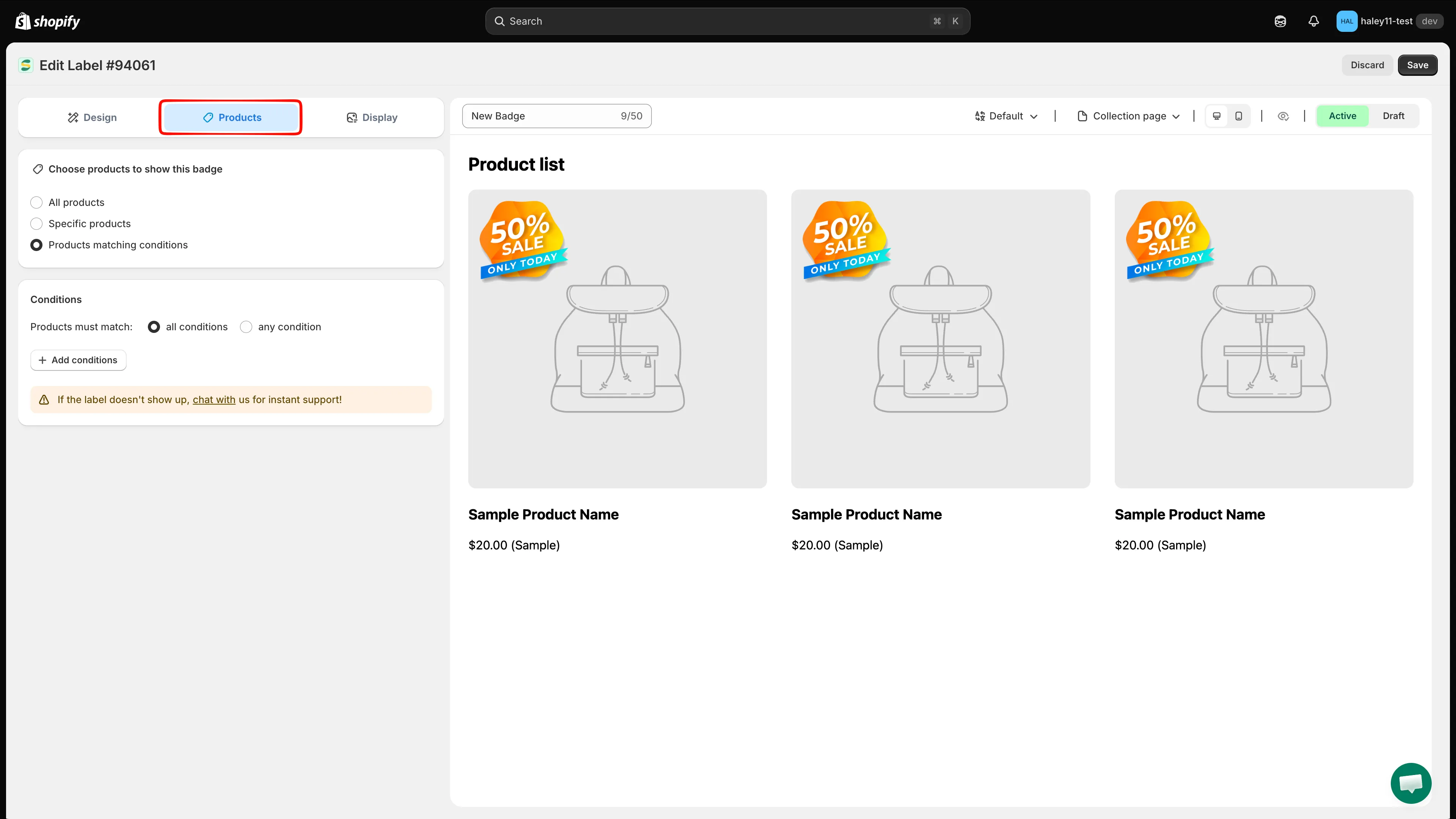
開啟徽章編輯器中的 Products 索引標籤。
-
選取「Products matching conditions」
Section titled “選取「Products matching conditions」”在 Choose products to show this badge 下,選取 Products matching conditions(而不是 All products 或 Specific products)。
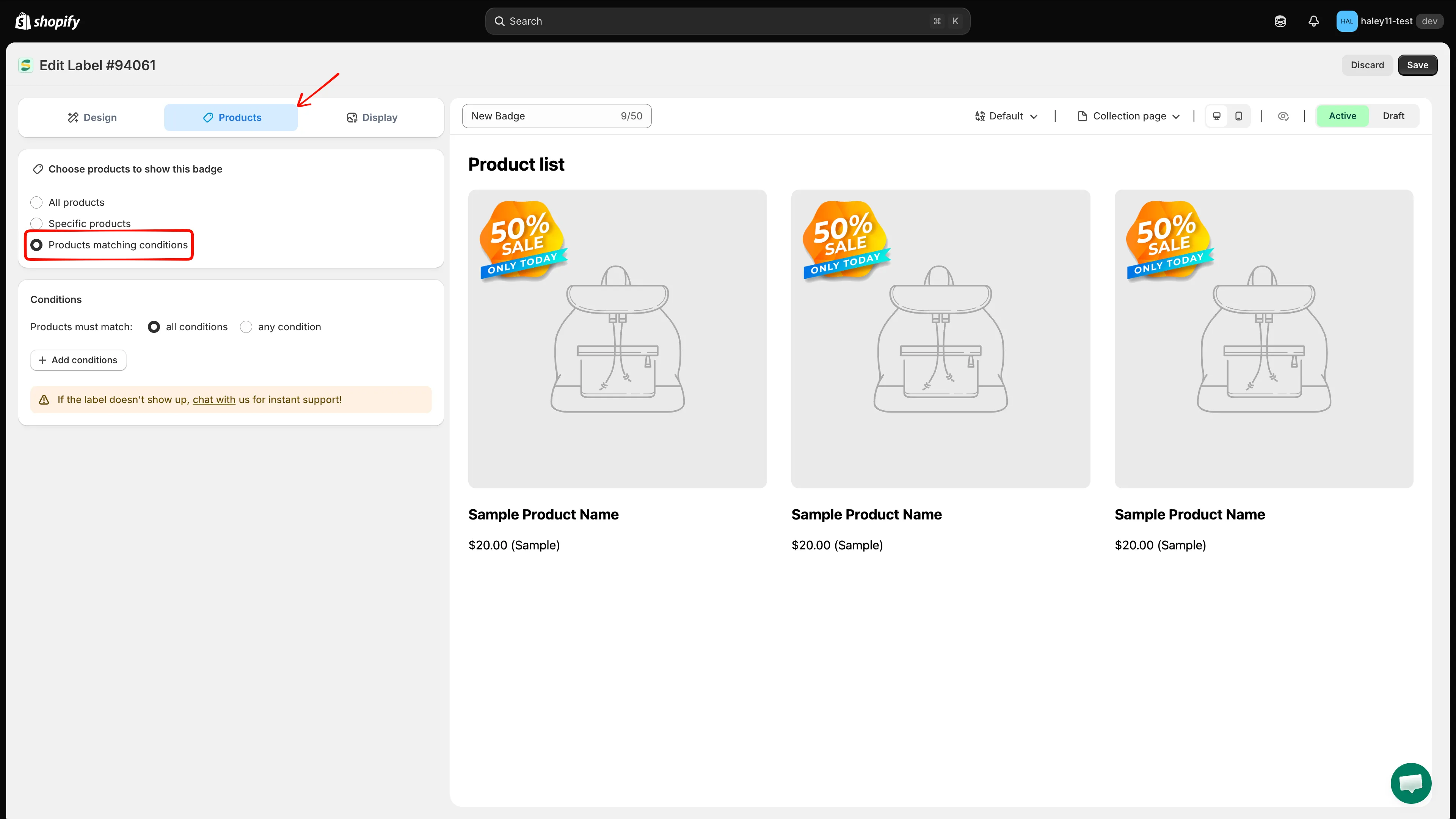
選取 Products matching conditions 以啟用條件式指定。
-
點擊「Add conditions」
Section titled “點擊「Add conditions」”點擊 Add conditions 來建立新規則。
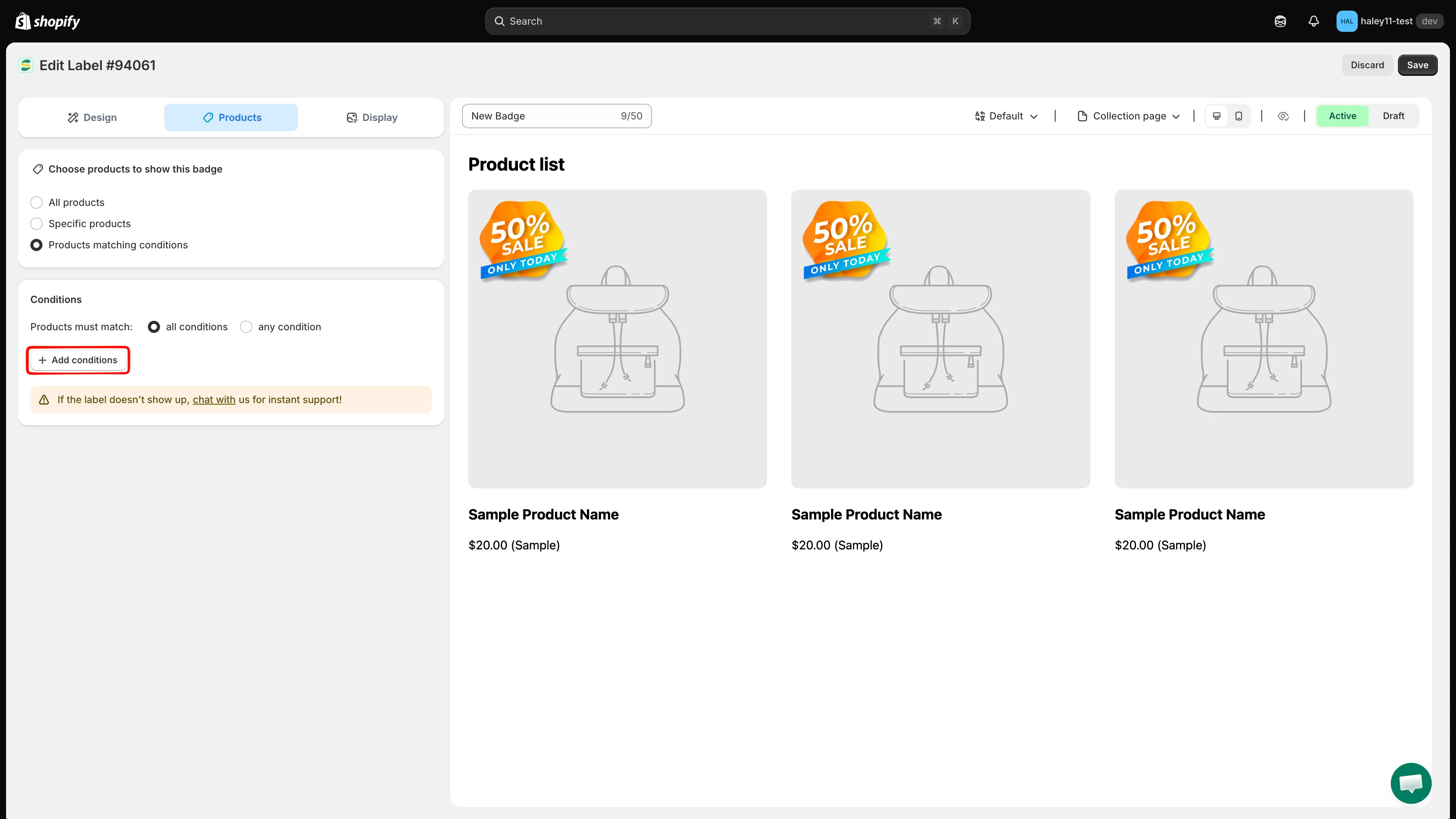
點擊 Add conditions 來定義商品指定規則。
-
選擇條件類型
Section titled “選擇條件類型”從下拉式選單中選擇您要指定的屬性(例如 Product price 或 Product type)。
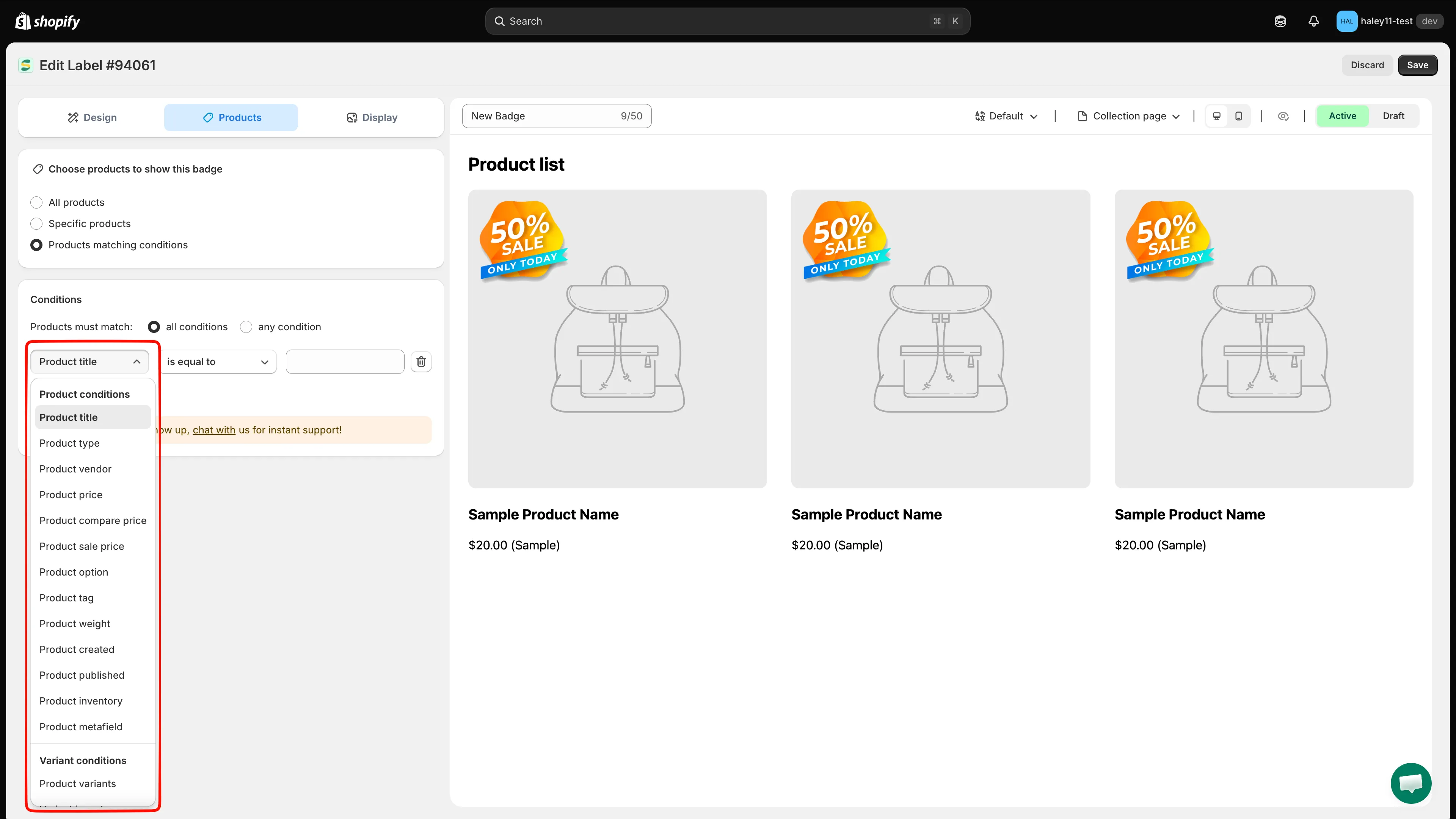
選擇要指定的商品屬性。
-
選擇條件評估該屬性的方式。例如,價格條件請選擇 is greater than,標題條件請選擇 contains。
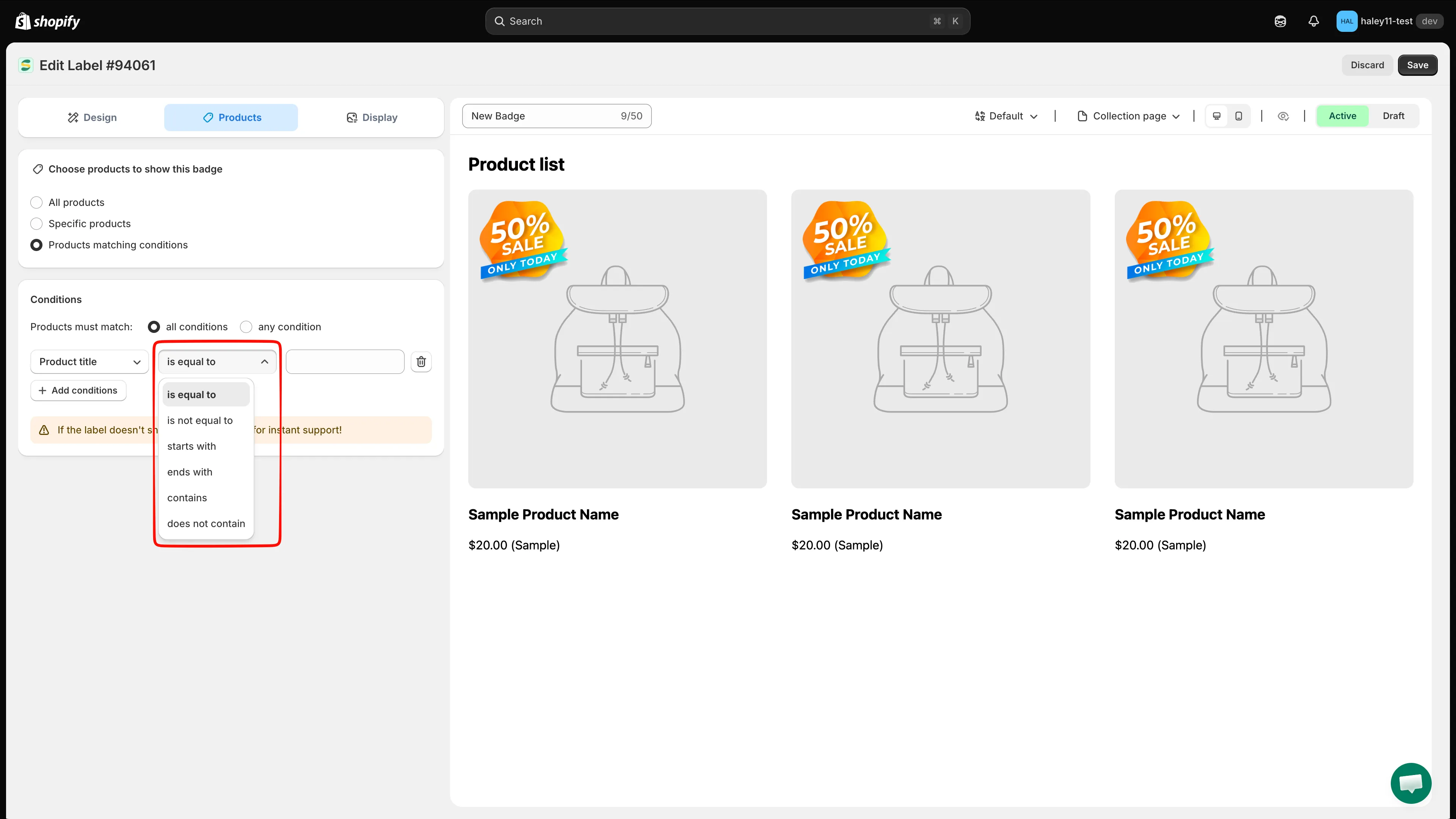
選擇條件的運算子。
-
輸入要比對的值。價格條件請輸入數字;標題或供應商等文字條件,請輸入要比對的文字。
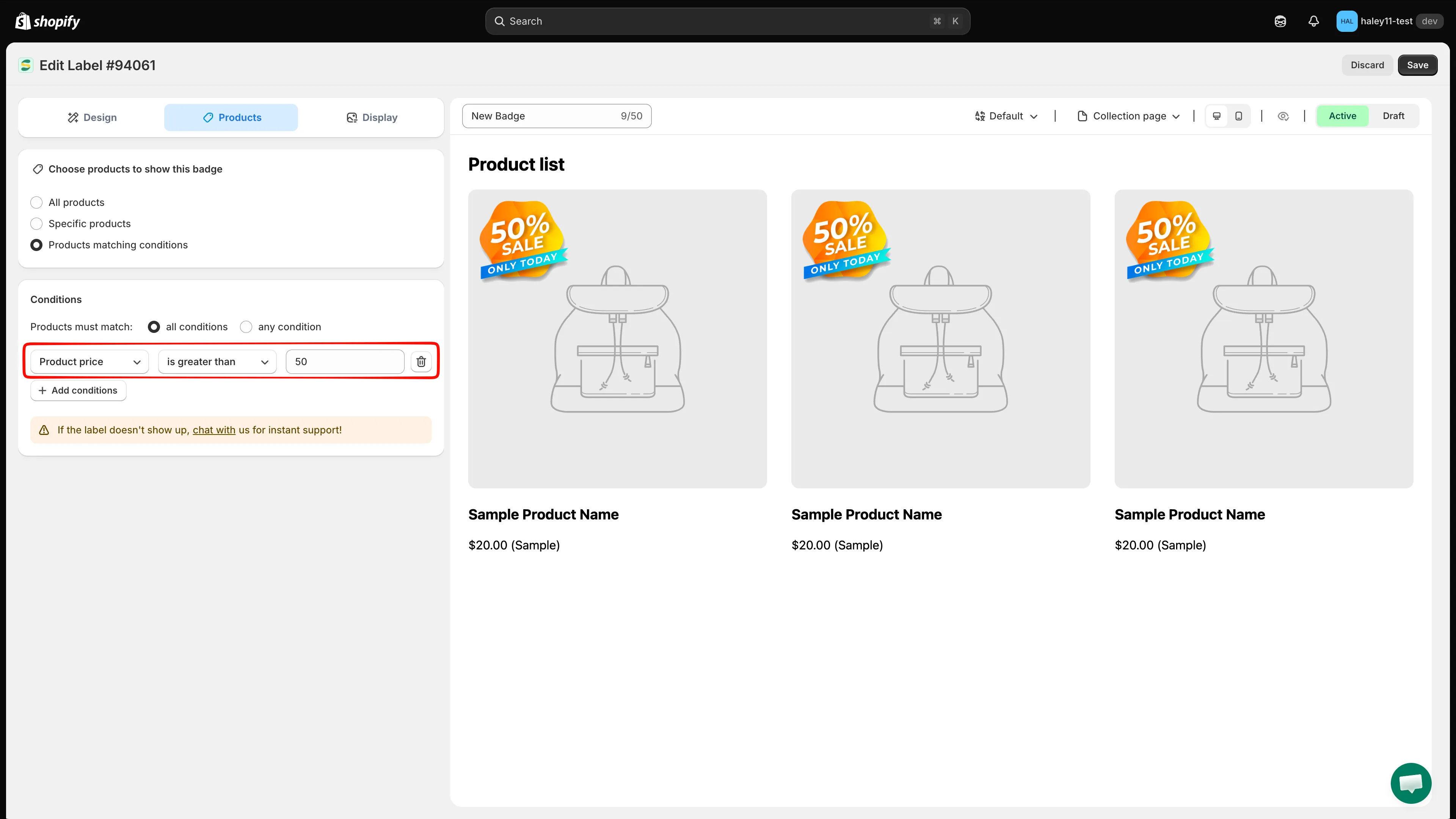
以價格高於 50 的商品為指定對象的條件規則。
-
點擊 Save 套用條件。符合規則的商品會自動顯示徽章。
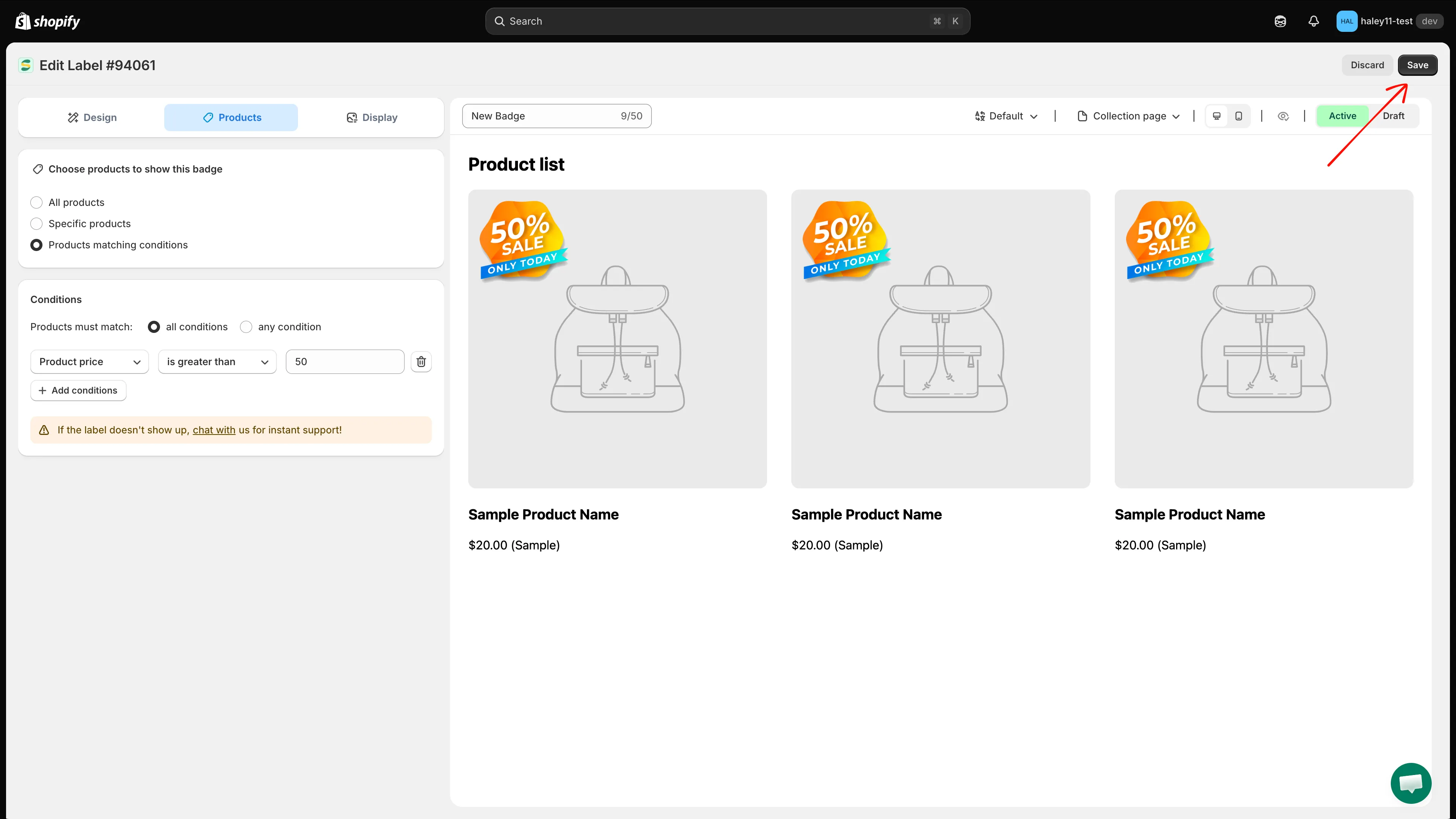
點擊 Save 套用條件規則。
AND 與 OR 邏輯
Section titled “AND 與 OR 邏輯”新增多個條件時,您可以選擇它們的搭配方式:
| 邏輯模式 | 行為 |
|---|---|
| All conditions (AND) | 商品必須符合每一項規則,徽章才會顯示。當商品需要符合所有條件時使用。 |
| Any condition (OR) | 商品只需符合其中一項規則。適合用於範圍較廣的指定。 |
All conditions (AND):
- Product type is equal to「T-Shirt」AND Product price is greater than 30
- 結果:只有價格高於 $30 的 T 恤會顯示徽章。
Any condition (OR):
- Product vendor is equal to「Nike」OR Product vendor is equal to「Adidas」
- 結果:所有 Nike 和 Adidas 的商品都會顯示徽章。
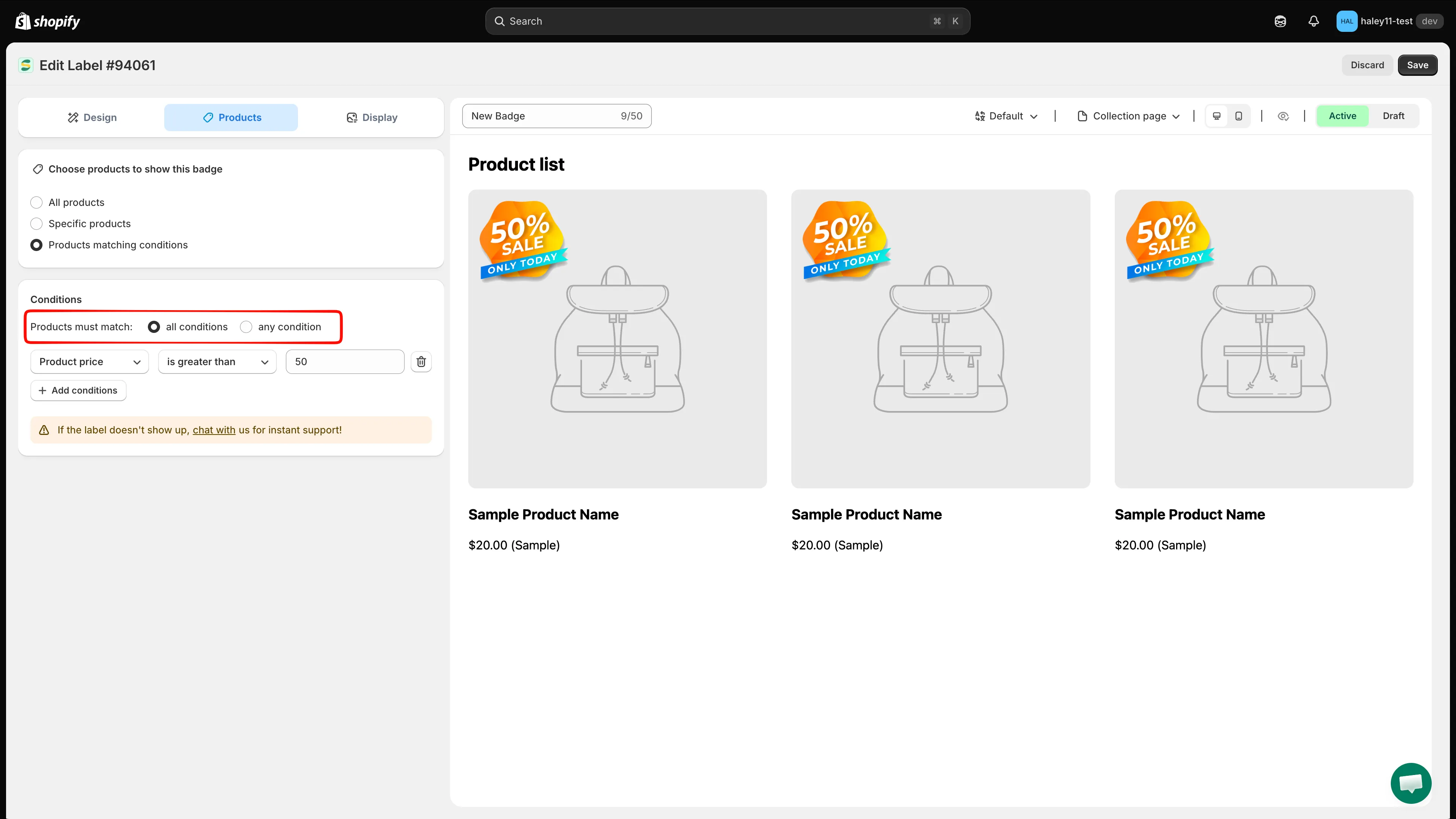
為您的規則選擇 All conditions (AND) 或 Any condition (OR) 邏輯。
常見使用情境
Section titled “常見使用情境”- 為折扣商品加上特價徽章:Product compare price
is greater than0,會為所有正在特價的商品加上徽章。 - 低庫存警示:Product inventory 搭配
stock availability is less than5,會顯示「Almost Gone」徽章。 - 新品上市:Product created 搭配
is less than30,會符合最近 30 天內新增的所有商品。 - 特定商品系列的徽章:Collections
is equal to「Summer Collection」。
- 條件運算子參考資料:所有欄位和運算子,以及各自接受的值。
- 依顧客指定:依登入狀態和顧客標籤顯示徽章。
- 依國家/地區和語言指定:為特定地區或語言顯示徽章。
- 指定商品:返回商品指定總覽。