
設定群組條件
使用一組規則控制整個徽章群組何時顯示,而不依賴每個標籤各自的目標設定。
群組編輯器的 Placement 標籤決定群組何時以及在何處顯示。依預設,群組中的每個標籤都保留各自的目標設定;群組條件則會以一組規則取代全部設定。
選擇條件類型
Section titled “選擇條件類型”開啟群組,點擊 Placement 標籤,然後選擇 Condition type:
| Option | Behavior | Use it when |
|---|---|---|
| Keep individual label conditions | 群組中的每個標籤依其各自的條件顯示或隱藏。 | 標籤已鎖定正確的商品,您只想共用版面配置。 |
| Set a custom group condition | 覆蓋個別標籤的條件,僅使用為群組定義的條件來控制顯示。 | 整組標籤屬於同一個活動,即同一個受眾和同一個商品範圍。 |
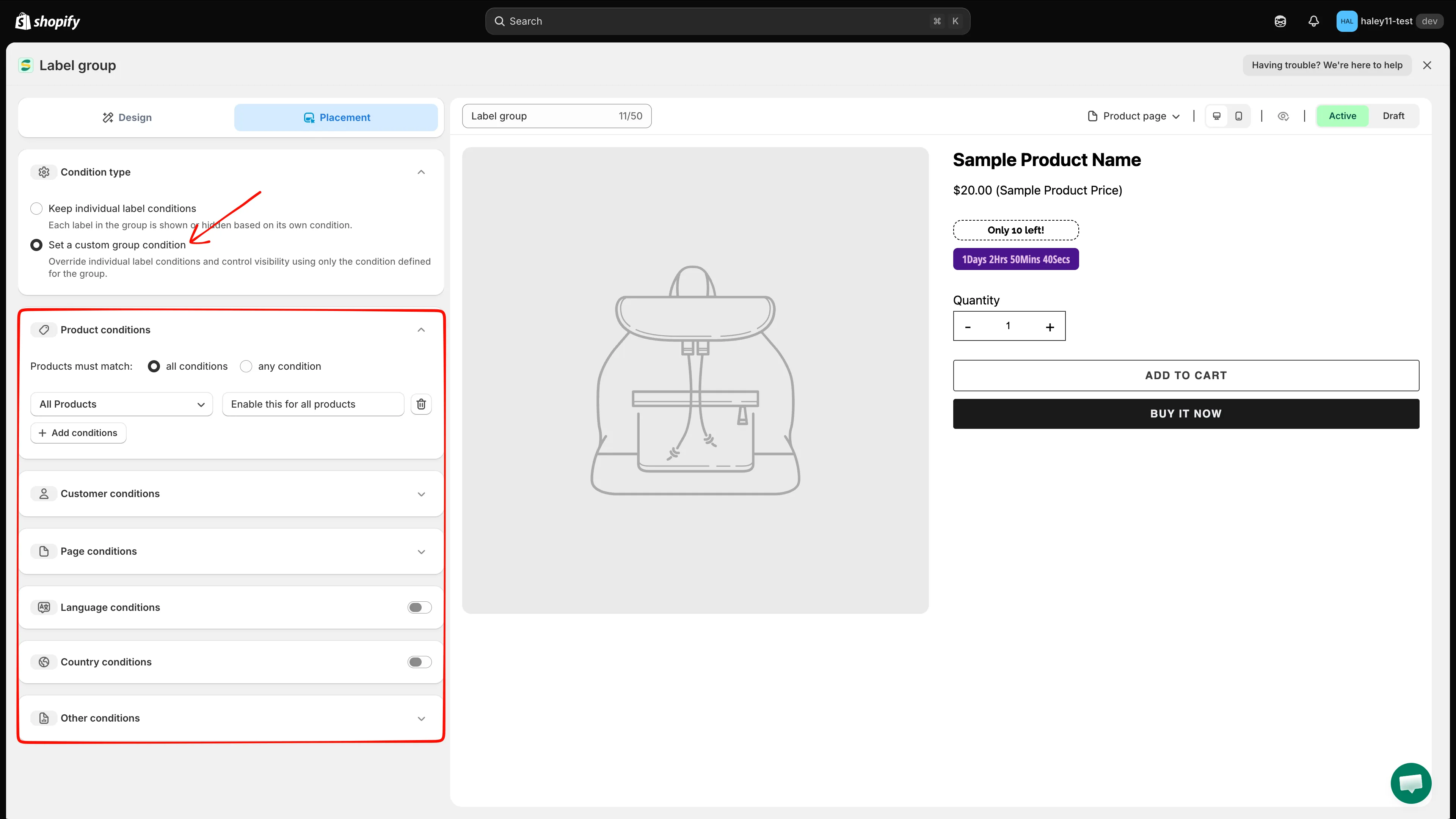
選取 Set a custom group condition 後,會顯示下方的條件區段。
選擇 Set a custom group condition 後會顯示六個區段。帶有 chevron (⌄) 的區段可展開;Language 和 Country 有一個必須先開啟的 switch。
| Section | Controls |
|---|---|
| Product conditions | 群組顯示在哪些商品上 |
| Customer conditions | 哪些購物者會看到它 |
| Page conditions | 它顯示在哪些頁面類型上 |
| Language conditions | 訪客瀏覽時使用的商店前台語言 |
| Country conditions | 訪客所在的國家/地區 |
| Other conditions | 商品圖片、裝置,以及排除的佈景主題元素 |
Product conditions
Section titled “Product conditions”此區段起初有一列:All Products,附註為 Enable this for all products。保持原樣即可在整個商品目錄顯示群組,或變更該列以縮小範圍。
-
選擇各列的組合方式
Section titled “選擇各列的組合方式”將 Products must match 設為 all conditions(每一列都必須成立)或 any condition(只要一列成立即可)。
-
開啟第一個下拉選單並選擇欄位。清單已分組:
Group Options Product conditions All Products, Select Products, Product title, Product type, Product vendor, Product price, Product compare price, Product sale price, Product option, Product tag, Product weight, Product created, Product published, Product inventory, Product metafield Variant conditions Product variants, Variant inventory, Variant metafield Collection conditions Collections 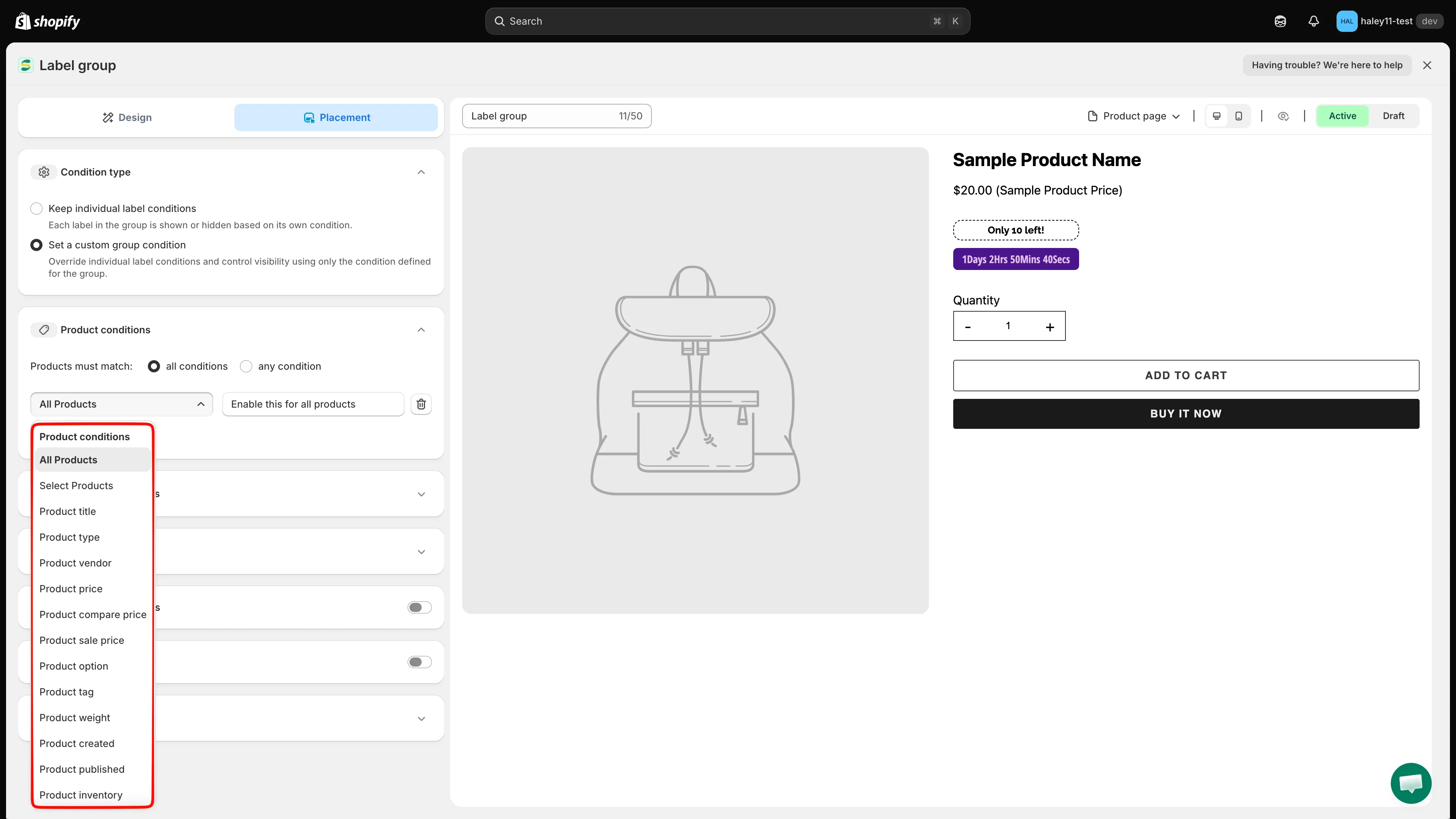
商品、款式和商品系列欄位都位於同一個下拉選單中。
-
設定運算子和值
Section titled “設定運算子和值”條件旁的欄位會依您的選擇而變:Product title 為文字值,Product price 為數字,Select Products 或 Collections 則為選取器。
-
新增或移除列
Section titled “新增或移除列”點擊 + Add conditions 新增一列,或點擊列尾的垃圾桶圖示將其刪除。
Customer conditions
Section titled “Customer conditions”展開 Customer conditions 並點擊 + Add conditions。會出現一列,預設為 Customer Is Logged In。
| Condition | Targets by |
|---|---|
| Customer | 登入狀態:Is Logged In 或 Not Logged In |
| Customer tag | 顧客記錄上的標籤 |
| Customer order count | 顧客已下的訂單數量 |
| Customer total spent | 累計消費金額 |
| Customer purchase | 顧客已購買的商品 |
| Customer company name | B2B 顧客記錄上的公司 |
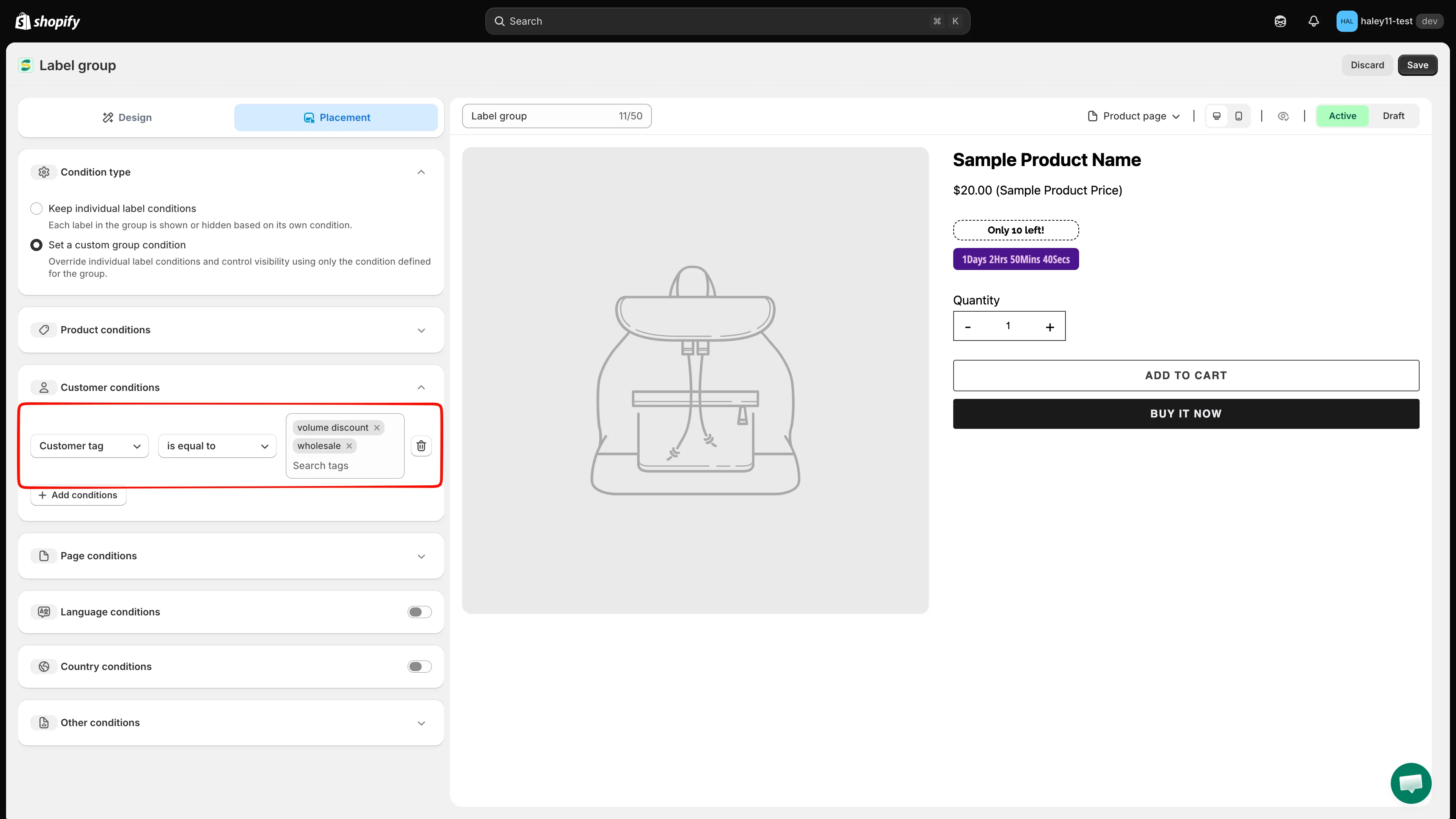
每一列會將顧客欄位與其各自的運算子和值配對。
Page conditions
Section titled “Page conditions”展開 Page conditions 並點擊 + Add conditions。會出現一列,預設為 Page is equal to Index page。
- is equal to:僅在該頁面類型上顯示群組。
- is not equal to:除該頁面類型以外的所有地方都顯示。
頁面類型與個別徽章所用的相同(Index、Collection、Product、Article、Blog、Cart、Search、Specific pages),各類型涵蓋的範圍請參閱依裝置與頁面顯示。
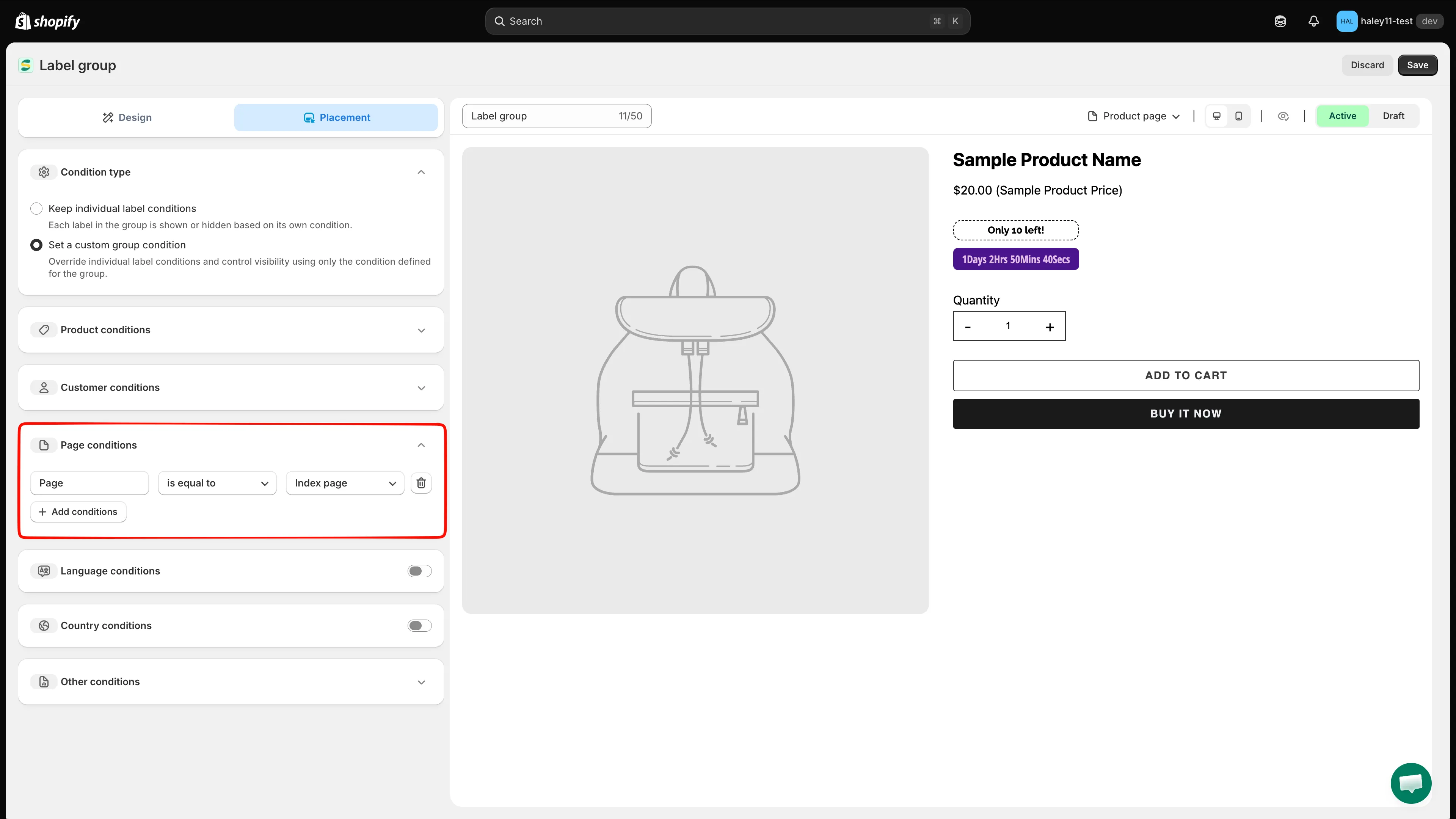
針對每個要納入或排除的頁面類型各新增一列。
Language 和 Country 條件
Section titled “Language 和 Country 條件”開啟 Language conditions 或 Country conditions 列上的開關。兩者都會顯示 Operator(預設為 Equals)和搜尋欄位:輸入以尋找語言或國家/地區並加以選取。
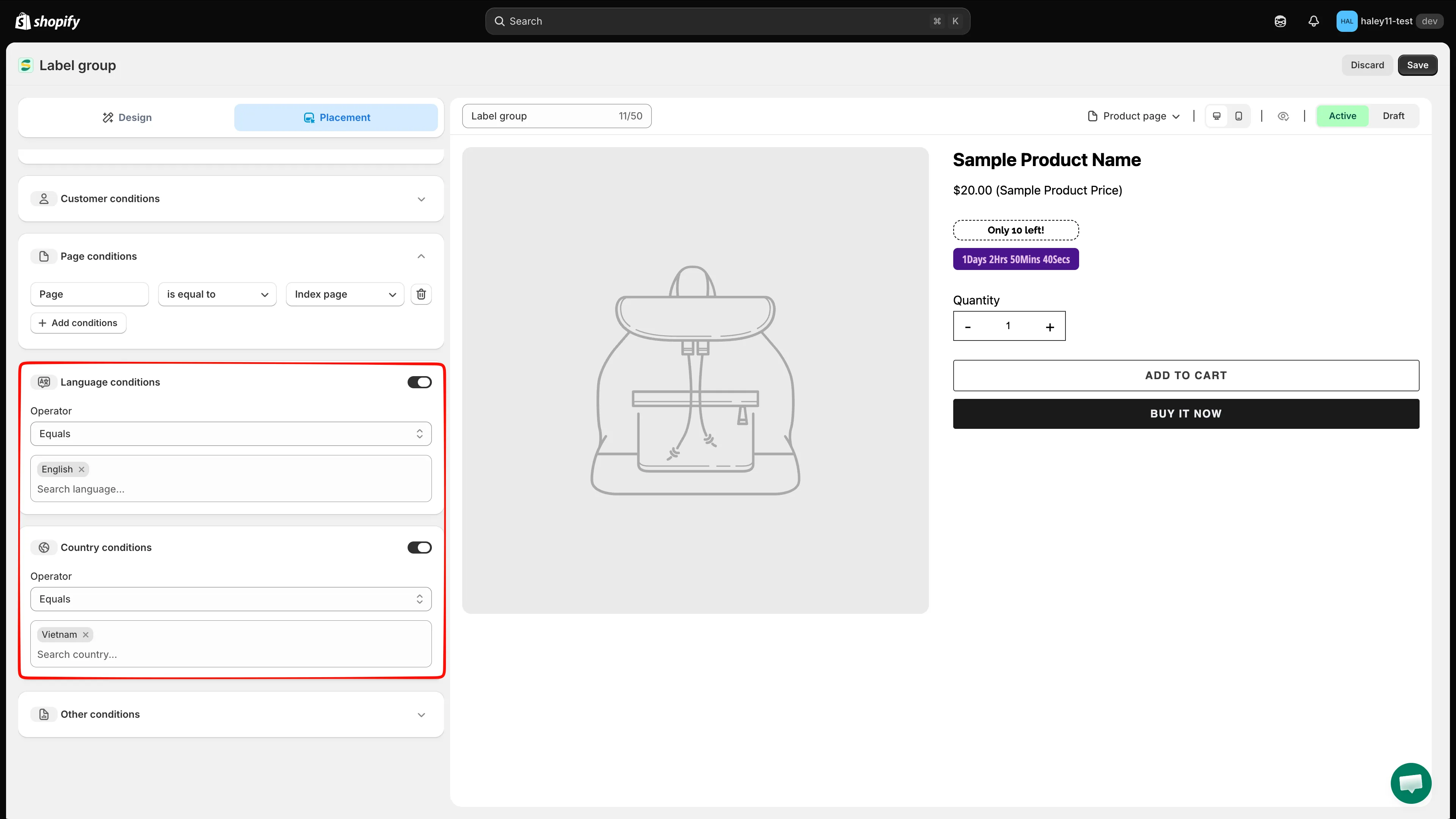
在您開啟開關之前,這兩個區段都不會啟用。
Other conditions
Section titled “Other conditions”| Setting | Options | Behavior |
|---|---|---|
| Show on (product page) | All images / First image | 在每張圖庫圖片上顯示群組,或僅在第一張上顯示。 |
| Device targeting | All devices / Desktop / Mobile | 將群組限定給桌面或行動裝置的購物者。 |
| Do not show label on | CSS class list — .CLASS1, .CLASS2,... |
略過符合這些 class 的任何佈景主題元素,例如滑動圖庫或快速檢視區塊。 |
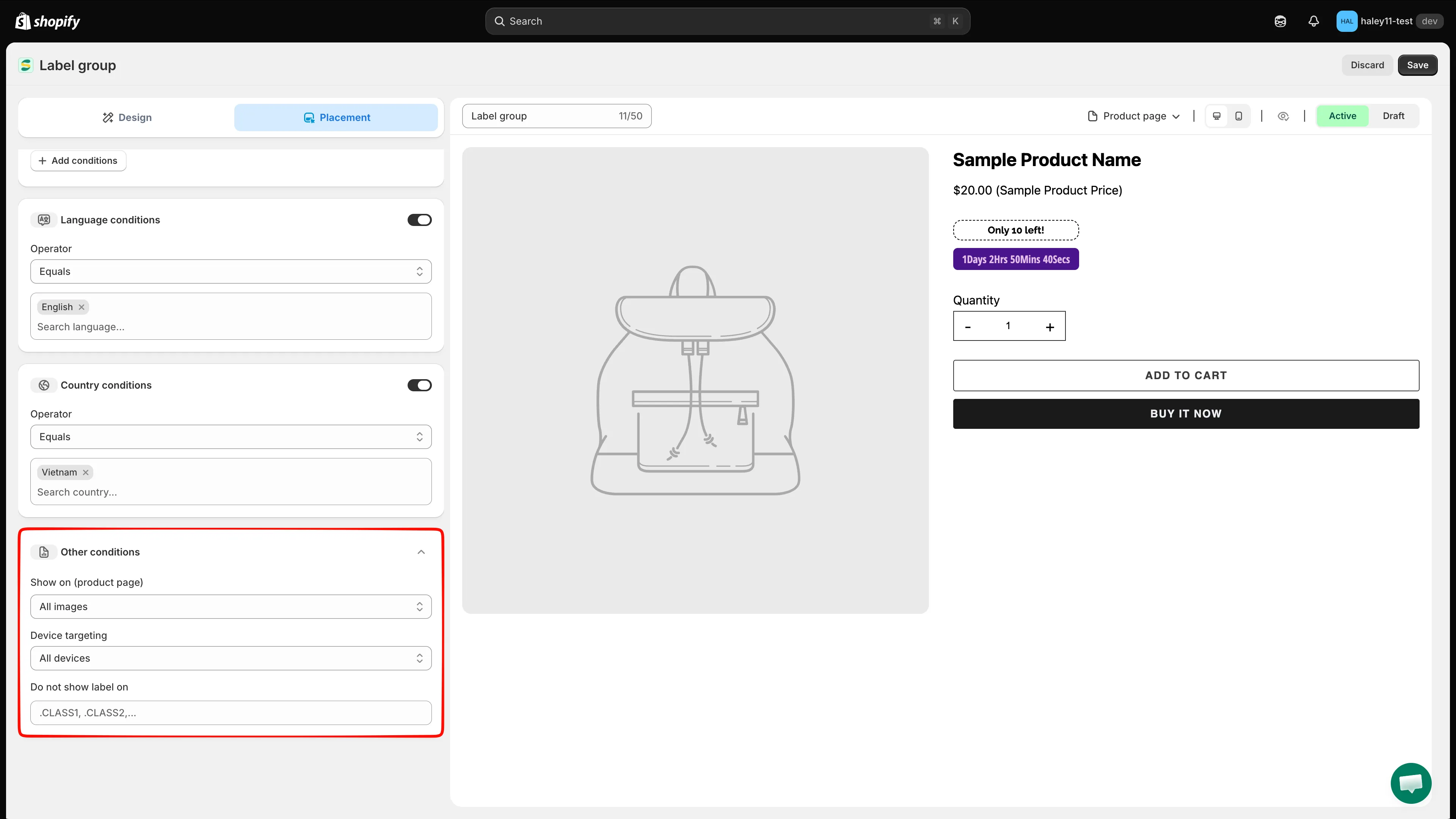
整個群組的圖片、裝置和排除設定。
點擊右上角的 Save。群組會立即顯示在符合條件的商品頁面上。
- 建立標籤群組(商品圖片內):建立覆蓋在商品照片上的群組。
- 建立徽章群組(商品圖片外):建立位於商品資訊旁的群組。
- 指定商品目標:單一徽章的對應設定。