
指定亮點區塊的顯示範圍
使用 Placement 分頁中的條件,控制亮點區塊顯示的位置與對象。
每個亮點區塊都有各自的顯示規則。您可以在亮點區塊編輯器的 Placement 分頁中設定,該分頁包含五個條件群組以及兩個放置選項。
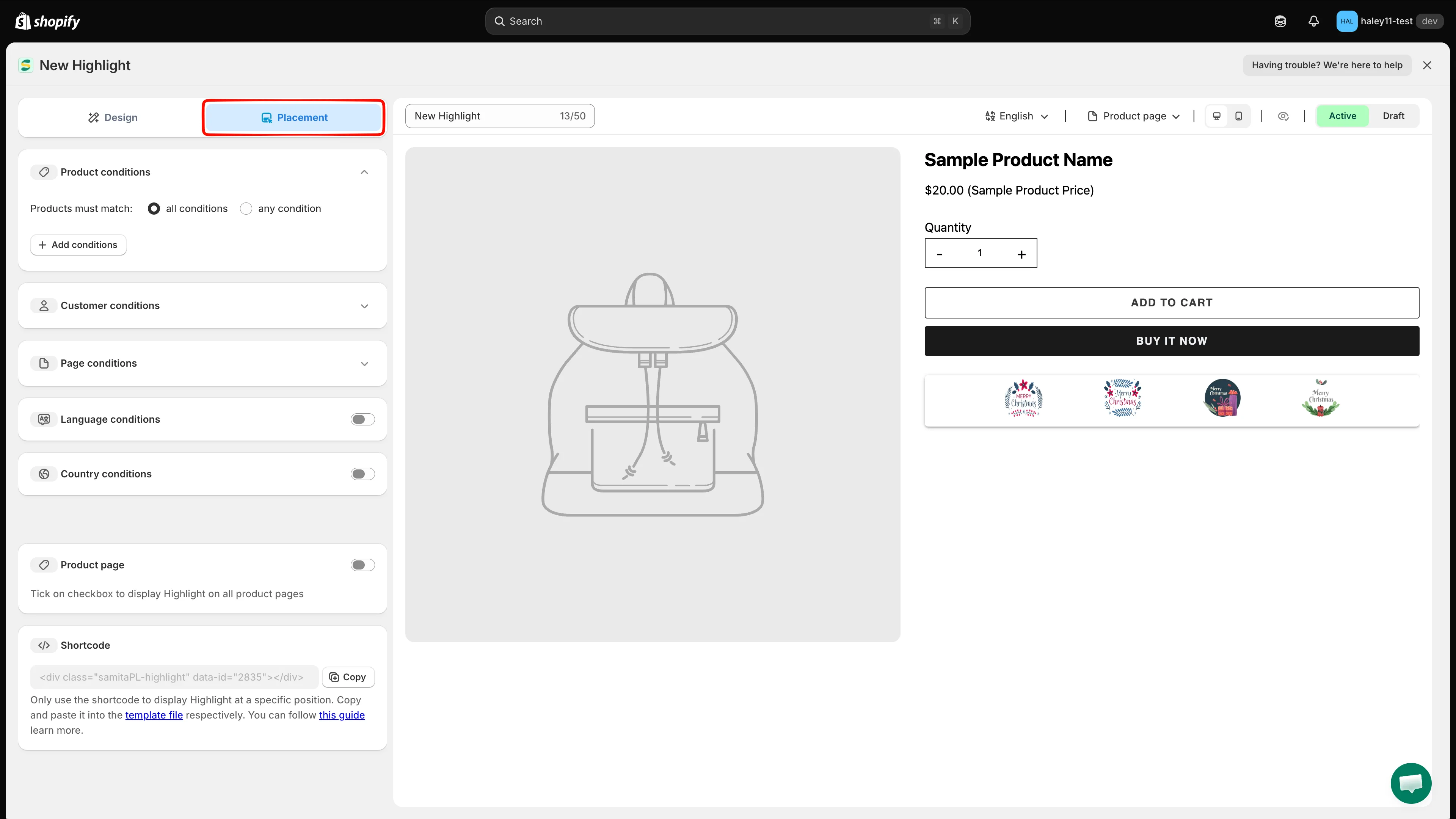
Placement 分頁整合了顯示條件、商品頁面開關和短代碼。
Product conditions
Section titled “Product conditions”決定亮點區塊要顯示在哪些商品上。
將 Products must match 設為 all conditions(每條規則都必須成立)或 any condition(符合一條規則即可),然後點擊 Add conditions 建立規則列:
| 欄位 | 選項 |
|---|---|
| Condition | Select Products、Product tag、Product compare price、Collections |
| Operator | is equal to / is not equals to |
| Value | 點擊 select items 選擇商品、標籤或商品系列 |
使用規則列末端的垃圾桶圖示即可移除該規則。
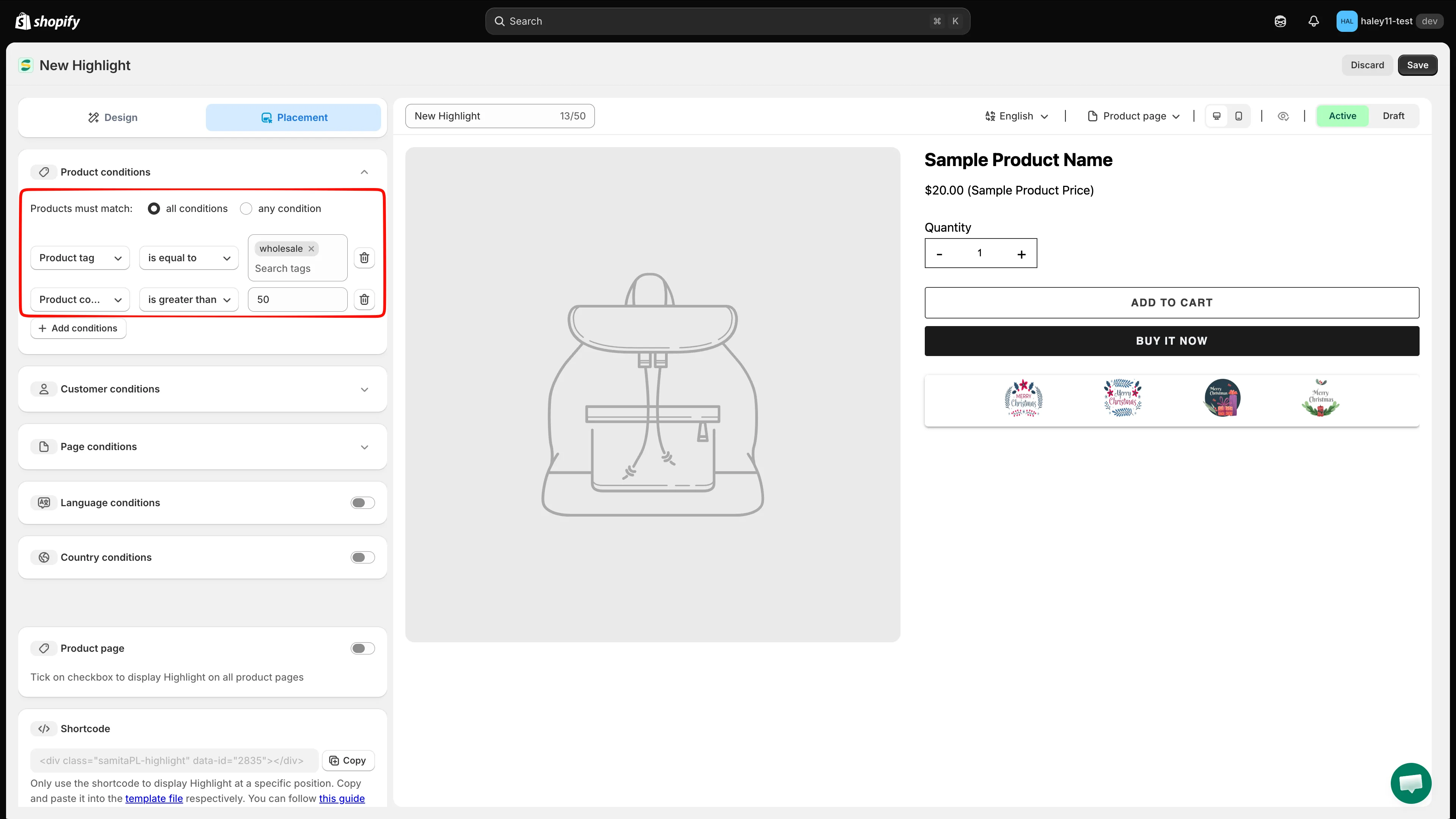
選擇商品必須符合所有條件,還是符合任一條件。
Customer conditions
Section titled “Customer conditions”決定誰會看到亮點區塊。點擊 Add conditions,該列已預先填入 Customer / Is Logged In。
| 條件 | 運算子 |
|---|---|
| Customer | Is Logged In / Not Logged In |
| Customer tag | 選擇該規則適用的顧客標籤 |
Page conditions
Section titled “Page conditions”決定哪些頁面類型會顯示亮點區塊。點擊 Add conditions,然後選擇頁面:
| 欄位 | 選項 |
|---|---|
| Operator | is equal to / is not equals to |
| Page | Index page, Collection page, Product page, Article Page, Blog page, Cart page (including cart drawer), Search page |
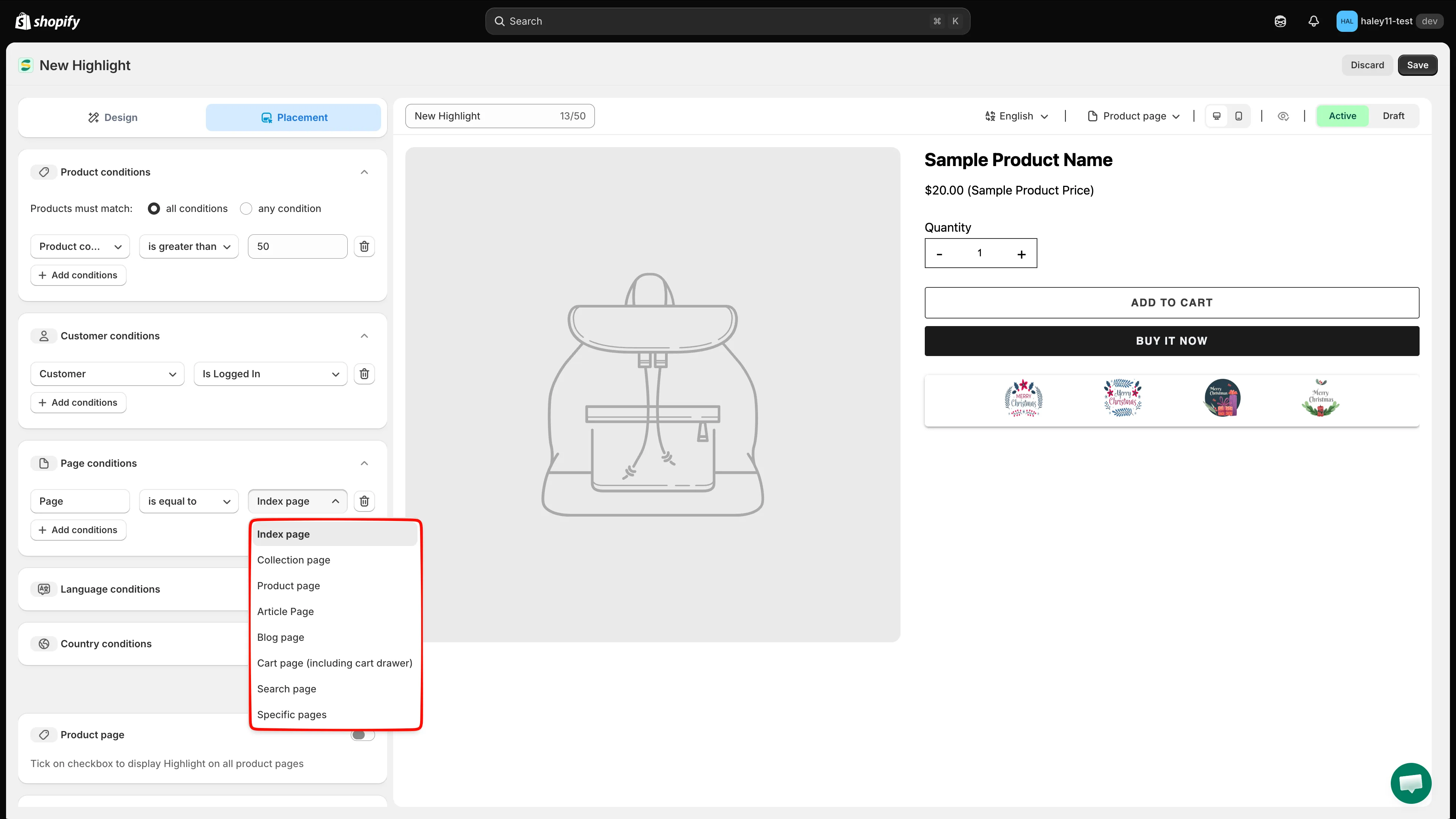
將亮點區塊限制在特定頁面類型,或排除這些頁面類型。
Language conditions
Section titled “Language conditions”開啟 Language conditions 開關,設定 Operator,然後搜尋並選擇該規則適用的語言。
Country conditions
Section titled “Country conditions”開啟 Country conditions 開關,設定 Operator,然後搜尋並選擇該規則適用的國家或地區。
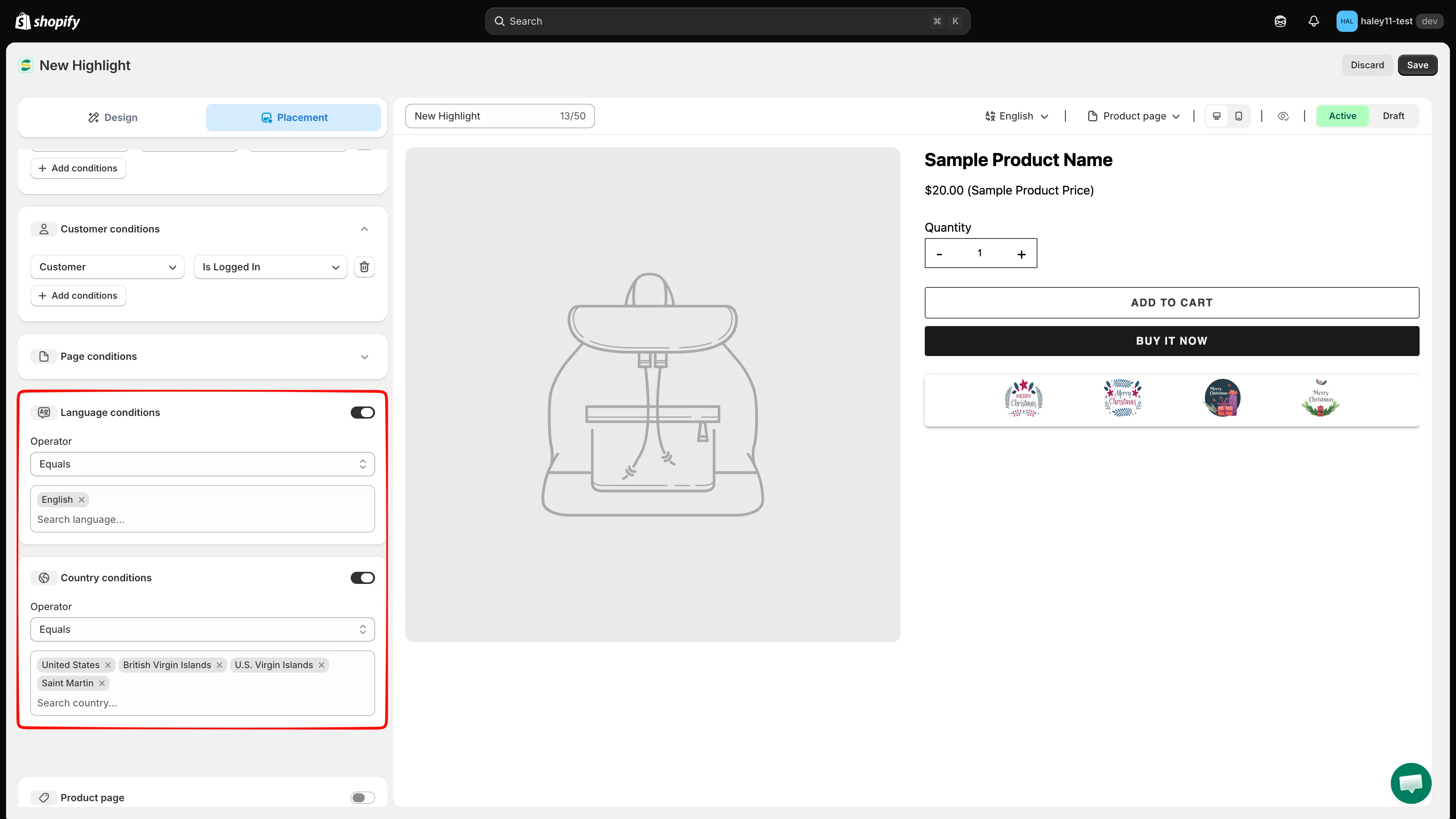
語言和國家/地區條件預設為關閉,請開啟後才能使用。
亮點區塊的放置位置
Section titled “亮點區塊的放置位置”條件決定區塊是否顯示;以下兩個設定則決定區塊放在哪裡:
| 選項 | 功能 |
|---|---|
| Product page | 開啟後,會在每個商品頁面上應用程式內建的位置顯示亮點區塊。 |
| Shortcode | 複製 <div class="samitaPL-highlight" data-id="…"></div> 並自行放入佈景主題中,請參閱使用短代碼放置亮點區塊。 |