> For the complete documentation index, see [llms.txt](https://docs.samita.io/llms.txt). Markdown versions of documentation pages are available by appending `.md` to page URLs; this page is available as [Markdown](https://docs.samita.io/sa-request-a-quote/help/faq.md).
# FAQ
Short answers to the questions merchants ask most often about SA Request a Quote.
## Getting started
I installed the app but nothing shows on my storefront
The app embed has to be switched on in your theme before customers see anything. Open the app, look at the **Setup guide** on the dashboard, and if the first step reads **App embed is disabled**, click **Enable app embed**.
Full steps: [Enable the app in your theme](/sa-request-a-quote/getting-started/enable-app-in-theme.md)
Do I need to edit my theme code?
No. The only theme step is switching the app embed on, and you start that from the **Setup guide** on the dashboard — Shopify handles the rest in its own theme editor.
The app also uses two storefront pages, **Request for quote** at `/pages/request-for-quote` and **Quote history** at `/pages/quotes-history`. You never build those or write anything into them. Code only comes into it as a recovery step, if the app's content block gets deleted from one of those pages — see [Troubleshooting](/sa-request-a-quote/help/troubleshooting.md).
Will this slow my store down?
The app's storefront code loads through the app embed in your theme, which is Shopify's standard mechanism for apps. If page speed matters to you, measure a product page before and after switching the embed on — and remember the embed is reversible, so you can switch it back off from the **Setup guide**.
Can I try the app before paying?
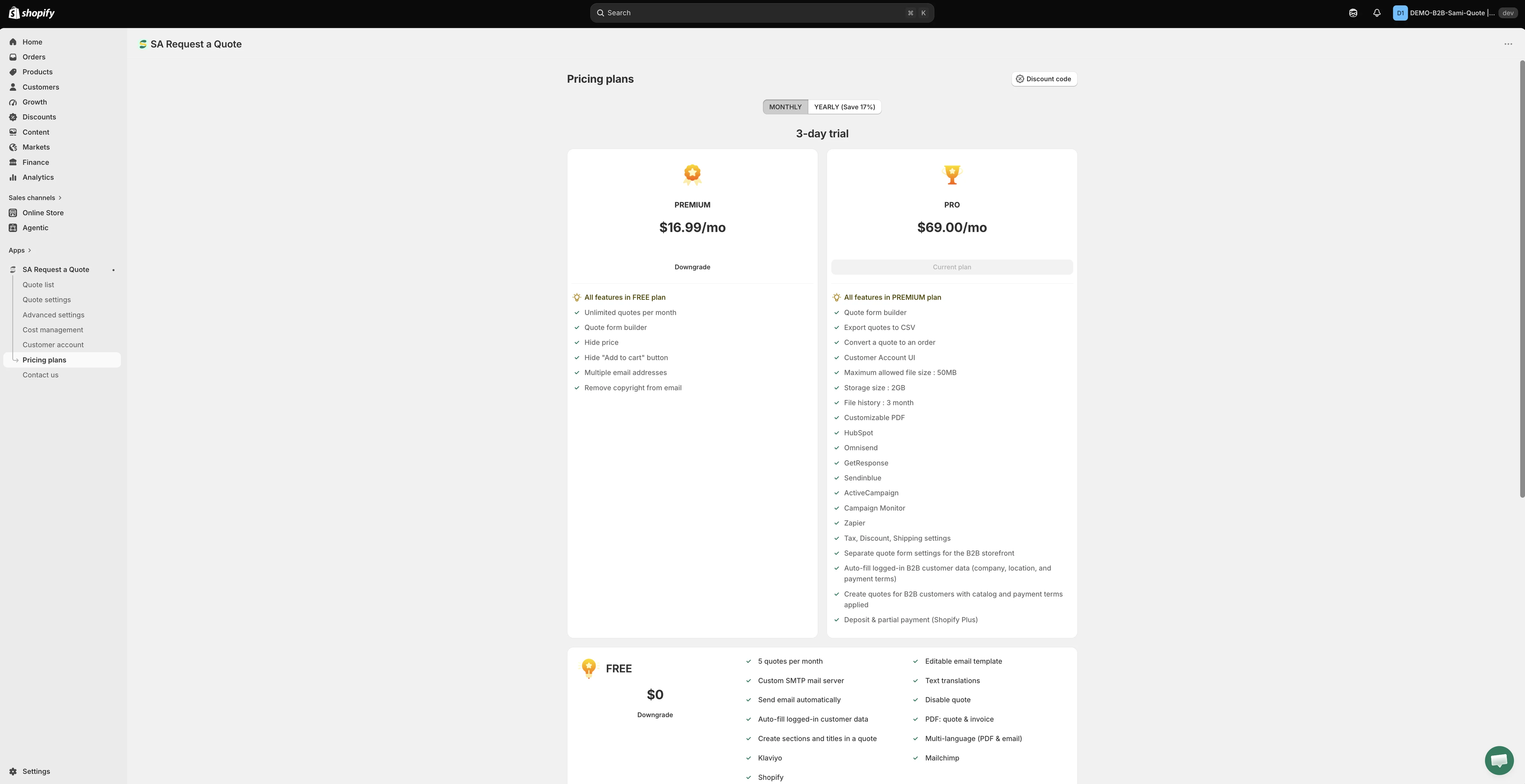
Yes. The **FREE** plan covers a set number of quotes a month, so you can run real requests through it before deciding. Paid plans are offered with a free trial, and the billing toggle switches between **MONTHLY** and **YEARLY**. Open **Pricing plans** in the app for the current prices and trial length — they are shown there and can change.
See [Plan comparison](/sa-request-a-quote/reference/plan-comparison.md)
## Quotes and pricing
Does a quote reserve stock or create an order?
No. A quote is a request — nothing is reserved and no order exists until you convert it and the customer pays.
See [How it works](/sa-request-a-quote/reference/how-it-works.md)
Can customers still buy products normally?
Yes, unless you stop them. Quoting and buying can coexist — **Select quote products** on **Quote settings** decides which products show the quote button, and the **Hide price** tab decides whether those products keep their prices and buy buttons.
See [Choose quotable products](/sa-request-a-quote/collecting-quote-requests/choose-products.md)
Can customers tell me what price they want?
Yes. On the **Button & widget** tab of the **Customize** editor, the **Add to quote** section has **Allow customers to edit quote item prices**. It's an opening offer — you set the real price when you reply.
See [Let customers propose a price](/sa-request-a-quote/collecting-quote-requests/customer-price.md)
Can I change the prices and quantities on a quote before I reply?
Yes. Open the quote from **Quote list**. The line-item table has **Products**, **Price & quantity** and **Total** columns, and both the price and the quantity on each line are editable. You can also use **Search products** or **Browse products** to add products, **Manage products** to change them, **Duplicate items** on a line, and **Create section** to group the lines.
See [View and edit a quote](/sa-request-a-quote/managing-quotes/view-and-edit.md)
Can I add tax, shipping or a discount to a quote?
Yes. The **Payment** panel on the quote shows **Subtotal** and **Total** with **Edit discount**, **Edit shipping** and **Edit tax rate** beside them. The rules behind those links live in **Cost management**, which has three tabs — **Discount**, **Shipping** and **Tax**.
**Tax, Discount, Shipping settings** is listed as a **PRO** feature.
See [General settings](/sa-request-a-quote/settings/general-settings.md)
Where do accepted quotes end up?
On the quote there are two top actions, **Convert to Order** and **More actions**. Converting turns the quote into a Shopify draft order, which you then handle in Shopify as usual.
**Convert a quote to an order** is listed as a **PRO** feature.
See [Convert to a draft order](/sa-request-a-quote/managing-quotes/convert-to-draft-order.md)
Can I create a quote myself, without waiting for a customer?
Yes. The **Quotes** page has a **Create quote** button next to **Export**. It's the quickest route when a request arrives by phone or email.
See [Create a quote manually](/sa-request-a-quote/managing-quotes/create-manually.md)
Where do customers see the quotes they've already sent?
On the **Quote history** page at `/pages/quotes-history`, which shows a logged-in customer's past quotes.
If you use Shopify's new customer accounts, the **Customer account** screen in the app menu adds the quote list there too, via **New customer account settings**. **Customer Account UI** is listed as a **PRO** feature.
See [Quote history page](/sa-request-a-quote/storefront-quote-pages/quote-history-page.md) and [Quotes in customer accounts](/sa-request-a-quote/storefront-quote-pages/customer-account-quotes.md)
What files can customers attach to a request?
When your form includes a file upload, the app accepts `csv`, `pdf`, `jpg`, `jpeg`, `png`, `psd`, `ai`, `stl`, `stp`, `step`, `doc`, `docx`, `txt`, `ex2`, `dxf`, `gbr` and `eps`.
Your size and storage limits depend on your plan — the dashboard's **Pricing plan details** card shows **Storage size**, **Used storage** and **Maximum file size**.
See [Allow file uploads](/sa-request-a-quote/quote-form/file-uploads.md)
## Hiding prices
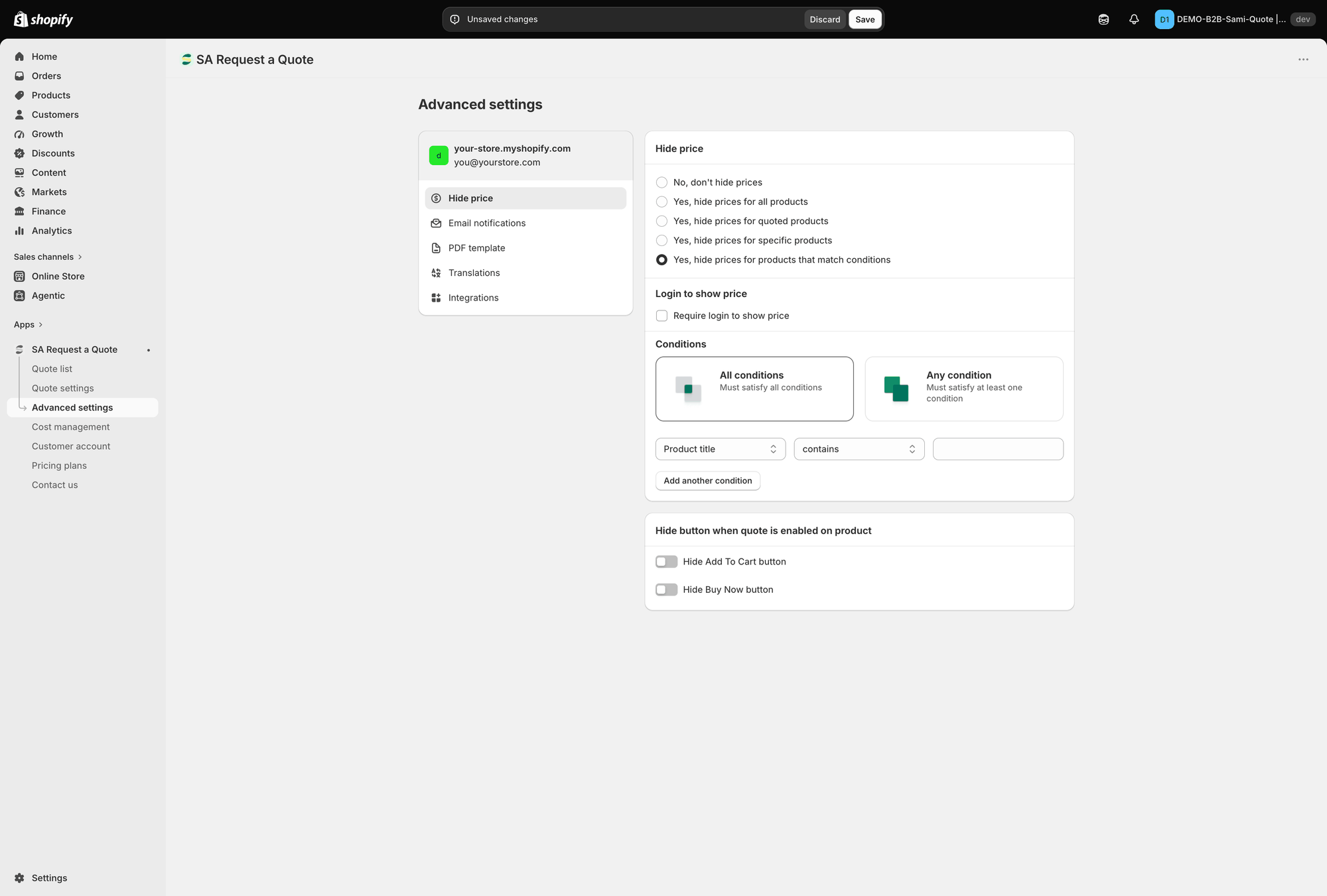
Choosing the conditions option opens Login to show price and Conditions.
Can I hide prices from the public but show them to customers who log in?
Yes. On **Advanced settings** > **Hide price**, choose any of the four **Yes…** options — whichever matches the products you want covered. Choosing one reveals the checkbox **Require login to show price** in the **Login to show price** section beneath them. While the tab is left on **No, don't hide prices**, that checkbox is not shown at all.
You can tie the quote side to login as well: on the **Button & widget** tab, **Who can see the RFQ button?** can be set to **Logged-in customers**, and the **Add to quote** section has **Require login before adding to quote**.
See [Require login to show price](/sa-request-a-quote/hiding-prices/login-to-show-price.md)
Can I hide prices on only some products?
Yes, in three different ways. **Yes, hide prices for quoted products** follows your **Select quote products** list, **Yes, hide prices for specific products** lets you pick them by hand, and **Yes, hide prices for products that match conditions** builds a rule.
Conditions can match on **Product title**, **Product type**, **Product vendor**, **Product price**, **Product in stock**, **Product tag** or **Collection**, using **is equal to**, **is not equal to**, **starts with**, **ends with**, **contains** or **does not contain**. **Add another condition** adds more, and the match mode is either **All conditions** or **Any condition**.
See [Hide prices by tag](/sa-request-a-quote/hiding-prices/hide-by-tag.md)
I hid the price but customers can still add to cart
Hiding the price and hiding the buy buttons are separate settings. On the same **Hide price** tab, find **Hide button when quote is enabled on product** and turn on **Hide Add To Cart button** and **Hide Buy Now button** — otherwise customers can buy at a price they never saw.
See [Hide Add to Cart and Buy now](/sa-request-a-quote/hiding-prices/hide-buy-buttons.md)
Should I hide prices across my whole catalogue?
Only if every product is trade-only. **Yes, hide prices for all products** hides them from every visitor, including shoppers arriving from a search engine. If you sell to both trade and consumers, use **Yes, hide prices for quoted products** or **Yes, hide prices for specific products** and leave the rest priced.
See [Hiding prices overview](/sa-request-a-quote/hiding-prices/overview.md)
## Emails
Can emails come from my own address?
Yes. **Advanced settings** > **Email notifications** has an **SMTP** section offering nine providers — Google, Sendinblue, SendGrid, Outlook, Pepipost, Amazon SES, Elastic Email, Mailgun and Zoho — alongside the default, **Use the app's default email**. Left on the default, quote emails come from `no-reply@samita.io`.
**Custom SMTP mail server** is included on the **FREE** plan.
See [Send from your own address (SMTP)](/sa-request-a-quote/emails/smtp.md)
Can more than one person get quote notifications?
Yes, from the **PREMIUM** plan — **Multiple email addresses** is listed there. Open the **Mail notifications** editor and use **Admin email**, whose help text reads: "You can add multiple email addresses, separated by commas. A maximum of 5 addresses is allowed. Contact us to increase the number of emails added."
A shared inbox usually works better than a list of individuals.
See [Change notification recipients](/sa-request-a-quote/emails/change-recipients.md)
Can I change what the notification emails say?
Yes. Each row on the **Email notifications** tab opens its own editor, with **Basic** and **Advanced** template tabs, a **Subject** field and a rich-text editor for the body. **Reset template** puts it back, and **Preview** shows the result. **Attach PDF file** adds the quote PDF, and **Show variants** controls whether variant details appear.
See [Emails sent to admin](/sa-request-a-quote/emails/emails-to-you.md)
I'm not receiving any notifications
Check your spam folder and allow `no-reply@samita.io`, then confirm **Mail notifications** is switched on and pointed at an address you monitor.
Full steps: [Troubleshooting](/sa-request-a-quote/help/troubleshooting.md)
## PDFs
Why does my quote PDF have a watermark?
The **Quote PDF template** screen carries this notice: "Remove the watermark from your PDF. Please contact us to verify your store and receive this service for free." Until your store is verified, PDFs carry the watermark.
See [Customize the quote PDF](/sa-request-a-quote/pdf-templates/quote-pdf.md)
Can I design the PDF myself?
Not freehand. **Quote PDF template** is a toggle-based builder with **Design**, **Content** and **Translations** tabs — you choose what appears, not how it's coded. There is no HTML editing, but **Design** does carry a **Logo** block: switch on **Use a logo image**, set **Logo size**, and upload your file. The app asks for a 512 × 512 px image for the best result.
What you can switch on or off: under **Quote info**, Quote ID, Issue date (with **Choose date format**), Payment terms, Discount, Tax, Shipping, Subtotal and Grand total; under **Quote products**, Show product image, Show vendor, Show SKU, Show variants and options, Show quantity, Show price and Show total; under **Other information**, Quote from, Customer information, Shipping address and Additional information. There's also **Column width** (33% or 100%), a **Note**, **Translations** and **Preview**.
See [Customize the quote PDF](/sa-request-a-quote/pdf-templates/quote-pdf.md) and [Customize the invoice PDF](/sa-request-a-quote/pdf-templates/invoice-pdf.md)
## Plans and billing
Plans and their limits are listed in the app.
Is there a free plan?
Yes — the **FREE** plan. It covers 5 quotes per month, an editable email template, a custom SMTP mail server, text translations, PDF quote and invoice, and the **Klaviyo**, **Mailchimp** and **Shopify** integrations.
**Hide price** and **Hide "Add to cart" button** start at **PREMIUM**. **Convert a quote to an order**, **Export quotes to CSV**, the **Customer Account UI** and the remaining integrations are on **PRO**.
See [Plan comparison](/sa-request-a-quote/reference/plan-comparison.md)
Are all the integrations paid-only?
No. **Klaviyo**, **Mailchimp** and **Shopify** are on the **FREE** plan. **HubSpot**, **Omnisend**, **GetResponse**, **Sendinblue**, **ActiveCampaign**, **Campaign Monitor** and **Zapier** are listed under **PRO**.
**Google reCAPTCHA** sits on the same **Third-party integration** screen but isn't named in any plan's feature list, so check **Pricing plans** in the app if you need to be certain about it.
See [Integrations overview](/sa-request-a-quote/integrations/overview.md)
How do I change or compare plans?
Open **Pricing plans** in the app menu. The billing toggle switches between **MONTHLY** and **YEARLY**, and the page carries **Discount code** and **Pricing details** buttons. Prices and trial length are shown there — read them off the page rather than from a document, because the trial differs between the monthly and yearly options.
See [Pricing plans](/sa-request-a-quote/settings/pricing-plans.md)
What happens to my quotes if I uninstall?
Uninstalling takes the app out of your store, and the screens where your quotes are kept go with it. Export anything you need to keep first — **Export** is on the **Quote list**, and **Export quotes to CSV** is a **PRO** feature.
See [Export quotes to CSV](/sa-request-a-quote/managing-quotes/export-csv.md)
## Languages and data
Can the quote form be shown in several languages?
Yes. **Advanced settings** > **Translations** has **Translations AI** — "Translate everything your customers see — quote form, storefront text and both quote emails."
The language list mirrors **Settings** > **Languages** in your Shopify admin, so publish the language there first and it appears in the app.
See [Translate storefront text](/sa-request-a-quote/settings/translations.md) and [Translate quote emails](/sa-request-a-quote/emails/translate-emails.md)
What customer data does the app store?
The quote itself, whatever your form collects, any uploaded files, and your settings. The app supports Shopify's privacy webhooks for customer data requests and erasure — `customers/data_request`, `customers/redact` and `shop/redact`.
See [Permissions and data](/sa-request-a-quote/reference/permissions-and-data.md)
Are my integration API keys safe in the app?
Once you save an integration key, the app stores it masked and shows a placeholder in its place, so it can't be read back off the screen. If you need to change a key, paste the new one over it.
See [Integrations overview](/sa-request-a-quote/integrations/overview.md)
## Still stuck?
Email — see [Contact support](/sa-request-a-quote/help/contact-support.md) for what's worth including.
## Next steps
* [Troubleshooting](/sa-request-a-quote/help/troubleshooting.md) — fixes for specific symptoms
* [Contact support](/sa-request-a-quote/help/contact-support.md) — how to reach the team
* [How it works](/sa-request-a-quote/reference/how-it-works.md) — the whole quote flow
---
# Agent Instructions
This documentation is published with GitBook. GitBook is the documentation platform designed so that both humans and AI agents can read, navigate, and reason over technical content effectively. Learn more at gitbook.com.
## Querying This Documentation
If you need additional information that is not directly available in this page, you can query the documentation dynamically by asking a question.
Perform an HTTP GET request on the current page URL with the `ask` query parameter, and the optional `goal` query parameter:
```
GET https://docs.samita.io/sa-request-a-quote/help/faq.md?ask=&goal=
```
`ask` is the immediate question: it should be specific, self-contained, and written in natural language.
`goal` is optional and describes the broader end goal you are ultimately trying to accomplish on behalf of the user. GitBook uses it to tailor the answer towards what is most useful for that goal.
The response will contain a direct answer to the question and relevant excerpts and sources from the documentation.
Use this mechanism when the answer is not explicitly present in the current page, you need clarification or additional context, or you want to retrieve related documentation sections.