
选择可报价产品
决定哪些产品显示 Request a Quote 按钮:全部产品,或您选定的产品和产品系列。
报价按钮只会出现在您选中的产品上。这项选择在 Quote settings 页面本身完成,而不是在 Customize 编辑器内。
-
打开 Quote settings
Section titled “打开 Quote settings”在应用中,前往 Quote settings。页面标题为 Request a Quote,说明为“Customize the quote experience and choose which products will show the RFQ button.”
-
找到 Select quote products
Section titled “找到 Select quote products”滚动到 Select quote products,说明为“Select products or collections that should show the Request a Quote button.”该部分会显示当前的选择,例如 All products,说明为“Enable Request for quote feature for all products.”
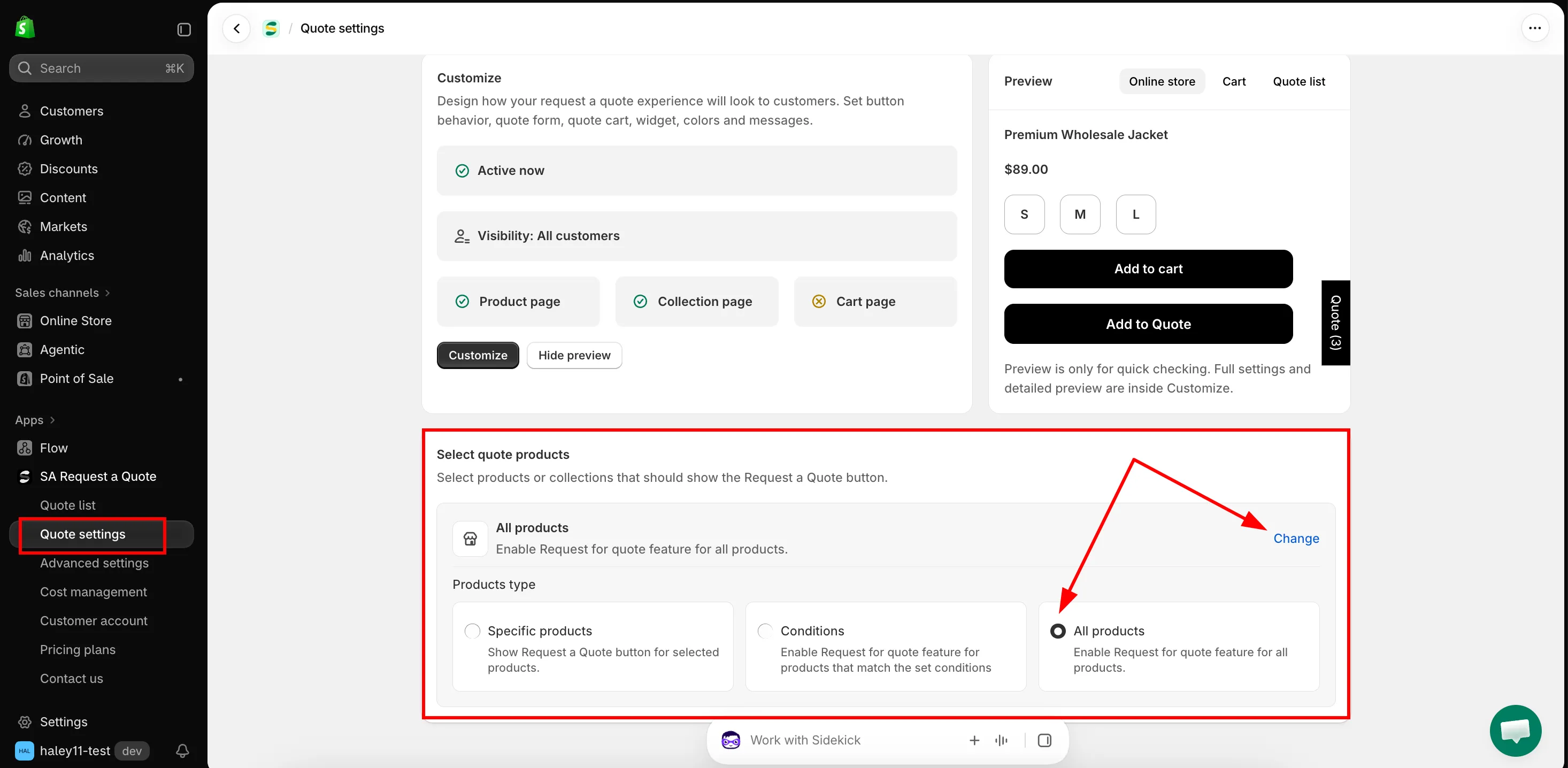
Select quote products 决定哪些产品带有该按钮。
-
点击 Change
Section titled “点击 Change”Change 是进入选择器的唯一入口,该行本身只显示当前的选择。点击后会打开 Products type,三个选项并排显示。
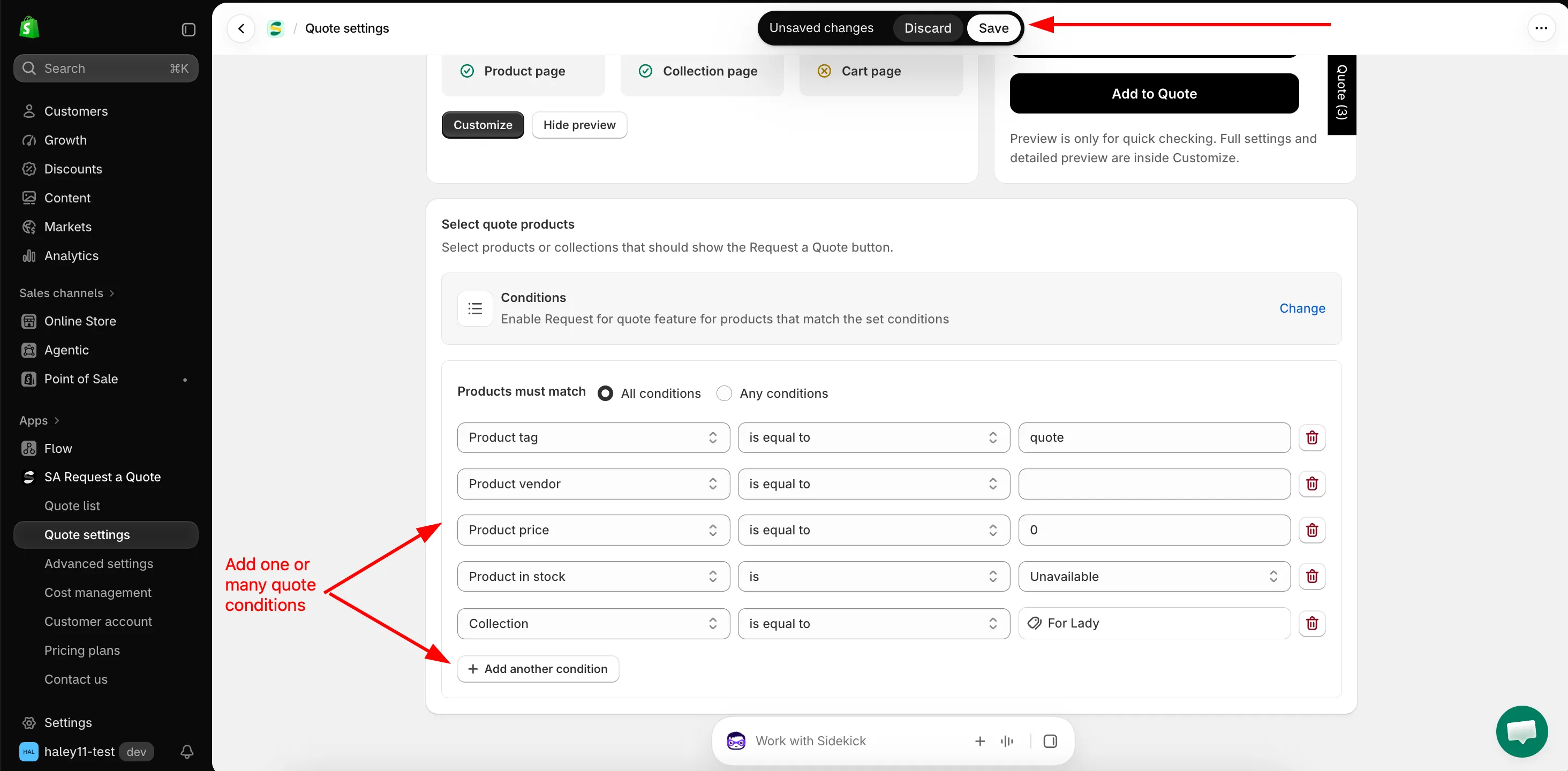
Conditions 让选择范围随您的目录自动变化,而不是固定的列表。
-
选择 Products type
Section titled “选择 Products type”点击三者之一。您选择的卡片会立即生效,其专属的设置区域会在 Select quote products 行下方展开。
Products type 应用中的说明 下方展开的内容 Specific products "Show Request a Quote button for selected products." 一个包含 Add products 和 More options 的产品表格。 Conditions "Enable Request for quote feature for products that match the set conditions" Products must match 和条件行。 All products "Enable Request for quote feature for all products." 无内容,因为没有需要再选择的项目。 请按照本页后面的相应部分设置您选择的类型,然后返回这里。
-
保存并检查产品
Section titled “保存并检查产品”Shopify 顶部栏会显示 Unsaved changes 以及 Discard 和 Save。点击 Save,应用会提示“Settings saved successfully.”
然后在您的店面打开两个产品:一个应显示按钮,另一个不应显示。按钮会出现在您为该页面设置的 Button position 所指定的位置,因此请先检查产品页面,因为在产品系列页面上,您的模板可能只有在买家将鼠标悬停在产品卡片上时才显示按钮。
该使用哪种 Products type
Section titled “该使用哪种 Products type”| 您的情况 | 该选择什么 |
|---|---|
| 您的整个目录都通过议价销售 | All products。常见于批发和行业商店,也是最容易维护的方式。 |
| 部分产品仅限报价,并且可以用规则来描述 | Conditions,例如 Collection is equal to Wholesale 或 Product tag is equal to b2b。 |
| 一份简短且稳定的商品清单 | Specific products,并手动添加。 |
使用 Conditions 创建规则
Section titled “使用 Conditions 创建规则”选择 Conditions 后,构建器会在 Select quote products 行下方展开。
-
选择条件的组合方式
Section titled “选择条件的组合方式”Products must match 提供两种设置:
- All conditions:“Must satisfy all the conditions”。产品必须匹配每一行。
- Any conditions:“Just need to satisfy 1 of the conditions”。匹配其中一行即可。
使用 All conditions 缩小选择范围,使用 Any conditions 将几个互不相关的组合并在一起。
-
每一行依次为 Field、Operator、Value。请先选择字段,可选的运算符会随之变化。
Field 可选的 Operator 您输入的值 Product title is equal to、is not equal to、starts with、ends with、contains、does not contain 您输入的文本。 Product type 同样的六个 您输入的文本。 Product vendor 同样的六个 您输入的文本。 Product price is greater than、is less than、is equal to、is not equal to 一个数字。初始值为 0。Product in stock is Available 或 Unavailable。 Product tag is equal to、is not equal to 标签,需与产品上的标签完全一致地输入。 Collection is equal to、is not equal to 您选择的产品系列,该值是一个 Select collections 按钮,而不是文本框。 -
添加所需的行
Section titled “添加所需的行”Add another condition 会添加一行。行末的垃圾桶图标可将其删除。
-
点击 Shopify 顶部栏中的 Save。
使用 Specific products 手动挑选
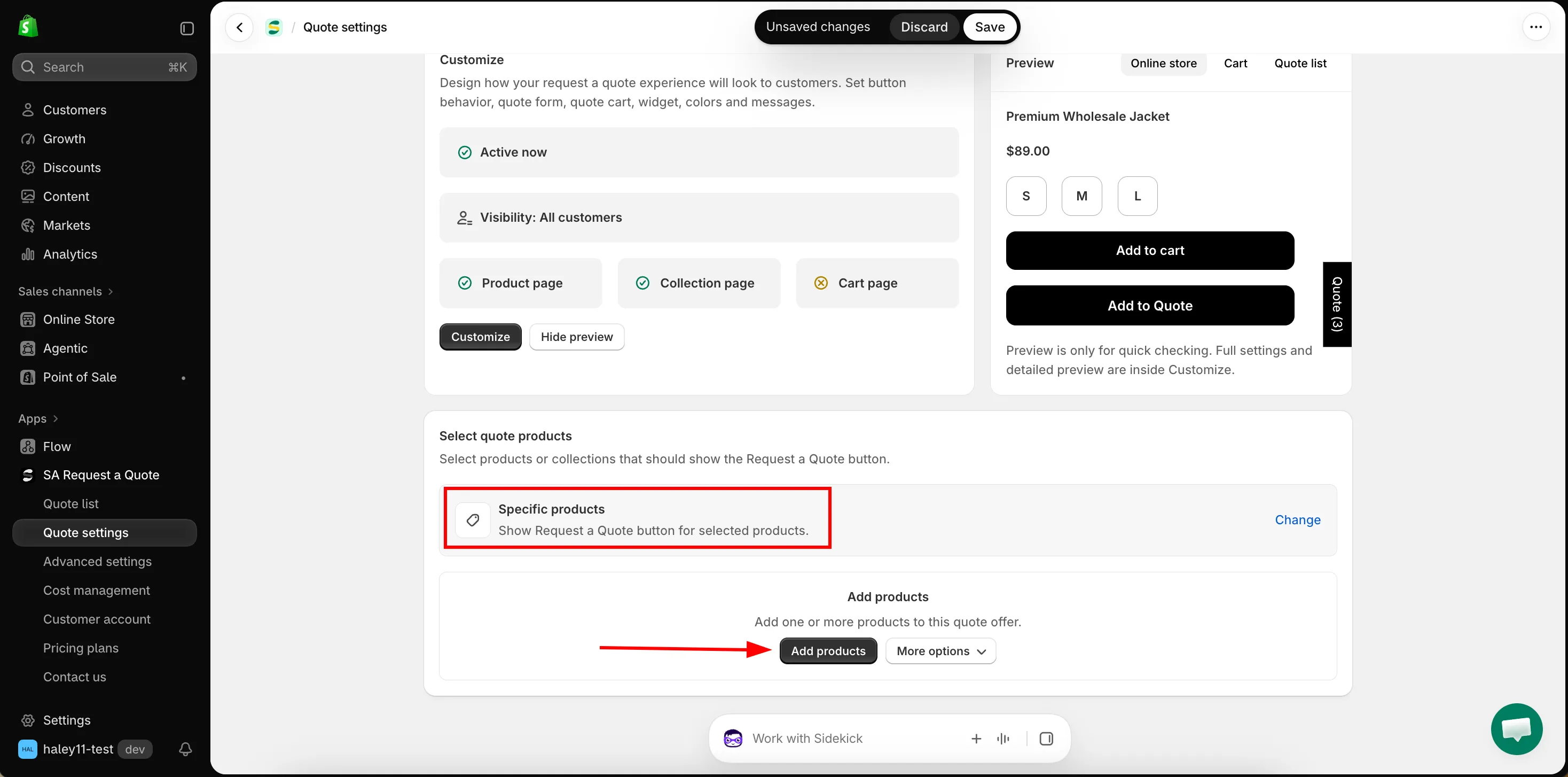
Section titled “使用 Specific products 手动挑选”选择 Specific products 后,Select quote products 行下方会展开一个产品表格。表格为空时会显示 Add products,说明为“Add one or more products to this quote offer.”
| 控件 | 作用 |
|---|---|
| Add products | 打开 Shopify 的产品选择器,您可以搜索目录并勾选产品。 |
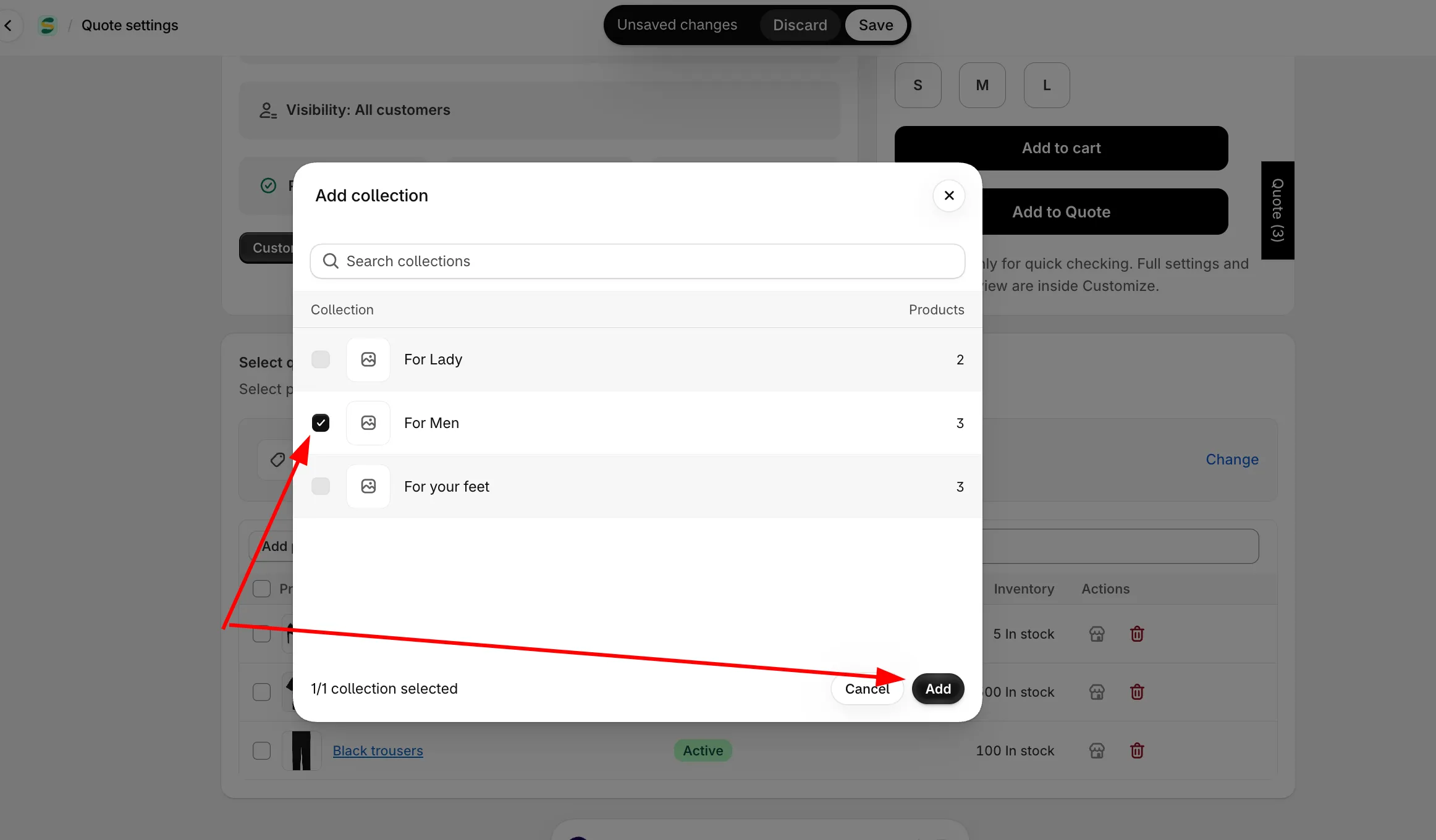
| More options → Add from collection | 选择一个产品系列,然后从中挑选产品。应用会引导您完成:“Step 1: Choose one collection, then select products from it.”和“Step 2: Select products from the chosen collection.” Add all products 可一次性添加整个产品系列。 |
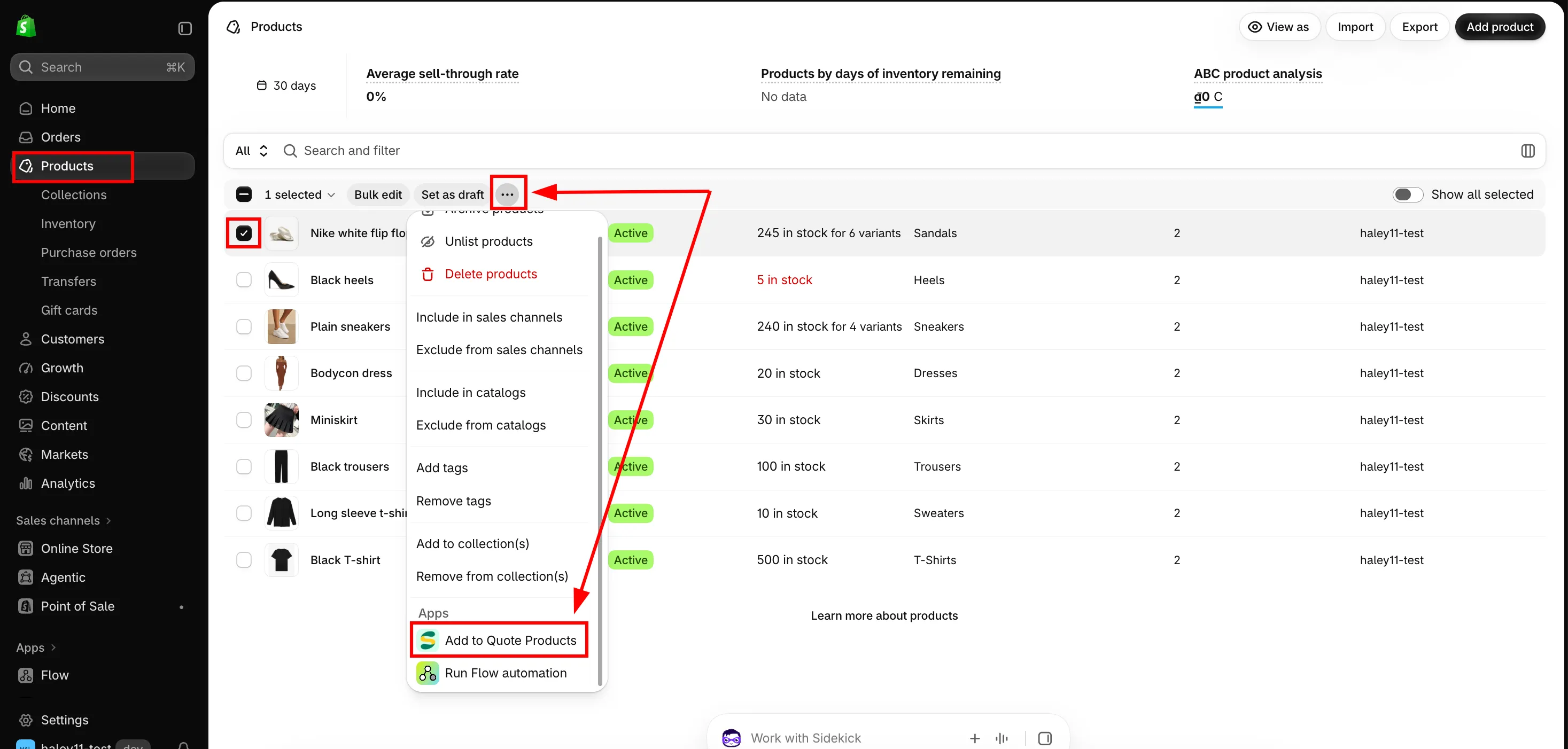
| More options → Add from admin | 改用 Shopify 自带的产品筛选器。按供应商、状态、标签或其他任何条件筛选产品页面,选中结果,然后点击 More actions → Add to quote offer。 |
| Search products | 筛选您已创建的列表,而不是整个目录。 |
表格中的每一行会显示产品及其缩略图、Status 和 Inventory,并提供两个操作:在您的在线商店中打开,以及将其从列表中移除。勾选多行后会出现 Clear selection 和 Remove selected items,移除只是将产品从此列表中去掉,不会影响产品本身。
More options → Add from collection
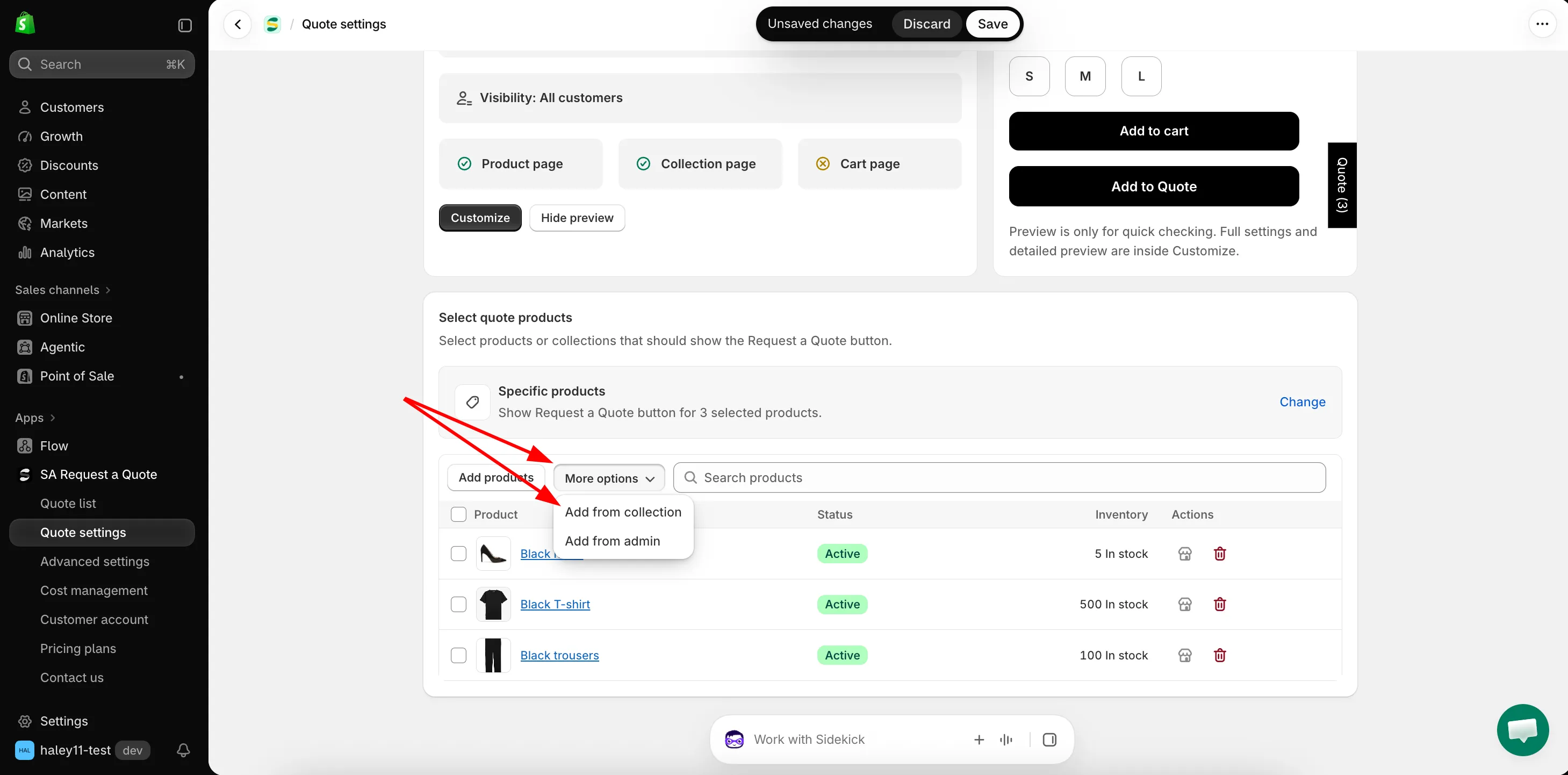
More options → Add from admin
这项选择决定什么
Section titled “这项选择决定什么”Select quote products 决定哪些产品显示 Request a Quote 按钮,无论按钮出现在哪里。
| 决定的内容 | 含义 |
|---|---|
| 哪些产品页面显示报价按钮 | 不在选择范围内的产品永远不会显示,无论 Product page button position 如何设置。 |
| 产品系列页面上哪些产品卡片显示按钮 | 同一项选择也适用于您的产品系列网格,请参阅 产品系列页面上的报价按钮。 |
这与按钮的显示位置是分开的
Section titled “这与按钮的显示位置是分开的”Select quote products 决定 哪些 产品可以报价。Button & widget 标签页上的 Button position 决定按钮显示在这些产品的 什么位置。两者都设置好后,店面上才会出现内容。
如果您预期会显示按钮的产品上没有按钮,请先检查这项选择,请参阅 产品页面上的报价按钮。
如果符合您选择条件的产品仍然没有显示按钮,请将其 URL 和您的 Select quote products 设置发送给我们,请参阅 联系支持。
- 隐藏价格概览:在您设为可报价的产品上隐藏价格
- 产品页面上的报价按钮:按钮出现的位置
- 要求登录后才能询价:哪些客户可以看到它