
選擇可報價商品
決定哪些商品會顯示 Request a Quote 按鈕:整個商品目錄,或您挑選的商品和商品系列。
報價按鈕只會顯示在您選取的商品上。這項選擇是在 Quote settings 頁面本身進行,而不是在 Customize 編輯器中。
-
開啟 Quote settings
Section titled “開啟 Quote settings”在應用程式中前往 Quote settings。頁面標題為 Request a Quote,說明文字為「Customize the quote experience and choose which products will show the RFQ button.」
-
找到 Select quote products
Section titled “找到 Select quote products”捲動到 Select quote products:「Select products or collections that should show the Request a Quote button.」此區段會顯示目前的選取內容,例如 All products,說明為「Enable Request for quote feature for all products.」
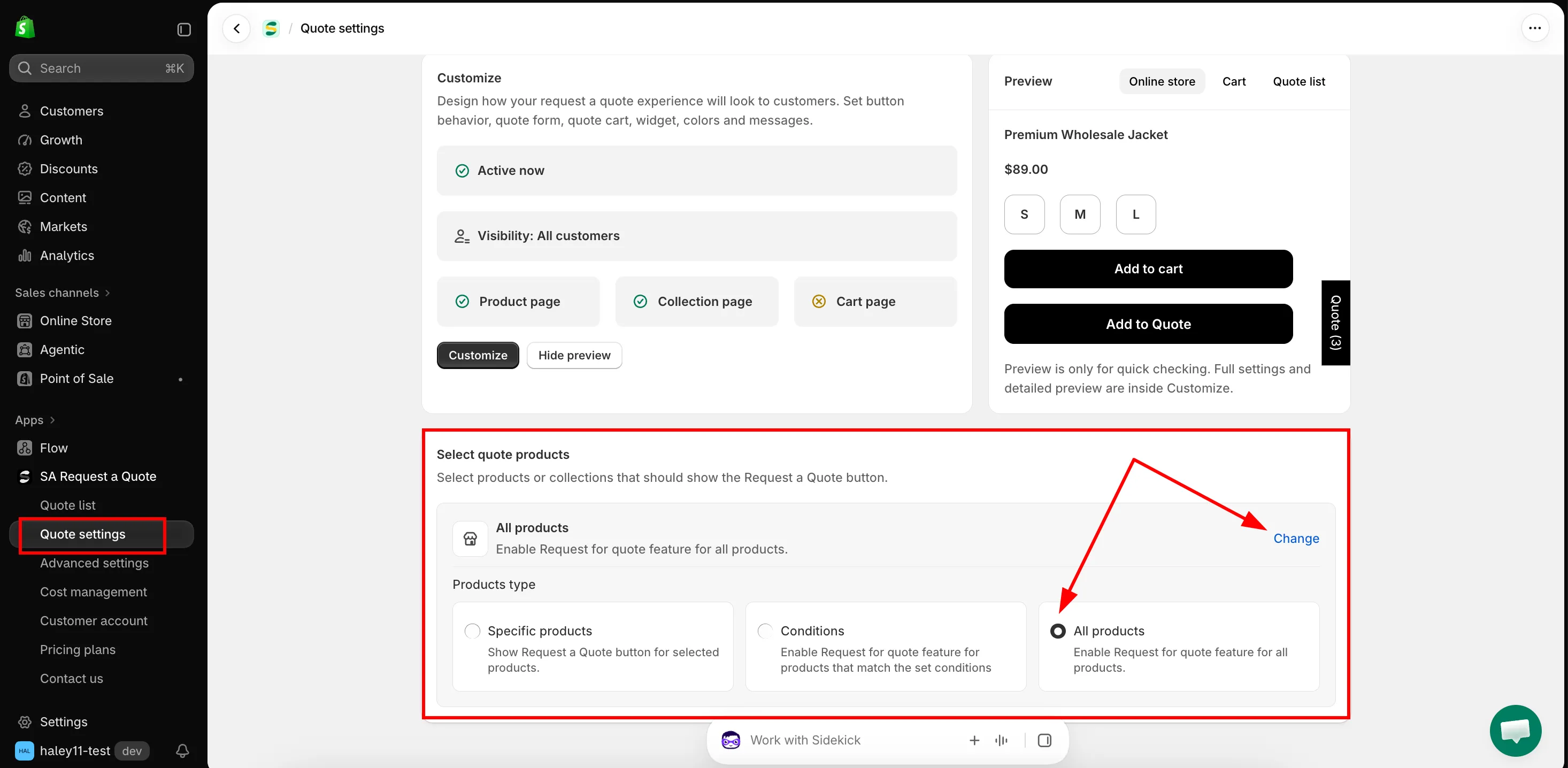
Select quote products 決定哪些商品會顯示按鈕。
-
點擊 Change
Section titled “點擊 Change”Change 是進入選擇器的唯一途徑,該列本身只會顯示目前的選取內容。點擊後會開啟 Products type,並排顯示三個選項。
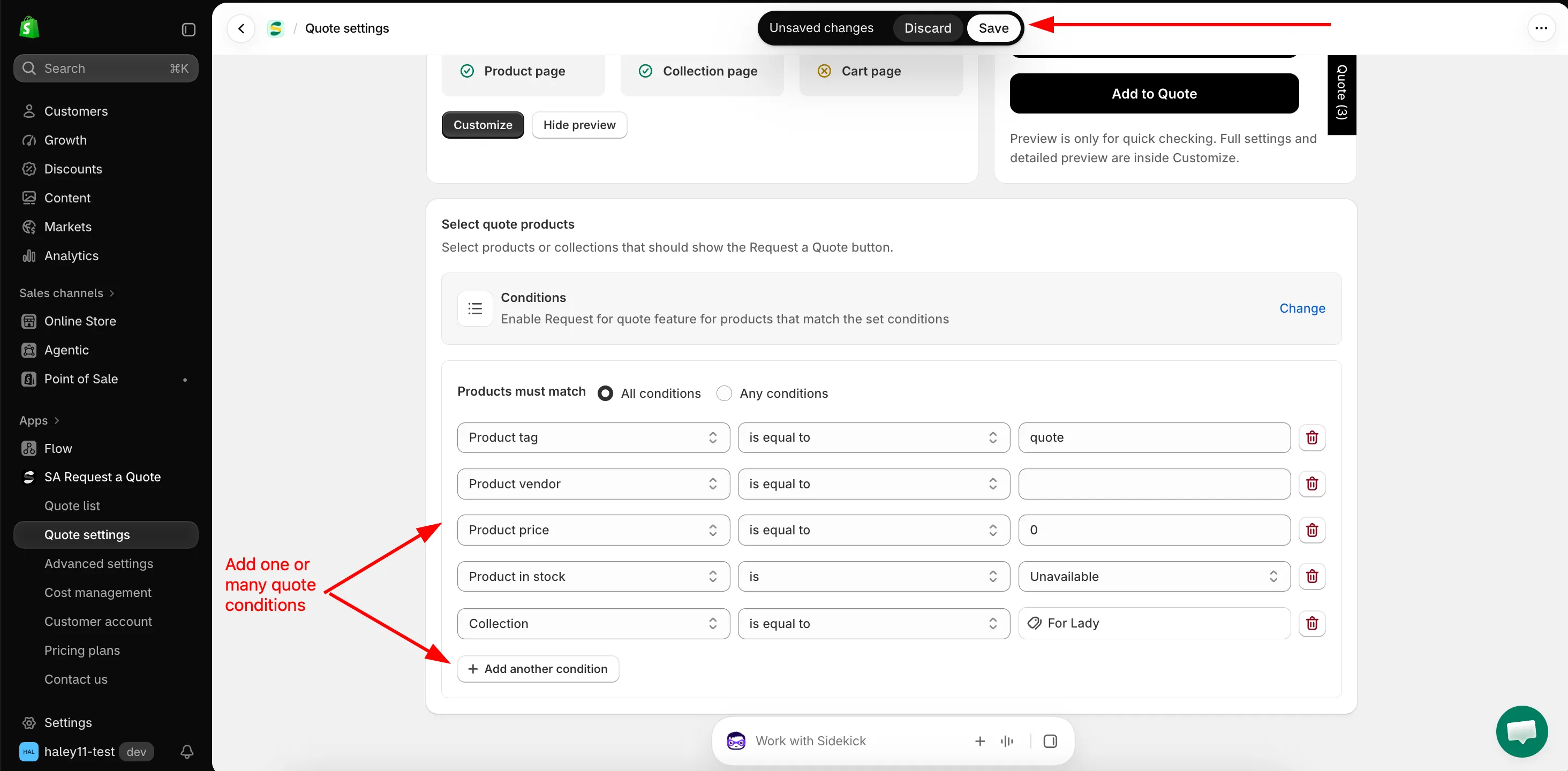
Conditions 讓選取內容隨您的商品目錄自動調整,而不是固定的清單。
-
選擇商品類型
Section titled “選擇商品類型”點擊三者其中之一。您選擇的卡片會立即套用,其專屬的設定區域會在 Select quote products 列下方展開。
Products type 應用程式的說明 下方展開的內容 Specific products "Show Request a Quote button for selected products." 包含 Add products 和 More options 的商品表格。 Conditions "Enable Request for quote feature for products that match the set conditions" Products must match 和條件列。 All products "Enable Request for quote feature for all products." 沒有內容,無需再做選擇。 請依照本頁後續的章節設定您選擇的類型,然後回到這裡。
-
儲存並檢查商品
Section titled “儲存並檢查商品”Shopify 頂端列會顯示 未儲存的變更,以及 捨棄 和 儲存。請點擊 儲存,應用程式會以「Settings saved successfully.」確認。
接著在您的商店前台開啟兩個商品:一個應該顯示按鈕,一個不應該。按鈕會出現在您為該頁面設定的 Button position 位置,因此請先檢查商品頁面,因為在商品系列頁面上,您的佈景主題可能只在顧客將滑鼠移到商品卡片時才顯示按鈕。
該用哪種商品類型
Section titled “該用哪種商品類型”| 您的情況 | 該選擇什麼 |
|---|---|
| 整個商品目錄都是透過議價銷售 | All products。常見於批發和貿易商店,也是最容易維護的做法。 |
| 部分商品僅供報價,且可以用規則描述 | Conditions,例如 Collection is equal to Wholesale,或 Product tag is equal to b2b。 |
| 簡短且穩定的商品清單 | Specific products,並手動新增商品。 |
使用 Conditions 建立規則
Section titled “使用 Conditions 建立規則”選擇 Conditions 後,建立器會在 Select quote products 列下方展開。
-
選擇條件的組合方式
Section titled “選擇條件的組合方式”Products must match 提供兩種設定:
- All conditions:「Must satisfy all the conditions」。商品必須符合每一列條件。
- Any conditions:「Just need to satisfy 1 of the conditions」。符合其中一列即可。
使用 All conditions 可縮小選取範圍,使用 Any conditions 則可將多個不相關的群組合併在一起。
-
建立第一列條件
Section titled “建立第一列條件”每一列由 Field、Operator 和 Value 組成。請先選擇欄位,可選的運算子會隨之變化。
Field 可選擇的運算子 您輸入的值 Product title is equal to、is not equal to、starts with、ends with、contains、does not contain 您輸入的文字。 Product type 同樣的六個 您輸入的文字。 Product vendor 同樣的六個 您輸入的文字。 Product price is greater than、is less than、is equal to、is not equal to 數字。起始值為 0。Product in stock is Available 或 Unavailable。 Product tag is equal to、is not equal to 標籤,需與商品上的標籤輸入得完全一致。 Collection is equal to、is not equal to 您選擇的商品系列,其值是 Select collections 按鈕,而不是文字方塊。 -
新增所需的條件列
Section titled “新增所需的條件列”Add another condition 會新增一列。列尾的垃圾桶圖示可移除該列。
-
點擊 Shopify 頂端列中的 儲存。
使用 Specific products 手動挑選
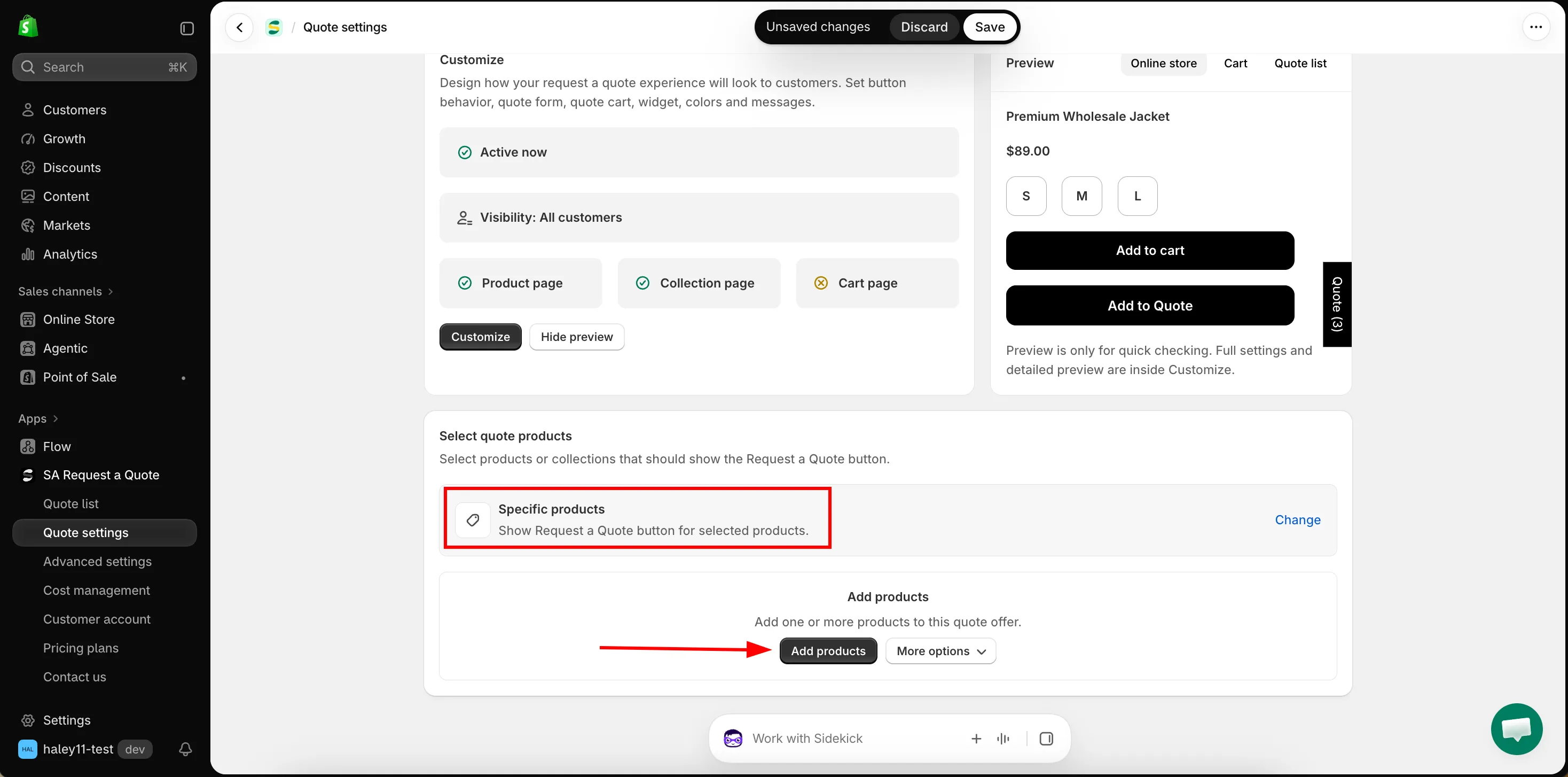
Section titled “使用 Specific products 手動挑選”選擇 Specific products 後,商品表格會在 Select quote products 列下方展開。表格為空時會顯示 Add products:「Add one or more products to this quote offer.」
| 控制項 | 作用 |
|---|---|
| Add products | 開啟 Shopify 的商品選擇器,讓您搜尋商品目錄並勾選商品。 |
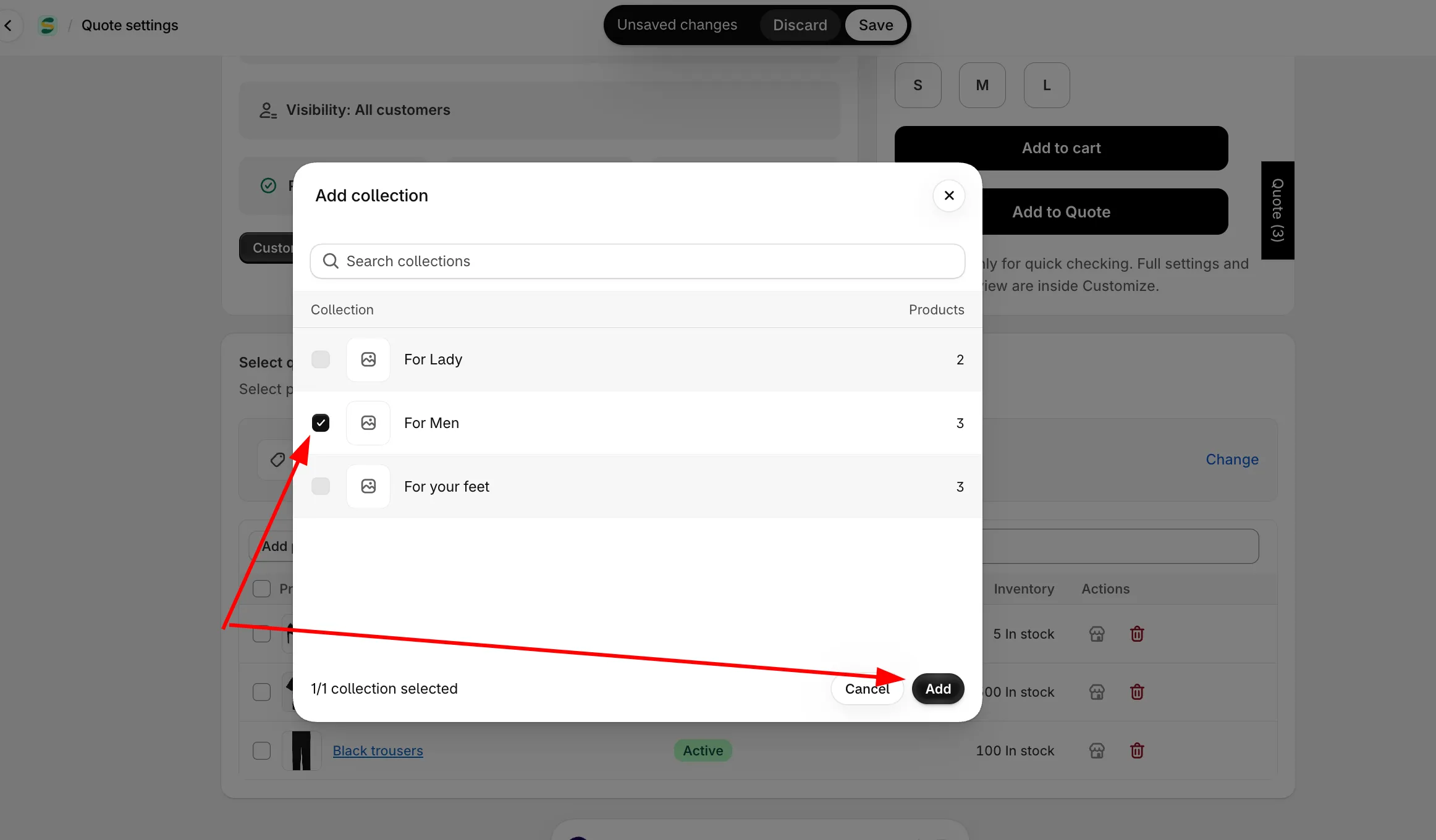
| More options → Add from collection | 選擇一個商品系列,然後從中挑選商品。應用程式會逐步引導您:「Step 1: Choose one collection, then select products from it.」和「Step 2: Select products from the chosen collection.」Add all products 可一次加入整個商品系列。 |
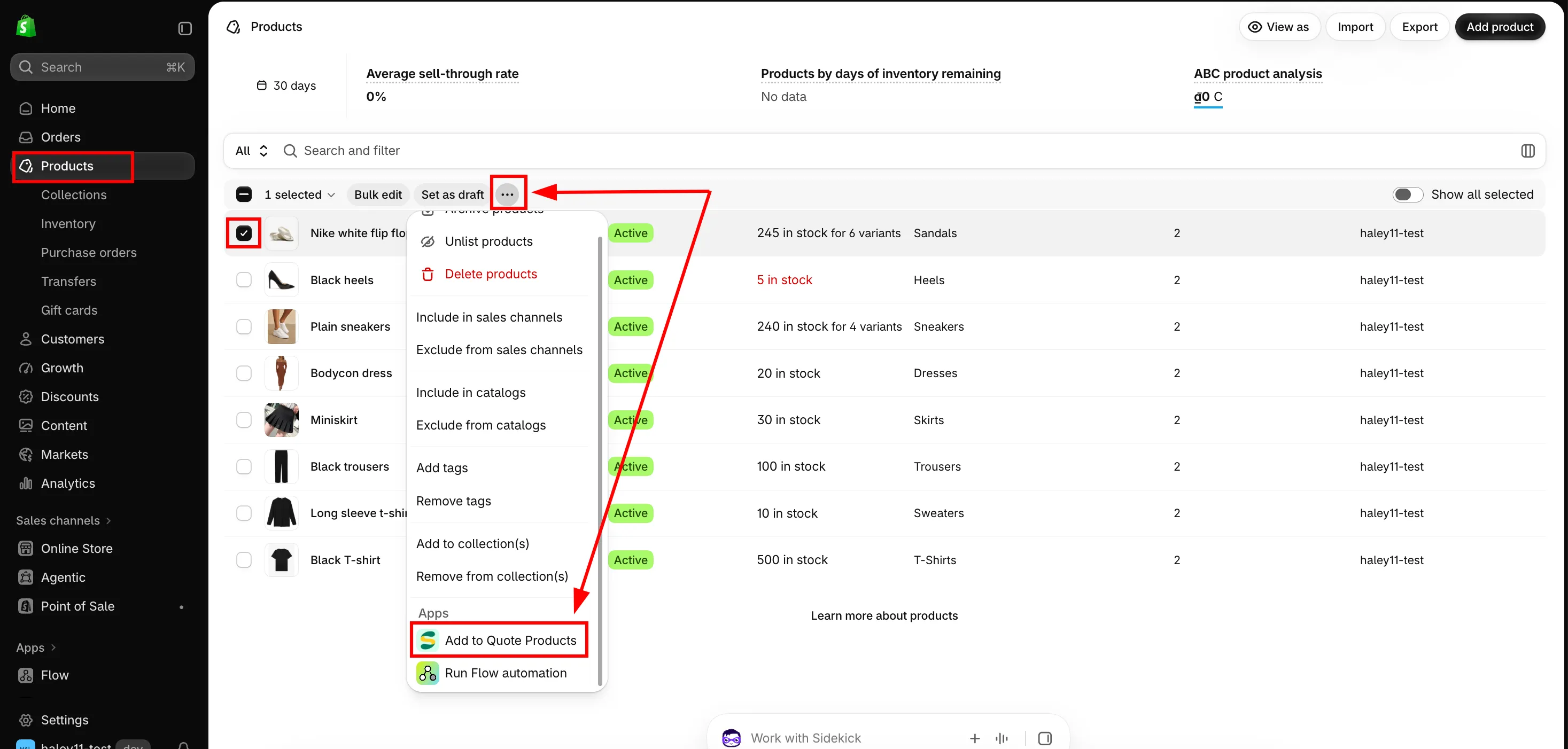
| More options → Add from admin | 改用 Shopify 本身的商品篩選器。依供應商、狀態、標籤或其他條件篩選商品頁面,選取結果後,點擊 更多動作 → Add to quote offer。 |
| Search products | 篩選的是您已建立的清單,而不是整個商品目錄。 |
表格中的每一列會顯示商品及其縮圖、Status 和 Inventory,並提供兩個動作:在線上商店中開啟該商品,以及從清單中移除。勾選多列後會出現 Clear selection 和 Remove selected items。移除只會將商品從此清單中取出,不會影響商品本身。
More options → Add from collection
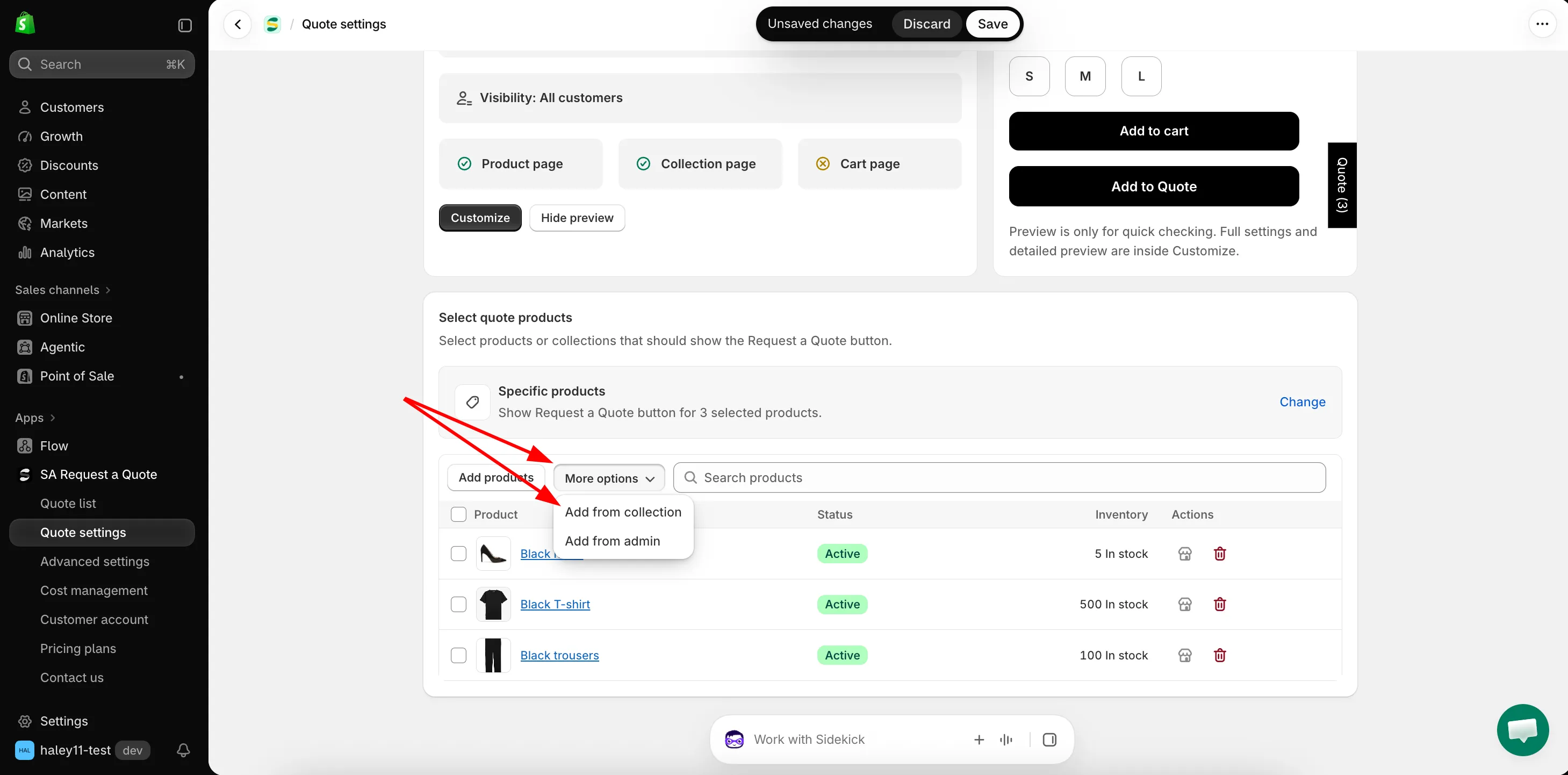
More options → Add from admin
選取內容決定的事項
Section titled “選取內容決定的事項”Select quote products 決定哪些商品會顯示 Request a Quote 按鈕,無論按鈕出現在哪裡。
| 決定的事項 | 意義 |
|---|---|
| 哪些商品頁面會顯示報價按鈕 | 不在選取範圍內的商品永遠不會顯示按鈕,無論 Product page button position 如何設定。 |
| 哪些商品卡片會在商品系列頁面上顯示按鈕 | 同一份選取內容也涵蓋您的商品系列格狀列表,請參閱 商品系列頁面上的報價按鈕。 |
這與按鈕出現的位置是分開的
Section titled “這與按鈕出現的位置是分開的”Select quote products 決定_哪些_商品可以報價。Button & widget 標籤中的 Button position 則決定按鈕顯示在這些商品的_哪個位置_。兩者都設定好之後,商店前台才會出現內容。
如果您預期的商品上沒有出現按鈕,請先檢查這項選取內容,請參閱 商品頁面上的報價按鈕。
需要協助嗎?
Section titled “需要協助嗎?”如果符合您選取條件的商品仍然沒有顯示按鈕,請將該商品的網址和您的 Select quote products 設定寄給我們,請參閱 聯絡支援團隊。
- 隱藏價格總覽:隱藏您已設為可報價的商品價格
- 商品頁面上的報價按鈕:按鈕出現的位置
- 要求登入才能報價:哪些顧客可以看到按鈕