
Create an API key
Create, name and revoke API keys in Advanced settings, and choose exactly what each key is allowed to do.
Questi contenuti non sono ancora disponibili nella tua lingua.
API keys are managed in the app, on Advanced settings > Public API. You can have up to 5 active keys per store. Create one key for each tool that connects to your quotes, so you can revoke one without breaking the others.
The Public API page
Section titled “The Public API page”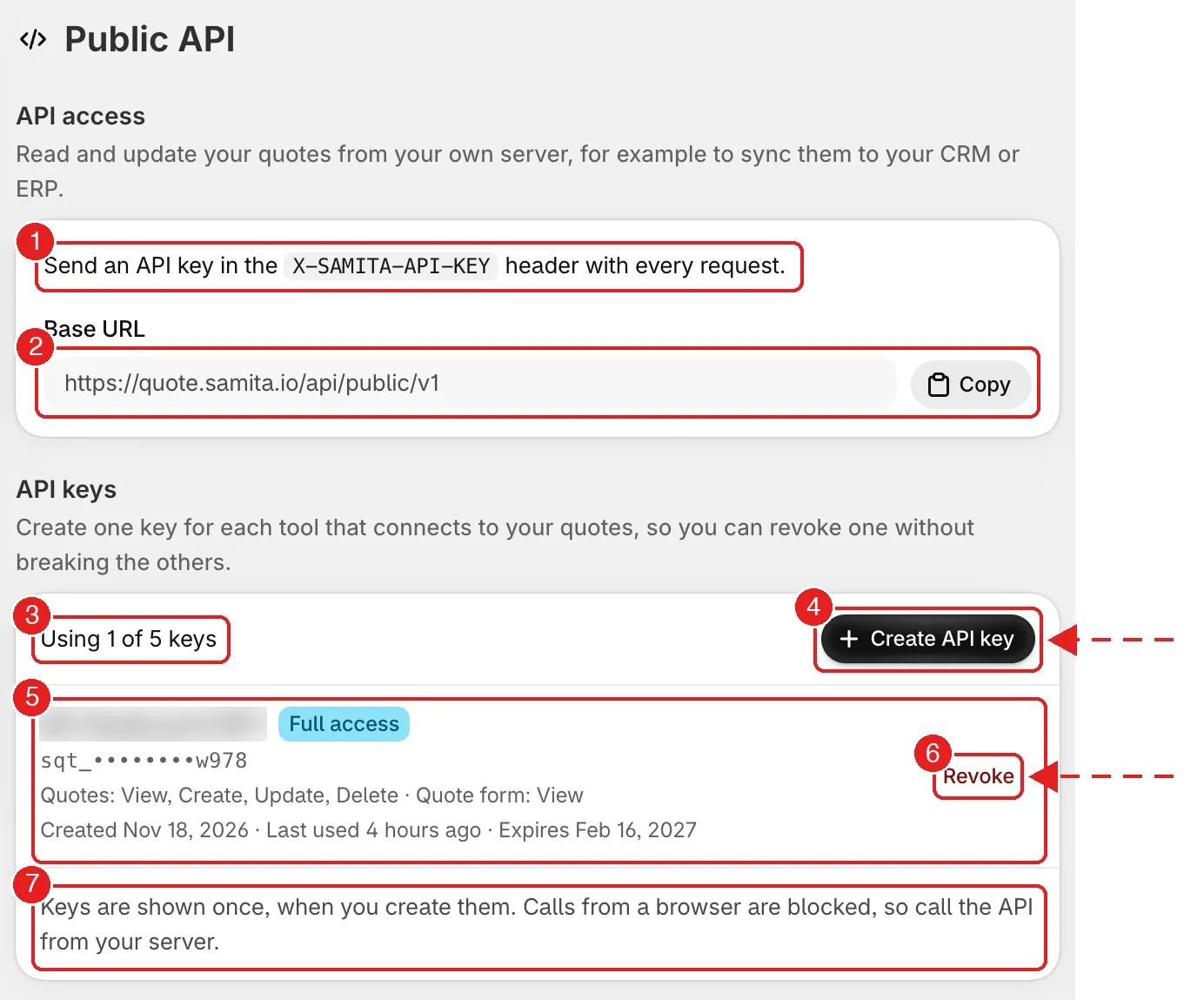
The Public API page.
| # | Area | What it shows |
|---|---|---|
| 1 | Header instruction | "Send an API key in the X-SAMITA-API-KEY header with every request." |
| 2 | Base URL | The address every request goes to, with a Copy button. |
| 3 | Using 1 of 5 keys | How many of your 5 active keys are in use. |
| 4 | Create API key | Opens the form to make a new key. |
| 5 | A key row | Its name, a Full access or Limited access badge, the key with most characters hidden, its permissions, when it was created, last used and when it expires. |
| 6 | Revoke | Switches the key off for good. |
| 7 | Footer note | "Keys are shown once, when you create them. Calls from a browser are blocked, so call the API from your server." |
Create a key
Section titled “Create a key”-
Open the form
Section titled “Open the form”Select Create API key. If you already have 5 active keys the button is disabled and the app says “This store already has 5 API keys. Revoke one to create a new key.” If your plan does not include the Public API it says “Your plan does not include the Public API.”
-
Fill it in
Section titled “Fill it in”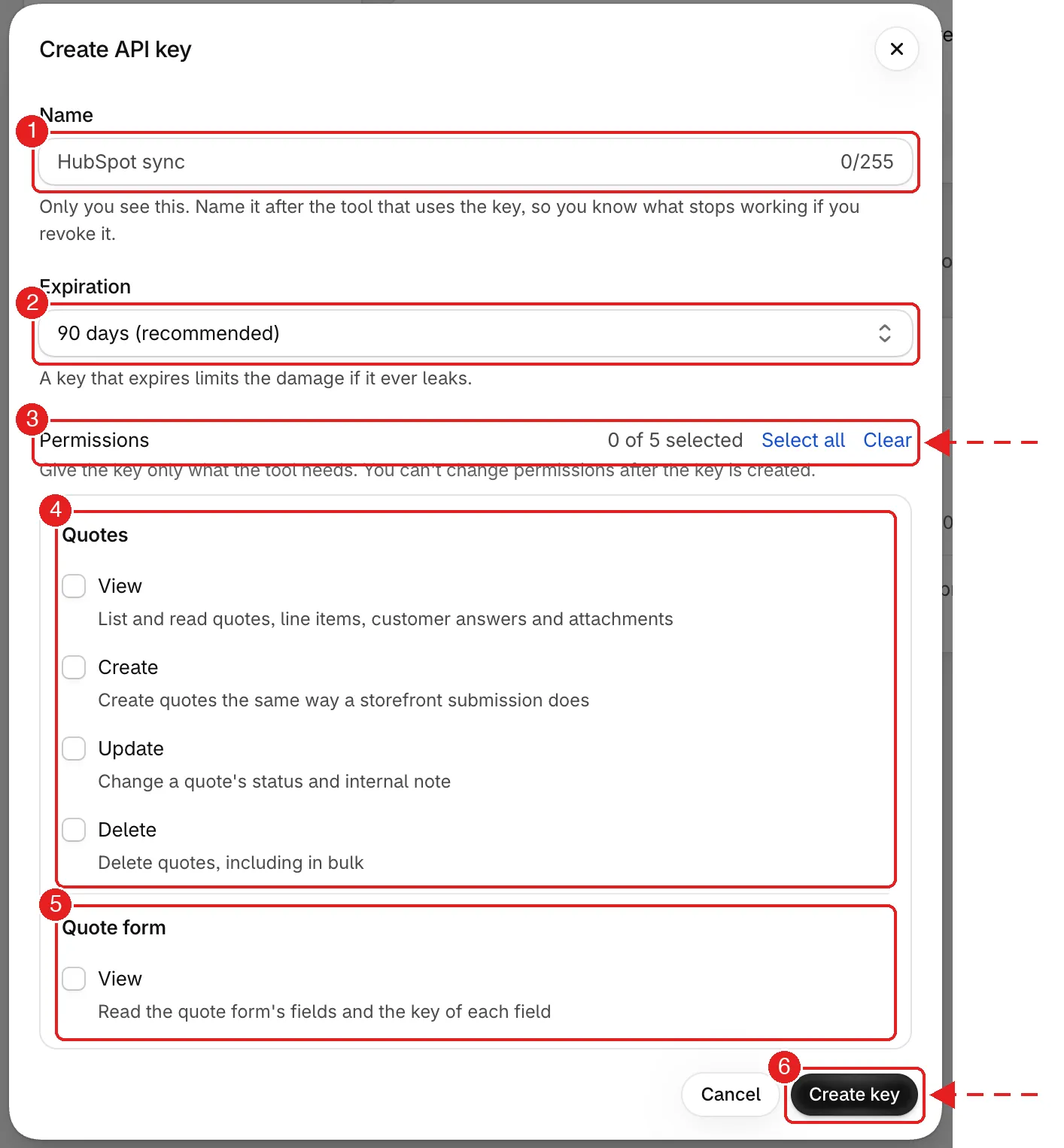
The Create API key form.
# Field What to do 1 Name Up to 255 characters. Only you see it. Name it after the tool that uses the key, such as "HubSpot sync", so you know what stops working if you revoke it. 2 Expiration How long the key lasts: **30 days**, **90 days (recommended)**, **1 year** or **Never expires**. A key that expires limits the damage if it ever leaks. 3 Permissions Tick what the key may do. The counter reads "0 of 5 selected", with Select all and Clear. 6 Create key Makes the key. The permissions are grouped:
Group Permission What it allows Quotes (4) View List and read quotes, line items, customer answers and attachments. Create Create quotes the same way a storefront submission does. Update Change a quote's status and internal note. Delete Delete quotes, including in bulk. Quote form (5) View Read the quote form's fields and the key of each field. The app will not create a key with no name (“Enter a name for this key.”) or no permission (“Select at least one permission.”).
-
Copy the key now
Section titled “Copy the key now”After Create key, a window titled Copy your API key shows the full key once, with a Copy button. It reads: “This is the only time you can see this key. Copy it now and keep it somewhere safe, like a password manager.”
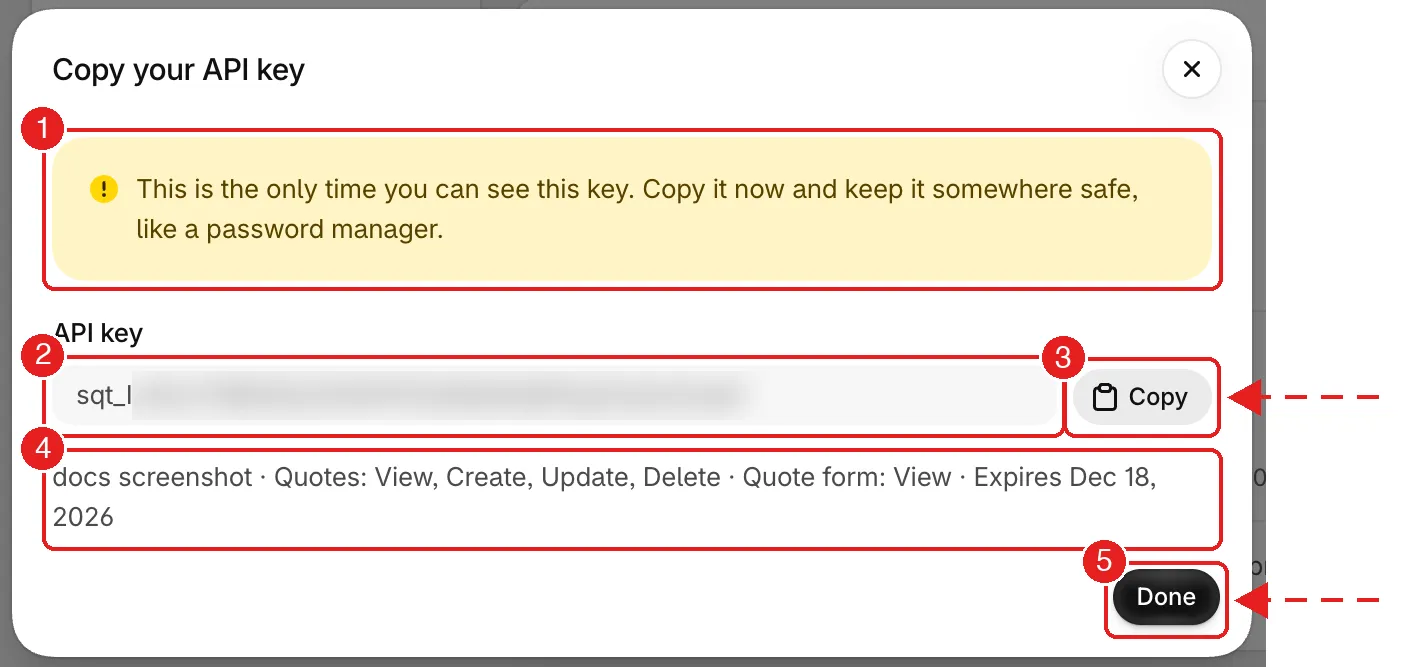
The only time the full key is shown. The key itself is hidden here.
# What it shows 1 The warning that this is the only time you can see the key. 2 The full key. It starts with sqt_.3 Copy puts the key on your clipboard. 4 A summary: the key's name, its permissions and when it expires. 5 Done closes the window. Select Done when you have saved the key. After that the app shows only the last four characters, and nobody — including Samita — can show it to you again.
Check which keys are in use
Section titled “Check which keys are in use”Each key row shows when it was created, Last used (for example “4 hours ago”, or Never used) and when it expires (Expires with a date, or Never expires). A key close to its expiry gets an Expires in N days badge, and an expired key an Expired badge. Use this to find keys nothing uses any more, and revoke them.
Revoke a key
Section titled “Revoke a key”Select Revoke on the key. The app asks “Revoke {key name}?” and warns: “Anything that uses this key stops working right away. You can’t undo this.” Confirm with Revoke key.
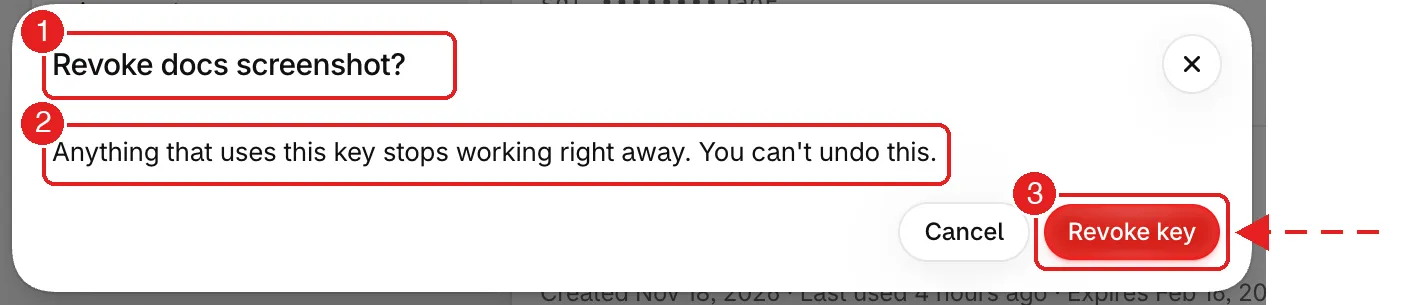
1 which key · 2 the warning · 3 Revoke key. The change is immediate, and the key stops counting against your 5.
Revoke a key as soon as you suspect it leaked, when the tool that used it is retired, or when the person who had it leaves.
Keep keys safe
Section titled “Keep keys safe”- Store a key in your server’s secrets or a password manager — never in source code, a web page, a mobile app or a chat message.
- Use one key per tool, with only the permissions it needs.
- Prefer a short expiry and rotate: create the new key, update the tool, then revoke the old key.
Next steps
Section titled “Next steps”- Authentication — send the key with each request
- Make your first call — confirm the key works