
Panoramica del modulo del preventivo
Dove si trova il modulo del preventivo, cosa può raccogliere e come è organizzato il form builder, prima di iniziare a modificare.
Il modulo del preventivo è ciò che la clientela compila per inviarti una richiesta. Tutto, dal template di partenza alle domande da porre fino all’aspetto, si imposta in un unico punto.
Dove si trova
Sezione intitolata “Dove si trova”Apri Quote settings. La pagina ha come titolo Request a Quote e la prima scheda è Customize:
Design how your request a quote experience will look to customers. Set button behavior, quote form, quote cart, widget, colors and messages.
Clicca Customize per aprire l’editor a schermo intero. Ha quattro schede: Button & widget, Quote form, Quote cart page e Success message. Tutto ciò che trovi in questa pagina riguarda la scheda Quote form.
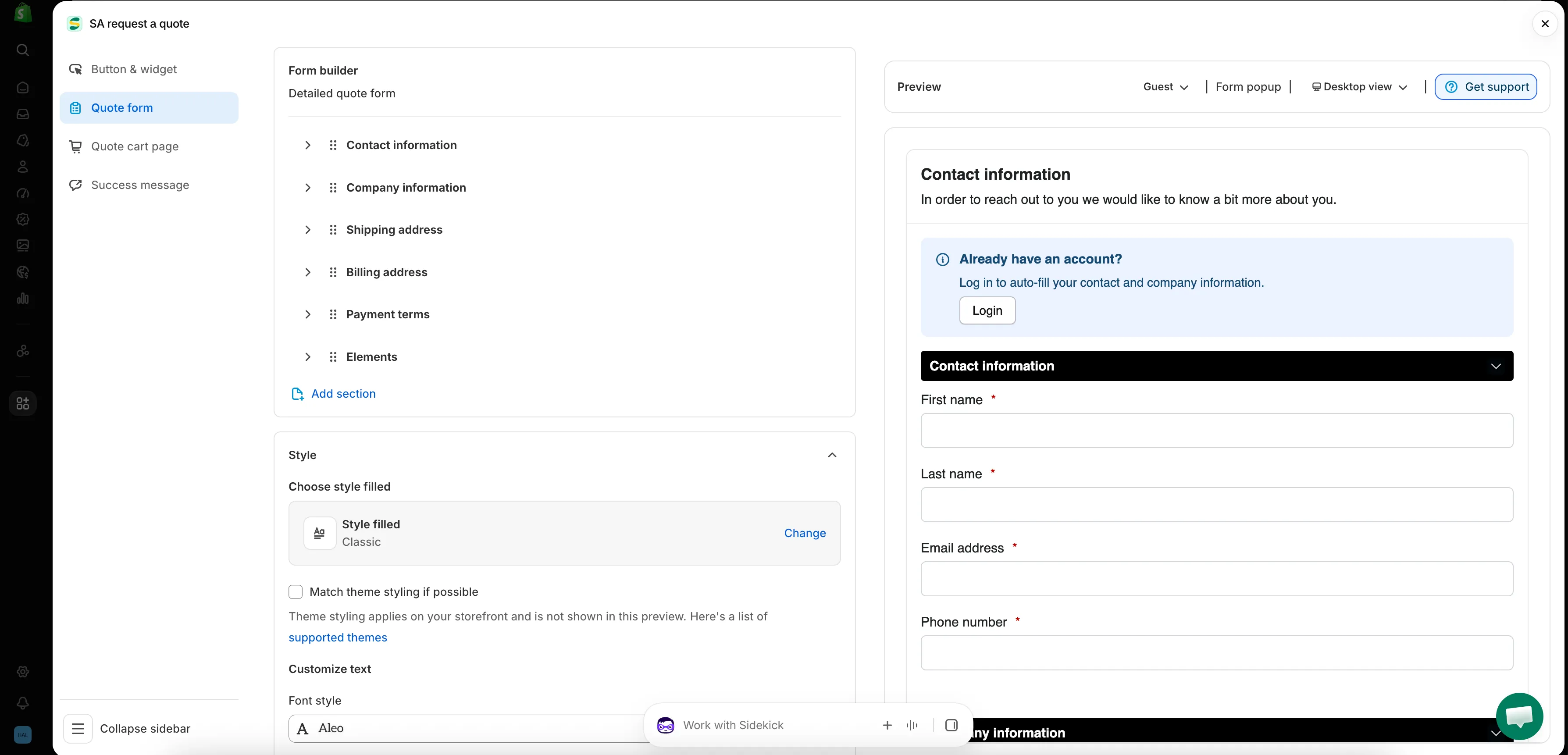
Ogni modulo dell’app si crea in questa schermata.
Come è organizzata la scheda Quote form
Sezione intitolata “Come è organizzata la scheda Quote form”| Sezione | Cosa controlla |
|---|---|
| Form template | Il template da cui parte il modulo, ad esempio B2B customer form. Change apre il selettore dei template. |
| Product page form display | «Show the quote form directly on product pages.» Si controlla con la casella Enable product page form display. |
| Form builder | Le domande vere e proprie, raggruppate in sezioni. Add element aggiunge un campo a una sezione; Add section ne aggiunge una completamente nuova. |
| Style | Il preset di stile e la casella Match theme styling if possible. |
| Customize text | Font style del modulo. |
| Customize form color | Title bar color, Title bar background, Color, Background color, Border color e Quote popup primary color. |
Parti dal template giusto
Sezione intitolata “Parti dal template giusto”Form template si trova in cima alla scheda e decide l’aspetto del resto. Si può scegliere tra più template e Change apre il selettore.
| Template | Come lo descrive l'app |
|---|---|
| Detailed quote form | «For custom orders, delivery, installation, or project-based quotes. Includes login autofill guidance.» |
| B2B customer form | «For wholesale or business buyers who need company, shipping, billing, and payment term information» |
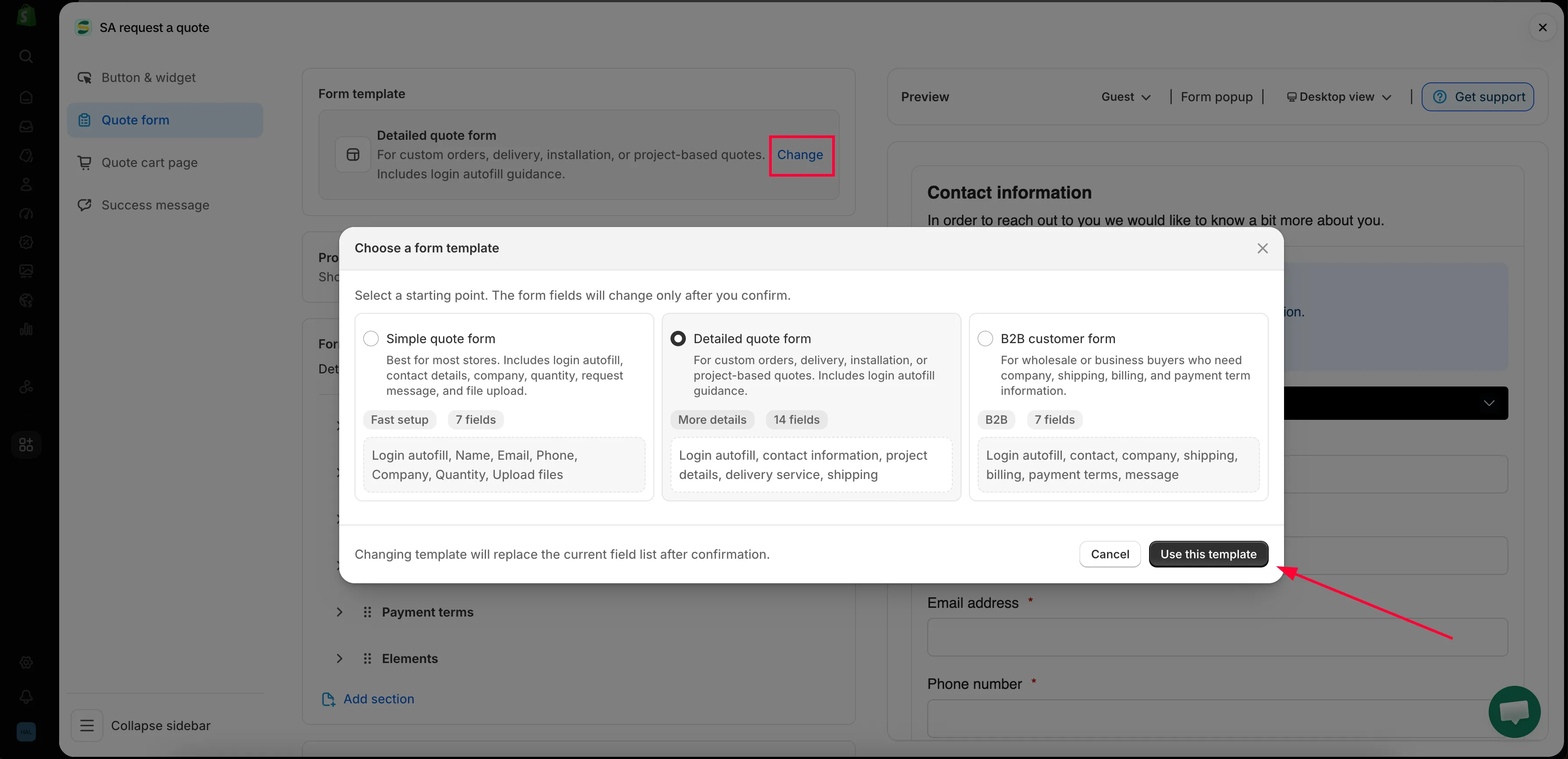
Change apre il selettore e il template decide il resto della scheda.
Le sezioni del Form builder
Sezione intitolata “Le sezioni del Form builder”Le sezioni del builder sono quelle fornite dal tuo template, quindi questo elenco non è uguale in tutti i negozi.
| Template | Sezioni incluse |
|---|---|
| Detailed quote form | Contact information · Shipping address · Extra info |
| B2B customer form | Contact information · Company information · Shipping address · Billing address · Payment terms · Extra info |
Ogni sezione si espande, così puoi vedere e modificare i campi al suo interno.
| Sezione | Cosa raccoglie |
|---|---|
| Contact information | First name, Last name, Email address, Phone number, Address |
| Company information | Company name |
| Shipping address | Country/region, First name, Last name, Company/attention, Address, Apartment suite etc, City, Postal code, Phone number |
| Billing address | Una casella Billing address same as shipping address, poi gli stessi campi |
| Payment terms | Payment terms, una casella Required deposit e Deposit |
| Extra info | Message nel B2B customer form; Project detail e Delivery service nel Detailed quote form, più qualsiasi altro campo aggiungi tu |
Cosa si trova nelle altre schede
Sezione intitolata “Cosa si trova nelle altre schede”Due cose che spesso si cercano nella scheda Quote form si trovano in realtà in Quote cart page:
- Enable Quote Sections: «Lets customers group the products in their quote cart into named sections.»
- Quote form appearance: «Controls how the quote form looks on the quote cart page.» Scegli Multiple step oppure Single page.
Il testo e la posizione del pulsante del preventivo si impostano in Button & widget.
Da dove iniziare
Sezione intitolata “Da dove iniziare”- Crea un modulo standard: crea il tuo modulo da zero
- Crea un modulo B2B: il B2B customer form, con azienda, fatturazione e termini di pagamento
- Campi con i dati della clientela: contatti e indirizzi
- Gruppo di prodotti del preventivo: permetti alla clientela di suddividere un preventivo in sezioni con un nome
- Consenti il caricamento di file: quali tipi di file accetta l’app e lo spazio usato dai caricamenti
- Adatta lo stile al tuo tema: fai sembrare il modulo parte del resto del negozio
- Aggiungi reCAPTCHA: blocca gli invii di spam
Chiedi meno di quanto pensi
Sezione intitolata “Chiedi meno di quanto pensi”Ogni campo che aggiungi è un motivo in più per abbandonare il modulo. Chiedi ciò che ti serve davvero per formulare un prezzo: di solito dati di contatto, quantità e una casella di testo libero. Puoi sempre fare un seguito via email.
Passaggi successivi
Sezione intitolata “Passaggi successivi”- Crea un modulo standard: inizia a creare
- Panoramica sulla raccolta delle richieste di preventivo: da dove la clientela raggiunge questo modulo