
詢價頁面
設定報價購物車頁面,讓顧客在此檢視已收集的商品並向您送出詢價。
應用程式將此頁面稱為 Quote cart page。在您的商店前台,它是標題為「Request for quote」、路徑為 /pages/request-for-quote 的頁面,應用程式對它的說明是:“Shows the quote form and the customer’s quote cart.”
詢價實際上就是從這裡送出的。顧客可以看到所有已加入的商品、調整內容、填寫您的表單並送出。
找到頁面設定
Section titled “找到頁面設定”-
開啟 Customize 編輯器
Section titled “開啟 Customize 編輯器”前往 Quote settings。在 Request a Quote 頁面上,點擊 Customize。
-
開啟 Quote cart page 索引標籤
Section titled “開啟 Quote cart page 索引標籤”編輯器有四個索引標籤:Button & widget、Quote form、Quote cart page 和 Success message。本頁的所有設定都在 Quote cart page 索引標籤上。
-
讓 Pages 區段指向正確的頁面
Section titled “讓 Pages 區段指向正確的頁面”這是需要檢查的設定,不只是閱讀而已。Pages 中有兩個頁面選擇器:Quote cart page(“Shows the quote form and the customer’s quote cart.”)和 Quote history page(“Shows a logged-in customer’s past quotes.”)。
點擊 Quote cart page。畫面會開啟一個面板,內有 Search by page title or URL 搜尋框和 Select page 清單,列出您商店的頁面,每個頁面都顯示其標題、路徑和 Published 或 Draft 標記。請選擇 Request for quote,即
/pages/request-for-quote。如果搜尋不到任何結果,面板會顯示 Create page automatically,而不是清單。
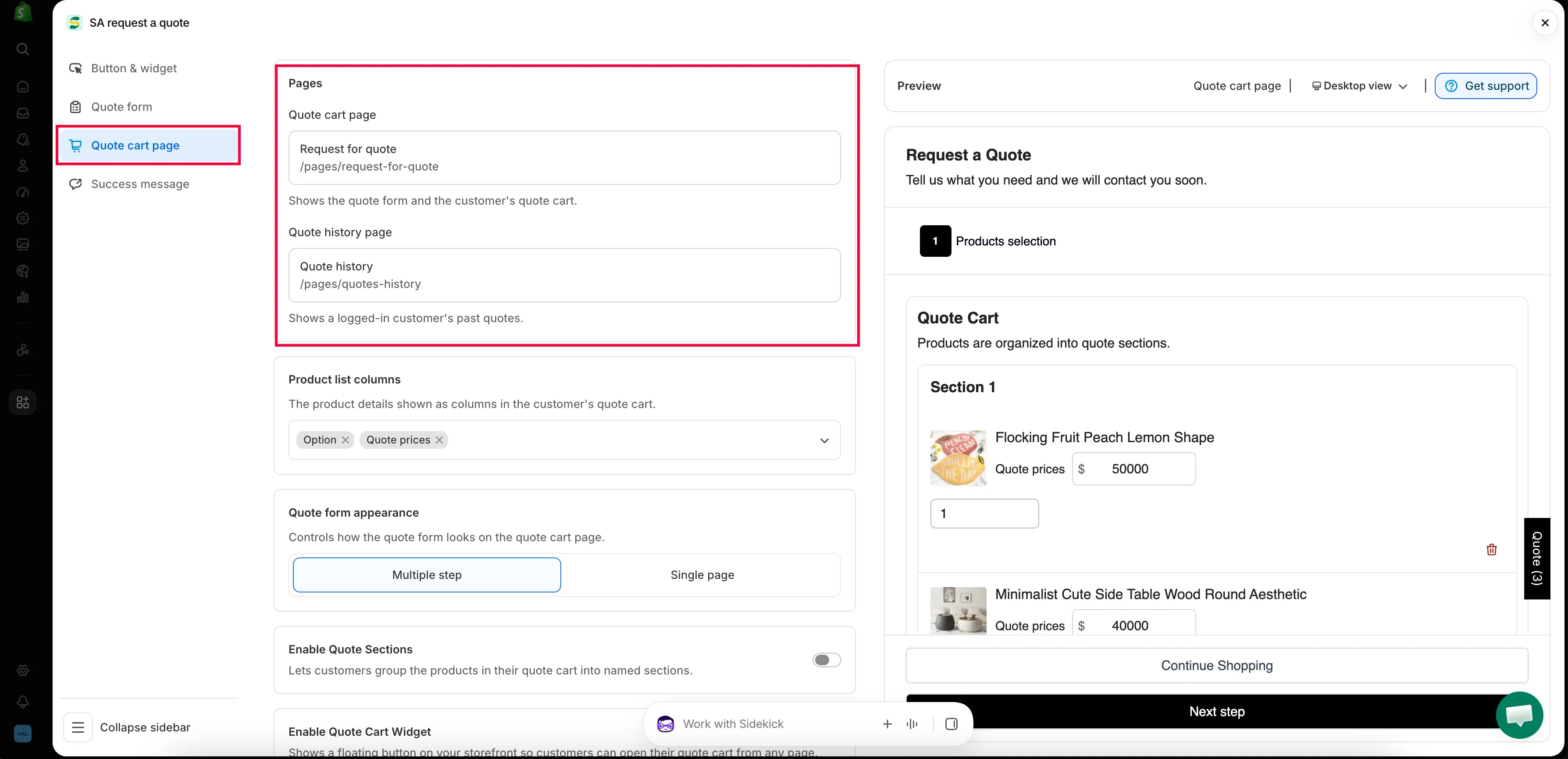
報價購物車頁面在此索引標籤中設定。
-
在編輯器中所做的任何變更,儲存後才會生效。只要您有任何變更,頂端就會出現儲存列,請點擊其中的 Save。
如果您在尚有未儲存的內容時嘗試離開,應用程式會詢問 “Discard all unsaved changes”,並提醒 “If you discard changes, you’ll delete any edits you made since you last saved.”。除非您確實要捨棄這些編輯,否則請選擇 Continue editing 並儲存。
引導顧客前往此頁面
Section titled “引導顧客前往此頁面”設定好頁面並不會讓任何人進入該頁面。有兩種途徑可以設定,每一種都要以 Save 完成,並在商店前台確認。
途徑 1:從報價按鈕直接前往
Section titled “途徑 1:從報價按鈕直接前往”-
開啟 Button & widget 索引標籤
Section titled “開啟 Button & widget 索引標籤”在 Customize 中,點擊 Button & widget 索引標籤。
-
將 Click action 設為 Redirect to quote page
Section titled “將 Click action 設為 Redirect to quote page”在 Click action 標題之下,選擇 Redirect to quote page,應用程式自己的說明為 “Go directly to quote cart page”。另外兩個選項會讓顧客停留在原頁面:Open quote form popup 和 Add product to quote cart。
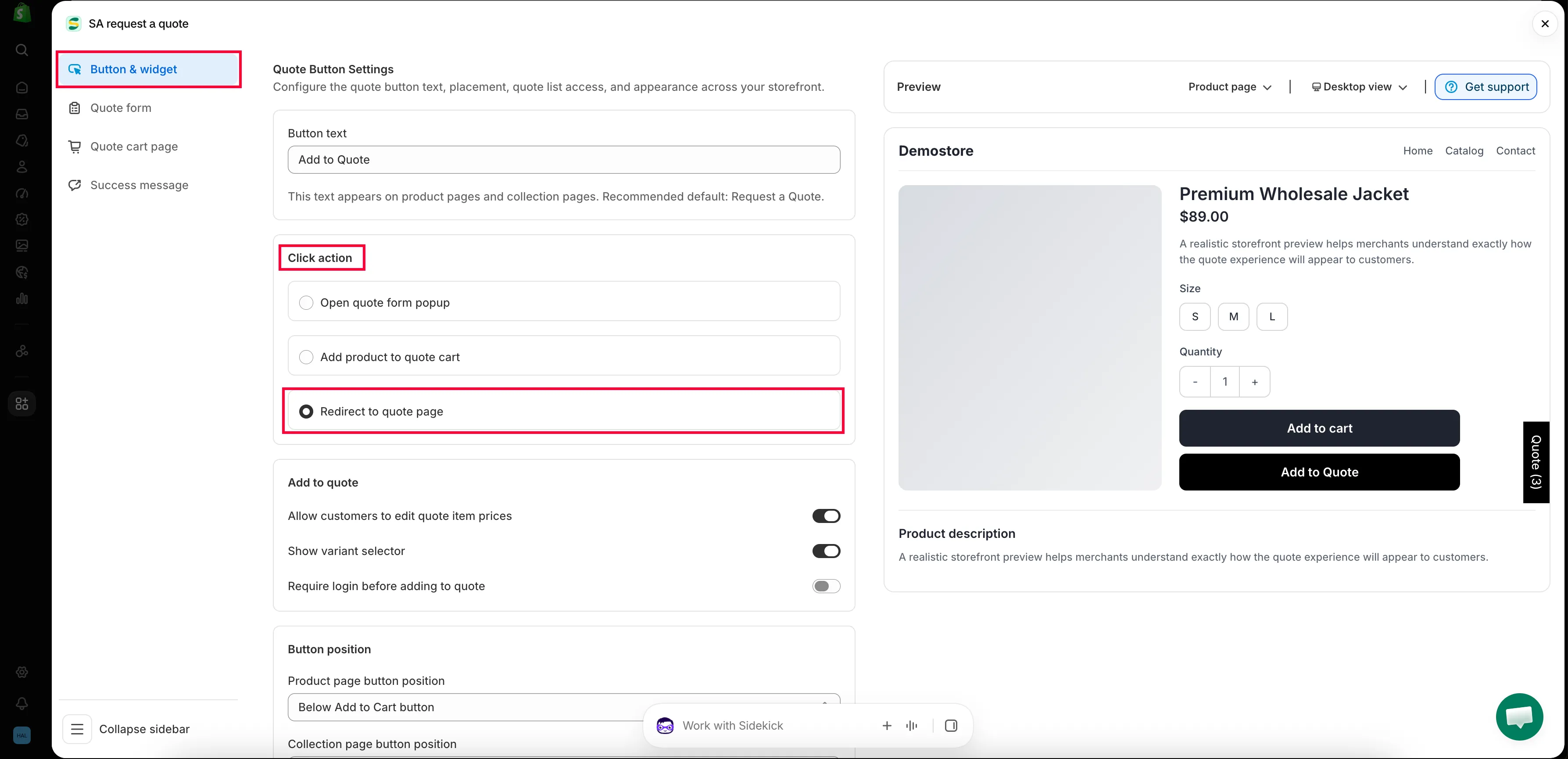
-
確認前往的頁面
Section titled “確認前往的頁面”回到 Quote cart page 索引標籤,確認 Pages > Quote cart page 如上所述指向 Request for quote。重新導向和頁面設定是分在兩處的同一件事,只設定其中一個,按鈕就不會把顧客帶到有用的地方。
-
儲存,然後以顧客身分試用
Section titled “儲存,然後以顧客身分試用”點擊 Save。接著在商店前台開啟任一商品頁面並點擊您的報價按鈕。它應該會帶您前往
/pages/request-for-quote,且該商品已在報價購物車中。
途徑 2:讓顧客從浮動小工具開啟
Section titled “途徑 2:讓顧客從浮動小工具開啟”-
開啟 Enable Quote Cart Widget
Section titled “開啟 Enable Quote Cart Widget”在 Quote cart page 索引標籤上,捲動至 Enable Quote Cart Widget:“Shows a floating button on your storefront so customers can open their quote cart from any page.”
-
切換開啟 Enable quote cart widget。開啟後,才會顯示其餘設定。
-
將 Action 設為前往報價購物車頁面
Section titled “將 Action 設為前往報價購物車頁面”Action 決定點擊後的行為。請選擇 Go to quote cart page,某些版本的應用程式會將同一個選項標示為 Go to quote page。另一個選項 Open quote popup 會在彈出視窗中開啟報價,不會帶顧客前往此頁面,所以只有在您確實想要這樣時才選它。
這是大家常漏掉的設定。小工具已開啟但仍停在 Open quote popup,看起來就像是通往報價頁面的連結壞掉了。
-
設定文案與外觀
Section titled “設定文案與外觀”Text 是小工具本身的標籤。Position 決定位置:Bottom right、Half bottom right、Half top right、Bottom left、Half bottom left 或 Half top left。Border radius、Text color 和 Background color 用來完成樣式設定,如果您選擇了彈出視窗動作,還有 Quote popup primary color 可用。
-
儲存,然後以顧客身分試用
Section titled “儲存,然後以顧客身分試用”點擊 Save。開啟商店前台的任一頁面:浮動小工具應該會出現,預設顯示 Quote (n),其中包含其內的商品數量。點擊它應該會直接前往報價購物車頁面。
選擇顧客看到的商品詳細資料
Section titled “選擇顧客看到的商品詳細資料”Product list columns 控制 “The product details shown as columns in the customer’s quote cart.”。點擊它即可開啟選擇器,其中有 Search product columns 搜尋框,以及 Choose Product list columns 之下的欄位清單。您選擇的每個欄位都會以標籤形式加入,也可以再移除。
完整清單包含 Vendor、SKU、Option、Price、Quote prices、Total、Subtotal 和 Note。如果您從未調整過此設定,目前使用的是 Option 和 Price。
| 欄位 | 適合顯示的情況 |
|---|---|
| Vendor | 您轉售多個品牌,且買家依品牌訂購。 |
| SKU | 您的買家依編號訂購,貿易和批發顧客通常如此。 |
| Option | 您的商品有多種款式,顧客需要看到自己選了哪一種。 |
| Price | 您公開定價,並希望顧客在建立詢價時看到價格。 |
| Quote prices | 您讓顧客提出期望的價格,請參閱讓顧客提議價格。 |
| Total | 顧客大量訂購,而逐行的合計有助於他們判斷詢價的規模。 |
| Subtotal | 您想要整筆詢價的金額,而不只是每一行的金額。 |
| Note | 顧客需要針對單一品項說明,例如表面處理、期限或替代品。 |
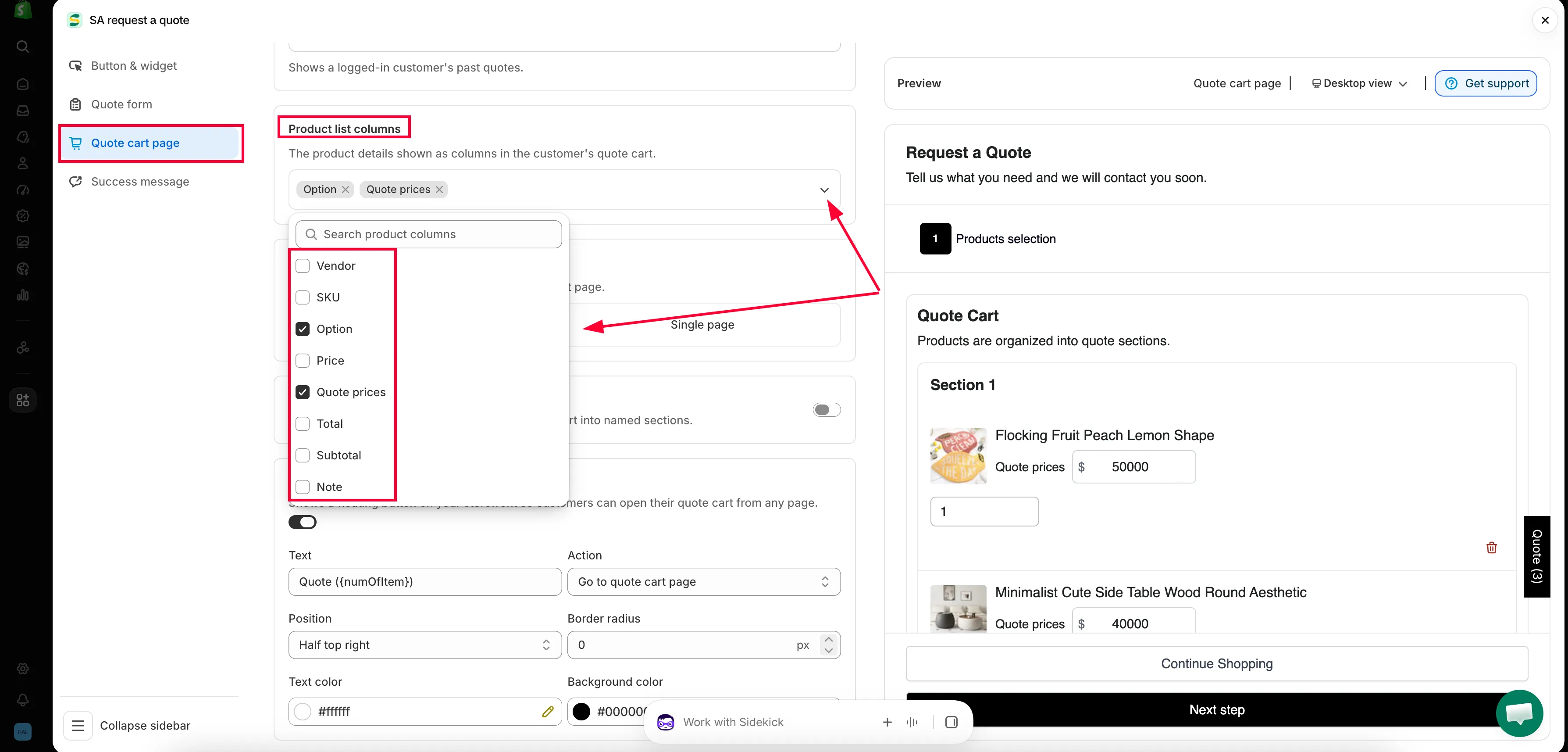
選擇報價購物車使用的商店前台頁面。
選擇表單的版面配置
Section titled “選擇表單的版面配置”Quote form appearance “Controls how the quote form looks on the quote cart page.” 有兩種選擇。
| 選項 | 顧客看到的內容 | 最適合 |
|---|---|---|
| Multiple step | 表單分成數個步驟,顧客一次完成一步。 | 較長的表單,例如公司資料、運送與帳單地址、付款條款。 |
| Single page | 所有欄位由上到下顯示在同一個畫面中。 | 簡短的表單,顧客一眼就能看完整體。 |
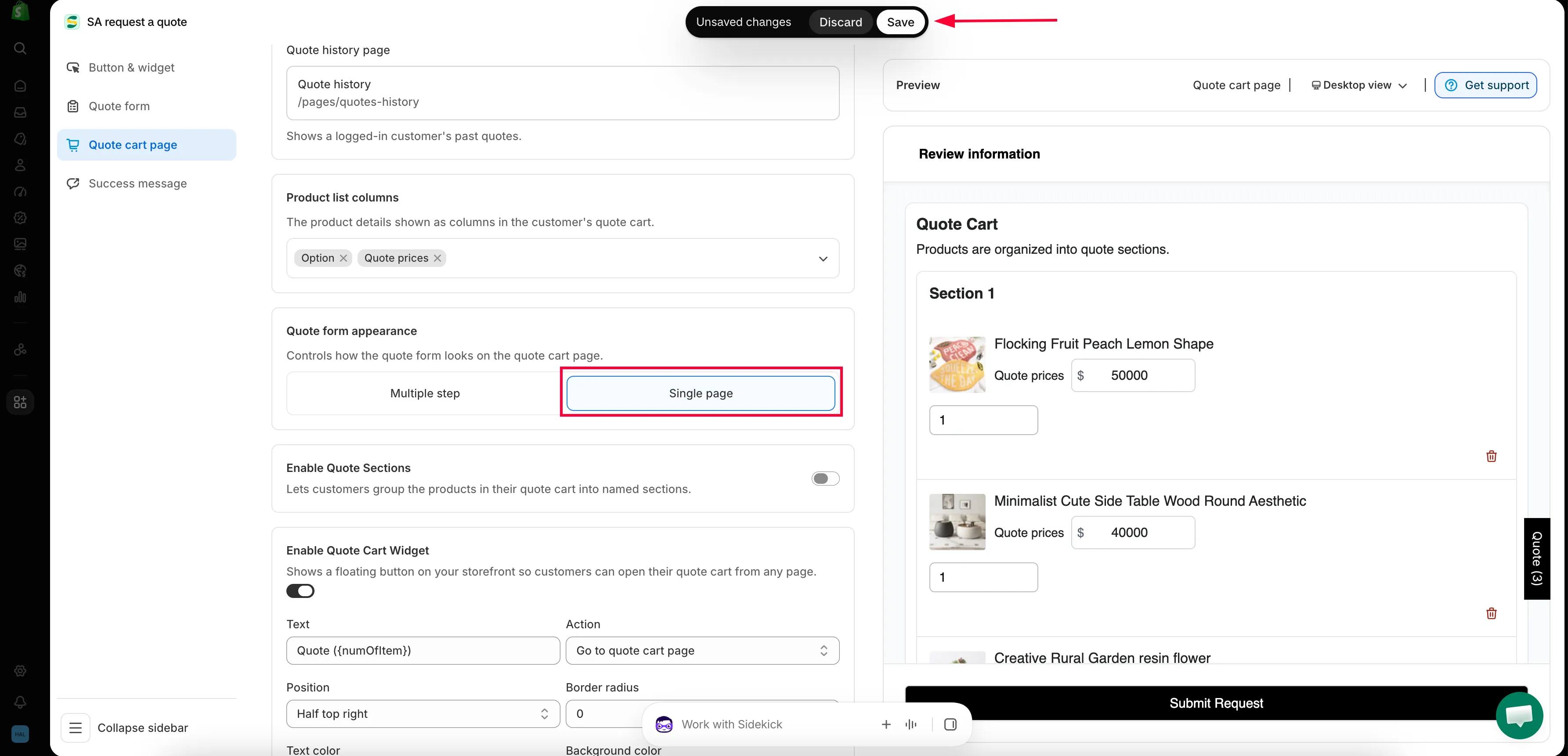
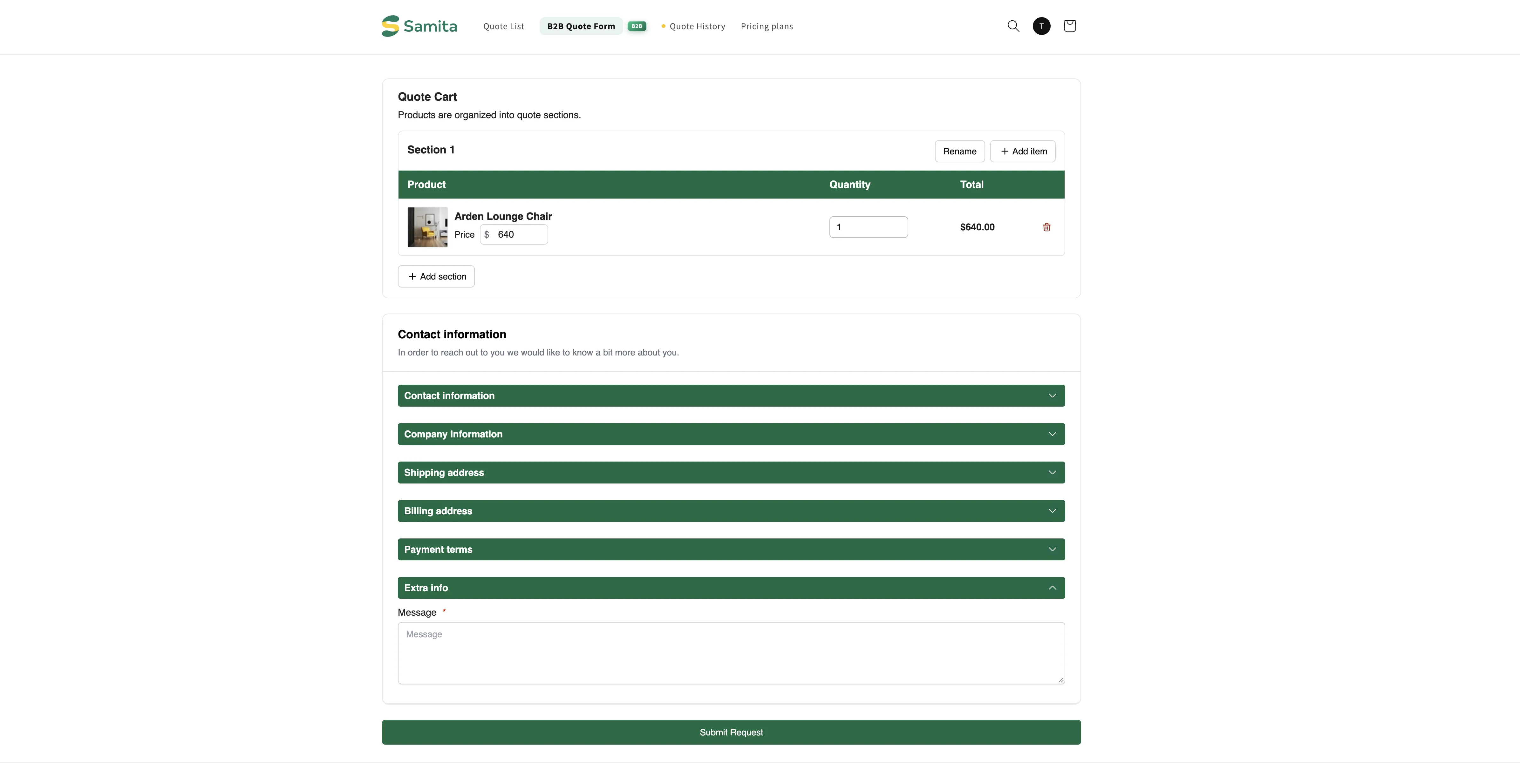
Multiple step 表單的外觀
Section titled “Multiple step 表單的外觀”選擇 Multiple step 後,商店前台頁面開啟時會顯示標題 Request a Quote 和一行文字 “Tell us what you need and we will contact you soon.”,接著是三個編號步驟。
-
Products selection
Section titled “Products selection”Quote Cart 會列出顧客收集的所有商品,欄位有 Product、Quantity、Price 和 Total。開啟 Enable Quote Sections 後,購物車開頭會顯示 “Products are organized into quote sections.”,第一個群組名為 Section 1。
此步驟的最後有 Continue Shopping 和 Next step。
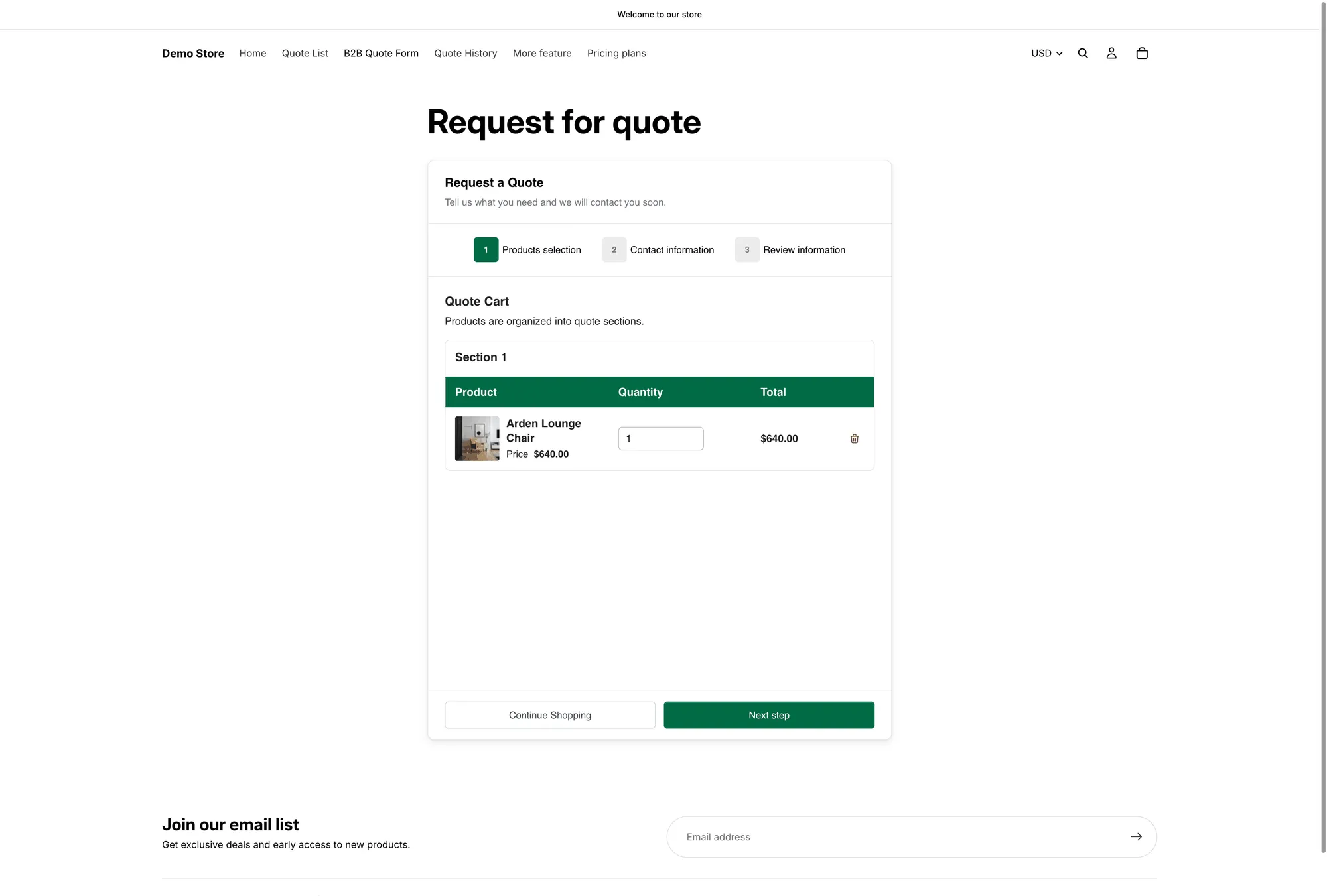
第 1 步 Products selection,位於 /pages/request-for-quote。
-
Contact information
Section titled “Contact information”此步驟會顯示您在 Form builder 中建立的區段:Contact information、Company information 和 Shipping address。
其上方有提示 “Already have an account? Log in to auto-fill your contact and company information.”,並附有 Login 連結。
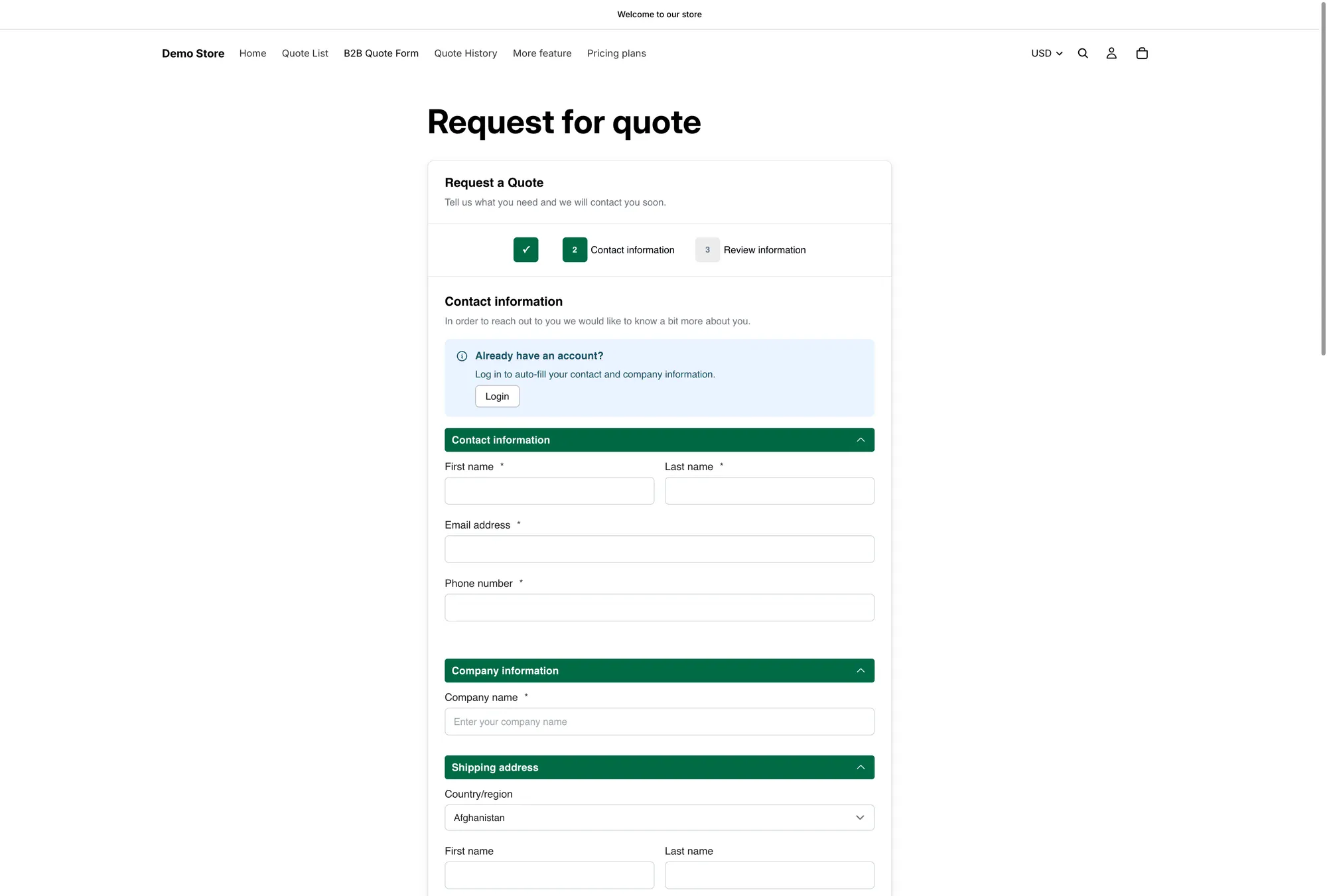
第 2 步 Contact information,欄位上方有登入提示。
-
Review information
Section titled “Review information”最後一步是 Review information,顧客會在送出詢價前,檢查商品和自己輸入的資料。
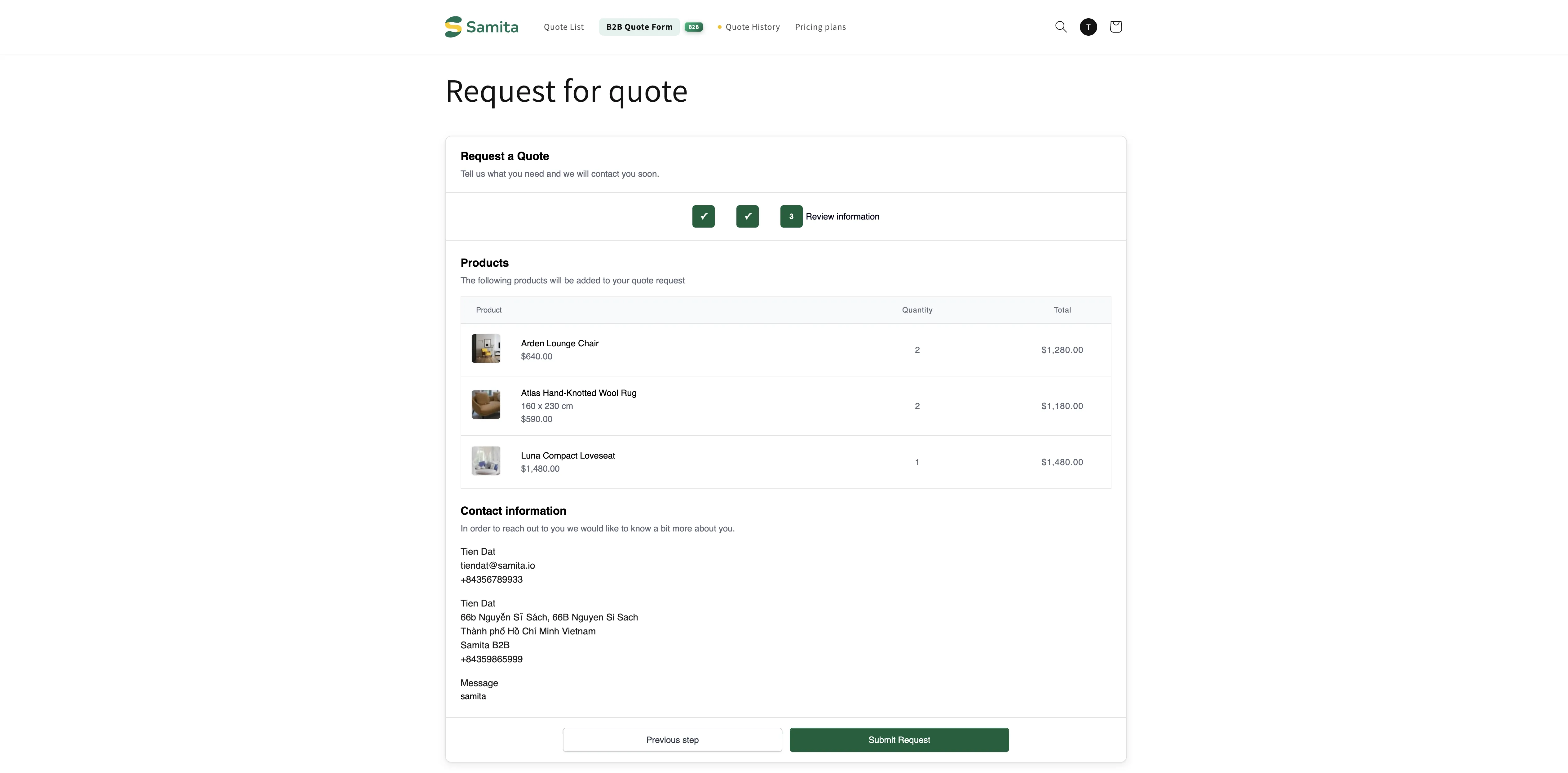
顧客在送出前檢查詢價內容。
顧客送出後看到的內容
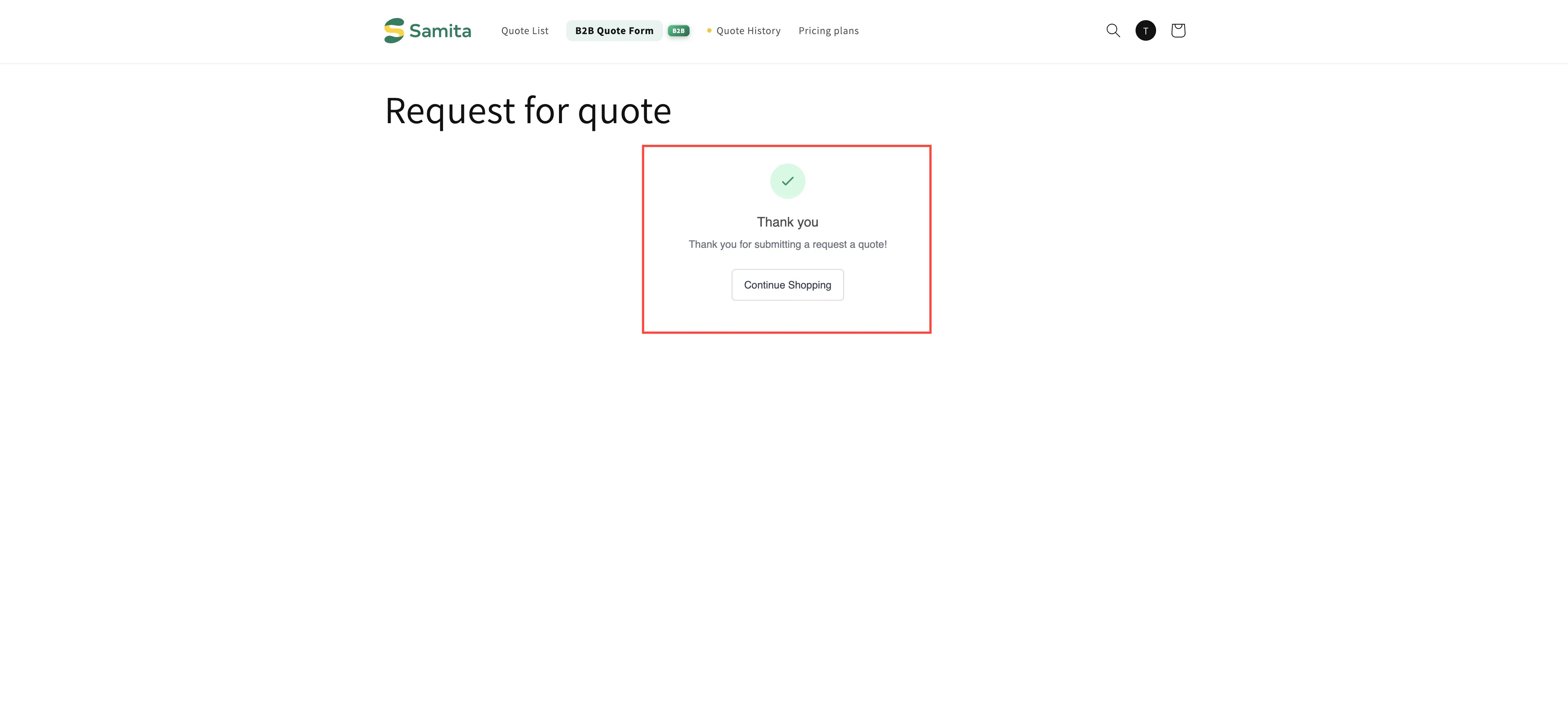
Section titled “顧客送出後看到的內容”詢價送出後,應用程式會顯示您的成功訊息,預設為 Thank you、“Thank you for submitting a request a quote!” 和一個 Continue Shopping 按鈕。
這段文案不屬於此索引標籤。它位於同一個 Customize 編輯器的 Success message 索引標籤,其中也有 After submit 和 Redirect to custom URL,如果您想把顧客導向自己的頁面,可以使用。
索引標籤上的其他設定
Section titled “索引標籤上的其他設定”| 設定 | 作用 |
|---|---|
| Enable Quote Sections | "Lets customers group the products in their quote cart into named sections." 請參閱報價商品群組 |
| Enable Quote Cart Widget | "Shows a floating button on your storefront so customers can open their quote cart from any page." 已在上方的途徑 2中設定,完整說明請見浮動報價小工具 |
開啟 Enable quote sections 會出現更多控制項:Default section name,以及 Customer options 之下的 Add new sections 和 Rename sections。另外兩個選項 Move products between sections 和 Add note per section 標示為 Coming soon。
顧客如何前往此頁面
Section titled “顧客如何前往此頁面”| 途徑 | 最適合的情況 |
|---|---|
| Click action 設為 Redirect to quote page | 顧客通常一次只詢價一項商品,因此不需要先收集。 |
| Click action 設為 Add product to quote cart,再搭配浮動小工具 | 顧客在瀏覽時會收集多項商品,再一併檢視。 |
彈出視窗的 Primary button,預設為 View Quote | 您希望每次加入商品時都顯示確認視窗。 |
| 導覽選單中的連結 | 一律建議也加上,讓顧客隨時都能回來。 |
前三項請在 Button & widget 索引標籤中設定,請參閱設定點擊後的行為。選單連結則是 Shopify 的設定,請參閱在選單中加入報價連結。
- 報價紀錄頁面:顧客查看已送出報價的地方
- 在選單中加入報價連結:從您的導覽連結到此頁面
- 編輯報價頁面文字:在頁面中加入您自己的文案