
顧客帳號中的報價
在 Shopify 新版顧客帳號中顯示報價、翻譯該區段,並設定已登入的顧客可以對自己的報價執行哪些操作。
報價可以顯示在顧客原本就用來查看訂單的帳號區域中,而不只是在獨立的商店前台頁面。這一切的設定都位於 App 導覽中的 Customer account 項目下。
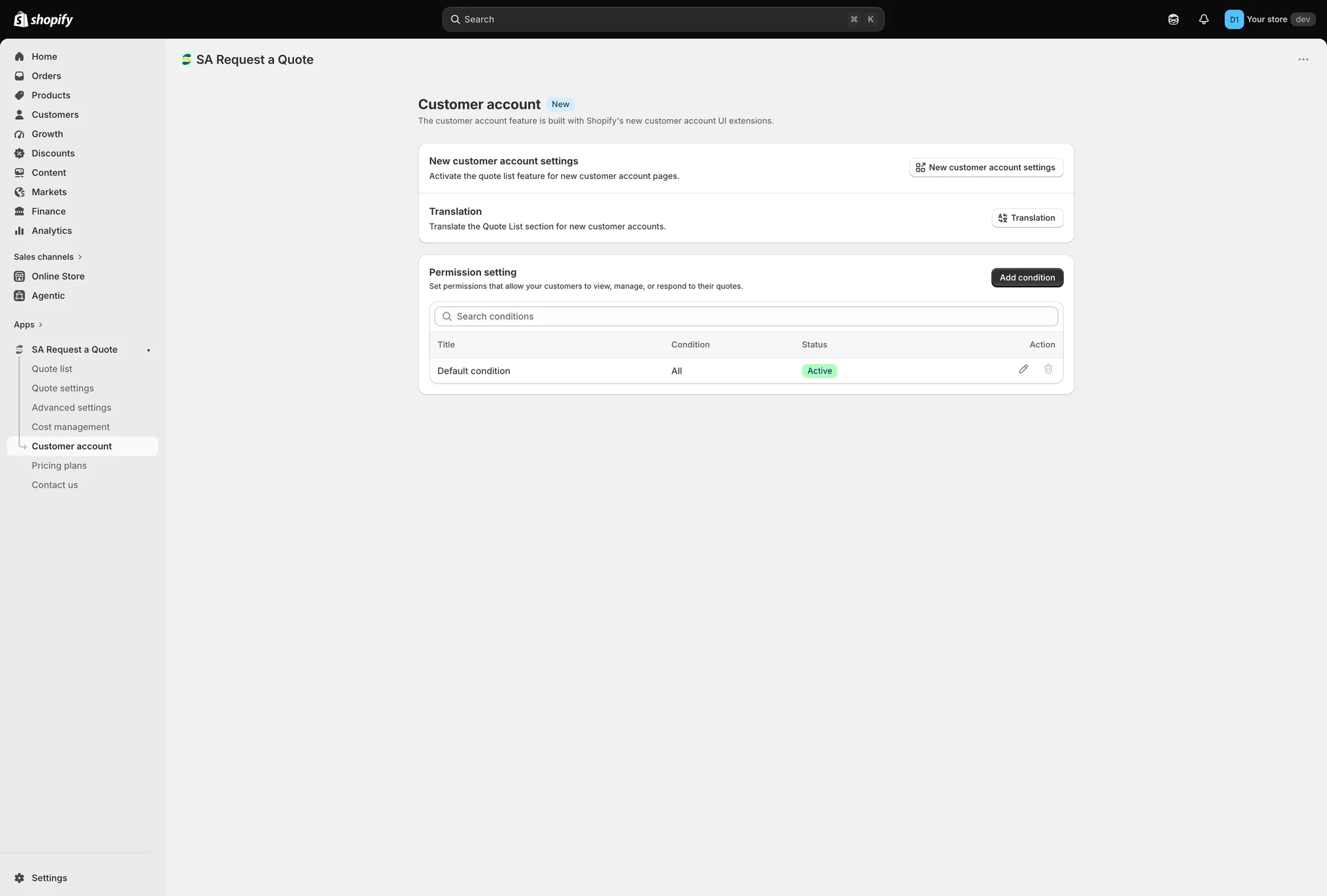
Customer account 頁面包含這三項設定。
頁面上有什麼
Section titled “頁面上有什麼”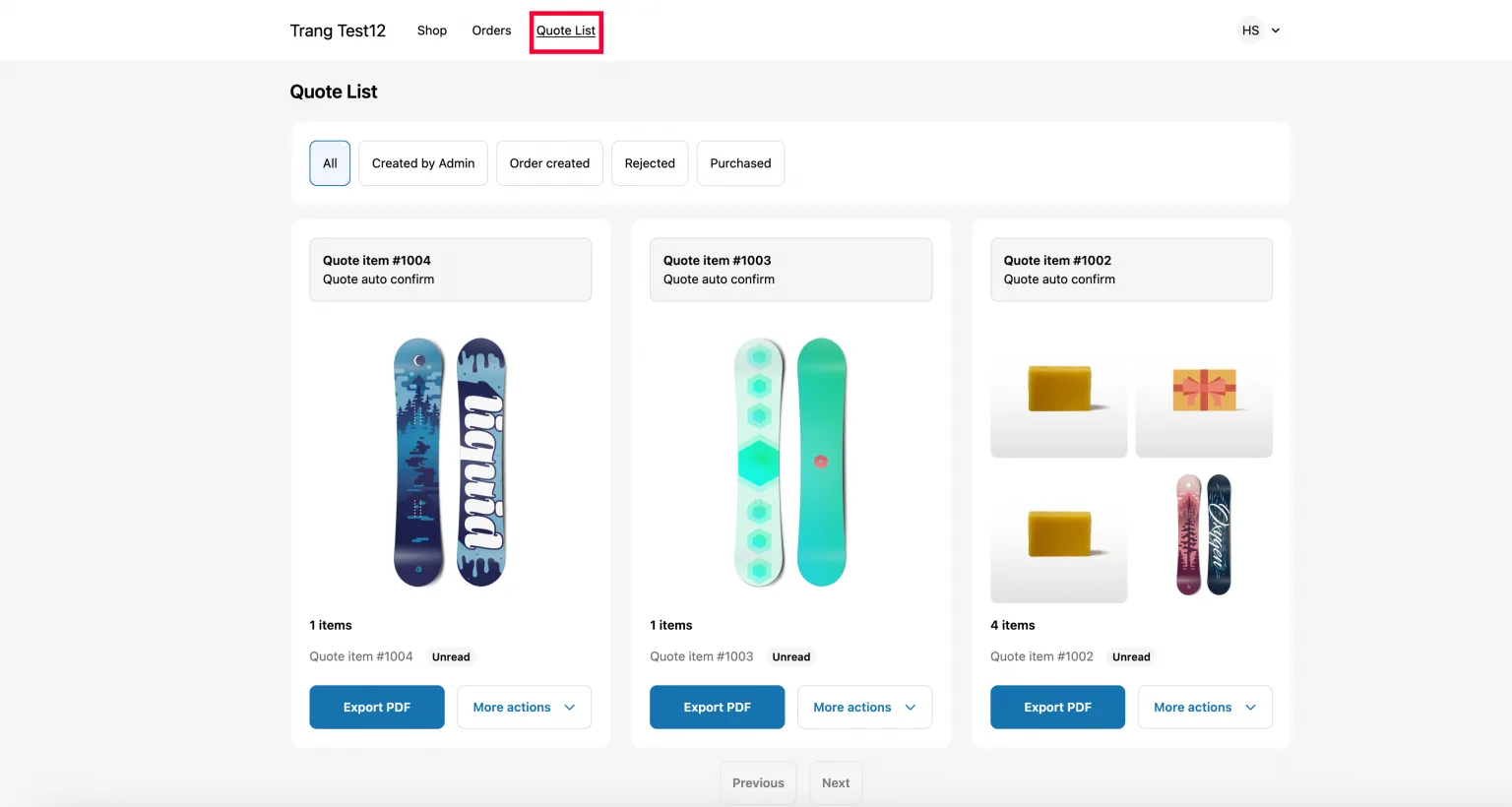
已登入的顧客會看到的內容:他們的報價,每一筆都有各自的動作。
| 設定 | 功能 |
|---|---|
| New customer account settings | "Activate the quote list feature for new customer account pages." |
| Translation | "Translate the Quote List section for new customer accounts." |
| Permission setting | "Set permissions that allow your customers to view, manage, or respond to their quotes." |
步驟 1:啟用報價清單
Section titled “步驟 1:啟用報價清單”New customer account settings 不是您在 App 內切換的開關。這個按鈕會將您帶到 Shopify:它會在新的瀏覽器分頁中開啟您商店的結帳和顧客帳號編輯器,停在顧客個人資料頁面,並可使用 App 區塊。App 仍在後方的分頁中保持開啟,所以您可以回來而不會失去進度。
App 在該編輯器中新增兩個區塊,它們的作用不同。可以新增其中一個、另一個,或兩者都加。
| 區塊 | 出現的位置 | 顧客的使用方式 |
|---|---|---|
| View Quote Profile | 在個人資料頁面上,作為區塊 | 顯示一個寫著 "View and manage your quote list" 的橫幅,並有一個 View quote 按鈕,可開啟報價清單頁面。您可以在個人資料頁面調整其樣式。 |
| Quote List | 在帳號頁首選單中,作為選單項目 | 在帳號頂端提供一個固定連結,讓報價在帳號內任何地方都只需點一下。 |
-
開啟 Customer account
Section titled “開啟 Customer account”在 App 導覽中,點擊 Customer account。
-
點擊 New customer account settings
Section titled “點擊 New customer account settings”在第一張卡片上,點擊 New customer account settings 按鈕。Shopify 的結帳和顧客帳號編輯器會在新分頁中開啟。
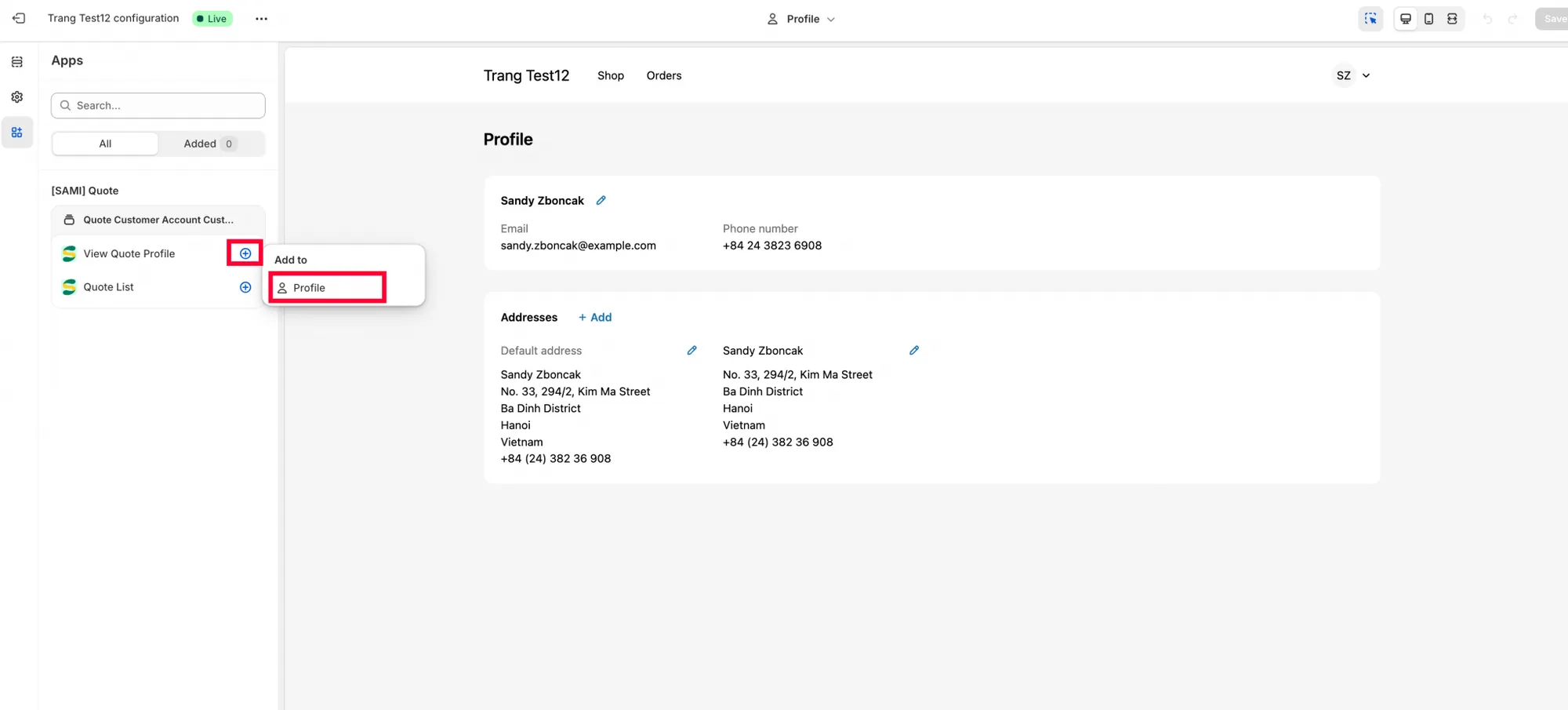
交接完成後,App 的區塊會出現在編輯器的選擇器中。
-
將 View Quote Profile 新增到個人資料頁面
Section titled “將 View Quote Profile 新增到個人資料頁面”在編輯器中,將 View Quote Profile 區塊新增到個人資料頁面,並依您想要的外觀進行設定。這個區塊會為顧客提供 View quote 按鈕。
-
在新增 Quote List 區塊之前先儲存
Section titled “在新增 Quote List 區塊之前先儲存”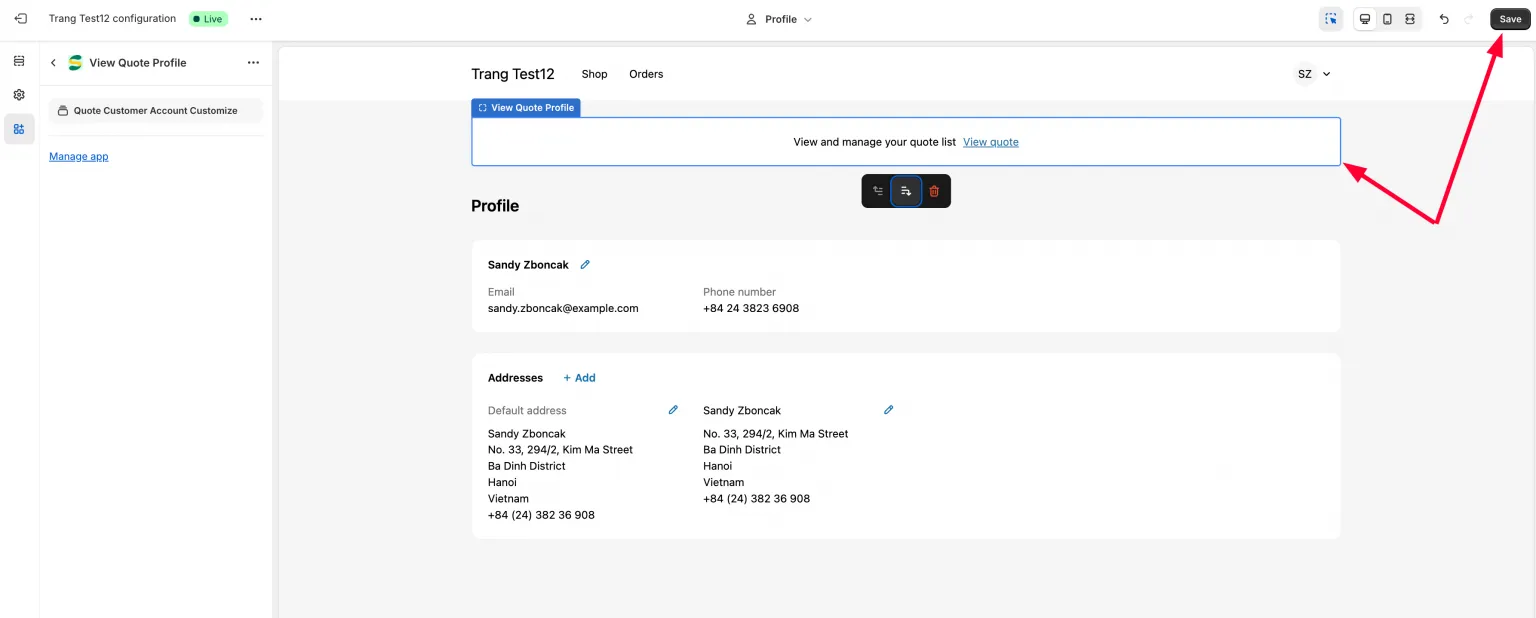
移到選單之前,請先儲存個人資料頁面。
在 Quote List 區段頁面上,請先點擊 儲存,然後再點擊 Quote list block,開始將它新增到頁首選單。
-
將 Quote list 放入頁首選單,並再次儲存
Section titled “將 Quote list 放入頁首選單,並再次儲存”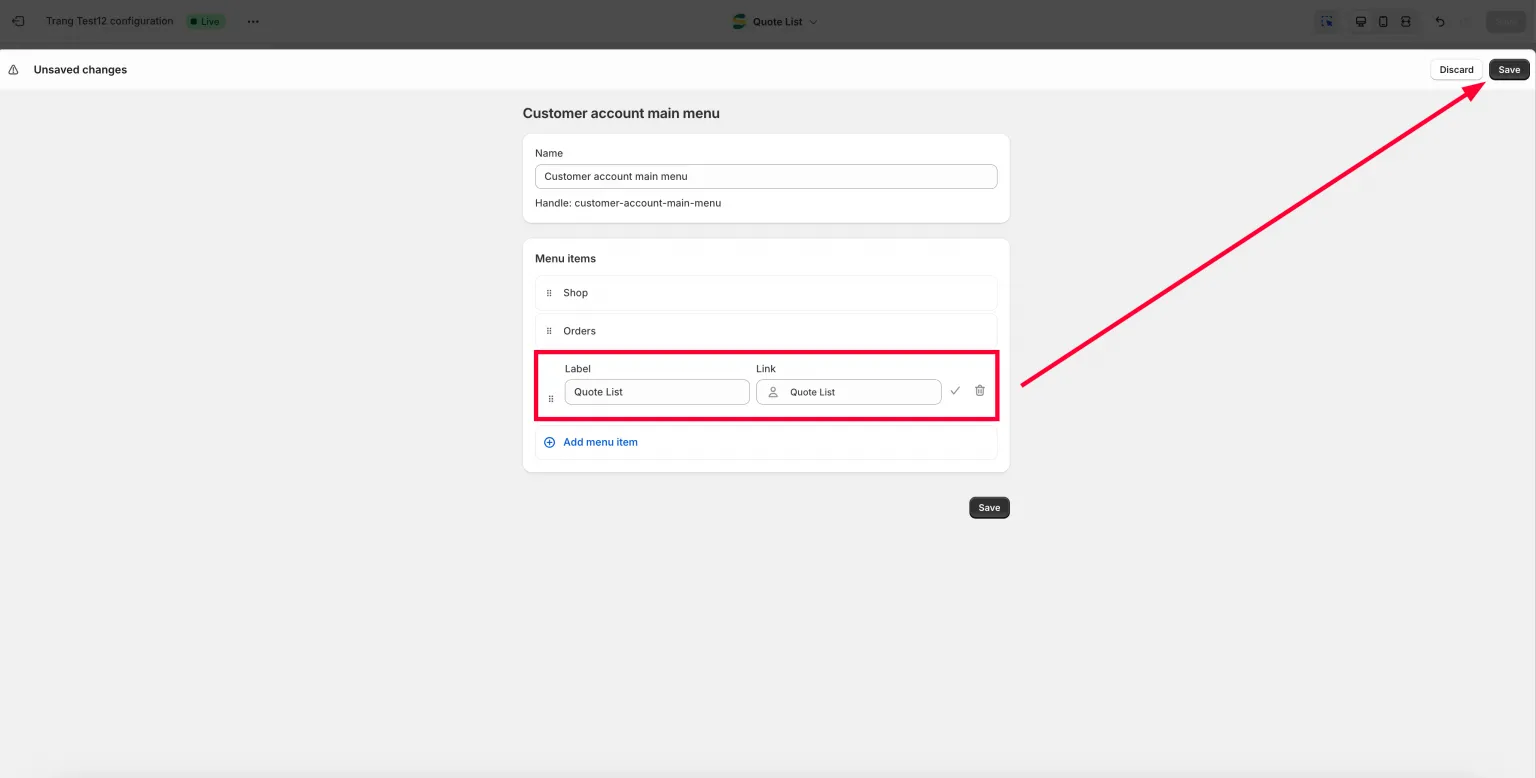
選單需要單獨儲存,個人資料頁面的儲存並不涵蓋它。
在頁首選單中設定 Quote list section,並第二次點擊 儲存。要儲存兩次,而不是一次:第一次讓區塊可用,第二次保留您放置的位置。
-
以顧客身分檢查
Section titled “以顧客身分檢查”回到您的商店前台,以顧客身分登入並開啟帳號區域。
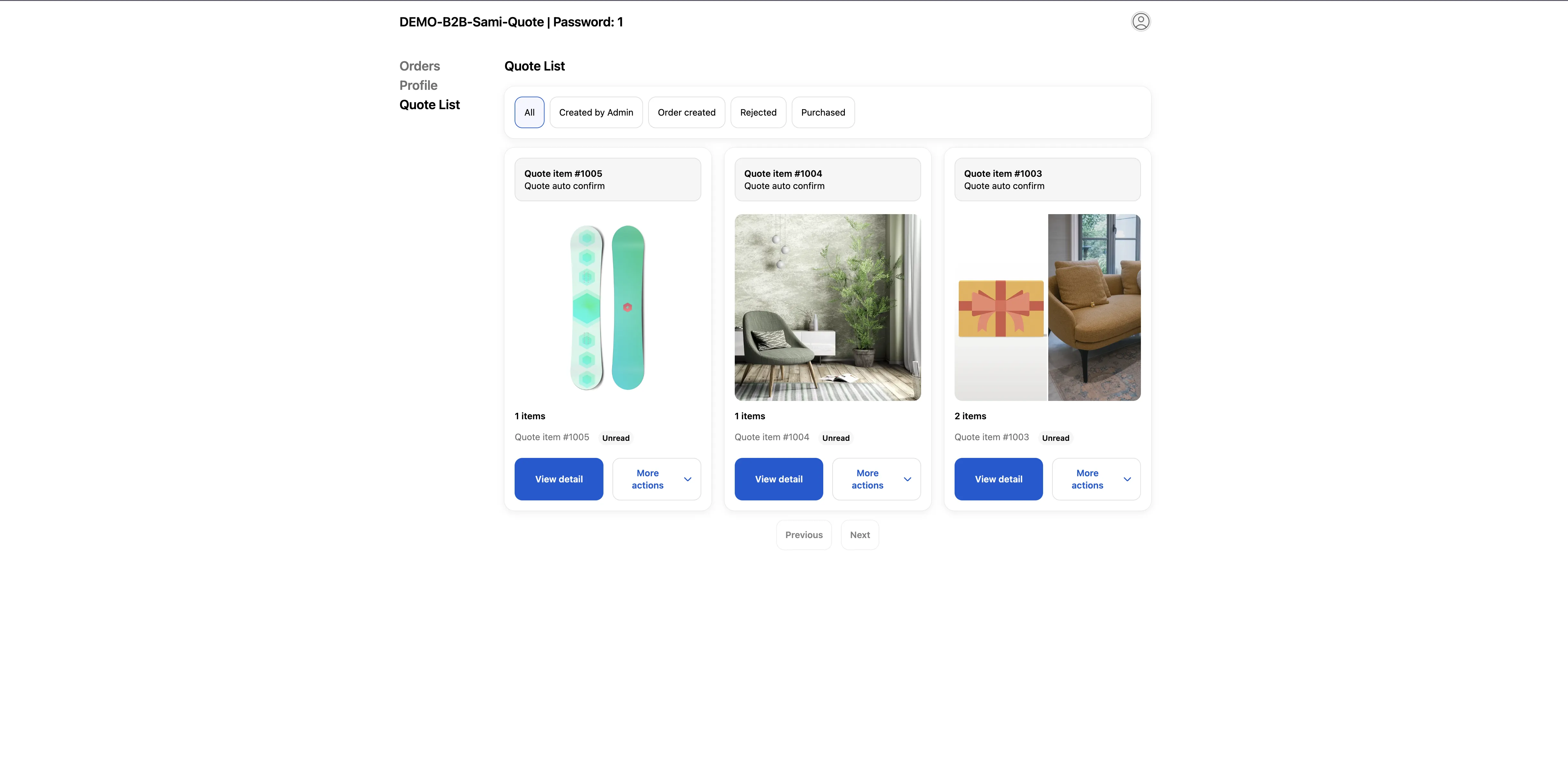
已登入的顧客可以在自己的帳號中找到他們的報價。
步驟 2:決定顧客可以做什麼
Section titled “步驟 2:決定顧客可以做什麼”Permission setting 是您 “Set permissions that allow your customers to view, manage, or respond to their quotes.” 的地方。因此這不只是報價是否可見的問題,也是您決定顧客能否對報價採取行動的地方。
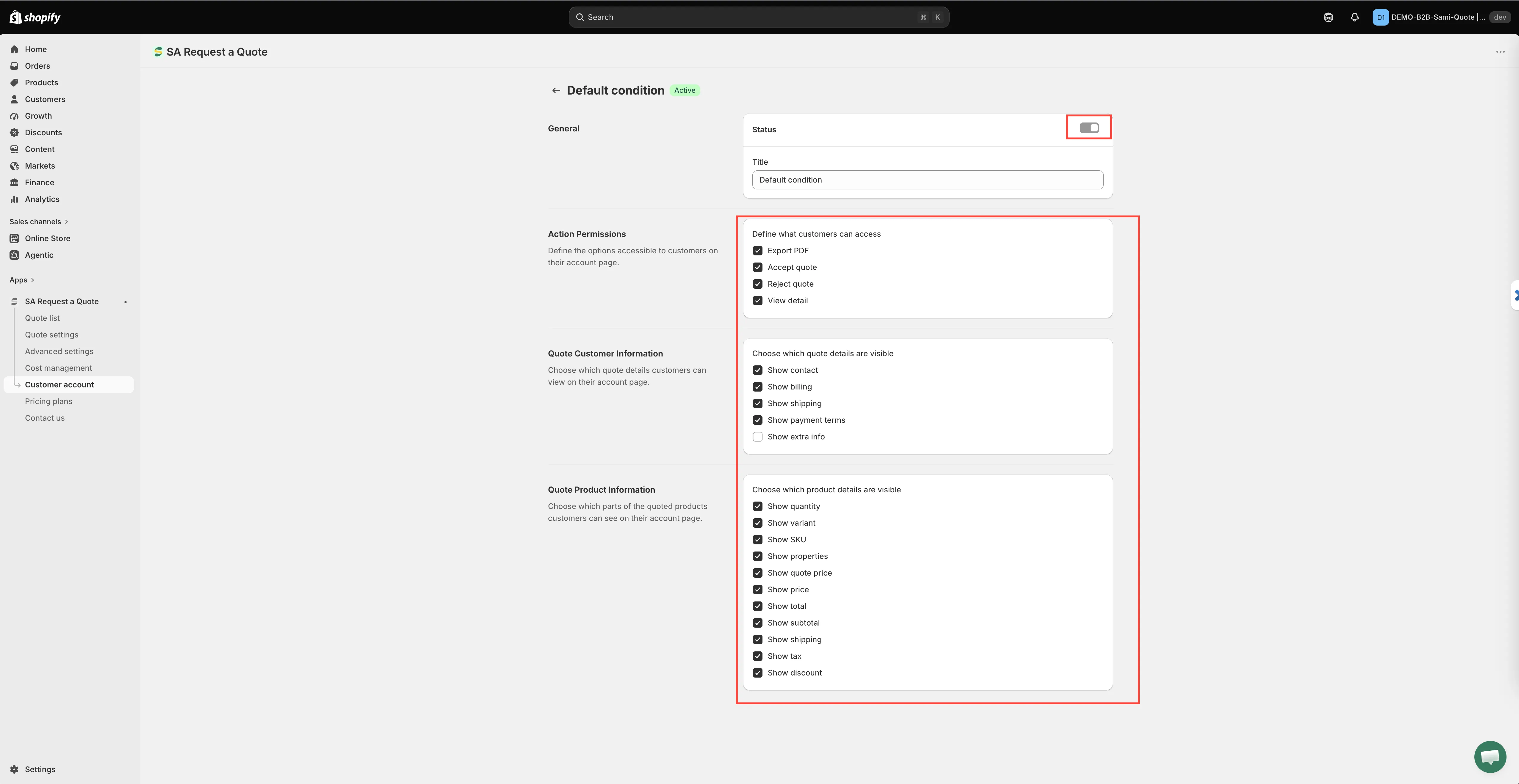
該卡片有一個 Add condition 按鈕、一個 Search conditions 搜尋框,以及一個表格,欄位為 Title、Condition、Status 和 Action。每一列在 Action 下都有編輯和刪除控制項。表格的第一列是 Default condition。
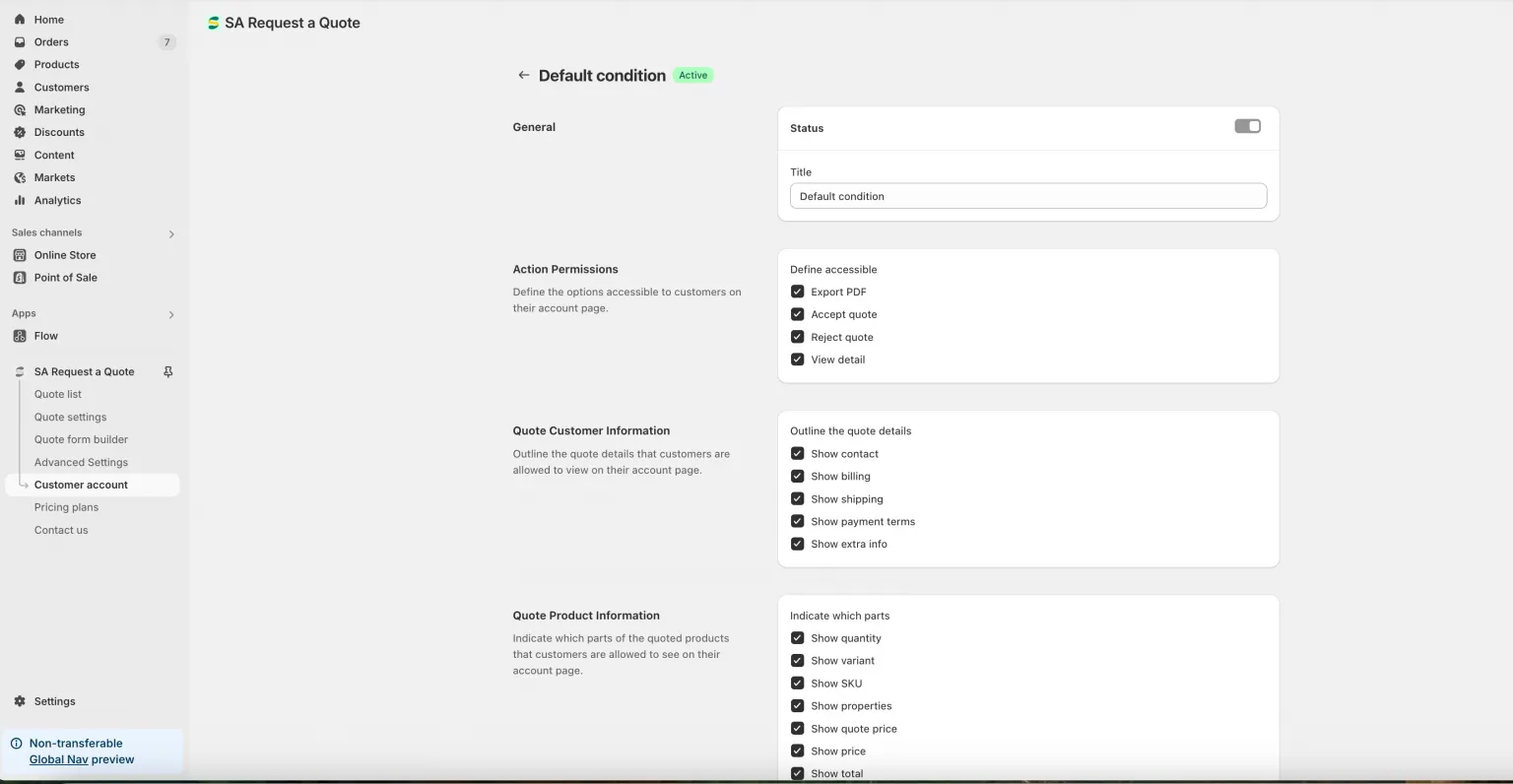
Default condition,以及何時不再適用
Section titled “Default condition,以及何時不再適用”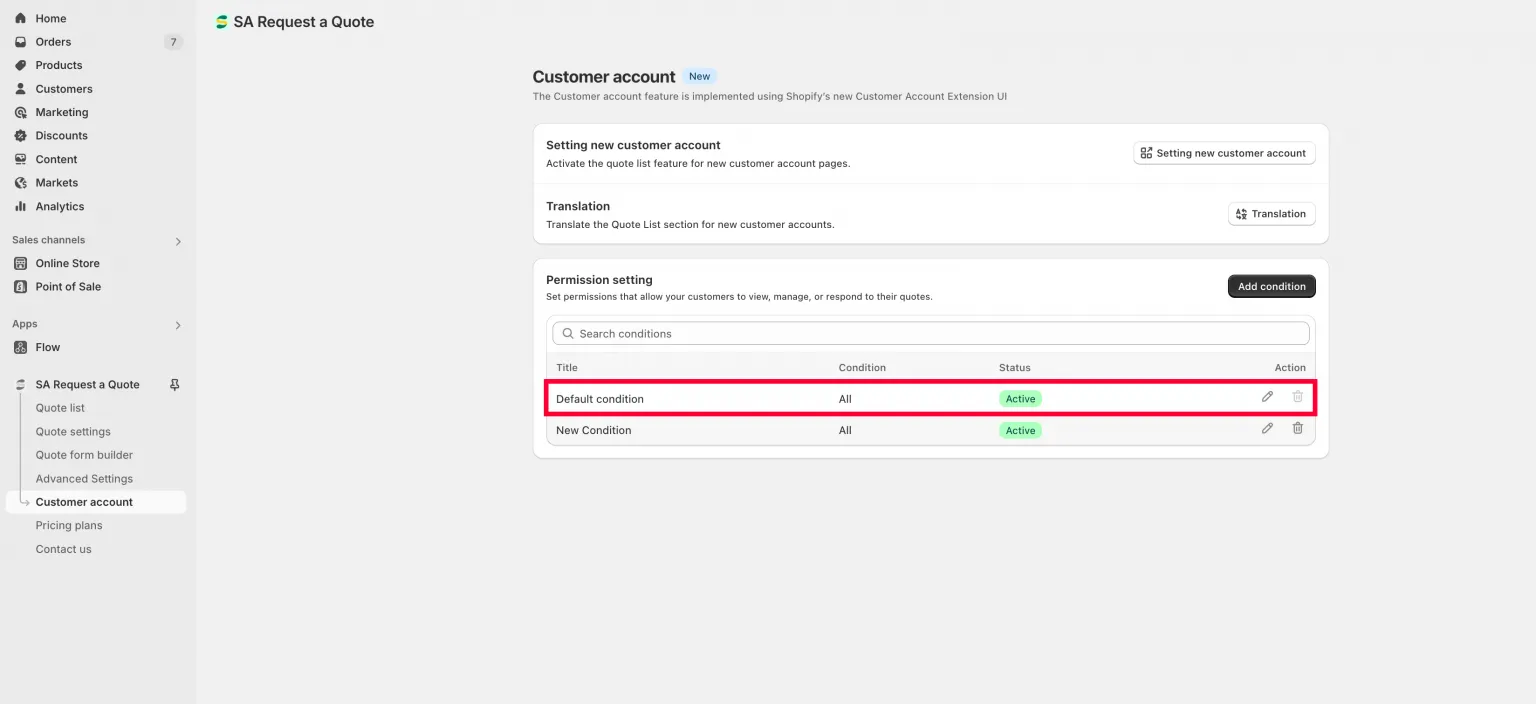
在您新增自己的條件之前,適用的是 Default condition。
如果您從未建立自己的條件,App 會套用第一列的 Default condition,而該列具有所有權限。這就是為什麼在您進行任何設定之前,報價看起來是完全開放的。
Default 列刻意受到限制:它沒有 Condition 區段(因為適用於所有人),其 Status 開關已鎖定,刪除控制項也已停用。您仍然可以用編輯控制項開啟它,並變更它授予哪些權限和哪些欄位。
在 Customer account 頁面上,捲動至 Permission setting 並點擊 Add condition。
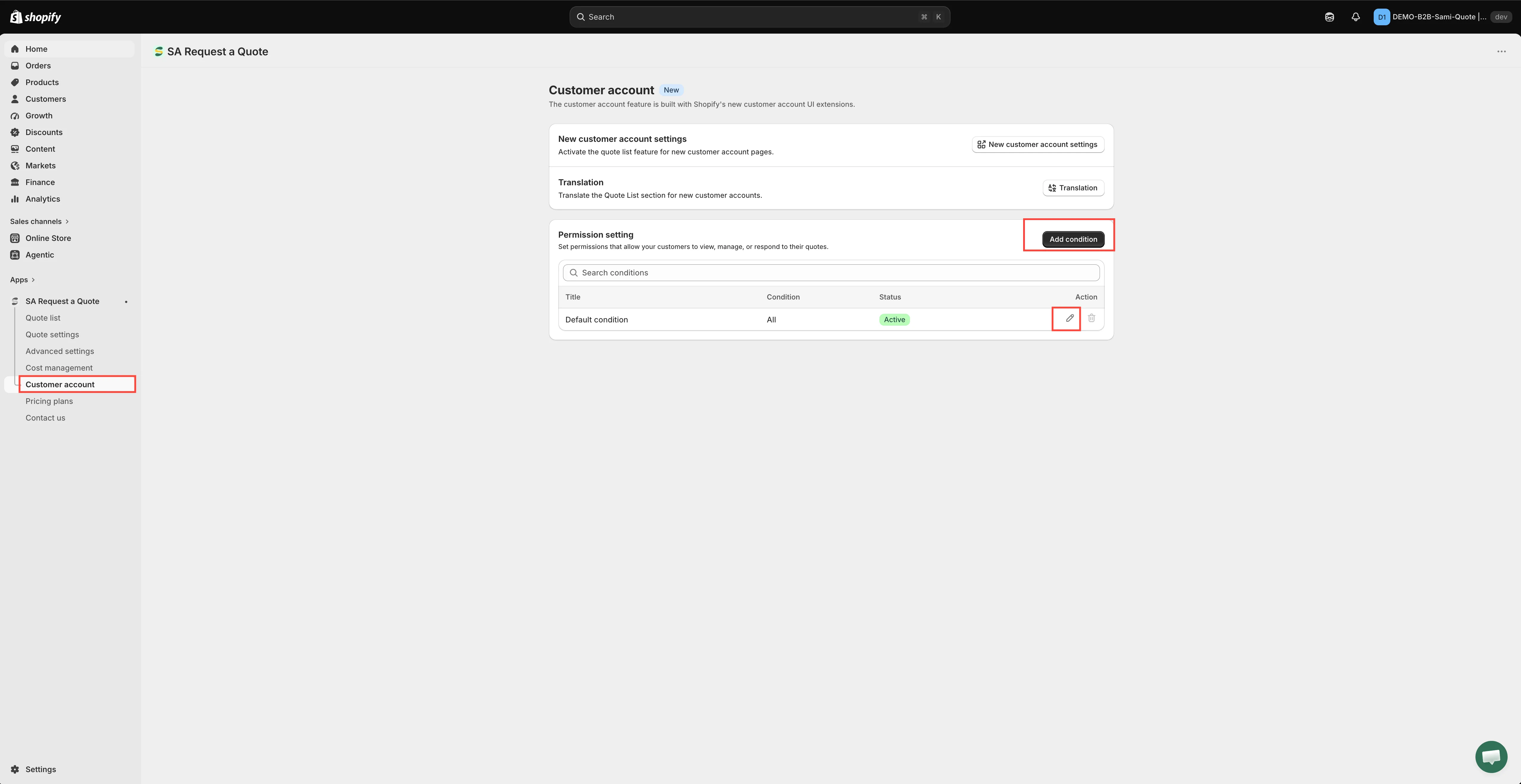
條件決定每一類顧客可以對報價做什麼。
開啟的畫面有五個區段。請依序往下進行。
一個條件,由上到下:它叫什麼名稱、符合哪些人,以及允許什麼。
-
General
Section titled “General”兩個控制項:一個 Status 開關和一個 Title 欄位。
開啟 Status 讓條件在您的商店前台生效;之後關閉它即可停用條件而不必刪除。新條件建立時是關閉的,在您開啟之前,標題旁的徽章會顯示 Draft,停留在 Draft 的條件是權限「沒有生效」最常見的原因。
請輸入一個一年後在清單中您仍能辨識的 Title,例如
Wholesale customers — full access。該欄位起始的預留文字是Condition,且若留空,App 會拒絕儲存(“Title can’t be blank”)。 -
Condition
Section titled “Condition”“Apply the rule only if the customer matches the specified conditions.” 這決定規則適用於誰。請從四個選項中選擇一個:
選項 接著要設定的內容 All 不需設定,顯示為 "All logged-in customers"。 Customer Tag Customer tag contains 或 Customer tag doesn't contain,然後是標籤本身。多個標籤請以逗號分隔。 Customer Country Customer country is in 或 Customer country is not in,然後搜尋並選擇國家/地區。您選的每一個都會加入為可移除的標籤。 Customer Type Customer type is 或 Customer type is not,然後選擇 DTC 或 B2B。 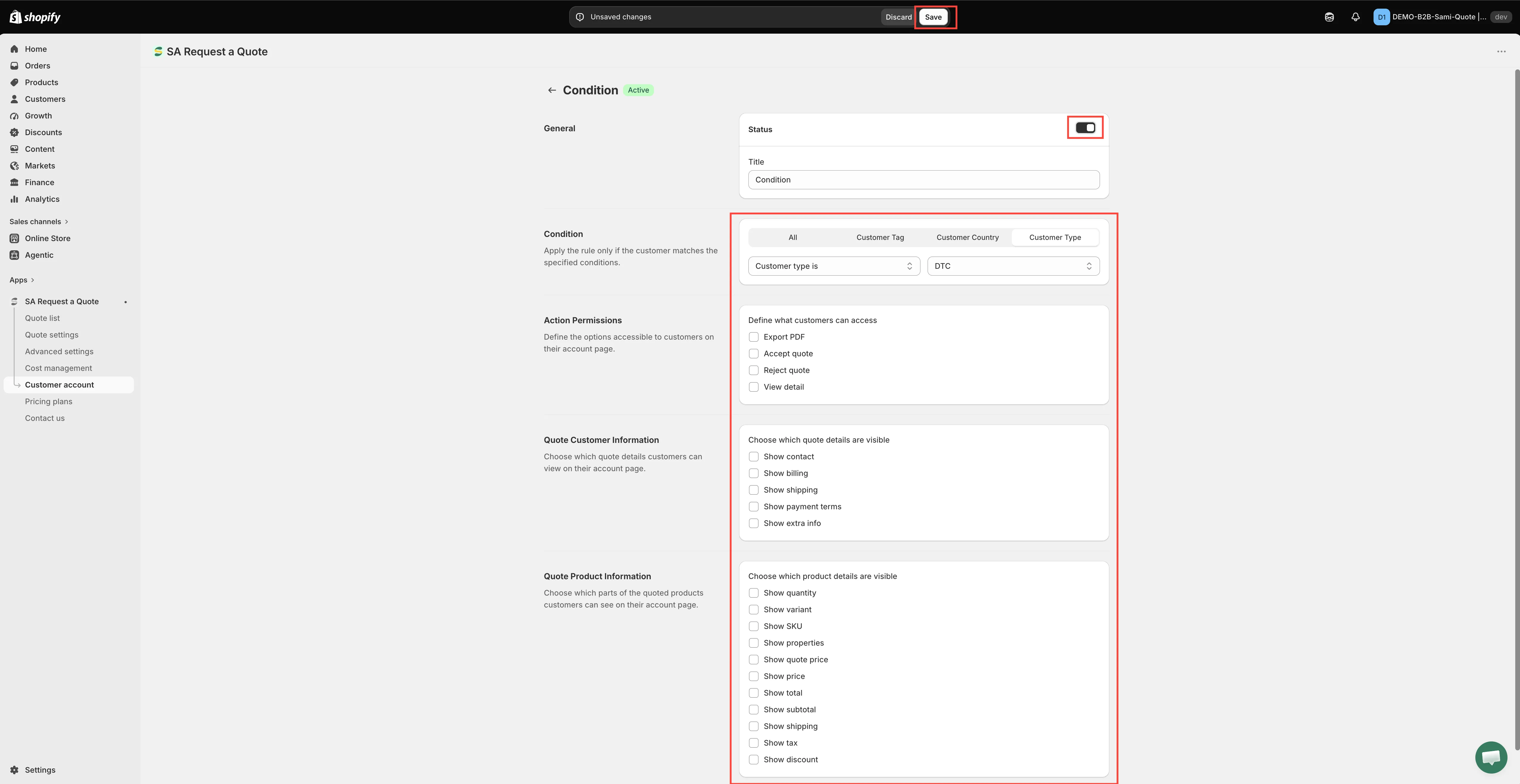
-
Action Permissions
Section titled “Action Permissions”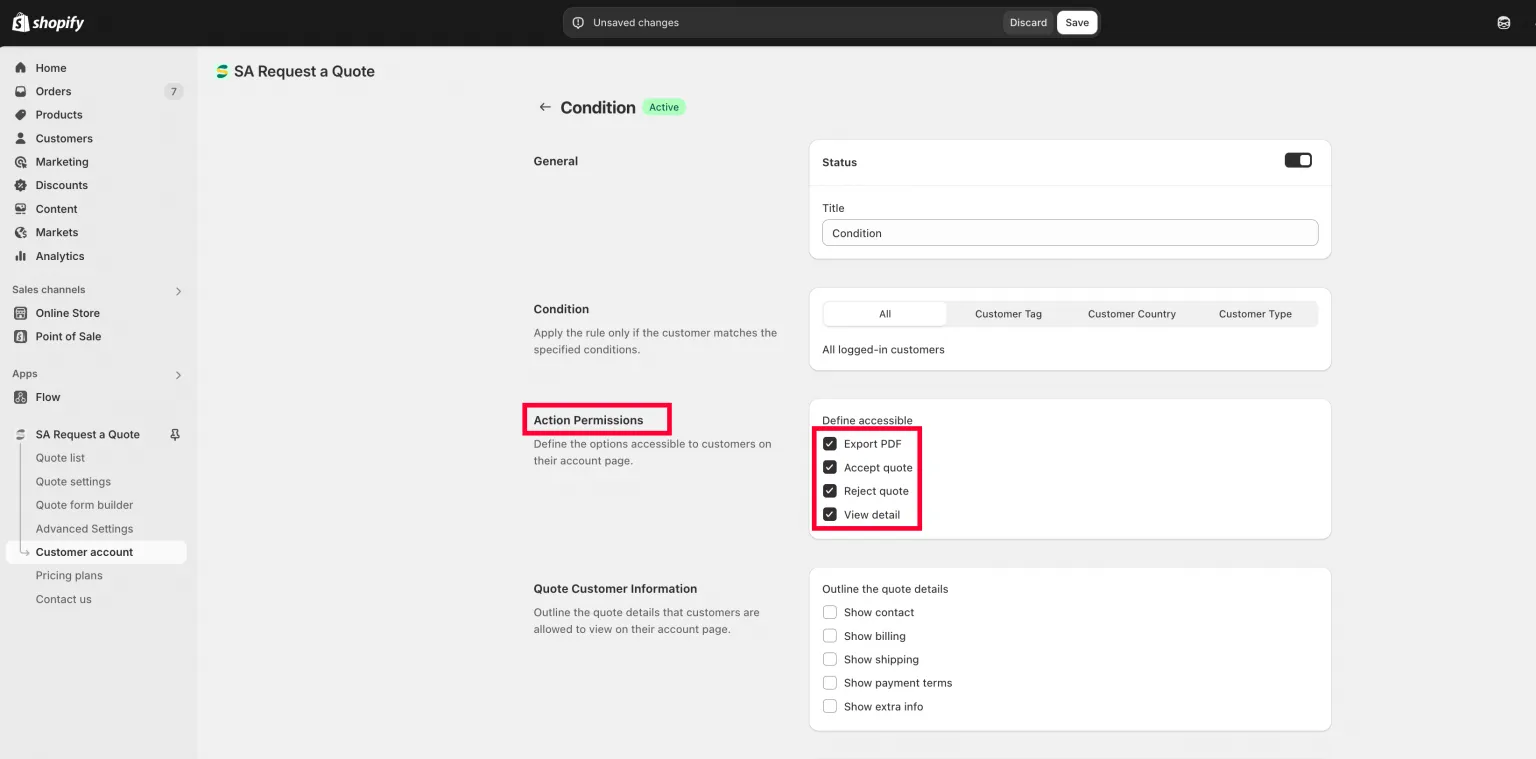
四個開關決定符合條件的顧客可以對報價做什麼。
“Define the options accessible to customers on their account page.” 勾選符合條件的顧客可以對報價執行的操作:
- Export PDF
- Accept quote
- Reject quote
- View detail
如果全部不勾選,顧客可以看到報價存在,但無法開啟或回覆。
-
Quote Customer Information
Section titled “Quote Customer Information”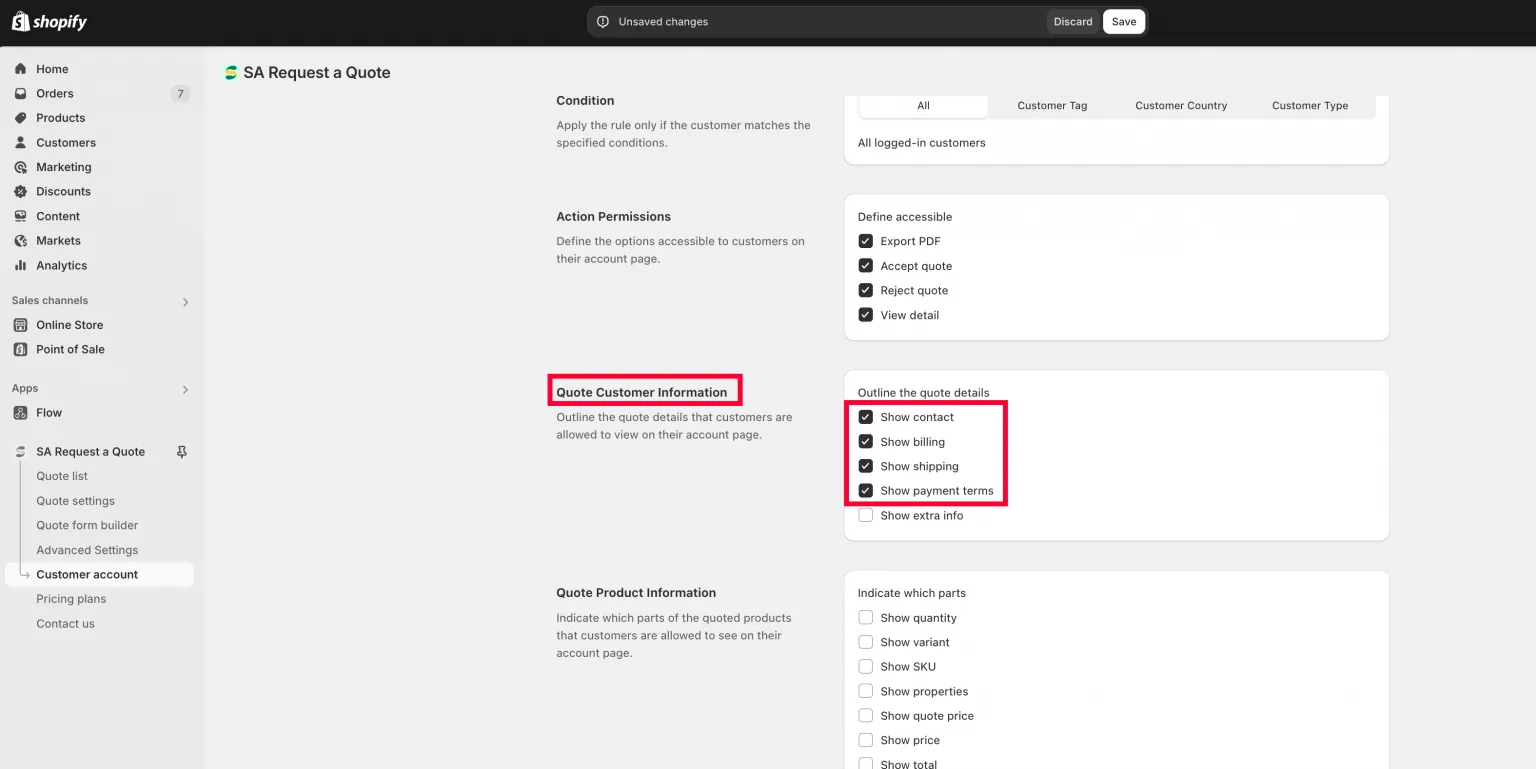
選擇顧客在報價上看到自己的哪些資料。
“Choose which quote details customers can view on their account page.” 勾選要回顯給顧客的自身資料:
Show contact · Show billing · Show shipping · Show payment terms · Show extra info
-
Quote Product Information
Section titled “Quote Product Information”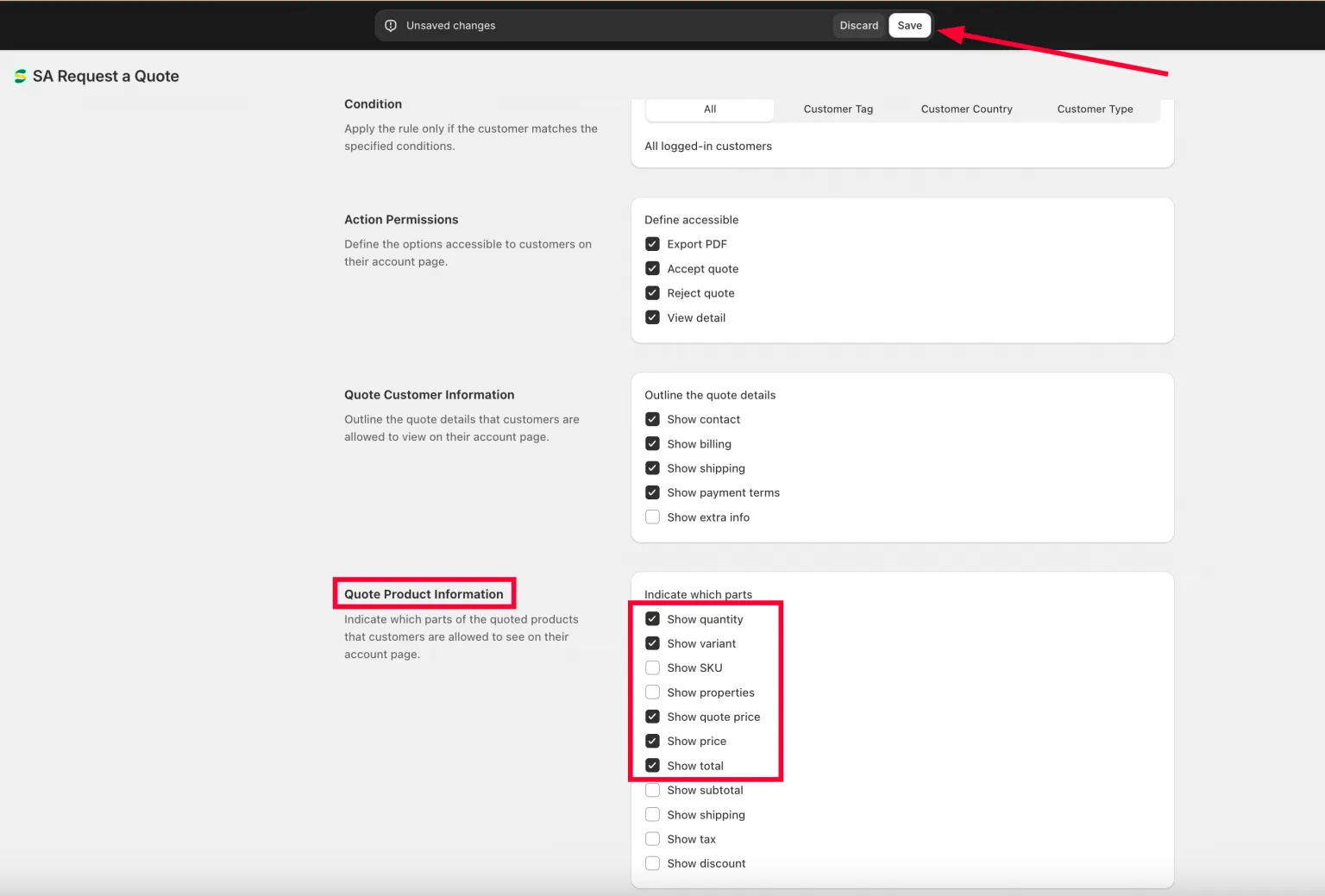
以及他們看到報價商品的哪些部分,包括價格。
“Choose which parts of the quoted products customers can see on their account page.” 勾選商品明細行要顯示的內容:
Show quantity · Show variant · Show SKU · Show properties · Show quote price · Show price · Show total · Show subtotal · Show shipping · Show tax · Show discount
-
儲存,然後在商店前台檢查
Section titled “儲存,然後在商店前台檢查”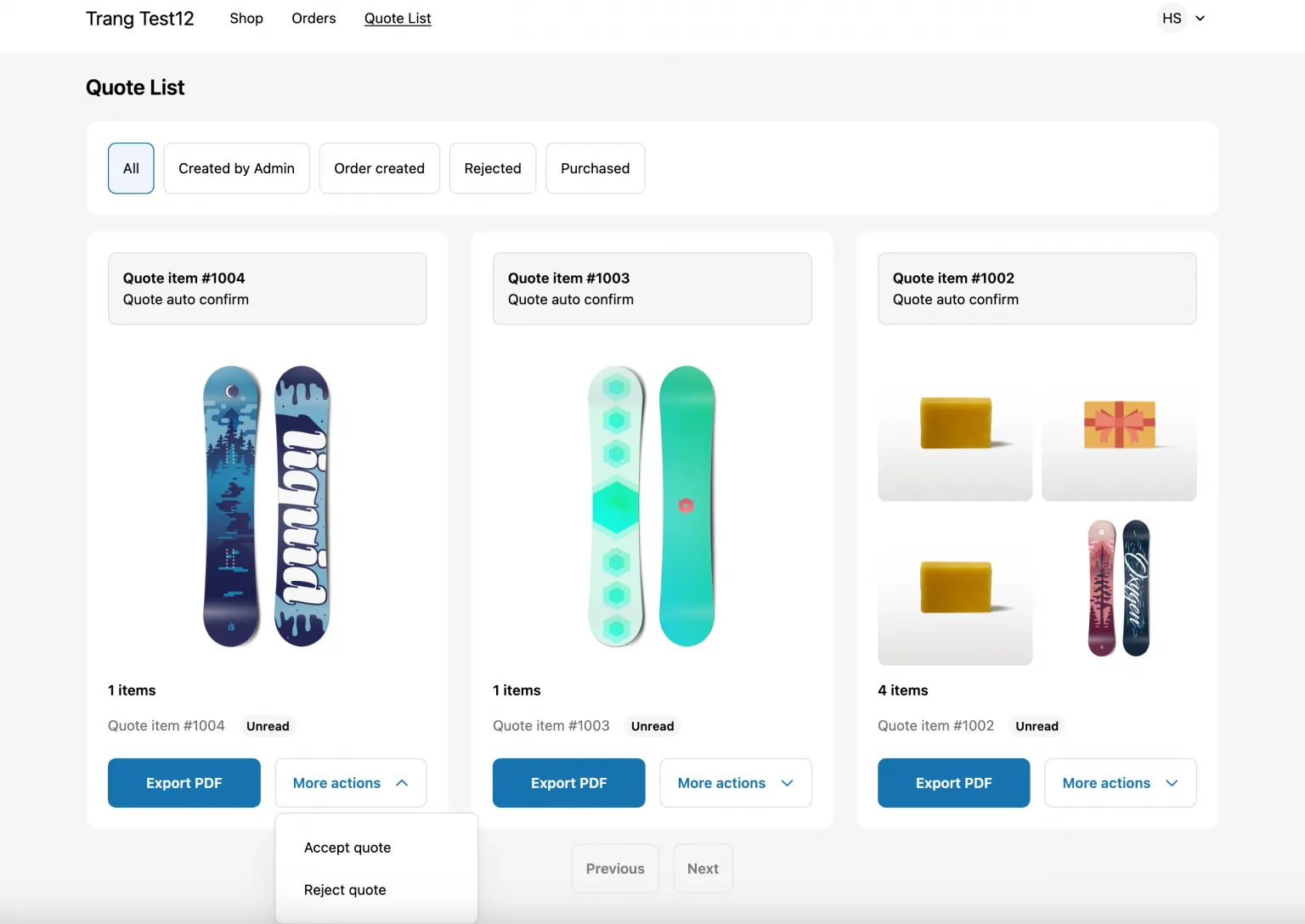
您授予的權限,以顧客實際遇到的樣子呈現。
點擊頂端儲存列上的 Save。旁邊的 Discard changes 會捨棄這些編輯。
接著以符合該條件的測試顧客身分登入您自己的商店前台,確認您看到的正是您授予的內容,同時也確認不符合條件的顧客看到的內容符合您的預期。
步驟 3:翻譯該區段
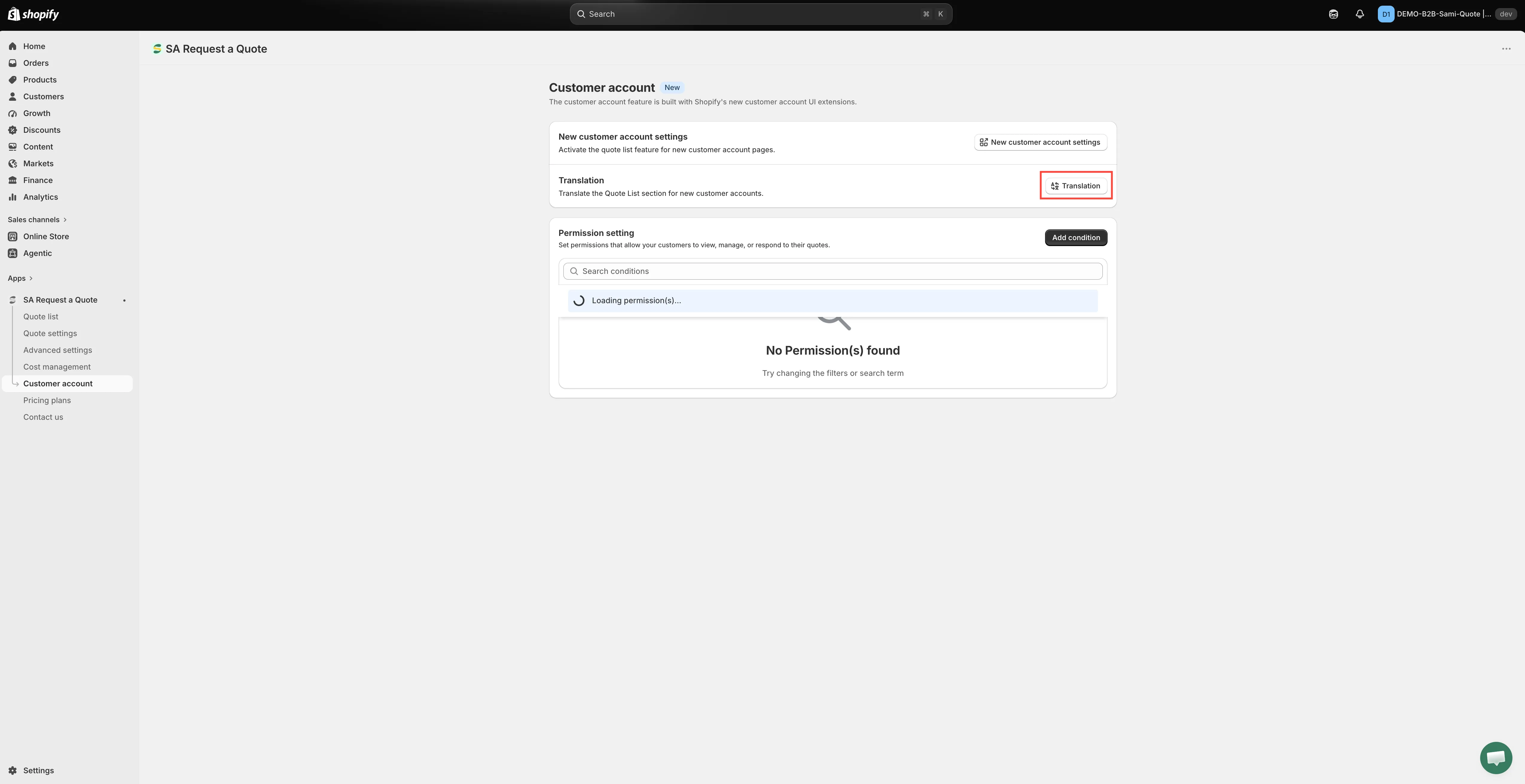
Section titled “步驟 3:翻譯該區段”同一頁面上的 Translation 讓您 “Translate the Quote List section for new customer accounts.” 它只涵蓋帳號頁面的該區段,不含其他內容。
-
開啟 Translation 按鈕
Section titled “開啟 Translation 按鈕”在 Customer account 頁面上,前往 Translation 卡片並點擊 Translation 按鈕。
-
依群組逐一填寫文字
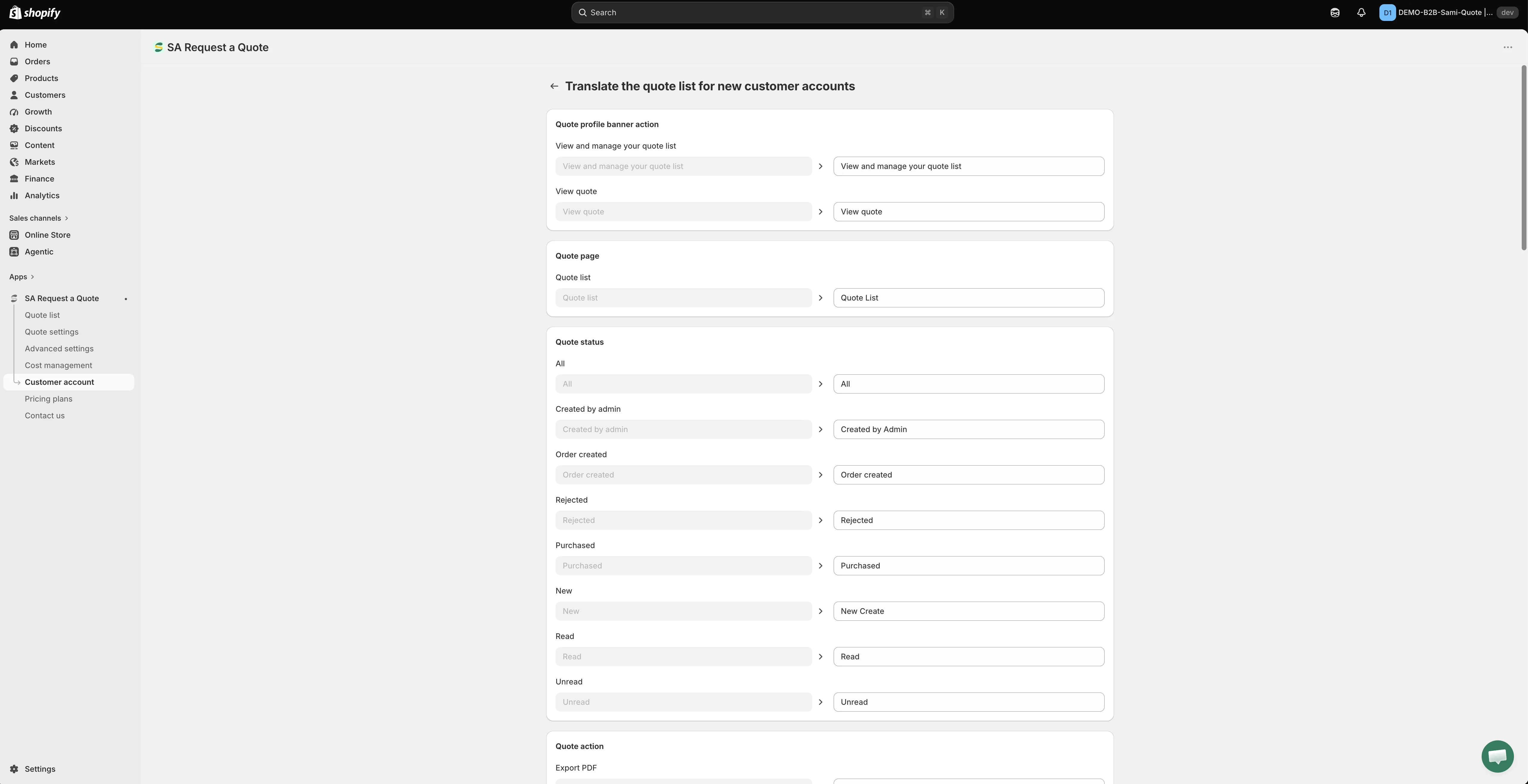
Section titled “依群組逐一填寫文字”Translate the quote list for new customer accounts 頁面會列出該區段中的每一段文字,並依標題分組,例如 Quote profile banner action、Quote page、Quote status、Quote action、Quote item、Customer information、Payment information、Quote product、Export modal 和 Empty Page。
每一段文字是一對欄位:左邊顯示原始英文且無法編輯,右邊由您填寫。請點入右側欄位,輸入您希望顧客閱讀的文字。
-
儲存並檢查商店前台
Section titled “儲存並檢查商店前台”點擊 Save,然後登入您的商店前台並開啟帳號區域,查看新的文字是否已套用。
顧客閱讀的其他所有內容,包括詢價表單、您的商店前台文字和兩封報價電子郵件,都在其他地方翻譯,也就是 Advanced settings 的 Translations 分頁。請參閱翻譯商店前台文字。
顯示過去報價的兩種方式
Section titled “顯示過去報價的兩種方式”| 方式 | 適用時機 |
|---|---|
| Quote history 頁面 | 您想要一個可從選單連結的頁面,位於 /pages/quotes-history。 |
| 顧客帳號 | 您的商店使用 Shopify 新版顧客帳號,並希望報價與訂單並列,放在顧客預期的位置。 |
兩者都需要顧客已登入,所以都無法取代您寄出的電子郵件。請參閱報價記錄頁面。
如果設定呈現灰色
Section titled “如果設定呈現灰色”Customer Account UI 列在 PRO 方案之下。如果此頁面上的控制項被停用,且 App 顯示一行掛鎖字樣「🔐 This feature is available on …」,這是您的方案限制而非故障,您的商店或佈景主題並沒有任何問題。該行中的連結會前往包含此功能的方案,App 側邊欄中的 Pricing plans 則顯示各方案涵蓋的內容。請參閱方案比較。
如果帳號中缺少某些內容
Section titled “如果帳號中缺少某些內容”| 您看到的情況 | 要檢查的項目 |
|---|---|
| 帳號區域完全沒有任何內容 | 您已登出,或商店未使用 Shopify 新版顧客帳號。 |
| 頁首選單連結不見了 | 在未先儲存該區段的情況下就新增了 Quote list block,或從未在頁首選單中進行第二次 Save。 |
| 顧客看得到清單,但無法接受或拒絕 | 在符合該顧客的條件的 Action Permissions 中,未勾選 Accept quote 和 Reject quote。 |
| 原本看得到報價的顧客現在看不到了 | 您建立了自訂條件,因此 Default condition 不再適用,而該顧客不符合您的任何條件。 |
| 某個條件沒有效果 | 它的徽章顯示 Draft。請開啟它,並在 General 中開啟 Status。 |
| 在已翻譯的商店中,該區段仍是英文 | 請使用此頁面上的 Translation 按鈕,Advanced settings > Translations 並不涵蓋它。 |