
What customers see instead of the price
Replace a hidden price with a button or a line of text, so customers know what to do next.
Dieser Inhalt ist noch nicht in deiner Sprache verfügbar.
A hidden price leaves a gap on the product page. What customers see instead decides what goes in it, so the customer has a next step instead of a dead end.
The section is on Advanced settings > Hide price, below Which customers. It appears once you choose anything other than Don’t hide prices.
Three choices
Section titled “Three choices”| Choice | What the customer sees |
|---|---|
| No, do not show anything | Nothing. The price simply disappears. |
| Show button | A button where the price was. You choose what it does. |
| Show text | A line of text where the price was, such as "Contact us for price". |
A Preview under the settings shows an example product with your choice applied, so you can see colours and wording before you save.
Show a button
Section titled “Show a button”Select Show button. Four settings appear.
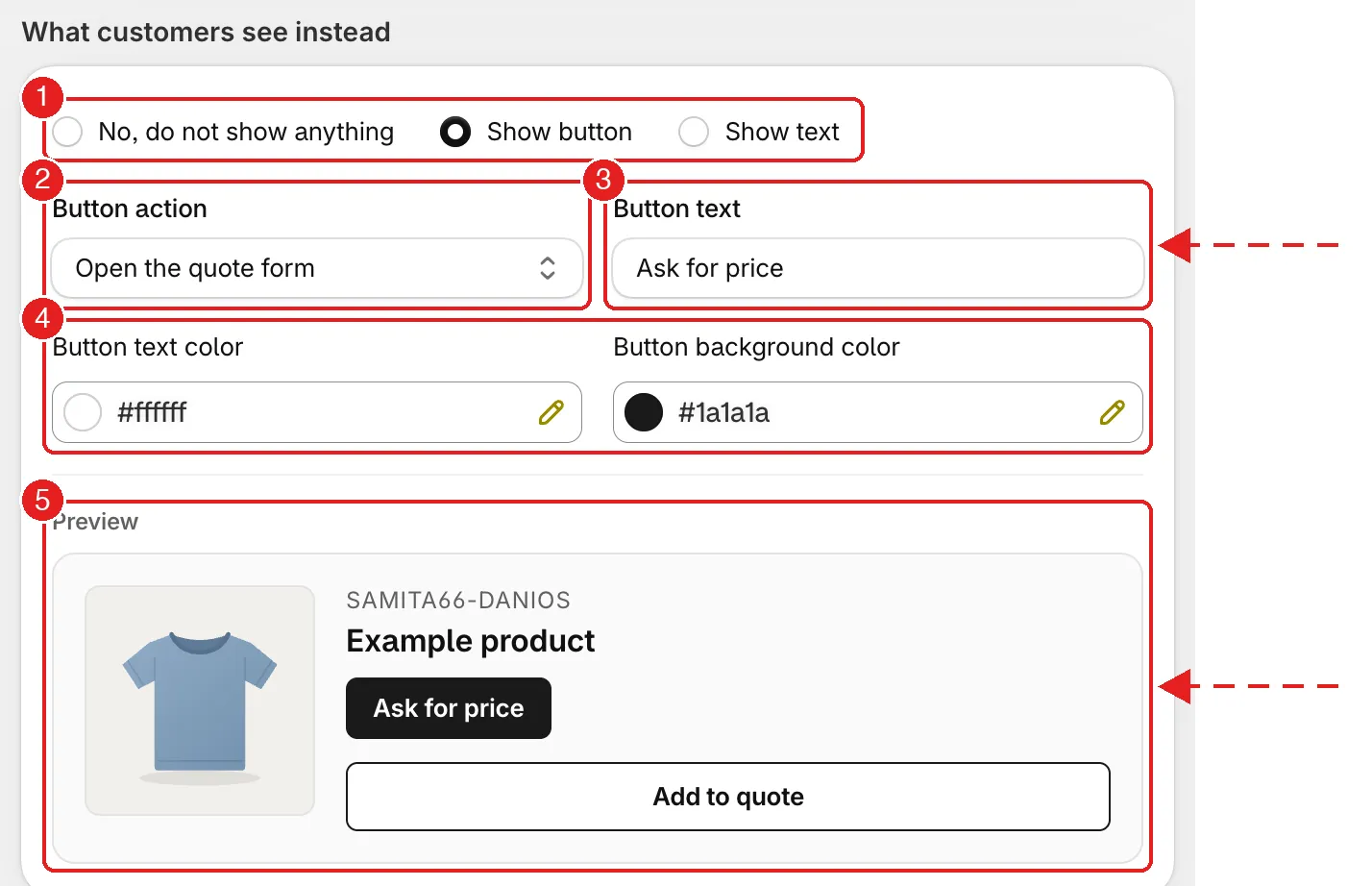
A button in place of the price, with a live preview.
| # | Setting | What it does |
|---|---|---|
| 1 | Show button | Switches the button on. |
| 2 | Button action | What happens when the customer clicks. See the table below. |
| 3 | Button text | The words on the button. It starts as "Ask for price". |
| 4 | Button text color and Button background color | Type a hex code such as #1a1a1a, or use the colour swatch. |
| 5 | Preview | An example product showing how the button looks. |
Button actions
Section titled “Button actions”| Button action | What the click does |
|---|---|
| Open the quote form | Opens your quote form so the customer can ask for a price. This is the usual choice. |
| Go to a page | Takes the customer to a page on your store. A Page field appears: choose which one. |
| Go to the login page | Takes the customer to your store's login page. Use it with Guests to make a "log in to see prices" setup. The button text starts as "Login to see price". See Require login to show price. |
| Go to a custom URL | Takes the customer to any address. A URL field appears. |
Show text
Section titled “Show text”Select Show text to put a plain line of text where the price was.
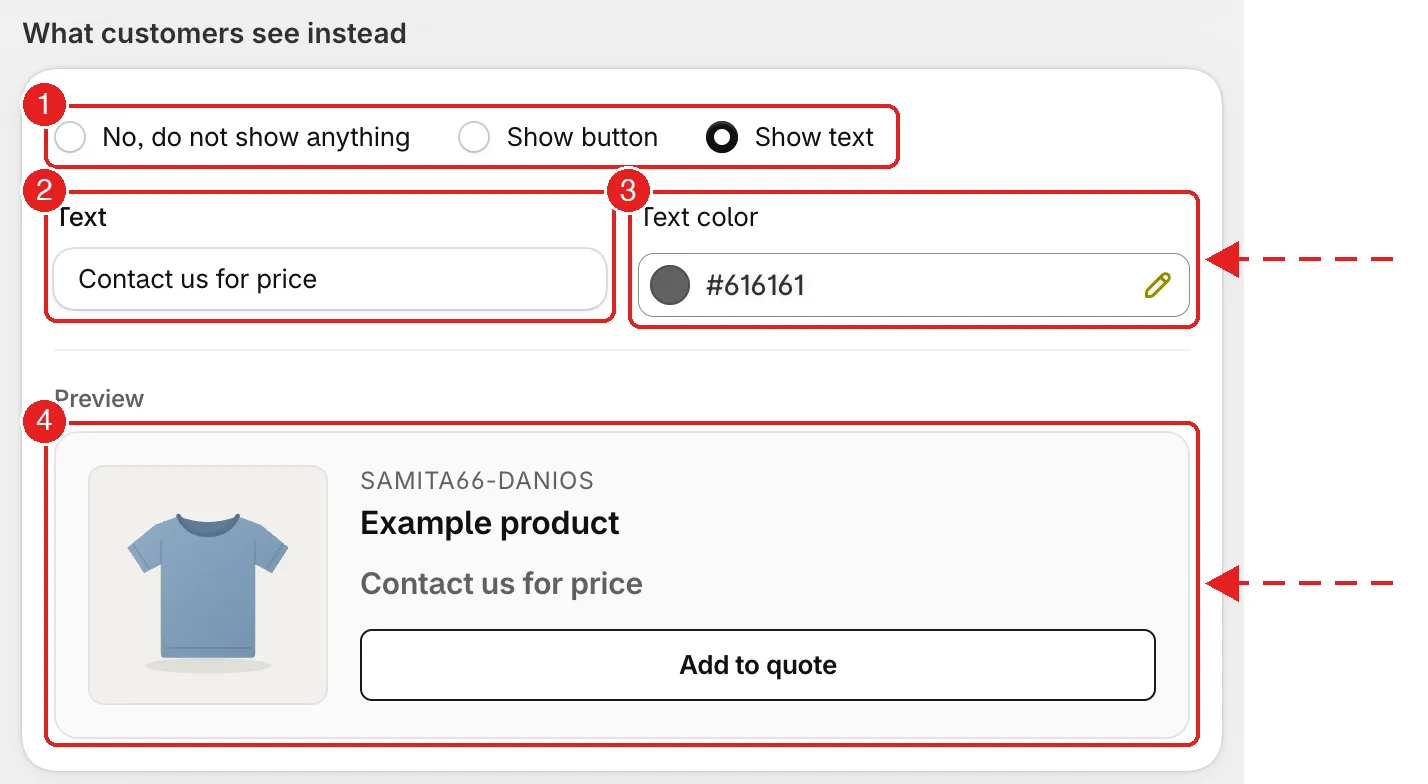
Text in place of the price. The default is “Contact us for price”.
| # | Setting | What it does |
|---|---|---|
| 1 | Show text | Switches the text on. |
| 2 | Text | The words to show. It starts as "Contact us for price". |
| 3 | Text color | A hex code. It starts as #616161, a mid grey. |
| 4 | Preview | An example product showing how it looks. |
Text is not clickable. If you want the customer to be able to act, use a button instead.
Which one to use
Section titled “Which one to use”| Situation | Use |
|---|---|
| You want customers to ask you for a price | Show button with Open the quote form. |
| Prices are only for account holders | Show button with Go to the login page, and Which customers set to Guests. |
| You have a page explaining how to get trade pricing | Show button with Go to a page. |
| You only need to say prices are on request | Show text. |
| Your theme or another app already shows its own call to action | No, do not show anything. |
Save and check
Section titled “Save and check”Select Save in the bar at the top. If a required field such as the page or URL is empty, the app asks you to fix the highlighted fields first.
Then open a covered product in a private browser window. Check a product page and a collection page, because the button or text should appear wherever the price used to.
Next steps
Section titled “Next steps”- Hide prices from some customers — choose who sees the button instead of a price
- Require login to show price — a button that sends customers to log in
- Hide Add to Cart and Buy now — also take away Add to cart and Buy now