
Hide prices from some customers
Choose which customers have prices hidden: everyone, guests, customers with certain tags, or everyone except them.
Dieser Inhalt ist noch nicht in deiner Sprache verfügbar.
By default, hiding a price hides it from everybody. Which customers lets you narrow that, so wholesale accounts can keep seeing prices while the public cannot — or the other way round.
The section sits under Which prices to hide on Advanced settings > Hide price. It appears as soon as you choose anything other than Don’t hide prices. Its description reads: “Prices are hidden only from these customers. Everyone else sees prices as usual.”
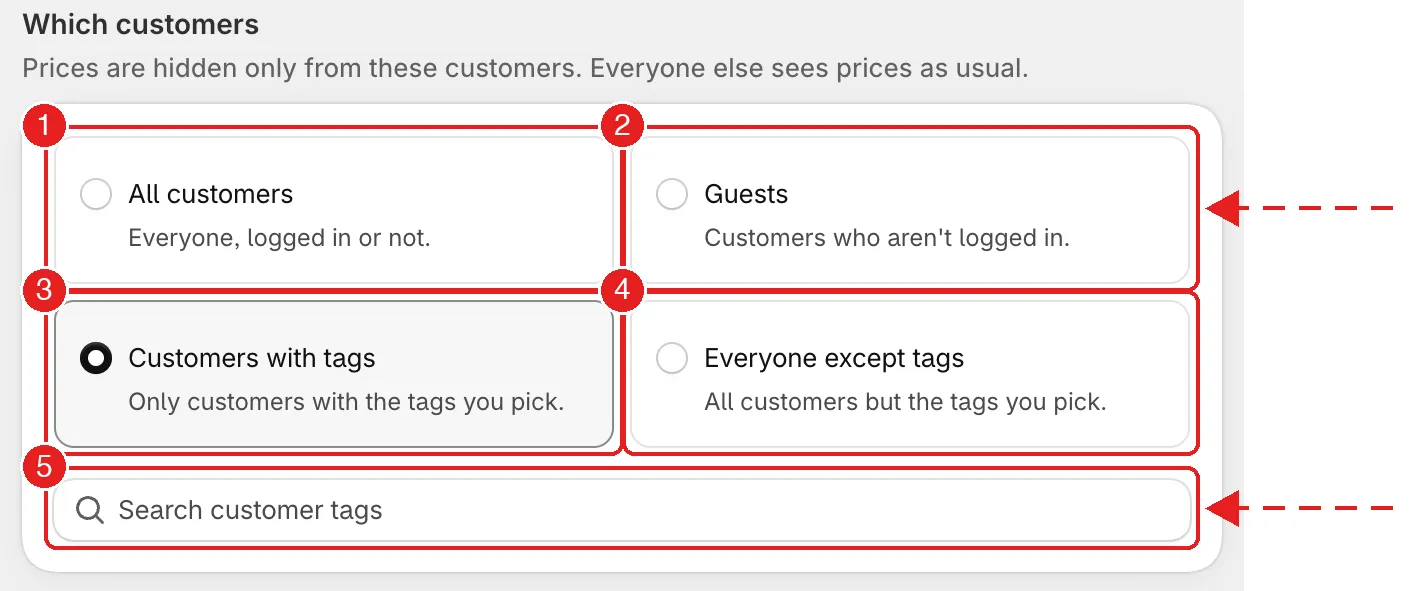
Four choices for who has prices hidden. 5 is the tag search that appears for the two tag options.
The four choices
Section titled “The four choices”| # | Choice | Prices are hidden from |
|---|---|---|
| 1 | All customers | Everyone, logged in or not. This is the default. |
| 2 | Guests | Customers who aren't logged in. Signed-in customers see prices. |
| 3 | Customers with tags | Only customers who carry the tags you pick. Everyone else sees prices. |
| 4 | Everyone except tags | All customers but the ones carrying the tags you pick. Those customers see prices. |
Set it up
Section titled “Set it up”-
Choose which products
Section titled “Choose which products”Under Which prices to hide, choose the products first. See Hiding prices overview.
-
Choose which customers
Section titled “Choose which customers”Under Which customers, select one of the four cards.
-
Pick the tags (tag choices only)
Section titled “Pick the tags (tag choices only)”For Customers with tags or Everyone except tags, a Search customer tags box appears. Start typing and pick each tag from the list. The tags you pick appear as chips, and you can pick more than one.
Customer tags are the ones you add to customers in Shopify admin > Customers.
-
Select Save in the bar at the top. Then test as a signed-out visitor and as a customer who carries the tag.
Which choice to use
Section titled “Which choice to use”| You want to | Choose |
|---|---|
| Hide prices from the public but show them once someone signs in | Guests. See Require login to show price. |
| Show prices only to approved wholesale accounts, hide them from everybody else | Everyone except tags, with your wholesale tag. Signed-in customers who are not tagged, and guests, see no price. |
| Hide prices only from one group, such as retail customers | Customers with tags, with the group's tag. |
| Keep it simple and hide for everyone | All customers. |
Check it both ways
Section titled “Check it both ways”Always test as each kind of visitor you set up for: signed out, signed in without the tag, and signed in with the tag. Use a private browser window for the signed-out view — your staff session can still show prices.
Next steps
Section titled “Next steps”- What customers see instead of the price — what replaces the price for the customers it is hidden from
- Require login to show price — the common “log in to see prices” setup
- Hide Add to Cart and Buy now — stop customers buying at a price they never saw